
Staffing Dashboard
The Staffing Dashboard provides a workspace-level view of staffing across all your projects. It answers three key questions: How are projects staffed? How are members allocated? Where are the gaps?
Access it from Workspace Settings → Staffing.
Overview tab
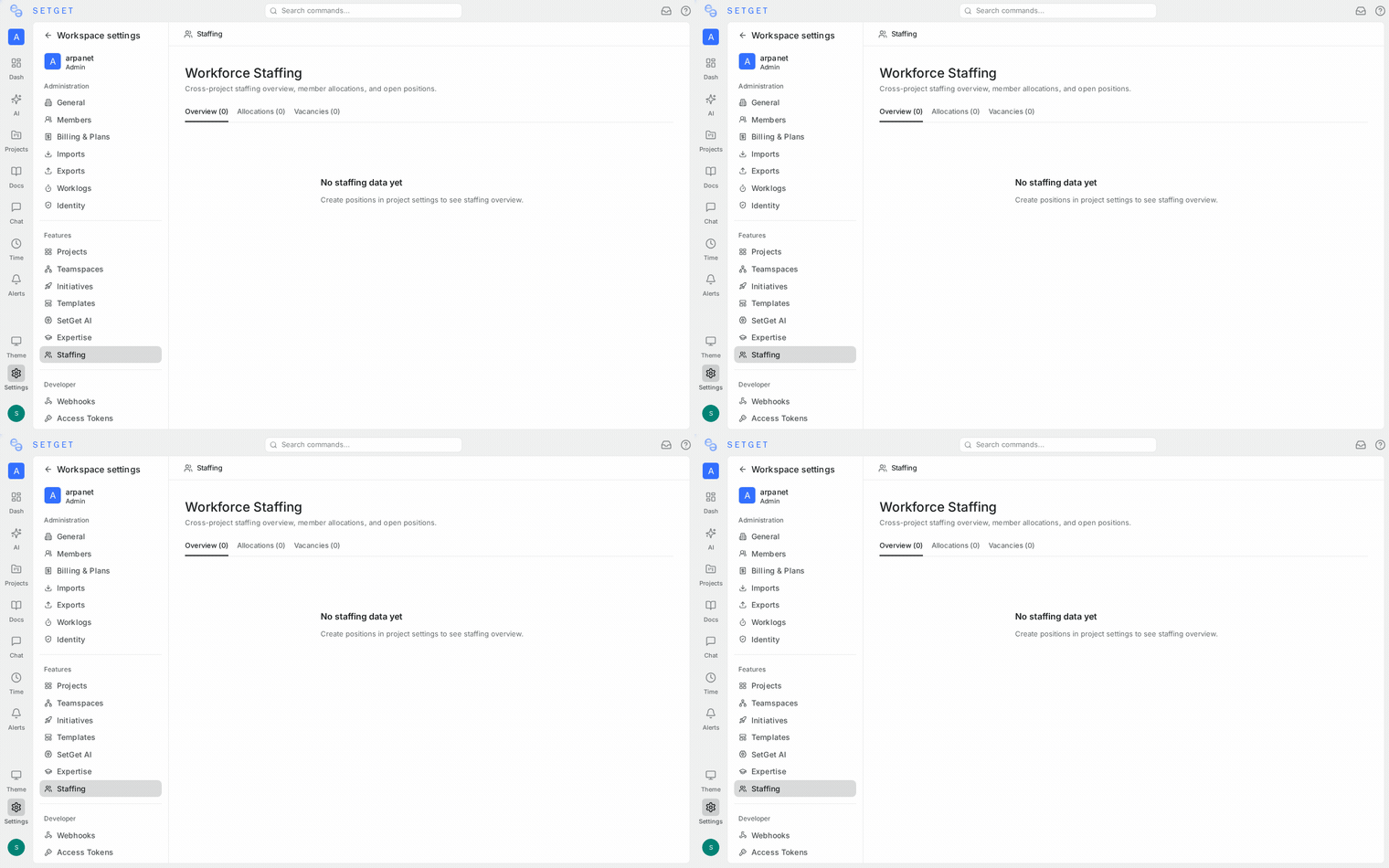
The Overview tab shows a summary table with one row per project:
| Column | Description |
|---|---|
| Project | Project name |
| Total | Total number of positions defined |
| Open | Positions with no assignments (shown in red when > 0) |
| Filled | Positions at or above head count (shown in green) |
| Partial | Positions with some but not enough assignments (shown in yellow) |
| On Hold | Positions manually set to on-hold status |
This gives you a quick health check across all projects. Projects with many open positions may need staffing attention.
TIP
Sort by the "Open" column to quickly identify which projects have the most unfilled positions.
Allocations tab
The Allocations tab shows every workspace member who has at least one active position assignment:
For each member, you see:
- Avatar and name
- Number of positions they are assigned to
- Total allocation percentage displayed as:
- A visual progress bar (indigo when under 100%, red when over)
- A numeric percentage value
Over-allocation
Members whose total allocation exceeds 100% are visually flagged:
- Progress bar turns red
- Percentage text turns red
This helps you identify team members who may be stretched too thin across projects.
What allocation means
Allocation is the sum of all active position assignments for a member. For example:
- Position A: 50% allocation
- Position B: 75% allocation
- Total: 125% (over-allocated)
Allocation is advisory — it represents planned capacity, not actual hours worked. Use it alongside the Capacity Planning view, which shows real issue workload data.
Vacancies tab
The Vacancies tab lists all positions across the workspace that need to be filled — specifically, positions with status Open or Partially Filled.
For each vacancy, you see:
- Position title
- Fill rate (e.g., "1/3 filled")
- Priority badge with color coding:
- Critical → Red
- High → Orange
- Medium → Yellow
- Low → Blue
Using vacancies for recruitment
The Vacancies tab serves as a quick reference for:
- Identifying which roles need to be filled urgently (sort by priority)
- Understanding the scope of staffing gaps (count of vacancies)
- Communicating hiring needs (share the vacancy list with recruiting)
Empty states
If no data is available for a tab, you will see an informative empty state:
- Overview — "No staffing data yet. Create positions in your projects to see the overview."
- Allocations — "No allocations found. Assign members to positions to track allocation."
- Vacancies — "No vacancies. All positions are filled or on hold."
Related pages
- Project Positions — Create and manage positions
- Position Assignments — Assign members to positions
- Capacity Planning — Detailed workload analysis
- Workforce Planning Overview — Module overview