
Work Item Estimates
Estimates represent the expected effort for a work item. They help teams plan sprints, track velocity, and set realistic expectations. SetGet supports three distinct estimation systems, each suited to different team preferences and maturity levels.
Why estimate
Estimation serves several purposes in project management:
- Sprint planning -- Know how much work fits into a cycle by comparing total estimates against historical velocity.
- Progress tracking -- See how much estimated effort is complete versus remaining within a cycle or module.
- Prioritization -- Compare effort against impact to make better decisions about what to work on.
- Forecasting -- Use past velocity to predict when future work will be completed.
Estimates are optional. If your team does not practice estimation, you can leave the estimate system disabled.
Estimation systems
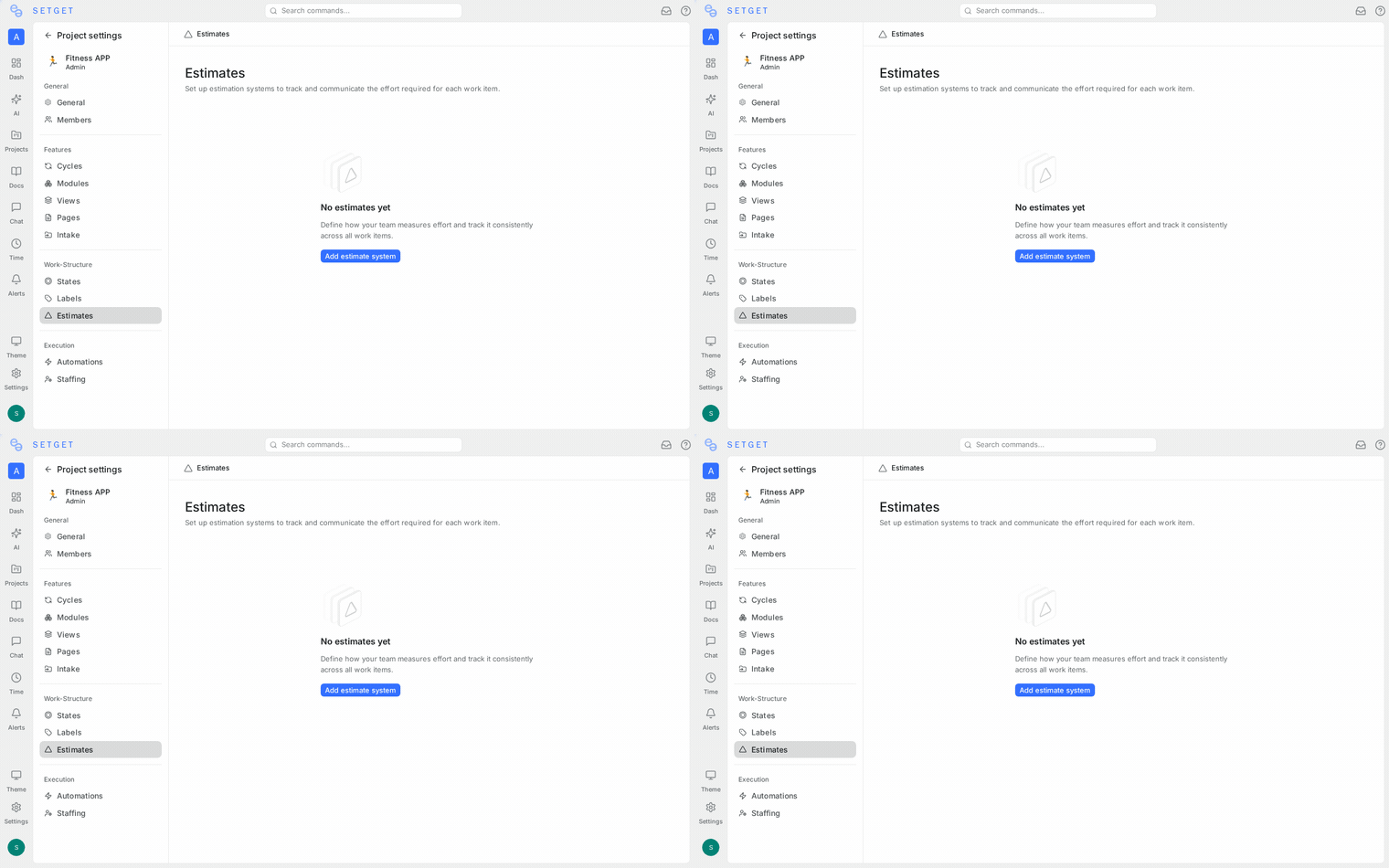
SetGet offers three estimation systems. Each project can enable exactly one system at a time.
Points
Point-based estimation uses numerical values to represent relative effort. SetGet provides three built-in point scales, plus the ability to define a custom scale.
Fibonacci scale
The Fibonacci sequence is the most popular point scale in agile teams. The increasing gaps between numbers force estimators to think in ranges rather than precise hours.
| Value | Typical meaning |
|---|---|
| 1 | Trivial -- a few minutes of work |
| 2 | Small -- straightforward, well-understood |
| 3 | Medium-small -- clear scope, minor complexity |
| 5 | Medium -- some complexity or unknowns |
| 8 | Large -- significant effort, multiple steps |
| 13 | Very large -- consider breaking into smaller items |
| 21 | Enormous -- almost certainly needs decomposition |
Linear scale
The linear scale uses sequential integers. It works well for teams that prefer a simpler mental model.
| Value | Range |
|---|---|
| 1 | Smallest |
| 2 | Small |
| 3 | Medium |
| 4 | Large |
| 5 | Very large |
Custom point scale
Define your own point values if neither Fibonacci nor Linear fits your team:
- Go to project Settings > Estimates.
- Select Points as the system.
- Choose Custom as the scale.
- Enter your values (e.g., 1, 2, 4, 8, 16).
- Click Save.
Custom scales can have 3-10 values. Each value must be a positive integer.
Categories
Category-based estimation uses named sizes instead of numbers. This is commonly known as "t-shirt sizing" and is popular with teams that find numerical points create false precision.
| Category | Typical meaning |
|---|---|
| XS | Extra small -- trivial effort, minutes of work |
| S | Small -- an hour or two |
| M | Medium -- half a day to a full day |
| L | Large -- multiple days |
| XL | Extra large -- a week or more, consider splitting |
TIP
Categories work best when your team consistently interprets the sizes the same way. Spend time calibrating during sprint planning until the team shares a common understanding of what each size means.
Time-based
Time-based estimation uses hours (and optional minutes) as the unit. This is the most concrete system and is often used alongside time tracking.
| Format | Example |
|---|---|
| Hours only | 4h |
| Hours and minutes | 4h 30m |
| Minutes only | 45m |
Time-based estimates integrate with the time tracking feature. When time tracking is enabled, you can compare estimated time against actual logged time.
Enable an estimation system
Estimates must be enabled at the project level before they can be assigned to work items.
- Navigate to the project's Settings page.
- Open the Estimates section.
- Select an estimation system: Points, Categories, or Time.
- If you selected Points, choose a scale (Fibonacci, Linear, or Custom).
- Click Save.
Once enabled, the estimate field appears on all work items in the project.
WARNING
Changing the estimation system after work items already have estimates will clear all existing estimate values. Export or record current estimates before switching systems.
Assign an estimate to a work item
From any layout
- Click the estimate field on a work item row or card.
- Select a value from the dropdown (Points or Categories) or enter a time value (Time-based).
From the detail view
- Open the work item.
- In the properties panel, click the Estimate field.
- Select or enter a value.
During creation
- In the creation modal, click the Estimate field.
- Choose a value before saving.
Via bulk operations
- Select multiple work items.
- In the bulk action bar, click Estimate.
- Choose a value to apply to all selected items.
Estimates in cycles
Cycles (sprints) aggregate estimates to help with capacity planning.
Cycle summary
When you open a cycle, the summary bar shows:
| Metric | Description |
|---|---|
| Total estimate | Sum of all estimates in the cycle |
| Completed estimate | Sum of estimates for items in Completed/Cancelled states |
| Remaining estimate | Total minus completed |
| Progress % | Completed as a percentage of total |
For point-based and time-based estimates, these are numerical sums. For category-based estimates, SetGet converts categories to ordinal values (XS=1, S=2, M=3, L=4, XL=5) for aggregation purposes.
Velocity tracking
Over multiple cycles, SetGet calculates your team's velocity -- the average total estimate completed per cycle. This helps you plan future cycles with realistic capacity.
Velocity is displayed in the Analytics section and on the cycle summary.
Estimates in modules
Modules also show estimate aggregations:
- Total estimated effort across all work items in the module.
- Completion by estimate -- what percentage of estimated effort is complete.
- Breakdown by state group -- how estimates are distributed across Backlog, Unstarted, Started, Completed, and Cancelled.
This gives feature owners visibility into how much effort remains for a feature, regardless of which cycle the work items belong to.
Estimate display across layouts
| Layout | How estimates appear |
|---|---|
| List | Estimate value in a dedicated column |
| Kanban | Estimate shown on the card; column headers show the sum of estimates |
| Spreadsheet | Editable estimate column with column sum in the footer |
| Calendar | Estimate shown on the calendar event |
| Gantt | Estimate visible in the item details tooltip |
Filter and sort by estimate
Filter by estimate
- Click Filter in the project header.
- Select Estimate from the property list.
- For points: choose specific values or a range.
- For categories: select one or more sizes.
- For time: enter a minimum and/or maximum duration.
Sort by estimate
In list and spreadsheet views, click the Estimate column header to sort by estimate ascending or descending. This surfaces the largest or smallest items first.
Group by estimate
Group work items by estimate value to see how effort is distributed. This is especially useful during sprint planning to ensure a balanced spread of work sizes.
Best practices
- Pick one system and commit -- Switching systems mid-project erases existing estimates. Choose the system that fits your team and stick with it.
- Estimate relative, not absolute -- With points and categories, compare items to each other rather than converting to hours. "This is twice as much work as that 3-pointer" is more reliable than "this will take exactly 6 hours."
- Calibrate regularly -- Review past estimates versus actual outcomes. If your 5-point items consistently take three times longer than 3-point items, your scale is well-calibrated. If not, recalibrate.
- Break down large estimates -- If an item is estimated at 13 or 21 points (Fibonacci) or XL (Categories), it probably needs to be split into smaller items.
- Do not skip estimation -- Items without estimates create blind spots in velocity tracking and sprint planning. Even a rough estimate is better than none.
- Use planning poker or similar techniques -- When estimating as a team, have each member estimate independently before revealing, to avoid anchoring bias.
- Track velocity over at least 3 cycles before using it for planning. A single cycle is not a reliable baseline.
Related pages
- Work Item Properties -- Complete property reference
- Project Estimates -- Project-level estimate configuration
- Cycles -- Sprint planning with estimates
- Modules -- Feature progress by estimate
- Analytics -- Velocity and progress analytics
- Time Tracking -- Compare estimates to actual time
- Filters -- Filter by estimate values