
Project Positions
Positions represent the staffing requirements for a project. Each position defines a role that needs to be filled — including what expertise is required, how many people are needed, and what priority the hiring or assignment carries.
Position properties
| Property | Required | Description |
|---|---|---|
| Title | Yes | A descriptive name for the position (e.g., "Senior Frontend Developer", "QA Lead") |
| Head Count | Yes | Number of people needed for this position (default: 1) |
| Expertise Category | No | The expertise area required (from the Expertise Catalog) |
| Minimum Level | No | The minimum seniority level required |
| Priority | No | How urgently this position needs to be filled |
| Status | Auto | Calculated based on fill rate |
| Description | No | Additional context about the role, responsibilities, or requirements |
Position status
Position status is automatically calculated based on how many assignments exist relative to the head count:
| Status | Condition | Visual Indicator |
|---|---|---|
| Open | No members assigned | Red |
| Partially Filled | Some members assigned, but below head count | Yellow/Warning |
| Filled | Assigned count equals or exceeds head count | Green/Success |
| On Hold | Manually set by the project manager | Gray |
| Closed | Position is no longer needed | Gray |
Position priority
| Priority | Use Case |
|---|---|
| Critical | Blocking project progress; must be filled immediately |
| High | Important for upcoming milestones |
| Medium | Needed but not blocking |
| Low | Nice to have; can wait |
Create a position
- Navigate to Project Settings → Staffing.
- On the Positions tab, click Add Position.
- Fill in the position details (title, head count, expertise category, minimum level, priority).
- Click Create.
The position appears in the list with its current status and fill rate.
Edit a position
- On the Positions tab, click the position you want to edit.
- Update the fields as needed.
- Click Save.
Delete a position
- Click the trash icon next to the position.
- Confirm the deletion.
WARNING
Deleting a position will unlink it from any work items that reference it. The work items themselves are not deleted, but their position field will be cleared.
Position and work item linking
Positions can be linked to work items. When a position is linked to work items and a member is assigned to that position, all linked unassigned work items are automatically assigned to that member. See Issue Integration for details.
Viewing positions
Project Settings → Staffing
The primary management interface. Shows all positions with:
- Title, status badge, priority indicator
- Fill rate (e.g., "2/3 filled")
- Assigned members with avatars
- Expertise category color dot
- Expand to see assignment details and workload
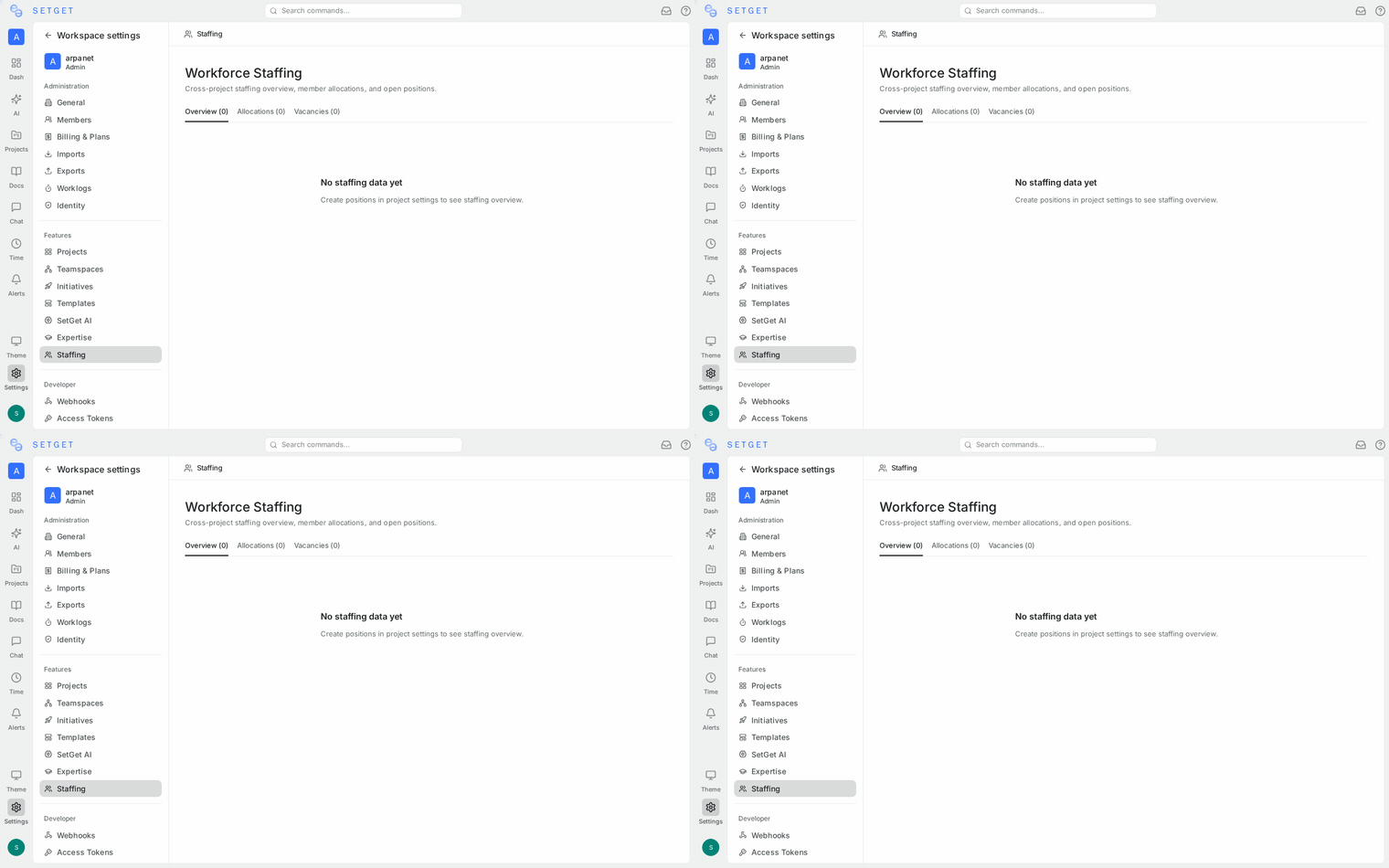
Workspace Settings → Staffing → Overview
A cross-project summary table showing:
- Project name
- Total positions
- Open, filled, partially filled, and on-hold counts
Workspace Settings → Staffing → Vacancies
A filtered view showing only positions that need to be filled (open or partially filled), sorted by priority.
Related pages
- Position Assignments — Assign members to positions
- Staffing Dashboard — Cross-project staffing overview
- Issue Integration — Link positions to work items
- Expertise Catalog — Define required expertise