
Quickstart Guide
This guide walks you through the essential steps to go from zero to a working project in SetGet. By the end, you will have a workspace, a project with custom states, and your first work items ready to track.
Estimated time: 5–10 minutes
Step 1: Create your account
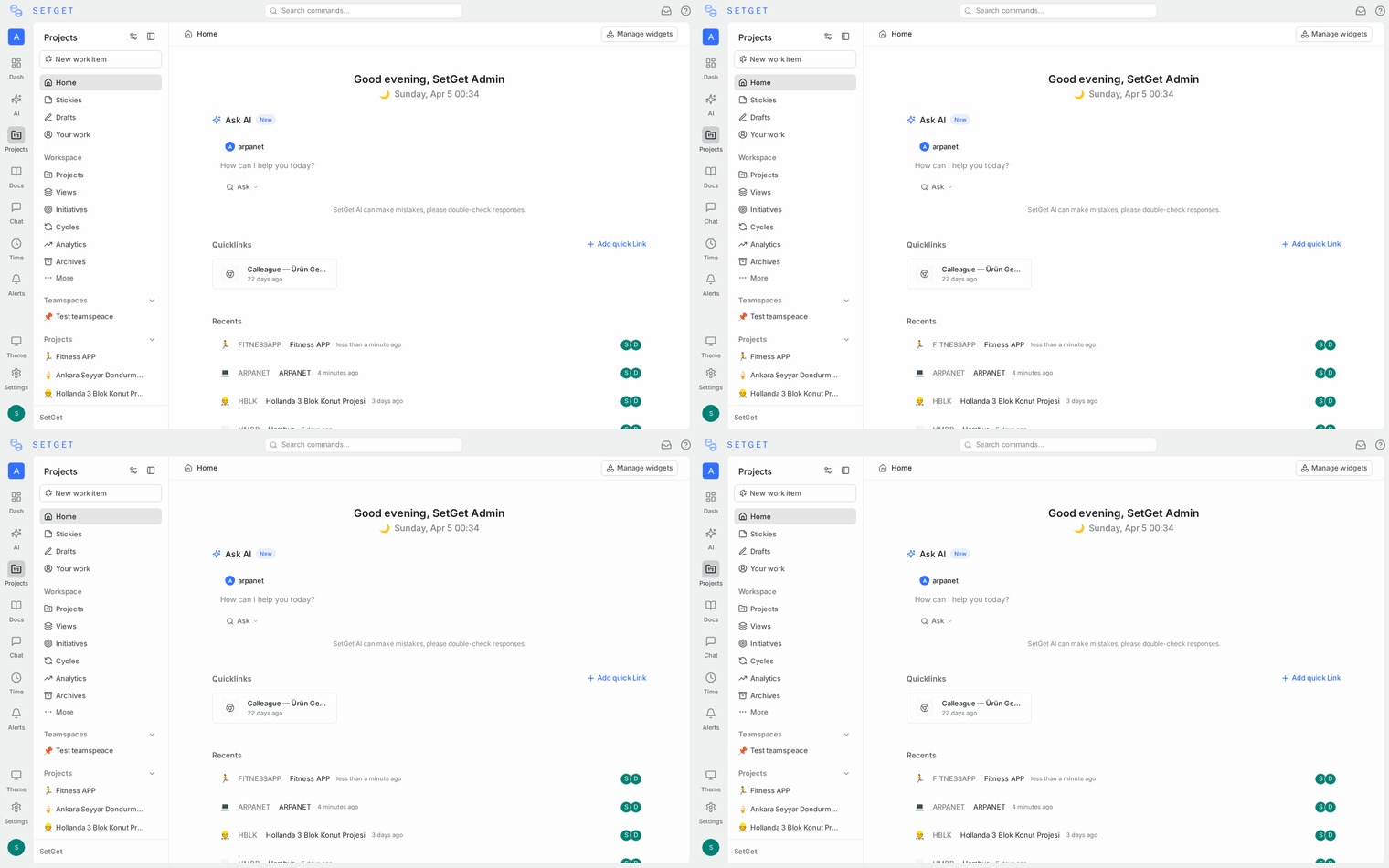
- Open SetGet and click Sign up.
- Enter your email address and create a password — or sign in with Google, GitHub, or GitLab if your instance has OAuth configured.
- Verify your email if prompted.
TIP
If your organization already has a SetGet instance, ask your admin for an invitation link instead of creating a new account.
Step 2: Create a workspace
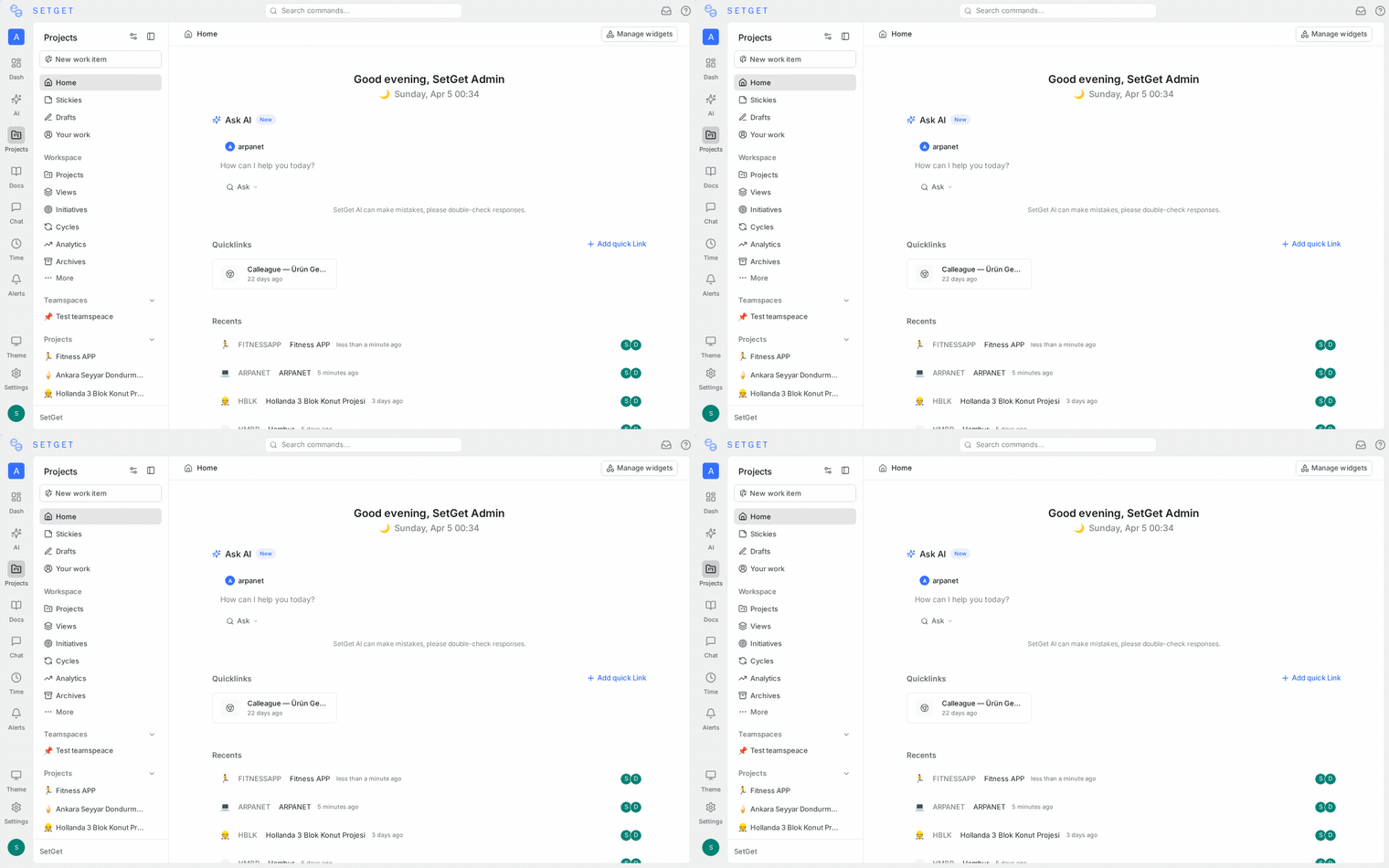
A workspace is the top-level container for your entire organization. All your projects, members, and settings live inside it.
- After signing in, click Create Workspace.
- Enter a workspace name (e.g., "Acme Engineering").
- Choose a URL slug — this becomes part of your workspace URL (e.g.,
app.setget.dev/acme-eng). - Select your workspace size to help SetGet tailor the experience.
- Click Create.
You now have an empty workspace ready for projects.
Step 3: Invite your team
You can invite members now or skip this and come back later.
- Go to Settings → Members in the sidebar.
- Click Invite Members.
- Enter email addresses and choose a role:
- Admin — full access to workspace settings, billing, and member management
- Member — can create and manage projects and work items
- Guest — limited access, typically for external stakeholders
- Click Send Invitations.
Invitees receive an email with a link to join your workspace.
Step 4: Create your first project
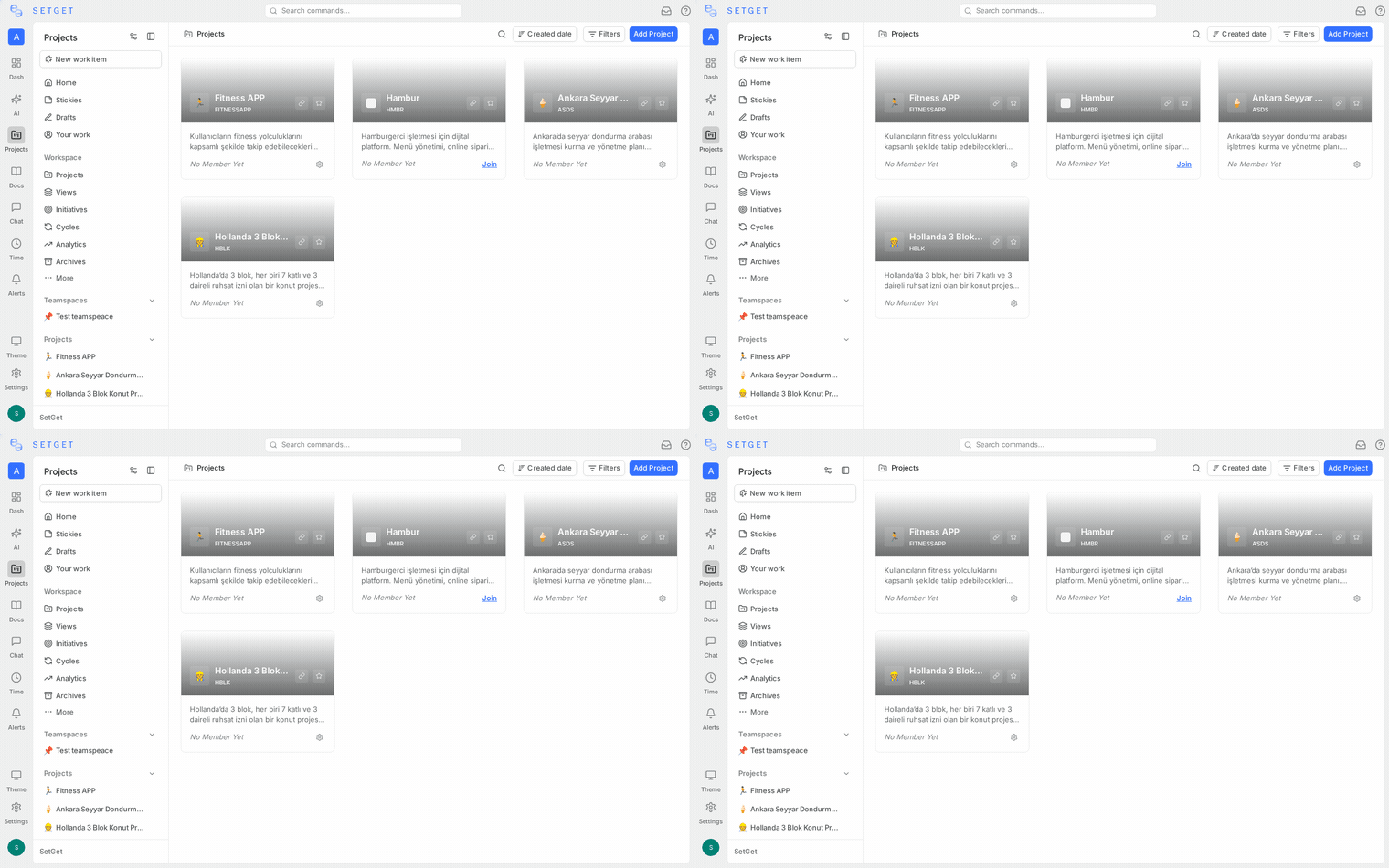
Projects contain your actual work — work items, cycles, modules, pages, and views.
- Click Projects in the sidebar, then Create Project.
- Fill in the details:
- Name — a descriptive project name (e.g., "Web App v2")
- Identifier — a short code used as a prefix for work item IDs (e.g.,
WEB). Work items will be numberedWEB-1,WEB-2, etc. - Description — optional summary of the project's purpose
- Network — choose whether the project is visible to all workspace members or invite-only
- Click Create Project.
Configure project features
After creation, you can enable or disable features under Project Settings → Features:
| Feature | What it does |
|---|---|
| Cycles | Time-boxed sprints for iterative planning |
| Modules | Group work items by feature or theme |
| Views | Save and share filtered perspectives of work |
| Pages | Built-in documentation and wiki |
| Intake | Let guests submit requests for review |
All features are enabled by default. Disable any you do not need to keep the interface clean.
Step 5: Set up workflow states
Every work item moves through a series of states. SetGet organizes states into five groups:
| Group | Purpose | Example states |
|---|---|---|
| Backlog | Work that is acknowledged but not yet planned | Backlog, Triage |
| Unstarted | Planned work that has not begun | Todo, Ready |
| Started | Work actively in progress | In Progress, In Review |
| Completed | Successfully finished work | Done, Merged |
| Cancelled | Work that will not be done | Cancelled, Duplicate |
SetGet creates default states for you. To customize them:
- Go to Project Settings → States.
- Add, rename, reorder, or color-code states within each group.
- The first state in the Backlog group becomes the default for new work items.
Step 6: Create your first work items
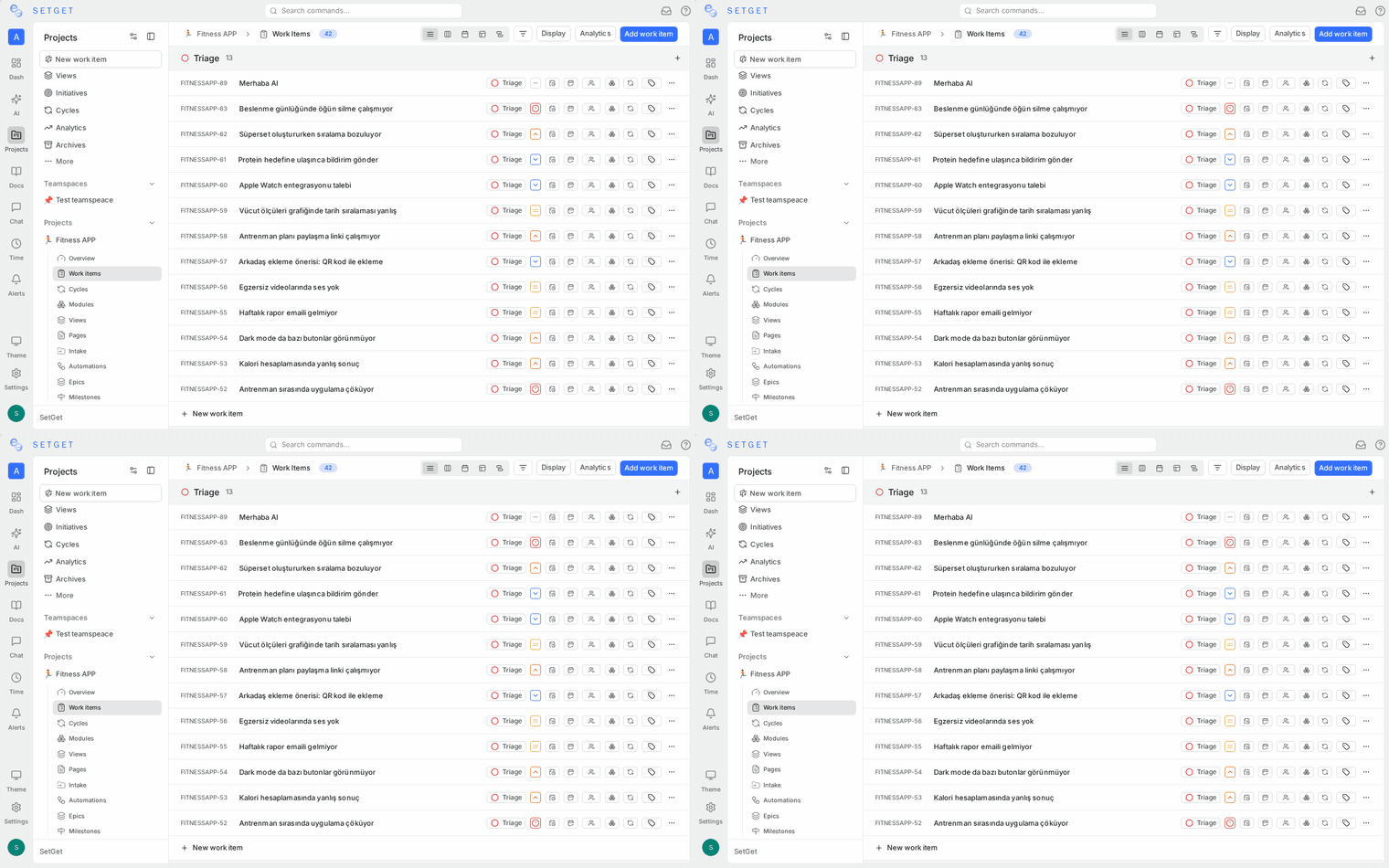
Now let's add some actual work to track.
Quick add
- Open your project and go to the Issues tab.
- Click the + button or press
Con your keyboard. - Type a title and press Enter to create instantly.
The work item is created with the default state (Backlog) and no other properties. You can fill in details later.
Full creation modal
For more detail upfront:
- Click Create Work Item or press
C. - In the modal, set:
- Title — what needs to be done
- Description — additional context, acceptance criteria, or steps to reproduce
- State — current workflow state
- Priority — Urgent, High, Medium, Low, or None
- Assignees — who is responsible
- Labels — categorization tags
- Due date — when it should be completed
- Estimate — effort estimate (if estimates are configured)
- Click Create Work Item.
TIP
You can create multiple work items without closing the modal — just click Create & Add Another.
Try different layouts
Switch between layouts using the layout switcher in the top bar:
- List — best for scanning and triaging a long backlog
- Kanban — best for visualizing workflow stages
- Spreadsheet — best for bulk editing properties
- Calendar — best for date-driven work
- Gantt — best for timeline planning with dependencies
Step 7: Plan a cycle (optional)
If you enabled Cycles, create your first sprint:
- Click Cycles in the project sidebar.
- Click Create Cycle.
- Set a name, start date, and end date (e.g., a 2-week sprint).
- Click Create.
- Drag work items from the backlog into the cycle, or use the Add to Cycle action on individual work items.
As your team updates work item states, the cycle progress bar updates automatically.
Step 8: Write a page (optional)
If you enabled Pages, create your first document:
- Click Pages in the project sidebar.
- Click Create Page.
- Give it a title (e.g., "Sprint 1 Goals").
- Use the rich text editor to write your content — headings, lists, code blocks, tables, and embedded images are all supported.
- The page auto-saves as you type.
Pages are great for meeting notes, technical specs, onboarding guides, and project wikis.
What's next
You now have a fully functional SetGet workspace. Here are some next steps to explore:
| Want to... | Go to... |
|---|---|
| Learn the core building blocks | Core Concepts |
| Walk through every feature step by step | Tutorials |
| Set up team roles and permissions | Roles and Permissions |
| Connect GitHub or Slack | Integrations |
| Import data from Jira, Asana, or Linear | Import and Export |
| Use AI to manage work faster | SetGet AI |
| Master keyboard shortcuts | Keyboard Shortcuts |
Related pages
- Introduction — What SetGet is and why teams use it
- Core Concepts — The building blocks explained
- Create a Workspace tutorial — Detailed workspace setup
- Manage Projects — Full project management guide