
Intake
Intake is SetGet's system for collecting work requests from people outside your immediate team -- stakeholders, customers, support agents, or anyone who needs to report a bug or request a feature. Instead of these requests going directly into your project backlog (where they create noise and skip triage), they land in a dedicated intake queue where your team can review, modify, accept, or decline each one.
Why use intake?
Without intake, teams face two common problems:
- Noise in the backlog -- anyone with project access can create work items directly. Over time, the backlog fills with unreviewed requests, duplicates, and vague descriptions that slow down planning.
- Lost requests -- when there is no formal channel, requests arrive via email, Slack, spreadsheets, and hallway conversations. Many get lost.
Intake solves both problems by providing a structured, centralized, and reviewable submission pipeline.
How intake works
The intake workflow has four stages:
Submit --> Review --> Accept / Decline --> Work item in backlogStage 1 -- Submit
A request enters the intake queue through one of four channels:
| Channel | Description | Who can use it |
|---|---|---|
| In-app | Guest or member submits directly in SetGet | Anyone with workspace access |
| Forms | External form embedded on a website or shared via URL | Anyone with the form link |
| Send an email to a project-specific address | Anyone who can send email | |
| Slack | Use a Slack message shortcut or slash command | Slack workspace members |
Each submission captures:
- Title
- Description
- Priority (optional)
- Attachments (optional)
- Submitter information (name, email)
- Source channel
Stage 2 -- Review
Admins and members with intake review permissions see incoming submissions in the Intake tab of the project. Each submission shows:
- Submission details (title, description, priority, attachments)
- Submitter information
- Submission date and source channel
- Customer record (if linked)
Reviewers can:
- Ask clarifying questions by adding comments (the submitter is notified).
- Modify the title, description, or priority before accepting.
- Link the submission to an existing work item if it is a duplicate.
Stage 3 -- Accept or decline
| Action | What happens |
|---|---|
| Accept | The submission becomes a work item in the project backlog. State, priority, labels, and assignee can be set during acceptance. |
| Decline | The submission is archived with a reason. The submitter is notified. |
| Accept as duplicate | The submission is linked to an existing work item. No new work item is created. |
Stage 4 -- Backlog
Accepted submissions appear as regular work items in the project. They participate in cycles, modules, views, and all other SetGet features. The original intake submission is linked in the work item's activity log for traceability.
Intake queue management
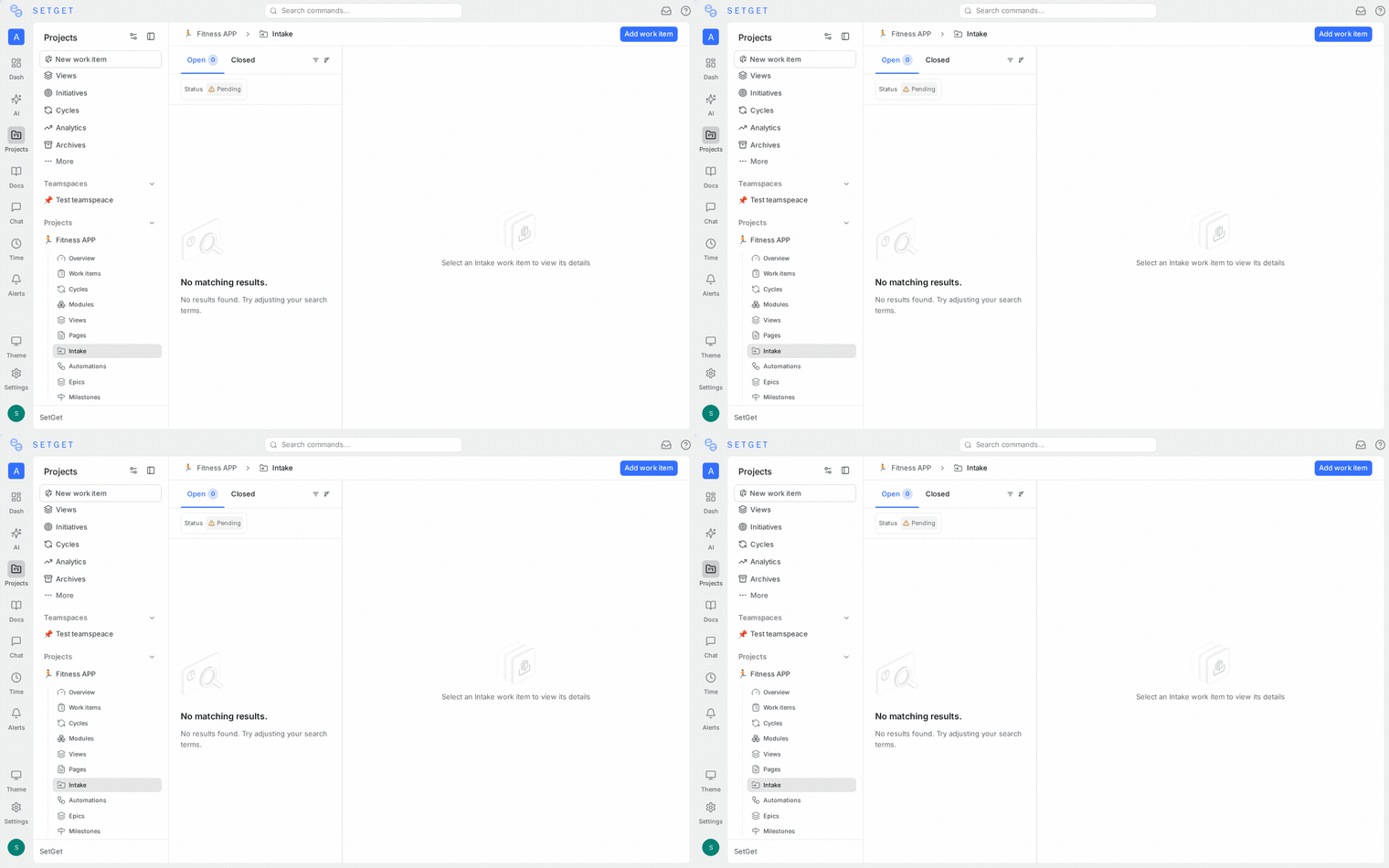
Filtering
Filter the intake queue by:
| Filter | Options |
|---|---|
| Status | Pending, Accepted, Declined |
| Source | In-app, Form, Email, Slack |
| Priority | Urgent, High, Medium, Low, None |
| Date range | Submitted within a date range |
| Customer | Linked customer record |
Sorting
Sort by submission date (newest or oldest first), priority, or source channel.
Bulk actions
Select multiple submissions and:
- Accept all (with a common state, priority, and assignee).
- Decline all (with a common reason).
- Assign a reviewer.
Intake settings
Configure intake per project in Project Settings > Intake:
| Setting | Description | Default |
|---|---|---|
| Enable intake | Turn the intake queue on or off for this project | Off |
| Auto-accept | Automatically accept all submissions (skip review) | Off |
| Default state | The state assigned to accepted work items | Backlog |
| Default priority | The priority assigned if the submitter does not set one | None |
| Notification recipients | Who gets notified when a new submission arrives | Project admins |
| Allow guest submissions | Let workspace guests submit via in-app intake | On |
| Require email for forms | Require submitters to provide an email on external forms | On |
TIP
Enable intake on projects that receive requests from non-engineering stakeholders. For internal engineering-only projects, direct work item creation is usually simpler.
Intake permissions
| Role | Can submit | Can review | Can accept/decline | Can configure |
|---|---|---|---|---|
| Owner | Yes | Yes | Yes | Yes |
| Admin | Yes | Yes | Yes | Yes |
| Member | Yes | Yes (if granted) | Yes (if granted) | No |
| Guest | Yes (in-app only) | No | No | No |
WARNING
Guests can submit requests but cannot see the intake queue or other submissions. They receive notifications only about their own submissions.
Metrics
The intake queue tracks:
| Metric | Description |
|---|---|
| Submissions this week | Total submissions received |
| Acceptance rate | Percentage of submissions accepted |
| Average review time | Time from submission to accept/decline |
| Pending count | Submissions awaiting review |
| Top submitters | Most active submitters |
View these metrics in the Intake > Analytics tab.
Intake vs. direct work item creation
| Aspect | Intake | Direct creation |
|---|---|---|
| Who can submit | Guests, external users, anyone with form link | Members with project access |
| Review required | Yes (unless auto-accept is on) | No |
| Enters backlog immediately | No (goes to queue first) | Yes |
| Best for | External stakeholders, cross-team requests | Internal team members |
| Duplicate control | Reviewers can catch duplicates during triage | No built-in duplicate detection |
Use intake for projects that receive requests from outside the core team. Use direct creation for internal engineering work where team members are trusted to create well-formed work items.
Intake channels comparison
| Channel | Setup effort | Best for | Requires SetGet account |
|---|---|---|---|
| In-app | None | Workspace guests and members | Yes |
| Forms | Low (create form) | External users, public feedback | No |
| Low (enable email) | Support teams, email-first organizations | No | |
| Slack | Medium (install app) | Teams already using Slack | No (Slack account required) |
TIP
You can use multiple channels simultaneously. All submissions flow into the same intake queue regardless of the source channel.
Frequently asked questions
Can I use intake on all projects?
Intake is enabled per project. You can enable it on any project where you want a review gate before work items enter the backlog.
What happens to declined submissions?
Declined submissions are archived in the intake queue. They are not deleted and can be reviewed later. The submitter receives a notification with the decline reason.
Can I convert an accepted work item back to a submission?
No. Once accepted, the submission becomes a regular work item. You can delete the work item, but the original submission remains in the archive.
Is there a limit on intake submissions?
There is no hard limit on the number of pending submissions. However, a large backlog of unreviewed submissions defeats the purpose of intake. Review regularly to keep the queue manageable.