
Modules
A module in SetGet is a feature-based grouping of work items. While cycles organize work by time, modules organize work by scope — a specific feature, product area, or deliverable. A module called "User Onboarding" might contain all the work items related to sign-up flow, welcome emails, and first-run experience, regardless of which cycle they are delivered in.
Modules give product teams visibility into how much of a feature is complete, who is working on it, and what remains. They are especially valuable for larger projects where work on a single feature spans multiple sprints.
Why use modules
- Feature tracking — See the progress of an entire feature in one place, even when its work items are spread across multiple cycles.
- Ownership — Assign a module lead and members to clarify who is responsible for delivering a feature.
- Scope definition — Use module boundaries to define what is in and out of scope for a particular deliverable.
- Cross-cycle visibility — Unlike cycles, modules are not bound to a fixed time period. They persist until the feature is done.
Create a module
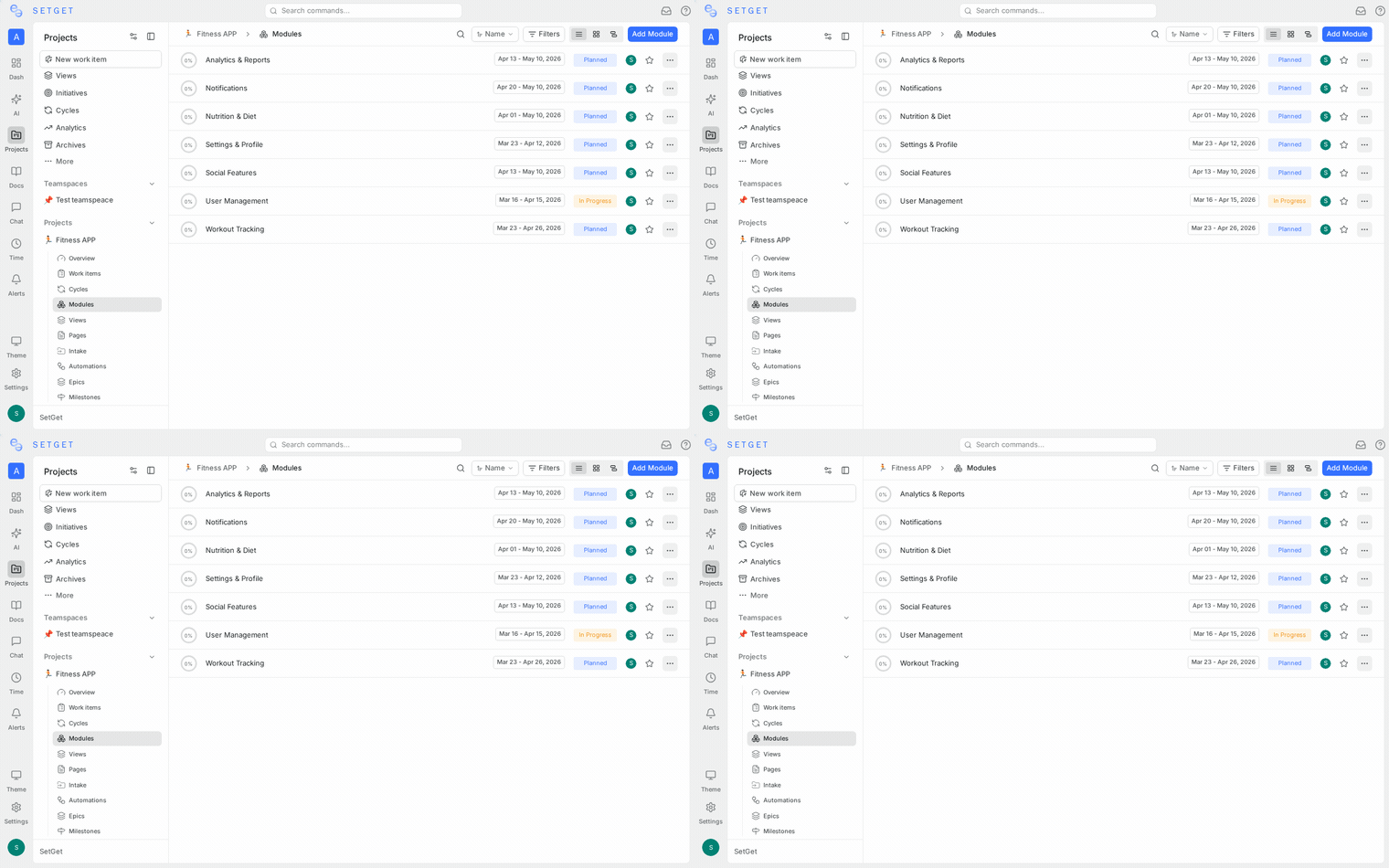
- Open a project and navigate to the Modules section in the sidebar.
- Click the + button or the Create Module action.
- Fill in the module details:
| Field | Required | Description |
|---|---|---|
| Name | Yes | A clear name describing the feature or scope, such as "Payment Integration" or "Search Redesign" |
| Description | No | Detailed context about the module goals, acceptance criteria, or scope boundaries |
| Status | No | Current status of the module (defaults to Backlog) |
| Lead | No | The team member responsible for driving this module to completion |
| Members | No | Additional team members involved in the module |
| Start date | No | Expected start date for the module |
| End date | No | Target completion date for the module |
- Click Create to save the module.
TIP
Write a clear description for every module. Include the goal, key deliverables, and out-of-scope items so that anyone joining the team can quickly understand what the module covers.
Module statuses
Each module has a status that reflects its current phase. The available statuses are:
| Status | Description |
|---|---|
| Backlog | The module has been defined but work has not been planned yet |
| Planned | Work items have been identified and the module is ready to start |
| In Progress | Active development is underway |
| Paused | Work has been temporarily suspended |
| Completed | All work items are done and the feature has been delivered |
| Cancelled | The module has been abandoned and will not be completed |
Update the module status manually as the feature progresses through its lifecycle. The status is displayed prominently in the module list and detail view.
Add work items to a module
From the module view
- Open the module from the sidebar.
- Click Add existing work items to search and select items from the project.
- Selected items are added to the module immediately.
From a work item
- Open any work item (peek view or full page).
- In the properties panel, find the Module field.
- Select the target module from the dropdown.
From the list or kanban view
- Right-click a work item or use its action menu.
- Select Add to module and choose the target.
Bulk assignment
- Select multiple work items using checkboxes in list or spreadsheet view.
- Open the bulk actions toolbar.
- Choose Set module and pick the target module.
WARNING
A work item can belong to one module at a time. Assigning it to a new module removes it from the previous one. A work item can belong to both a cycle and a module simultaneously.
View modules
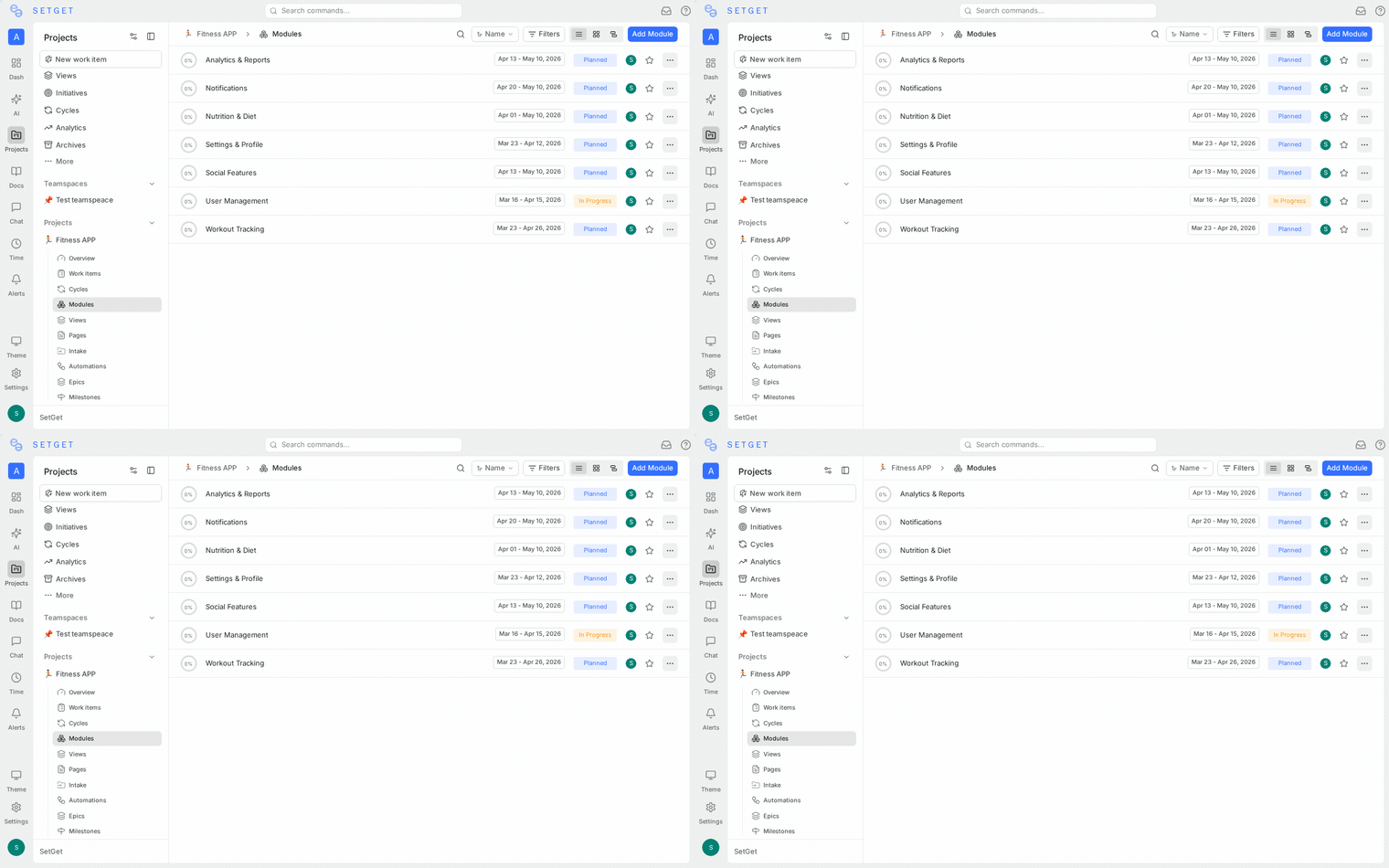
Module list
The default modules view displays all modules in a list, organized by status. Each entry shows:
- Module name and status badge
- Lead and member avatars
- Date range (if set)
- Progress bar showing completion percentage
- Count of total and completed work items
Work items within a module
Open any module to see its work items in your preferred layout — List, Kanban, Spreadsheet, Calendar, or Gantt. All standard filtering, grouping, and sorting options are available within the module context.
Module analytics
Click the Analytics tab when viewing a module to see detailed progress data:
| Metric | Description |
|---|---|
| Total items | Number of work items in the module |
| Completed | Items in a done state |
| In progress | Items currently being worked on |
| Remaining | Items not yet started |
| Completion rate | Percentage of items completed |
| By assignee | Breakdown of items per team member |
| By priority | Distribution across priority levels |
| By state | Distribution across workflow states |
| By label | Distribution across labels |
| By estimate | Sum of completed vs remaining estimates |
Module analytics help you answer questions like "How much of this feature is done?" and "Who is carrying the most work in this module?"
Module links
Modules support external links to related resources:
- Open a module and navigate to the Links section.
- Click Add link.
- Enter a URL and an optional title (e.g., "Design Spec", "API Documentation", "Figma Prototype").
- The link is saved and displayed in the module detail view.
Use module links to connect the module to its design documents, technical specifications, external trackers, or any other relevant resource.
Favorite a module
Mark a module as a favorite for quick sidebar access:
- Hover over a module in the sidebar or list view.
- Click the star icon.
- The module appears in your Favorites section.
See Favorites for more details.
Archive a module
Archiving hides a module from the active list without deleting it:
- Open the module and click the ... menu.
- Select Archive.
- The module moves to the archived section.
Archived modules:
- Do not appear in the default module list.
- Can be viewed with the Show archived filter.
- Can be restored at any time.
- Retain all work items, links, and analytics.
Edit and delete a module
Edit a module
- Open the module and click the ... menu.
- Select Edit module.
- Modify any field — name, description, status, lead, members, or dates.
- Save your changes.
Delete a module
- Open the module and click the ... menu.
- Select Delete.
- Confirm the deletion.
Deleting a module removes the grouping but does not delete its work items. Items remain in the project with their module field cleared.
Module permissions
Module management follows project-level role permissions:
| Action | Admin | Member | Guest |
|---|---|---|---|
| Create module | Yes | Yes | No |
| Edit module | Yes | Yes | No |
| Delete module | Yes | No | No |
| Add/remove items | Yes | Yes | No |
| Manage links | Yes | Yes | No |
| View module | Yes | Yes | Yes |
| View analytics | Yes | Yes | Yes |
Module filtering and grouping
Within a module, you can apply the same filtering and grouping options available in any work item view:
- Filter by — state, priority, assignee, label, due date, estimate, or any custom property.
- Group by — state, priority, assignee, label, cycle, or any custom property.
- Sort by — manual order, priority, due date, created date, or updated date.
- Sub-group by — apply a second level of grouping for more detailed organization.
These filters and groups are scoped to the module context, so they only affect the items within that module.
Modules in timeline view
When viewing your project on a Gantt chart or timeline, modules can be displayed as summary bars:
- Each module appears as a horizontal bar spanning its start and end dates.
- Child work items are nested beneath the module bar.
- The module bar shows a fill representing completion progress.
- Dependencies between items within the module are shown as connector lines.
This view helps you understand how a feature's work items are sequenced and whether the module is on track to meet its end date.
Modules vs cycles
Understanding the difference between modules and cycles is key to using SetGet effectively:
| Aspect | Modules | Cycles |
|---|---|---|
| Organizing principle | Feature or scope | Time (fixed start and end) |
| Duration | Variable, until the feature is complete | Fixed, typically 1-4 weeks |
| Overlap | Multiple modules can run in parallel | Only one active cycle at a time |
| Purpose | Track feature completion | Track sprint delivery and velocity |
| Status | Manual (Backlog, Planned, In Progress, etc.) | Automatic based on dates |
| Analytics focus | Feature progress | Sprint burndown and velocity |
Use both together: assign work items to a module (the "what") and a cycle (the "when"). This gives you both feature-level and sprint-level visibility.
Best practices
- One module per feature — avoid creating modules that are too broad or too narrow. A module should represent a cohesive deliverable.
- Assign a lead — every module should have a clear owner who is accountable for its progress and completion.
- Set realistic dates — if the module has a deadline, set the end date so it appears on timelines and dashboards.
- Update status regularly — keep the module status current so that stakeholders can see progress at a glance without opening the module.
- Use links — attach design specs, technical documents, and external references to keep everything accessible from one place.
- Review completed modules — after a module is completed, review what went well and what can be improved for future features.
- Archive finished modules — keep your active module list clean by archiving completed or cancelled modules.
- Combine with cycles — use modules for "what we are building" and cycles for "when we are building it."
Related pages
- Cycles — Time-boxed sprint planning
- Epics — Large initiatives spanning modules
- Work Items — Manage individual tasks
- Views — Save filtered perspectives
- Dependencies — Blocking relationships between items
- Favorites — Bookmark modules for quick access