
Account Settings
Your account settings control how SetGet looks and behaves for you personally. From here you can update your profile, customize the interface, manage security, configure notifications, and generate API tokens.
To access account settings, click your avatar in the bottom-left corner of the sidebar and select Profile & Settings.
Profile
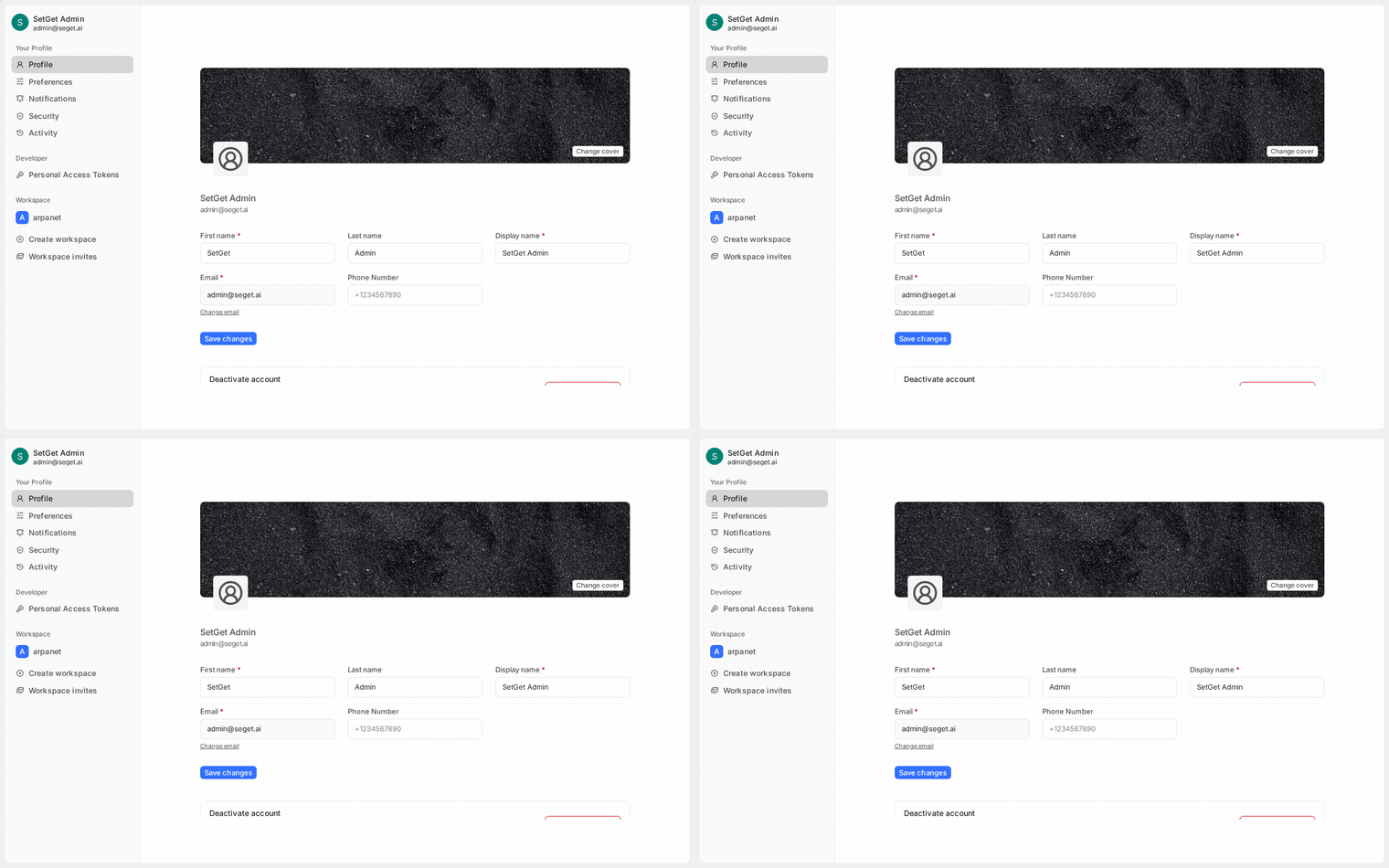
Your profile is visible to other members of your workspace. Keep it up to date so teammates can identify you easily.
Display name
Your display name appears on work items you create, comments you write, chat messages, and anywhere your identity is shown.
- Go to Profile & Settings > Profile.
- Edit the Display Name field.
- Click Save.
TIP
Use your real name or a recognizable alias. A clear display name helps teammates identify you in notifications, mentions, and activity logs.
Email address
Your email address is used for sign-in, notifications, and password recovery.
- Go to Profile & Settings > Profile.
- Edit the Email field.
- A verification email is sent to the new address.
- Click the verification link to confirm the change.
WARNING
Changing your email address requires verification of the new address. Your old email remains active until verification is complete. If you lose access to both email addresses, contact your workspace admin.
Avatar
Your avatar appears next to your name throughout the interface.
- Go to Profile & Settings > Profile.
- Click on your current avatar or the avatar placeholder.
- Upload a new image (JPEG, PNG, or GIF; max 2 MB).
- Crop and adjust the image.
- Click Save.
If you do not upload a custom avatar, SetGet generates one from your initials.
Preferences
Preferences control the look and feel of SetGet for your account. These settings do not affect other workspace members.
Theme
Switch between light and dark modes, or let SetGet follow your system preference.
| Option | Behavior |
|---|---|
| Light | Light background with dark text |
| Dark | Dark background with light text |
| System default | Follows your operating system's theme setting |
- Go to Profile & Settings > Preferences.
- Select your preferred Theme.
- The change applies immediately.
Timezone
Your timezone affects how dates and times are displayed throughout the application — due dates, activity timestamps, cycle dates, and notifications.
- Go to Profile & Settings > Preferences.
- Select your Timezone from the dropdown.
- Click Save.
TIP
SetGet detects your timezone automatically on first sign-in. If you travel frequently, you may want to keep it set to your team's primary timezone for consistency.
Start of week
Choose which day starts the week in calendar views and date pickers.
| Option | Week starts on |
|---|---|
| Sunday | Sunday |
| Monday | Monday |
| Saturday | Saturday |
- Go to Profile & Settings > Preferences.
- Select your preferred Start of Week.
- Click Save.
Language
SetGet interface language can be configured from the preferences panel.
- Go to Profile & Settings > Preferences.
- Select your preferred Language from the dropdown.
- The interface reloads in the selected language.
Available languages depend on the current release. English is always available.
Display preferences
Additional display options:
| Setting | Description |
|---|---|
| Compact mode | Reduces spacing in lists and views for denser display |
| Show item previews | Show description preview in list view |
| Default work item layout | Choose your preferred default view (list, board, etc.) |
| Emoji reactions style | Choose between native OS emoji and SetGet emoji set |
Security
Security settings protect your account from unauthorized access.
Change password
- Go to Profile & Settings > Security.
- Click Change Password.
- Enter your Current Password.
- Enter and confirm your New Password.
- Click Update Password.
Password requirements:
| Requirement | Details |
|---|---|
| Minimum length | 8 characters |
| Character types | Must include letters and numbers |
| Maximum length | 128 characters |
WARNING
Changing your password signs you out of all other devices and sessions. You will need to sign in again on your phone, other browsers, and any API clients using session authentication.
Manage sessions
View and revoke active sessions across all your devices.
- Go to Profile & Settings > Security > Active Sessions.
- Review the list of active sessions.
Each session shows:
| Field | Description |
|---|---|
| Device | Browser and operating system |
| IP address | The IP address of the session |
| Location | Approximate geographic location |
| Last active | When the session was last used |
| Current | Whether this is the session you are using now |
- Click Revoke next to any session to sign it out immediately.
- Click Revoke All Other Sessions to sign out everywhere except your current session.
Multi-Factor Authentication (MFA)
MFA adds a second verification step when signing in, significantly improving account security.
Enabling MFA
- Go to Profile & Settings > Security > Multi-Factor Authentication.
- Click Enable MFA.
- Scan the QR code with an authenticator app (Google Authenticator, Authy, 1Password, etc.).
- Enter the 6-digit code from the app to verify.
- Save the recovery codes in a secure location.
WARNING
Recovery codes are shown only once. Store them safely — they are needed if you lose access to your authenticator app. Each recovery code can be used only once.
Disabling MFA
- Go to Profile & Settings > Security > Multi-Factor Authentication.
- Click Disable MFA.
- Enter your current password and a valid MFA code to confirm.
Lost authenticator access
If you lose access to your authenticator app:
- Use one of your recovery codes to sign in.
- Once signed in, disable MFA and re-enable it with a new authenticator setup.
- If you have no recovery codes, contact your workspace admin to reset MFA on your account.
Notification preferences
Control which events generate notifications and how they are delivered.
- Go to Profile & Settings > Notifications.
Notification channels
| Channel | Description |
|---|---|
| In-app inbox | Notifications appear in the SetGet notification inbox |
| Notifications are sent to your email address | |
| Browser push | Notifications appear as browser alerts |
| Mobile push | Notifications appear on your mobile device |
Notification categories
Configure each category independently for each channel:
| Category | Default channels | Description |
|---|---|---|
| Assigned to me | Inbox, Email, Push | When a work item is assigned to you |
| Unassigned from me | Inbox | When you are removed as assignee |
| Mentioned in comment | Inbox, Email, Push | When someone @mentions you |
| Comment on my item | Inbox, Email | When someone comments on an item you own |
| State change on my item | Inbox | When an item you own changes state |
| Priority change on my item | Inbox | When an item you own changes priority |
| Work item I follow is updated | Inbox | When a followed item has any change |
| New chat message | Inbox, Push | When a message is posted in your channels |
| Direct message | Inbox, Email, Push | When someone sends you a direct message |
| Workspace announcement | Inbox, Email | When an admin sends a workspace-wide message |
| Cycle start/end | Inbox | When a cycle you are part of starts or ends |
| Due date approaching | Inbox, Email | When an item you own has a due date within 24 hours |
| Automation action on my item | Inbox | When an automation modifies your item |
Muting channels
You can mute specific chat channels or project notifications without changing your global settings:
- Mute a chat channel — Right-click the channel in the sidebar and select Mute.
- Mute a project — Go to the project settings and toggle Mute Notifications.
TIP
Use channel-level muting for high-traffic channels that you want to check on your own schedule rather than receiving real-time alerts.
API tokens
API tokens let you authenticate with the SetGet API from external tools, scripts, or integrations.
Creating a token
- Go to Profile & Settings > API Tokens.
- Click Create Token.
- Enter a name for the token (e.g., "CI Pipeline", "Backup Script").
- Select the permissions for the token (read, write, or admin).
- Optionally set an expiration date.
- Click Create.
- Copy the token immediately — it is shown only once.
Token properties
| Property | Description |
|---|---|
| Name | A label to identify the token's purpose |
| Permissions | Read, Write, or Admin |
| Expiration | Optional expiry date; tokens without expiry persist indefinitely |
| Created | When the token was generated |
| Last used | When the token was last used for authentication |
Managing tokens
- View tokens — The token list shows all active tokens with their names, permissions, and last used dates.
- Revoke a token — Click Revoke next to any token to invalidate it immediately.
- Rotate a token — Create a new token, update your integrations to use it, then revoke the old token.
WARNING
API tokens have the same access level as your account (within the permissions you select). Treat them like passwords. Never share tokens in public repositories, documentation, or chat messages.
Token best practices
- Use descriptive names — Name tokens after their purpose so you can identify them later.
- Set expiration dates — Short-lived tokens reduce risk if compromised.
- Use minimum permissions — Give each token only the access it needs.
- Rotate regularly — Replace tokens periodically as a security practice.
- Revoke unused tokens — Delete tokens for integrations you no longer use.
Related pages
- Security — Workspace-level security settings and SSO
- Get Help — Support channels and resources
- Troubleshooting — Common issues and solutions
- Desktop Experience — Browser and UI optimization
- Mobile App — Mobile notification configuration