
Cycles
A cycle is a time-boxed iteration in SetGet, equivalent to a sprint in agile methodology. Cycles give your team a fixed period — typically one to four weeks — to commit to a set of work items, execute, and deliver. By breaking continuous work into repeatable intervals, cycles create a rhythm of planning, execution, and review that improves predictability over time.
Every project in SetGet can have its own set of cycles. Cycles do not overlap within a project, ensuring that each work item belongs to at most one active cycle at any given time.
Why use cycles
- Focus — A fixed scope for the iteration prevents scope creep and keeps the team aligned on what matters now.
- Predictability — After several cycles, your team develops a reliable velocity that makes future planning more accurate.
- Accountability — Each cycle has a clear start and end date, making it easy to see what was committed and what was delivered.
- Continuous improvement — Reviewing completed cycles reveals bottlenecks, recurring blockers, and areas for process improvement.
Cycle lifecycle
Every cycle moves through a predictable lifecycle based on the current date relative to its start and end dates:
| Status | Condition | Description |
|---|---|---|
| Draft | No start date set or start date is in the future and cycle is not activated | A cycle that has been created but not yet scheduled |
| Upcoming | Start date is in the future | Cycle is planned but has not started yet |
| Active | Current date is between start and end date | The cycle is in progress; work items should be actively worked on |
| Completed | End date has passed | The cycle has ended; remaining items can be transferred or archived |
Only one cycle can be Active in a project at a time. You can have multiple upcoming cycles queued for future iterations.
Create a cycle
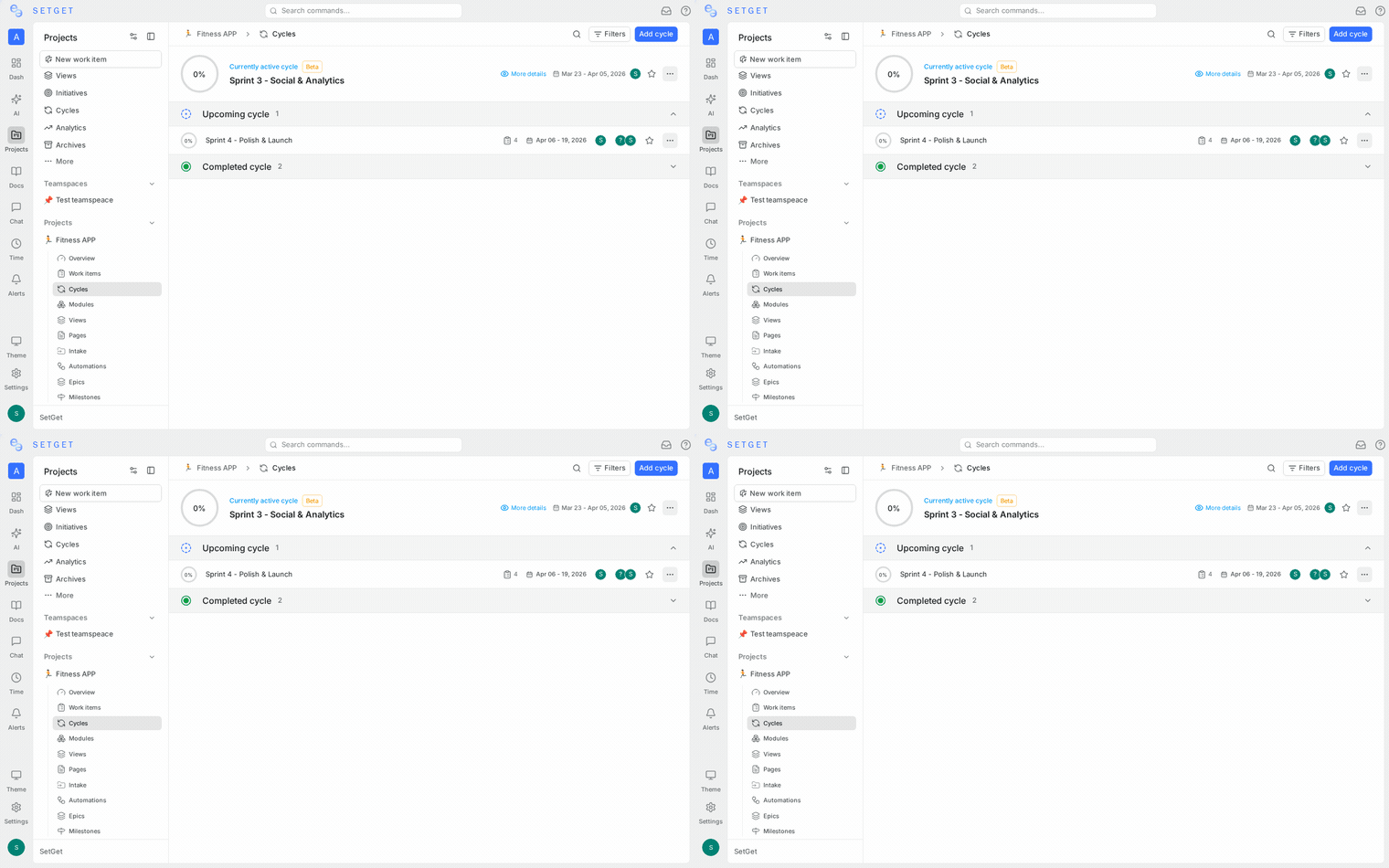
- Open a project and navigate to the Cycles section in the sidebar.
- Click the + button or the Create Cycle action.
- Fill in the cycle details:
| Field | Required | Description |
|---|---|---|
| Name | Yes | A descriptive name, such as "Sprint 12" or "Q1 Week 3" |
| Start date | Yes | The first day of the cycle |
| End date | Yes | The last day of the cycle |
| Description | No | Optional context about the cycle goals, focus areas, or notes |
- Click Create to save the cycle.
TIP
Use a consistent naming convention for cycles. Names like "Sprint 14 — Auth Improvements" communicate both the sequence and the focus area at a glance.
Cycle duration guidelines
| Duration | Best for |
|---|---|
| 1 week | Fast-moving teams, bug-fix sprints, rapid iteration |
| 2 weeks | Most common; balances planning overhead and delivery scope |
| 3 weeks | Teams with longer review cycles or cross-team dependencies |
| 4 weeks | Larger feature work with research and design phases |
Add work items to a cycle
There are several ways to assign work items to a cycle:
From the cycle view
- Open the cycle from the sidebar.
- Click Add existing work items to search and select items from the project backlog.
- The selected items are immediately added to the cycle.
From a work item
- Open any work item (peek view or full page).
- In the properties panel, find the Cycle field.
- Select the target cycle from the dropdown.
From the list or kanban view
- Right-click a work item (or use the action menu).
- Select Add to cycle and choose the target cycle.
Bulk assignment
- Select multiple work items using the checkboxes in list or spreadsheet view.
- Open the bulk actions toolbar.
- Choose Set cycle and pick the target cycle.
WARNING
A work item can only belong to one cycle at a time. Assigning it to a new cycle removes it from the previous one.
View cycles
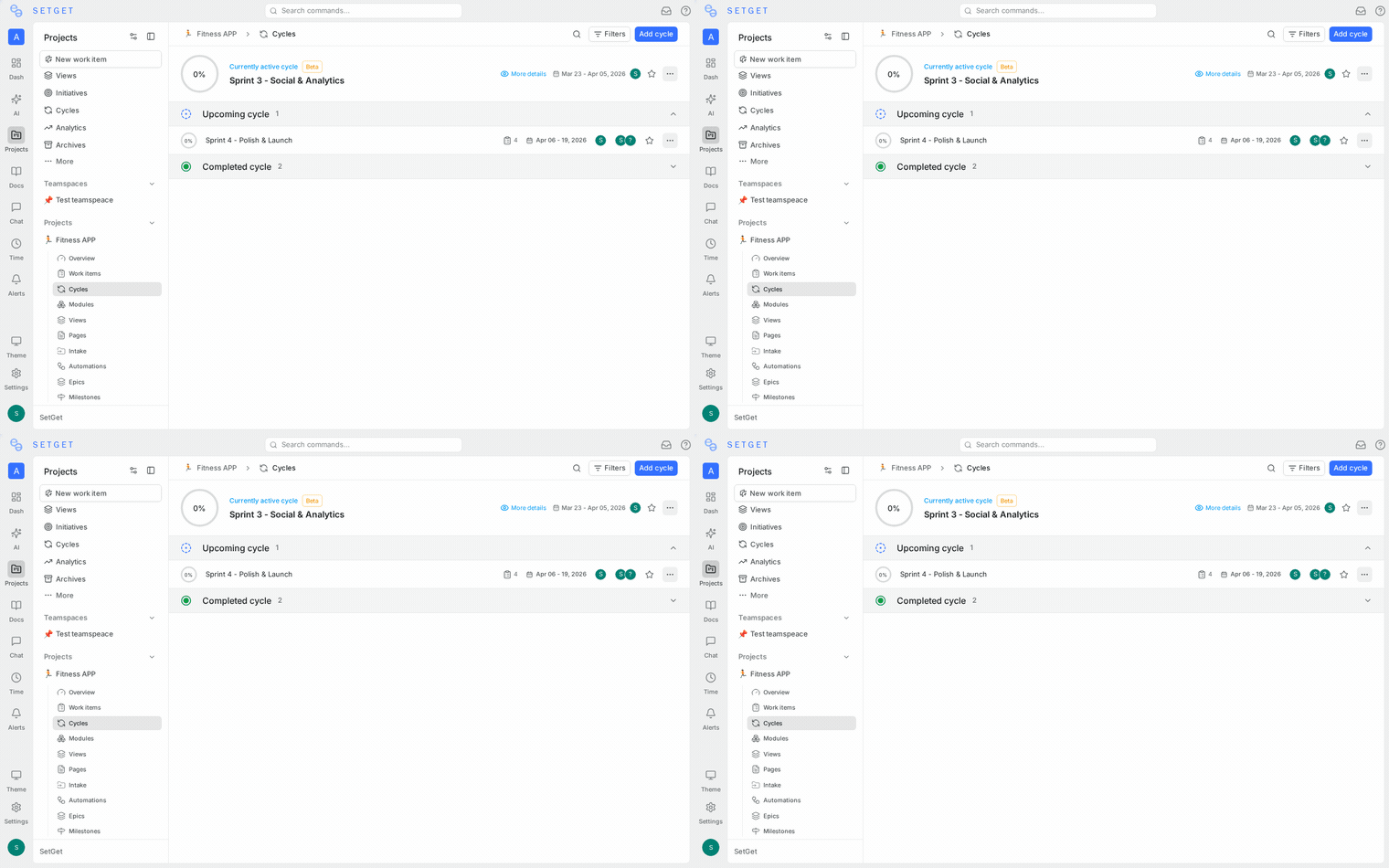
Cycle list
The default cycles view shows all cycles in a list, organized by status — active first, then upcoming, then completed. Each entry displays:
- Cycle name
- Date range
- Progress bar showing completion percentage
- Count of total, completed, and remaining work items
Kanban view within a cycle
Open any cycle to see its work items in your preferred layout. The Kanban layout groups work items by state, giving you a board-style view of in-progress work:
- Drag and drop work items between state columns to update their status.
- Filter and group by priority, assignee, label, or any other property.
- All standard work item actions are available within the cycle context.
Gantt view within a cycle
The Gantt layout displays cycle work items on a timeline:
- Each work item appears as a horizontal bar spanning its start and due dates.
- Dependencies between items are shown as connector lines.
- Drag bar edges to adjust dates directly on the timeline.
- The cycle boundary is highlighted to show what falls within the iteration.
Spreadsheet view within a cycle
The Spreadsheet layout provides a grid for rapid data entry and bulk editing:
- Sort by any column — state, priority, assignee, estimate, dates.
- Inline-edit cells directly in the grid.
- Resize and reorder columns to fit your workflow.
Cycle progress tracking
SetGet provides multiple ways to monitor cycle progress in real time.
Progress bar
Every cycle displays a horizontal progress bar that shows the ratio of completed work items to total items. The bar uses color coding:
| Color | Meaning |
|---|---|
| Green | Completed items |
| Blue | In-progress items |
| Orange | Items in review or pending states |
| Gray | Backlog or unstarted items |
The progress bar updates automatically as work items change state.
Burndown chart
The cycle analytics sidebar includes a burndown chart that tracks the number of remaining work items over time:
- The ideal line shows the expected rate of completion if work is distributed evenly across the cycle.
- The actual line shows real progress day by day.
- When the actual line is above the ideal line, the cycle is behind schedule.
- When the actual line is below the ideal line, the cycle is ahead of schedule.
The burndown chart is an essential tool for daily standups and mid-cycle check-ins.
Scope change tracking
The analytics view also tracks scope changes — work items added to or removed from the cycle after it started. This helps teams understand whether scope creep affected delivery.
Cycle analytics sidebar
Click the Analytics tab when viewing a cycle to access detailed breakdowns:
| Metric | Description |
|---|---|
| Total items | Number of work items in the cycle |
| Completed | Items moved to a done state |
| In progress | Items currently being worked on |
| Remaining | Items not yet started or in backlog |
| Completion rate | Percentage of items completed |
| Burndown | Chart showing remaining work over time |
| Scope changes | Items added or removed after the cycle start date |
| By assignee | Breakdown of items per team member |
| By priority | Distribution across priority levels |
| By label | Distribution across labels |
| By state | Distribution across workflow states |
| By estimate | Sum of estimates completed vs remaining |
These analytics help you run effective cycle retrospectives and identify patterns across iterations.
Transfer incomplete items
When a cycle ends with unfinished work items, you can transfer them to the next cycle:
- Open the completed cycle.
- SetGet shows a Transfer prompt listing all incomplete items (items not in a done state).
- Choose the target cycle — typically the next upcoming cycle.
- Click Transfer to move the items.
Transferred items retain all their properties, comments, and history. The activity feed records the transfer, so you can trace an item's journey across cycles.
TIP
Review incomplete items before transferring them. Some may no longer be relevant, and others may need to be re-estimated based on what was learned during the cycle.
Automatic transfer
If your team prefers, you can set up a transfer rule so that when a cycle is marked complete, all incomplete items are automatically moved to the next cycle. This reduces manual work at cycle boundaries.
Favorite a cycle
Mark frequently accessed cycles as favorites for quick access:
- Hover over a cycle in the sidebar or list view.
- Click the star icon.
- The cycle appears in your Favorites section at the top of the sidebar.
Favorites are personal — each team member can maintain their own list. See Favorites for more details.
Archive a cycle
Archiving removes a cycle from the active list without deleting it:
- Open the cycle you want to archive.
- Click the ... menu and select Archive.
- The cycle moves to the archived section.
Archived cycles:
- Do not appear in the default cycle list.
- Can be viewed by enabling the Show archived filter.
- Can be restored at any time.
- Retain all work items, analytics, and history.
WARNING
Archiving a cycle does not change the state of its work items. If items are still incomplete, consider transferring them to another cycle before archiving.
Edit and delete a cycle
Edit a cycle
- Open the cycle and click the ... menu.
- Select Edit cycle.
- Modify the name, dates, or description.
- Save your changes.
Changing a cycle's dates may affect its lifecycle status. For example, extending the end date of a completed cycle changes it back to active.
Delete a cycle
- Open the cycle and click the ... menu.
- Select Delete.
- Confirm the deletion.
Deleting a cycle removes the cycle container but does not delete its work items. The items remain in the project with their cycle field cleared.
Keyboard shortcuts for cycles
| Shortcut | Action |
|---|---|
Q | Open the cycles list |
C | Create a new work item within the active cycle |
↑ / ↓ | Navigate between cycles |
Enter | Open the selected cycle |
Best practices
- Plan before the cycle starts — hold a cycle planning session to select and estimate work items before the start date.
- Keep cycles a consistent length — predictability improves when cycles have a regular cadence.
- Limit work in progress — do not add more items than the team can realistically complete. Use past velocity as a guide.
- Review at cycle end — hold a retrospective to discuss what went well, what did not, and what to change for the next cycle.
- Use the burndown daily — check the burndown chart during standups to catch problems early.
- Avoid mid-cycle scope changes — adding items after the cycle starts undermines planning. If something urgent comes in, remove an equivalent amount of work.
- Transfer thoughtfully — not every incomplete item should carry forward. Some should return to the backlog for re-prioritization.
- Name cycles clearly — include the sequence number and optionally the theme so cycles are easy to reference in discussions.
Cycle permissions
Cycle management respects project-level role permissions:
| Action | Admin | Member | Guest |
|---|---|---|---|
| Create cycle | Yes | Yes | No |
| Edit cycle | Yes | Yes | No |
| Delete cycle | Yes | No | No |
| Add/remove items | Yes | Yes | No |
| Transfer items | Yes | Yes | No |
| View cycle | Yes | Yes | Yes |
| View analytics | Yes | Yes | Yes |
Guests can view cycle contents and analytics but cannot modify the cycle or its membership.
Cycles vs modules
Cycles and modules serve different organizational purposes:
| Aspect | Cycles | Modules |
|---|---|---|
| Organizing principle | Time (start and end date) | Feature or scope (logical grouping) |
| Overlap | No overlap within a project | Modules can run in parallel |
| Duration | Fixed, typically 1-4 weeks | Variable, can span months |
| Purpose | Delivery cadence and velocity tracking | Feature-level progress tracking |
| Work item membership | One cycle at a time | One module at a time |
A work item can belong to both a cycle and a module simultaneously. Use cycles for "when" and modules for "what."
Related pages
- Modules — Organize work by feature area
- Epics — Track large initiatives across cycles
- Work Items — Manage individual tasks
- Views — Save filtered perspectives of your work
- Dependencies — Understand blocking relationships
- Favorites — Bookmark cycles and other items for quick access
- Analytics — Workspace-level performance metrics