
Pinned Messages
Pinning a message marks it as important for the entire channel. Pinned messages are collected in a dedicated panel so channel members can quickly find reference material, announcements, decisions, and frequently needed links without scrolling through chat history.
Pin a message
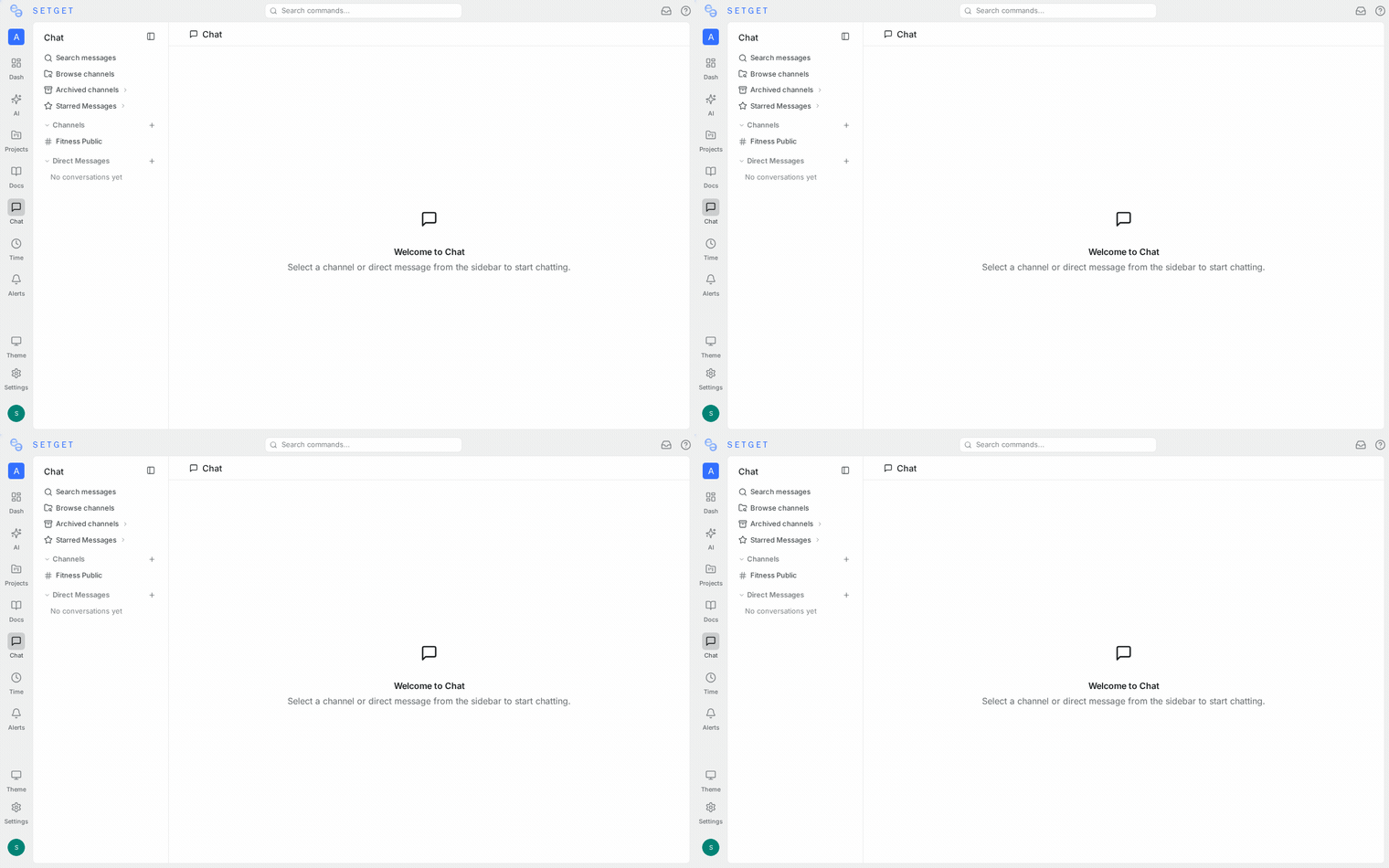
- Hover over the message you want to pin.
- Click the pin icon in the action toolbar, or open the three-dot menu and select Pin Message.
- The message is pinned immediately.
A system notification appears in the channel indicating that you pinned the message, so other members know something important was added to the pins list.
TIP
Only pin messages that have lasting value. Pinning too many messages makes the pins list harder to navigate.
View pinned messages
- Open the channel.
- Click the pin icon in the channel header bar.
- The pinned messages panel opens on the right side, showing all pinned messages in reverse chronological order (most recently pinned first).
Each pinned message in the panel shows:
| Element | Description |
|---|---|
| Author | Who sent the original message |
| Content | The full message text and any attachments |
| Timestamp | When the message was originally sent |
| Pinned by | Who pinned the message and when |
| Jump to message | A link to scroll to the message in the channel history |
Click Jump to message to navigate to the pinned message's location in the main channel timeline.
Unpin a message
- Open the pinned messages panel.
- Find the message you want to unpin.
- Click the Unpin button (or the pin icon with a removal indicator) on the message.
- The message is unpinned immediately.
Alternatively, hover over the pinned message in the main channel and select Unpin from the three-dot menu.
Who can unpin
| Role | Can unpin |
|---|---|
| The person who pinned the message | Yes |
| The message author | Yes |
| Channel owner | Yes |
| Workspace admin | Yes |
| Other channel members | No |
Pin limits
To keep the pins list useful and manageable, channels have a pin limit:
| Limit | Value |
|---|---|
| Maximum pinned messages per channel | 50 |
When the limit is reached, you must unpin an existing message before pinning a new one. This encourages regular maintenance of the pins list and prevents it from becoming a dumping ground.
WARNING
If your channel is approaching the pin limit, review the existing pins and remove any that are no longer relevant. Stale pins reduce the usefulness of the feature.
What can be pinned
| Content type | Can be pinned |
|---|---|
| Regular text messages | Yes |
| Messages with attachments (files, images) | Yes |
| Messages with formatting (code blocks, links) | Yes |
| Thread replies | No (pins are channel-level only) |
| System messages (join/leave notifications) | No |
| Messages in DMs | No (pins are available in channels only) |
Use cases for pinned messages
Important announcements
Pin messages that contain critical team announcements — policy changes, process updates, or important deadlines. New members joining the channel can quickly review pins to get up to speed.
Reference links
Pin messages that contain frequently needed links:
- Project documentation
- Design spec URLs
- Dashboard links
- API endpoint references
- Meeting recordings
Decision records
When a decision is made in a channel discussion, pin the message that captures the final decision. This creates a lightweight decision log that the team can reference later.
Onboarding information
Pin a welcome message in each channel that explains:
- What the channel is for
- Channel norms and expectations
- Links to relevant resources
- Who to contact for questions
Meeting notes
After a meeting, post a summary in the relevant channel and pin it. Team members who missed the meeting can find the notes quickly.
Pins and notifications
Pinning a message does not send a notification to channel members. However, a system message appears in the channel indicating that a message was pinned, which is visible to anyone currently reading the channel.
If you want to draw attention to a pinned message, send a follow-up message mentioning the pin:
"I've pinned the deployment checklist above. Please review before Friday."
Managing pins over time
Pins are most useful when they are actively maintained. Consider these practices:
| Practice | Benefit |
|---|---|
| Review pins monthly | Remove outdated content |
| Assign a pin curator | One person responsible for keeping pins tidy |
| Unpin after action is taken | Time-sensitive pins should be removed once resolved |
| Keep pin count low | Fewer pins means each one gets more attention |
| Add context when pinning | Send a message explaining why you pinned something |
Searching pinned messages
Within the pinned messages panel, you can scroll through all pins. For channels with many pins, use the browser's find-in-page feature (Ctrl+F / Cmd+F) to search within the panel.
Related pages
- Chat Overview — introduction to SetGet Chat
- Messages — sending and formatting messages
- Channels — shared conversation spaces
- Starring — personal bookmarks for messages
- Moderation — admin tools for channel management