
Keyboard Shortcuts
SetGet provides comprehensive keyboard shortcuts for nearly every action in the application. Learning even a handful of these shortcuts can significantly speed up your workflow. This page serves as the complete reference.
TIP
Press Ctrl+/ (or Cmd+/ on macOS) at any time in SetGet to open the keyboard shortcuts help overlay.
Notation
Throughout this reference, shortcuts are shown in the format Ctrl+Key for Windows/Linux and Cmd+Key for macOS. Where both are the same, only one is shown.
| Symbol | Meaning |
|---|---|
Ctrl | Control key (Windows/Linux) |
Cmd | Command key (macOS) |
Alt | Alt key (Windows/Linux) / Option key (macOS) |
Shift | Shift key |
Enter | Enter/Return key |
Esc | Escape key |
Space | Space bar |
Command palette
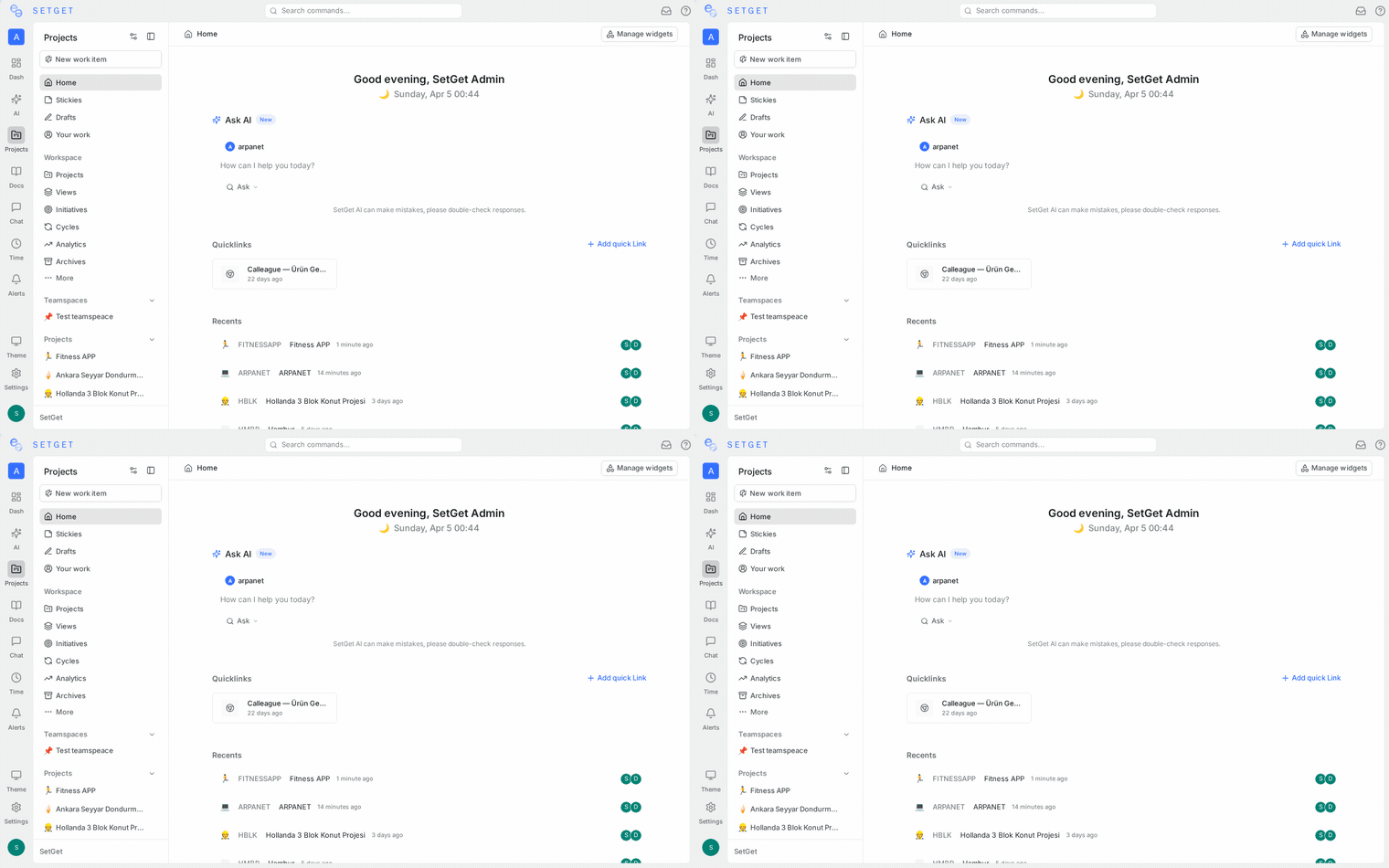
The command palette is the single most powerful keyboard-driven feature in SetGet. It provides instant access to any page, project, work item, or action.
| Shortcut | Action |
|---|---|
Ctrl+K / Cmd+K | Open command palette |
| Type text | Search projects, items, pages, actions |
Enter | Select highlighted result |
Up / Down arrows | Navigate through results |
Esc | Close command palette |
Command palette actions
Type these keywords in the command palette for quick actions:
| Keyword | Action |
|---|---|
create item | Open new work item form |
create page | Open new page editor |
create cycle | Open new cycle form |
create module | Open new module form |
settings | Navigate to workspace settings |
notifications | Open notification inbox |
ai | Open AI chat panel |
theme | Toggle light/dark theme |
Navigation shortcuts
Global navigation
| Shortcut | Action |
|---|---|
Ctrl+K / Cmd+K | Open command palette |
Ctrl+/ / Cmd+/ | Show keyboard shortcuts help |
[ | Toggle sidebar collapse |
H | Go to workspace home |
1 | Switch to first project in sidebar |
2 | Switch to second project in sidebar |
3 | Switch to third project in sidebar |
4 | Switch to fourth project in sidebar |
5 | Switch to fifth project in sidebar |
Sidebar navigation
| Shortcut | Action |
|---|---|
[ | Collapse/expand sidebar |
Up / Down | Navigate sidebar items |
Enter | Open selected sidebar item |
Right | Expand sidebar section |
Left | Collapse sidebar section |
Project navigation
| Shortcut | Action |
|---|---|
G then I | Go to Issues (work items list) |
G then C | Go to Cycles |
G then M | Go to Modules |
G then V | Go to Views |
G then P | Go to Pages |
G then S | Go to project Settings |
G then A | Go to project Analytics |
TIP
The G (Go) shortcuts are two-key sequences. Press G, release it, then press the second key within 1 second.
Inbox navigation
| Shortcut | Action |
|---|---|
I | Open notification inbox |
J / Down | Next notification |
K / Up | Previous notification |
Enter | Open notification |
E | Mark notification as read |
Shift+E | Mark all notifications as read |
X | Archive notification |
Creation shortcuts
| Shortcut | Action |
|---|---|
C | Create new work item |
D | Create new page |
Shift+C | Create new work item in current project |
Q | Create new cycle |
Shift+M | Create new module |
Work item creation form
When the work item creation form is open:
| Shortcut | Action |
|---|---|
Tab | Move to next field |
Shift+Tab | Move to previous field |
Ctrl+Enter / Cmd+Enter | Submit and create the item |
Esc | Close form without creating |
Ctrl+Shift+Enter | Create and open the item detail |
Editing shortcuts
Work item detail
When viewing a work item:
| Shortcut | Action |
|---|---|
E | Edit title |
S | Change state |
P | Change priority |
A | Change assignee |
L | Change labels |
Shift+D | Set due date |
Shift+E | Set estimate |
Shift+C | Add to cycle |
Shift+M | Add to module |
M | Add comment |
Ctrl+C / Cmd+C | Copy item ID (when no text selected) |
Del / Backspace | Delete item (with confirmation) |
Page/editor formatting
When editing a page or description:
| Shortcut | Action |
|---|---|
Ctrl+B / Cmd+B | Bold |
Ctrl+I / Cmd+I | Italic |
Ctrl+U / Cmd+U | Underline |
Ctrl+Shift+S / Cmd+Shift+S | Strikethrough |
Ctrl+E / Cmd+E | Inline code |
Ctrl+Shift+K / Cmd+Shift+K | Code block |
Ctrl+Shift+1 | Heading 1 |
Ctrl+Shift+2 | Heading 2 |
Ctrl+Shift+3 | Heading 3 |
Ctrl+Shift+7 | Ordered list |
Ctrl+Shift+8 | Bullet list |
Ctrl+Shift+9 | Checklist / task list |
Ctrl+Shift+B | Blockquote |
Ctrl+K / Cmd+K | Insert link |
Ctrl+Z / Cmd+Z | Undo |
Ctrl+Shift+Z / Cmd+Shift+Z | Redo |
Ctrl+S / Cmd+S | Save page |
/ | Open slash command menu |
Slash commands in editor
Type / in the editor to open the slash command menu:
| Command | Inserts |
|---|---|
/heading1 | Level 1 heading |
/heading2 | Level 2 heading |
/heading3 | Level 3 heading |
/bullet | Bullet list |
/numbered | Numbered list |
/checklist | Checklist |
/code | Code block |
/quote | Blockquote |
/divider | Horizontal divider |
/table | Table |
/image | Image upload |
/callout | Callout box |
View shortcuts
Layout switching
| Shortcut | Action |
|---|---|
Alt+1 | Switch to List view |
Alt+2 | Switch to Board view |
Alt+3 | Switch to Spreadsheet view |
Alt+4 | Switch to Calendar view |
Alt+5 | Switch to Gantt view |
Filter and display
| Shortcut | Action |
|---|---|
F | Toggle filter panel |
Shift+G | Toggle grouping |
Shift+O | Toggle ordering/sorting |
Shift+F | Focus/fullscreen current view |
Ctrl+Shift+F | Clear all active filters |
List and board navigation
| Shortcut | Action |
|---|---|
J / Down | Select next item |
K / Up | Select previous item |
Enter | Open selected item detail |
Esc | Close detail panel / deselect |
Space | Toggle item selection (for bulk actions) |
Ctrl+A / Cmd+A | Select all visible items |
X | Toggle select current item |
Bulk actions (when items are selected)
| Shortcut | Action |
|---|---|
S | Set state for selected items |
P | Set priority for selected items |
A | Set assignee for selected items |
L | Set labels for selected items |
Del | Delete selected items (with confirmation) |
Chat shortcuts
| Shortcut | Action |
|---|---|
Ctrl+Shift+M / Cmd+Shift+M | Open/close chat panel |
Enter | Send message |
Shift+Enter | New line in message |
Up | Edit last sent message |
Esc | Close thread / go back to channel list |
@ + name | Mention a member |
: + emoji name | Insert emoji |
Ctrl+Shift+E / Cmd+Shift+E | Toggle emoji picker |
AI shortcuts
| Shortcut | Action |
|---|---|
Open via Ctrl+K | Type "ai" in command palette |
Enter | Send message to AI |
Shift+Enter | New line in AI message |
Esc | Close AI panel |
Table navigation
When working in spreadsheet view or tables:
| Shortcut | Action |
|---|---|
Tab | Move to next cell |
Shift+Tab | Move to previous cell |
Enter | Enter edit mode / confirm edit |
Esc | Exit edit mode |
Arrow keys | Navigate cells |
Ctrl+C / Cmd+C | Copy cell value |
Ctrl+V / Cmd+V | Paste into cell |
Accessibility shortcuts
| Shortcut | Action |
|---|---|
Tab | Move focus to next interactive element |
Shift+Tab | Move focus to previous interactive element |
Enter / Space | Activate focused element |
Esc | Close modal, dropdown, or popover |
Alt+F1 | Screen reader help (in supported browsers) |
Customization
Currently, keyboard shortcuts in SetGet use fixed bindings and cannot be remapped. If you have a conflict with a browser extension or system shortcut, consider adjusting the conflicting application's bindings.
TIP
Frequently used shortcuts to memorize first: Ctrl+K (command palette), C (create item), J/K (navigate lists), and [ (toggle sidebar). These four alone cover the most common actions.
Related pages
- Desktop Experience — Optimizing SetGet on desktop
- Mobile App — SetGet on iOS and Android (no keyboard shortcuts)
- Get Help — Support channels and resources
- Core Concepts — Understanding SetGet building blocks