
Time Tracking
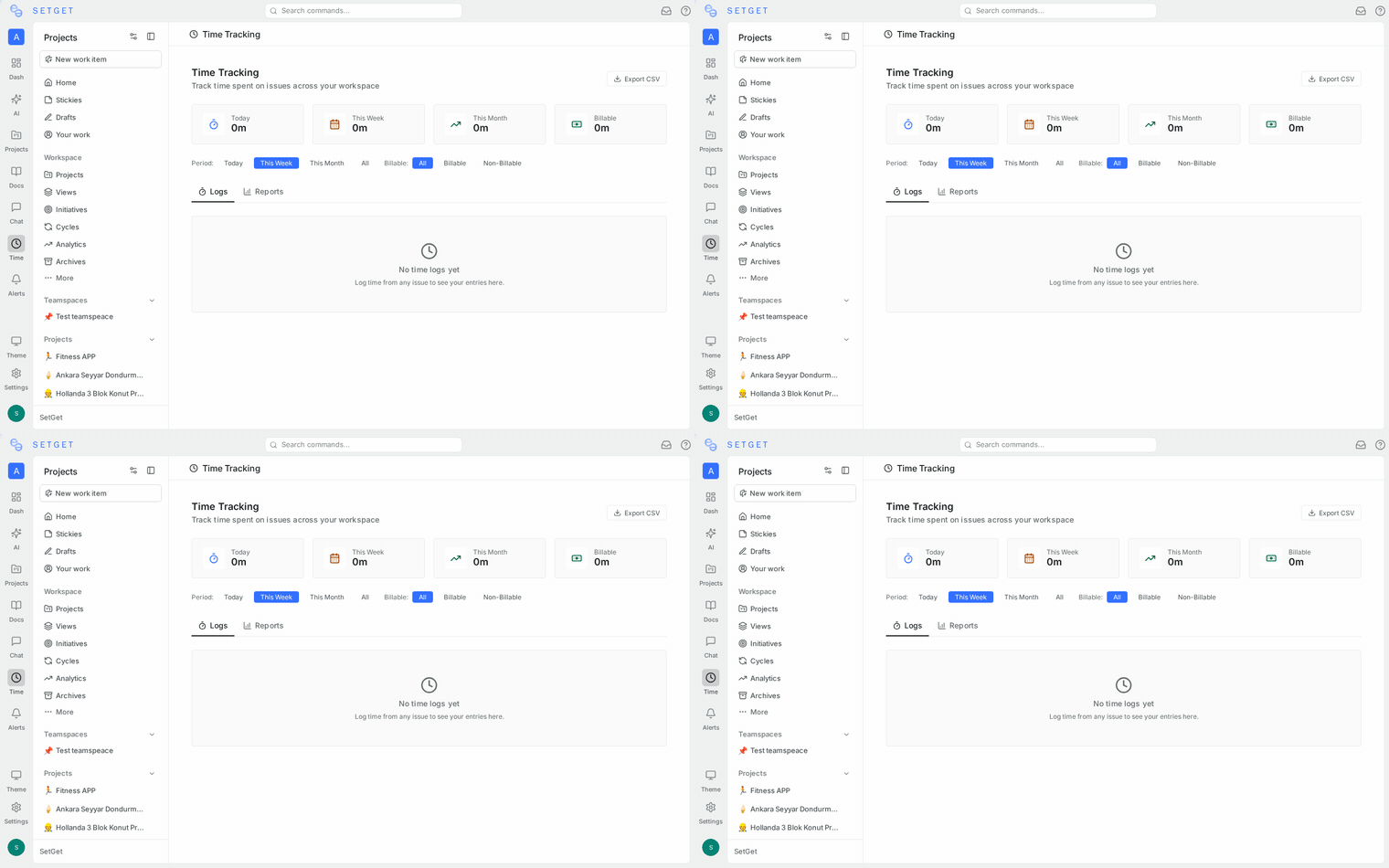
Time tracking in SetGet lets you record how much time is spent on each work item. Use the built-in timer for real-time tracking or log time manually after the fact. Time data feeds into reports and dashboards, helping teams understand workload, estimate future work more accurately, and bill clients for hours worked.
Why track time?
| Goal | How time tracking helps |
|---|---|
| Accurate estimation | Compare estimated vs. actual time to improve future estimates |
| Client billing | Track billable hours for invoicing |
| Workload visibility | See how time is distributed across team members |
| Process improvement | Identify tasks that consistently take longer than expected |
| Project budgeting | Monitor time spent vs. budget for projects |
Enabling time tracking
Time tracking is enabled per project:
- Go to Project Settings > Features.
- Toggle Time Tracking on.
- Click Save.
Once enabled, the time tracking widget appears on every work item in the project.
The timer widget
The timer widget is a stopwatch built into the work item detail panel.
Starting the timer
- Open a work item.
- Click the Start Timer button (play icon) in the time tracking section.
- The timer starts counting.
- Work on the task.
- Click Stop to pause or end the timer.
- A time log entry is created with the elapsed duration.
Timer behavior
| Feature | Description |
|---|---|
| Persistent | The timer continues running even if you navigate away or close the tab |
| Single active timer | Only one timer can run at a time across all work items |
| Auto-switch | Starting a timer on a new work item stops the previous timer and saves its log |
| Minimum duration | Time logs shorter than 1 minute are discarded |
| Timer indicator | An active timer icon appears in the sidebar showing the running work item |
TIP
Use the sidebar timer indicator to keep track of which work item you are currently timing, especially when switching between tasks.
Editing a timer-created log
After stopping the timer, you can edit the log entry:
- In the time tracking section, find the new log entry.
- Click Edit.
- Adjust the duration, date, or description.
- Toggle billable/non-billable.
- Click Save.
Manual time entry
Log time after the work is done:
- Open a work item.
- In the time tracking section, click Log Time.
- Fill in the fields:
| Field | Required | Description |
|---|---|---|
| Duration | Yes | Time spent (hours and minutes, e.g., "2h 30m") |
| Date | Yes | The date the work was performed (defaults to today) |
| Description | No | What was done during this time |
| Billable | No | Whether this time is billable (defaults to project setting) |
- Click Save.
Duration formats
SetGet accepts multiple duration formats:
| Input | Interpreted as |
|---|---|
2h 30m | 2 hours 30 minutes |
2.5h | 2 hours 30 minutes |
2:30 | 2 hours 30 minutes |
150m | 2 hours 30 minutes |
30m | 30 minutes |
0.5h | 30 minutes |
Time log table
Every work item has a time log table showing all logged entries:
| Column | Description |
|---|---|
| Member | Who logged the time |
| Duration | Time spent |
| Date | When the work was performed |
| Description | What was done |
| Billable | Whether the entry is billable |
| Logged at | When the entry was recorded |
Sorting and filtering
- Sort by date, duration, or member.
- Filter by member to see only your own logs or a specific colleague's logs.
Editing and deleting time logs
Edit a log
- Find the log entry in the time log table.
- Click Edit (pencil icon).
- Modify the fields.
- Click Save.
Delete a log
- Find the log entry.
- Click Delete (trash icon).
- Confirm.
WARNING
Only the member who created the log or a project admin can edit or delete time logs. This prevents accidental modification of other members' records.
Billable vs. non-billable
Each time log can be marked as billable or non-billable:
| Type | Description | Example |
|---|---|---|
| Billable | Time that will be invoiced to a client | Client feature development |
| Non-billable | Internal time not charged to a client | Team meetings, internal tooling |
Default billable setting
Configure the default per project:
- Go to Project Settings > Time Tracking.
- Set Default Billable to On or Off.
- New time logs inherit this default. Members can override per entry.
Billable rates
Set hourly rates for billing calculations:
| Setting | Scope | Description |
|---|---|---|
| Workspace rate | All projects | Default hourly rate for the workspace |
| Project rate | Per project | Overrides the workspace rate |
| Member rate | Per member | Overrides the project rate for a specific member |
Rates are used in time tracking reports to calculate costs and billing amounts.
Time summaries
Work item summary
Each work item shows a time summary:
| Metric | Description |
|---|---|
| Total time logged | Sum of all time log durations |
| Estimated time | The estimate value (if set) |
| Remaining | Estimated minus logged (if estimate is set) |
| Billable total | Sum of billable time logs |
| Non-billable total | Sum of non-billable time logs |
Project summary
At the project level, the time tracking summary shows:
| Metric | Description |
|---|---|
| Total time this week | All time logged in the current week |
| Total time this month | All time logged in the current month |
| Top contributors | Members who logged the most time |
| Billable ratio | Percentage of time that is billable |
Permissions
| Role | Can log own time | Can view others' logs | Can edit others' logs | Can configure |
|---|---|---|---|---|
| Owner | Yes | Yes | Yes | Yes |
| Admin | Yes | Yes | Yes | Yes |
| Member | Yes | Yes (same project) | No | No |
| Guest | No | No | No | No |
Best practices
- Log time daily -- it is easier to remember what you did today than to reconstruct a week later.
- Use the timer -- for focused work, the timer provides the most accurate tracking.
- Add descriptions -- brief notes like "code review" or "bug investigation" make reports more useful.
- Set estimates -- comparing estimated vs. actual time improves future planning.
- Review weekly -- check the project summary weekly to catch logging gaps early.