
Favorites
Favorites in SetGet let you bookmark the items you access most often — projects, views, cycles, modules, pages, and more — so they appear at the top of your sidebar for instant access. Instead of navigating through menus and lists to find what you need, favorites put your most important items one click away.
Favorites are personal. Each team member maintains their own list, so your sidebar reflects your priorities without affecting anyone else.
What can be favorited
You can favorite any of the following items in SetGet:
| Item type | Where it appears when favorited |
|---|---|
| Projects | Sidebar favorites section |
| Views | Sidebar favorites section |
| Cycles | Sidebar favorites section |
| Modules | Sidebar favorites section |
| Pages | Sidebar favorites section |
| Project views | Sidebar favorites section under the project |
Each favorited item shows its name, icon, and a quick-access link. Clicking the item navigates you directly to it.
Add an item to favorites
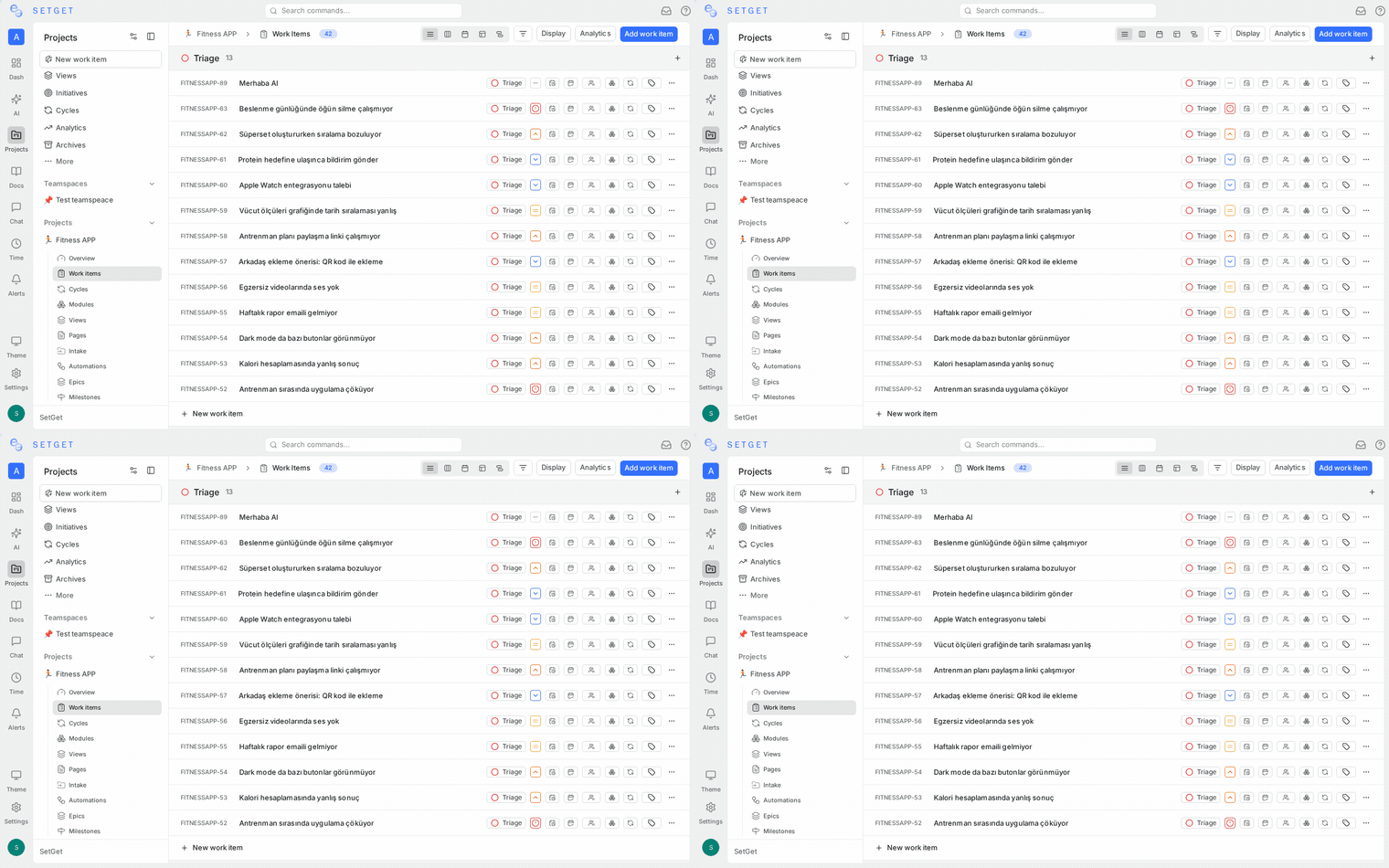
There are several ways to favorite an item:
From the sidebar
- Hover over any project, view, cycle, module, or page in the sidebar.
- Click the star icon that appears on hover.
- The item is added to your favorites section.
From the item header
- Open the item (project, view, cycle, module, or page).
- Click the star icon in the header bar.
- The star fills in to indicate the item is favorited.
From the list view
- In any list of items (project list, cycle list, module list, etc.), hover over an entry.
- Click the star icon on the row.
- The item is added to your favorites.
From the action menu
- Right-click an item or click its ... menu.
- Select Add to favorites.
TIP
Favorite the items you open every day. For most people, this is their current project, the active cycle, one or two saved views, and a shared page.
Access favorites from the sidebar
The Favorites section appears at the top of the workspace sidebar, above the project list:
- All your favorited items are listed in the order you arranged them.
- Each item shows its type icon (project, view, cycle, etc.) and name.
- Click any item to navigate directly to it.
- The favorites section is collapsible — click the section header to expand or collapse it.
Favorites section layout
Favorites
  [star] Marketing Website        (project)
  [star] Sprint 14                (cycle)
  [star] My Open Items            (view)
  [star] Auth Redesign            (module)
  [star] Team Meeting Notes       (page)
Reorder favorites
Customize the order of your favorites to put the most important items first:
- Open the Favorites section in the sidebar.
- Click and drag any item to a new position.
- Release to drop it in the desired order.
- The new order is saved automatically.
TIP
Put your active cycle and main project at the top of your favorites. Rearrange as your focus changes week to week.
Remove an item from favorites
To unfavorite an item:
From the sidebar
- Hover over the favorited item in the Favorites section.
- Click the star icon (it will be filled in).
- The item is removed from your favorites.
From the item header
- Open the favorited item.
- Click the filled star icon in the header.
- The star becomes unfilled and the item is removed from favorites.
From the action menu
- Right-click the item or click its ... menu.
- Select Remove from favorites.
Removing a favorite does not delete or modify the item itself — it only removes the bookmark from your sidebar.
Favorite behavior details
| Behavior | Description |
|---|---|
| Personal | Favorites are per-user; your favorites do not affect other team members |
| Persistent | Favorites survive page refreshes, logouts, and device switches |
| Cross-project | You can favorite items from different projects; they all appear in the same list |
| Real-time updates | If a favorited item is renamed, the new name appears in your favorites automatically |
| Deletion handling | If a favorited item is deleted, it is automatically removed from your favorites |
| Archive handling | Archived items remain in your favorites but may show an archived indicator |
Use cases
| Scenario | What to favorite |
|---|---|
| Daily work | Your current project, the active cycle, and your personal "Assigned to me" view |
| Team lead | Team-wide views for priority items, the current module, and team meeting notes page |
| Product manager | Multiple project overviews, cycle analytics views, and the product roadmap page |
| Cross-project contributor | Projects you contribute to across the workspace and relevant cycles in each |
| New team member | The onboarding page, team conventions document, and the project you are ramping up on |
Keyboard shortcut
| Shortcut | Action |
|---|---|
F | Toggle favorite on the currently selected item (when supported in the active view) |
Best practices
- Keep the list short — favorites lose their value when the list is too long. Aim for five to ten items at most.
- Review weekly — remove items you no longer access daily. Last sprint's cycle does not need to stay favorited.
- Favorite views, not just projects — saved views like "My open high-priority items" or "Blocked work" can be more useful than raw project links.
- Use ordering intentionally — put the item you open first every morning at the top of the list.
- Combine with stickies — use stickies for temporary notes and favorites for persistent navigation shortcuts.
- Favorite shared pages — team wikis, meeting notes, and decision logs are great candidates for favorites.