
Project Templates
Project templates let you capture a project's configuration and reuse it to create new projects with the same setup. Instead of manually configuring states, labels, estimates, features, and automations every time you start a new project, you create a template once and apply it whenever needed. Templates enforce consistency across your workspace and reduce onboarding time for new projects.
What a template includes
When you create a template from an existing project, SetGet captures the following configuration:
| Configuration | Included | Details |
|---|---|---|
| States | Yes | All custom states, their groups, colors, and order |
| Labels | Yes | All labels, their colors, and parent-child hierarchy |
| Estimates | Yes | The estimation type and scale (Fibonacci, Linear, Custom, Categories, Time) |
| Features | Yes | Which features are enabled (Cycles, Modules, Views, Pages, Intake) |
| Automations | Yes | Auto-close and auto-archive rules |
| Network | Yes | Public or Secret setting |
| Description | Yes | The project description text |
| Members | No | Members are not copied — each project starts fresh |
| Work items | No | No actual work items are included |
| Cycles | No | No cycles are copied |
| Modules | No | No modules are copied |
| Pages | No | No pages are copied |
| Integrations | No | Integration connections are project-specific and not templated |
TIP
Templates capture the structure and rules of a project, not its content. Think of a template as a blank project with all the right settings pre-configured.
Create a template from an existing project
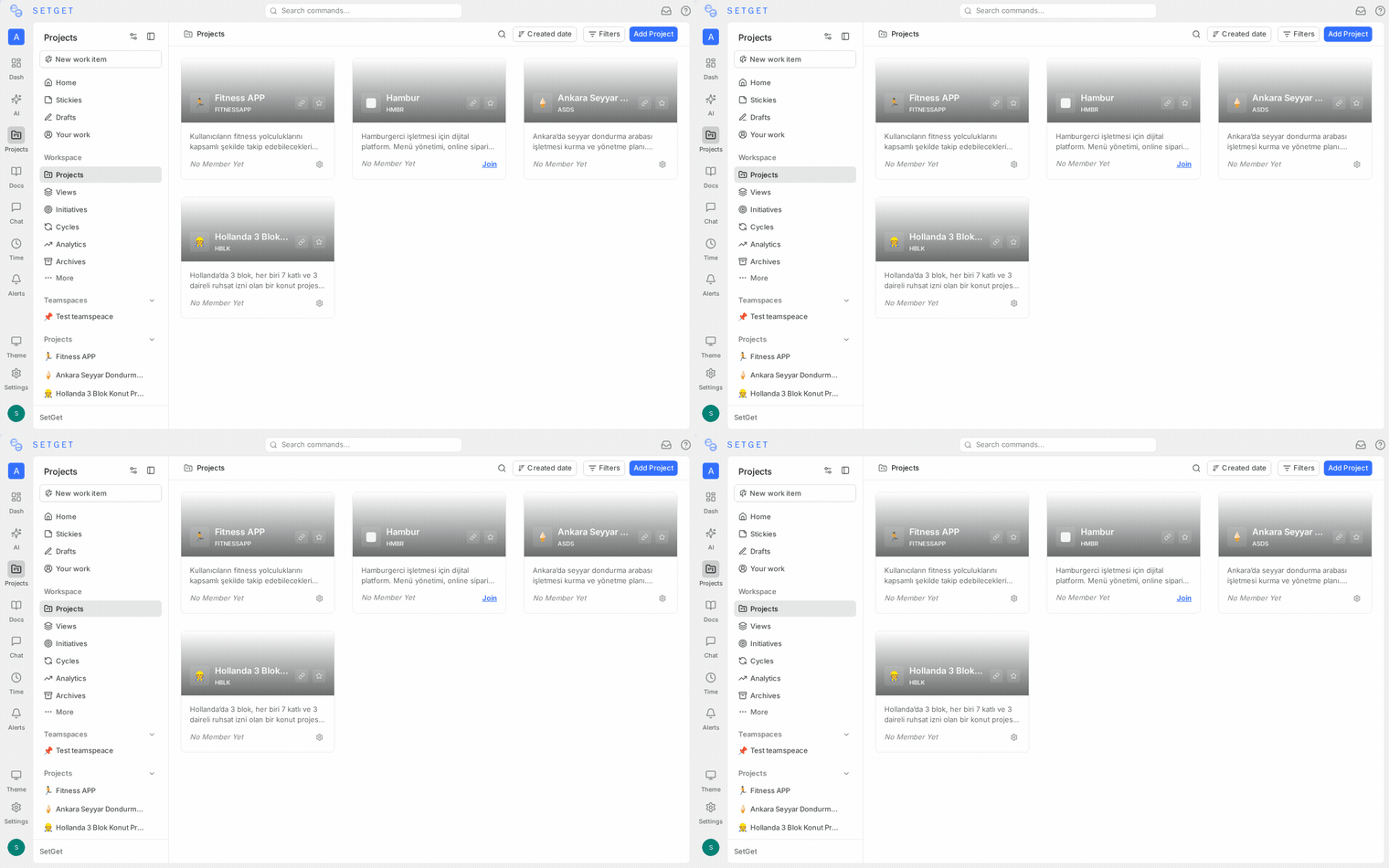
- Open the project you want to use as the basis for your template.
- Go to Settings > General.
- Click Save as Template (or find the option under the ... menu).
- Enter a template name (e.g., "Engineering Sprint Project", "Client Engagement", "Marketing Campaign").
- Optionally add a template description explaining when to use this template.
- Click Create Template.
The template is saved to the workspace and available to all workspace members when creating new projects.
What makes a good template source
Choose a project that represents your team's ideal starting configuration:
- States are set up the way most projects should start.
- Labels cover the common categories your team uses.
- Estimates are configured with the right type and scale.
- Features are toggled appropriately for the project type.
- Automations reflect your standard rules.
WARNING
The template captures the project's current configuration, not its historical configuration. If you have modified states or labels over time, the template reflects the current state. Review the configuration before saving as a template.
Create a new project from a template
- Click Create Project from the sidebar or workspace project list.
- In the project creation dialog, look for the Template dropdown or the Use Template option.
- Select the template you want to use.
- Fill in the project-specific details:
- Name — the unique name for this project
- Identifier — the short code for work item IDs
- Network — defaults to the template's network type, but you can override it
- Click Create Project.
The new project is created with all the template's configuration pre-applied. You can immediately start adding members and creating work items.
Override template settings
When creating a project from a template, you can override certain settings:
| Setting | Can override at creation |
|---|---|
| Name | Yes (required) |
| Identifier | Yes (required) |
| Description | Yes |
| Network | Yes |
| Cover image | Yes |
| States | No (modify after creation) |
| Labels | No (modify after creation) |
| Estimates | No (modify after creation) |
| Features | No (modify after creation) |
Settings that cannot be overridden at creation time can be changed freely after the project is created through the normal settings interface.
Manage templates
View all templates
- Go to Settings (workspace level) > Templates or access templates through the workspace settings area.
- You see a list of all templates in the workspace with their names, descriptions, and creation dates.
Edit a template
Templates are snapshots, not live references. To update a template:
- Create a project from the template (or open the original source project).
- Make the desired configuration changes.
- Save as a new template with the same name.
- Delete the old template if it is no longer needed.
TIP
There is no live link between a template and projects created from it. Changing a template does not retroactively update existing projects.
Delete a template
- Go to the workspace templates list.
- Click the ... menu next to the template.
- Select Delete.
- Confirm the deletion.
Deleting a template does not affect any projects that were created from it. Those projects continue to function independently.
Duplicate a template
If you want to create a variant of an existing template:
- Create a new project from the template.
- Modify the new project's configuration as needed.
- Save the modified project as a new template.
Template strategies
By project type
Create templates for each type of project your organization runs:
| Template | Configuration highlights |
|---|---|
| Engineering Sprint | Cycles on, Modules on, Fibonacci estimates, states: Backlog / Ready / In Dev / In Review / QA / Done / Cancelled |
| Design Project | Cycles off, Modules on, Category estimates (XS-XL), states: Inbox / Exploration / In Design / Review / Approved / Cancelled |
| Marketing Campaign | Cycles on, Modules off, No estimates, states: Planning / In Progress / Live / Completed / Cancelled |
| Client Engagement | Cycles on, Modules on, Time estimates, Intake on, states: Triage / Planned / Active / Delivered / Signed Off / Cancelled |
| Bug Bash | Cycles off, Modules off, No estimates, states: Reported / Confirmed / Fixing / Fixed / Won't Fix |
By team
Different teams often have different workflow preferences:
| Template | Team |
|---|---|
| Backend Engineering | Backend team with code review and QA states |
| Frontend Engineering | Frontend team with design review state |
| Support | Support team with Intake enabled and triage workflow |
| Product | Product team with discovery and validation states |
By compliance level
For organizations with varying process requirements:
| Template | Compliance level |
|---|---|
| Standard | Basic workflow with minimal automation |
| Regulated | Additional review states, mandatory estimates, auto-archive disabled |
| External | Secret network, intake enabled, restricted features |
Template best practices
- Start with 2-3 templates — do not try to cover every scenario. Create templates for your most common project types and refine over time.
- Name templates clearly — use descriptive names that tell members when to use each template (e.g., "Sprint Project - Engineering" rather than "Template 1").
- Include descriptions — a one-line description explaining the template's intended use helps members choose the right one.
- Review templates quarterly — as your processes evolve, update templates to reflect current best practices. Delete templates nobody uses.
- Use templates for onboarding — when a new team member creates their first project, point them to the appropriate template so they start with the right configuration.
- Do not over-customize states — templates with too many states are confusing for new projects. Start with 5-7 states and let teams add more as needed.
Frequently asked questions
Can I create a template without an existing project? No. Templates are always created from an existing project's configuration. If you need a template with specific settings, create a temporary project, configure it, save as a template, then delete the temporary project.
Do templates sync across workspaces? No. Templates are scoped to the workspace they were created in. If you manage multiple workspaces, you need to create templates in each one separately.
Can non-Admins create templates? Template creation requires Admin access on the source project. Workspace Admins can also manage templates from the workspace settings level.
What happens if I delete the source project? Nothing. The template is independent of the source project. Deleting the project does not affect the template.
Related pages
- Manage Projects — Create and configure projects
- Project Settings — Full settings reference
- Project States — Configure workflow stages
- Project Labels — Organize work with labels
- Project Estimates — Set up estimation systems
- Project Features — Toggle capabilities