
Project States
States represent the stages a work item passes through during its lifecycle. Every project in SetGet has its own set of states, giving teams the flexibility to model workflows that match how they actually work. States are organized into five fixed groups that SetGet uses for analytics, automation, and progress tracking.
The five state groups
Every state belongs to exactly one of five groups. These groups are built into SetGet and cannot be added, removed, or renamed. They provide a universal framework that powers progress bars, burndown charts, cycle analytics, and automation triggers.
| Group | Purpose | Typical states | Color family |
|---|---|---|---|
| Backlog | Items acknowledged but not yet scheduled for work | Backlog, Triage, Icebox | Gray |
| Unstarted | Items scheduled or ready to begin but not yet in progress | To Do, Ready, Planned | Blue |
| Started | Items actively being worked on | In Progress, In Review, In QA | Orange / Yellow |
| Completed | Items finished successfully | Done, Shipped, Released | Green |
| Cancelled | Items abandoned or determined to be unnecessary | Cancelled, Won't Fix, Duplicate | Red |
TIP
The state group is what matters for analytics and automation. SetGet does not care what you name your states — it tracks progress by group. An item in any Completed state counts as done, regardless of whether the state is called "Done", "Shipped", or "Released".
Default states
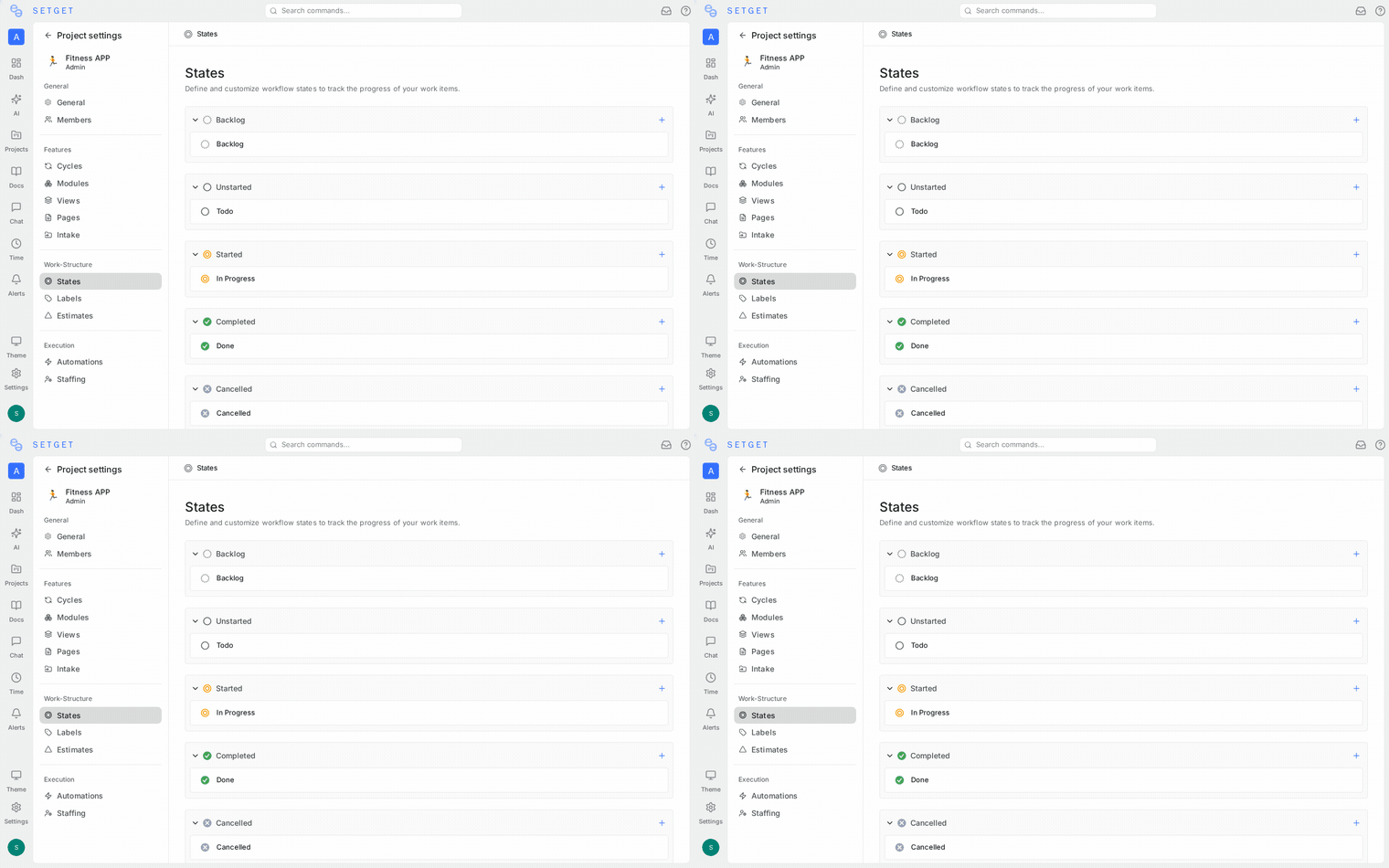
When you create a new project, SetGet provides a default set of states:
| State | Group | Color |
|---|---|---|
| Backlog | Backlog | #a3a3a3 (gray) |
| Todo | Unstarted | #3b82f6 (blue) |
| In Progress | Started | #f59e0b (amber) |
| Done | Completed | #22c55e (green) |
| Cancelled | Cancelled | #ef4444 (red) |
You can rename, recolor, reorder, or replace these states entirely. The only requirement is that every project must have at least one state in each of the five groups.
Create a custom state
- Go to the project Settings > States.
- Find the state group where you want to add the new state (e.g., Started).
- Click the + button next to the group heading.
- Enter the state name (e.g., "In Review").
- Pick a color for the state. The color appears as a dot next to work items in this state.
- Click Save or press Enter.
The new state is added at the bottom of its group. You can drag it to reorder within the group.
Naming guidelines
- Use short, clear names — they appear in dropdowns, board columns, and filters.
- Avoid abbreviations unless they are universally understood by your team.
- Use verb phrases for Started states ("In Progress", "In Review") and past-tense or adjective forms for Completed states ("Done", "Shipped").
State colors
Each state has a color that provides a visual cue throughout the interface — in work item lists, board views, and charts. You can choose any color, but following a consistent pattern makes the interface easier to scan:
| Group | Suggested colors |
|---|---|
| Backlog | Grays, muted tones |
| Unstarted | Blues, teals |
| Started | Ambers, oranges, yellows |
| Completed | Greens |
| Cancelled | Reds, dark grays |
To change a state's color:
- Go to Settings > States.
- Click the color swatch next to the state name.
- Choose a new color from the picker or enter a hex code.
- The change is saved automatically.
Reorder states
The order of states within a group determines their position in board columns, dropdown lists, and filter options.
- Go to Settings > States.
- Drag a state up or down within its group.
- The new order is saved automatically.
WARNING
You can only reorder states within the same group. You cannot move a state from one group to another — to change a state's group, delete it and create a new state in the target group, then migrate affected work items.
Default state for new items
One state is designated as the default for the project. When a member creates a new work item without explicitly choosing a state, this default is applied.
- Go to Settings > States.
- Click the ... menu next to the state you want as the default.
- Select Set as Default.
The default state is typically a Backlog or Unstarted state, depending on your team's workflow.
Edit a state
- Go to Settings > States.
- Click the state name to edit it inline.
- Change the name and press Enter to confirm.
Renaming a state does not affect existing work items — they simply display the new name.
Delete a state
- Go to Settings > States.
- Click the ... menu next to the state you want to delete.
- Select Delete.
- If any work items are currently in this state, you are prompted to choose a replacement state. All affected items are migrated to the replacement state.
- Confirm the deletion.
WARNING
You cannot delete a state if it is the only state in its group. Every group must have at least one state. Create a replacement state in the same group before deleting.
State migration
When reorganizing your workflow, you may need to move work items from one state to another in bulk. Common scenarios include:
- Consolidating states — merging "In Review" and "In QA" into a single "In Review" state.
- Splitting states — breaking "In Progress" into "Development" and "Testing".
- Workflow redesign — replacing your entire state set.
How to migrate work items between states
- Create the new states first in Settings > States.
- Go to the Work Items view and filter by the old state.
- Select all items (or use Bulk Edit).
- Change the state to the new target state.
- Once all items are moved, delete the old state from Settings > States.
TIP
For large migrations, use the board view grouped by state. Drag items between columns to reassign states visually, or use bulk select to move many items at once.
How states are used across SetGet
States power several features beyond basic work tracking:
| Feature | How states are used |
|---|---|
| Board view | Each state becomes a column. Items move left to right as they progress. |
| Progress tracking | Cycles and modules calculate completion percentage based on state groups. |
| Automation | Rules can trigger when an item enters or leaves a specific state or group. |
| Filters and views | Filter work items by state or state group to focus on what matters. |
| Burndown charts | Chart calculations use state groups to determine how much work remains. |
| Intake | Incoming items from Intake are placed in a configurable default state. |
Best practices
- Start simple — begin with 4-5 states and add more only when your team actually needs finer granularity.
- Keep groups balanced — avoid putting too many states in the Started group. If you have more than 3-4 active states, consider whether some should be separate projects or modules.
- Use Cancelled intentionally — items in Cancelled states are excluded from completion metrics. Use this for genuinely abandoned work, not deferred items (use Backlog for those).
- Agree on definitions — make sure your team has a shared understanding of when an item should move between states. Document this in your project's pages if needed.
Related pages
- Manage Projects — Create and configure projects
- Project Settings — Full settings reference
- Work Items Overview — Work with items that move through states
- Planning with Cycles — Track state progress within time-boxed cycles
- Automations — Trigger actions based on state changes