
Direct Messages
Direct messages (DMs) are private conversations between specific workspace members. Unlike channels, DMs do not appear in the channel browser and are only visible to their participants. Use DMs for quick questions, sensitive discussions, or conversations that do not need a dedicated channel.
Start a direct message
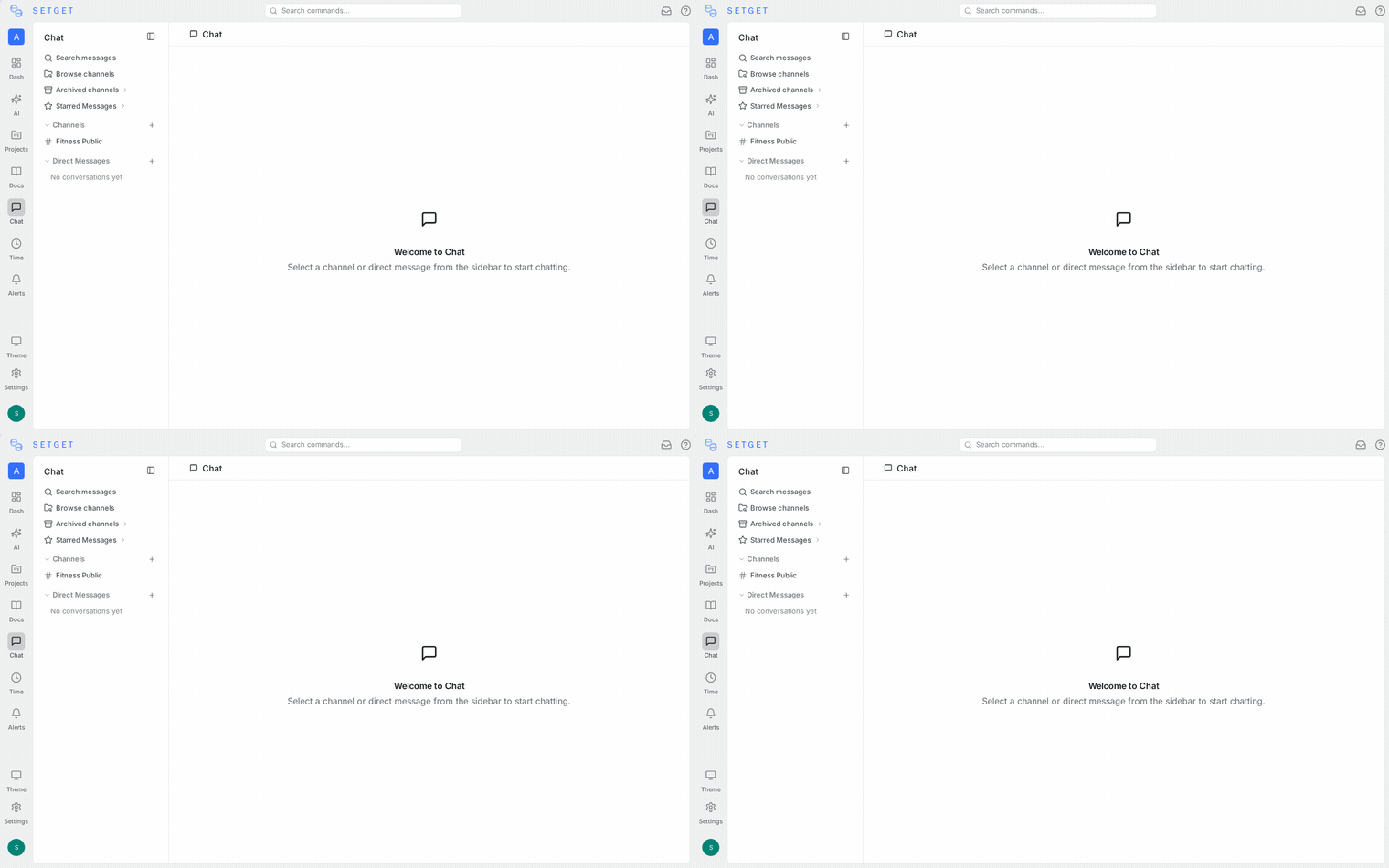
One-on-one DM
- Open the Chat section from the sidebar.
- Click the New Message icon (pencil icon) at the top of the DM list.
- Search for a workspace member by name or email.
- Select the person and press Enter or click their name.
- The DM conversation opens. Type your message and send.
Alternatively, you can start a DM from anywhere you see a member's avatar:
- Click the member's avatar or name in the workspace member list.
- Select Send Message from the profile popover.
Group DMs
Group DMs include three or more participants. They behave like a private channel without a name:
- Click the New Message icon.
- Search for and select the first participant.
- Continue adding participants (up to the group limit).
- Press Enter to open the group conversation.
- Start messaging.
Group DMs are displayed in your DM list with the names of all participants.
TIP
If a group DM conversation becomes ongoing and important, consider creating a private channel instead. Channels offer richer features like topics, descriptions, and easier member management.
DM list
Your DM list appears in the sidebar under the Direct Messages section. It shows:
| Element | Description |
|---|---|
| Participant name(s) | The other person (or people) in the conversation |
| Avatar | Profile picture with presence indicator dot |
| Last message preview | A snippet of the most recent message |
| Timestamp | When the last message was sent |
| Unread badge | A count of unread messages, if any |
The list is sorted by most recent activity. Conversations with unread messages appear with a bold name and an unread count badge.
Find a DM
If your DM list is long, use these methods to find a conversation:
- Scroll through the list (sorted by recency).
- Search using the command palette (
Ctrl+K/Cmd+K) and type the person's name. - Filter by clicking the search icon at the top of the DM list.
DM notifications
DMs have their own notification behavior that differs from channels:
| Behavior | Detail |
|---|---|
| Default setting | All messages — you are notified for every new DM |
| Desktop notifications | Appear as browser push notifications if enabled |
| Sound | A notification sound plays for incoming DMs (configurable) |
| Unread badge | The Chat section in the sidebar shows an aggregate unread count |
| Muting | You can mute a specific DM conversation to suppress notifications |
Because DMs are inherently directed at you, the default notification level is higher than for channels. You can adjust this per conversation from the conversation header menu.
WARNING
Muting a DM does not block the other person. They can still send you messages, and the messages will appear in your DM list. You simply will not receive notifications.
DM vs channel comparison
Choosing between a DM and a channel depends on the conversation's audience and longevity:
| Factor | Direct message | Channel |
|---|---|---|
| Audience | Specific people (1-on-1 or small group) | Open to team or entire workspace |
| Discoverability | Private — only participants see it | Public channels are discoverable by all members |
| Persistence | Informal; no topic or description | Structured with name, topic, description |
| Member management | Cannot add/remove people after creation | Members can join, leave, be added or removed |
| Features | Messages, threads, reactions, file sharing | All DM features plus pins, topic, archive |
| Best for | Quick questions, sensitive topics, ad-hoc coordination | Ongoing team discussions, project coordination |
When to use DMs
- Asking someone a quick question that does not concern the wider team.
- Sharing sensitive information (performance feedback, salary discussions).
- Coordinating a small ad-hoc task between two or three people.
- Following up on a channel conversation privately.
When to use a channel instead
- The topic is relevant to more than three or four people.
- You want the conversation to be searchable and discoverable.
- The discussion will be ongoing over days or weeks.
- You need features like pinned messages, topics, or channel-level notification settings.
Group DM details
Group DMs have specific behaviors that differ from one-on-one DMs:
| Aspect | Behavior |
|---|---|
| Name | Automatically generated from participant names |
| Member limit | Up to 8 participants |
| Adding members | New members cannot be added after creation; start a new group DM instead |
| Leaving | You can leave a group DM; the conversation continues for remaining participants |
| History | New participants (in a new group DM) do not see previous conversation history |
TIP
For ongoing group conversations that need flexibility with membership, create a private channel instead. Private channels allow you to add and remove members at any time.
Message features in DMs
DMs support the same message features as channels:
- Rich text formatting — bold, italic, code, links, lists
- File and image sharing — drag and drop or use the attachment button
- Threads — reply to a specific message in a side thread
- Reactions — add emoji reactions to messages
- Edit and delete — modify or remove your own messages
See Messages for complete formatting and media options.
Privacy and visibility
DM conversations are private to the listed participants:
- Workspace admins cannot read DMs through the admin panel.
- DMs are not included in channel exports or bulk data exports.
- DM messages are included in individual data export requests (GDPR compliance).
- Deleted DM messages are permanently removed and cannot be recovered.
Related pages
- Chat Overview — introduction to SetGet Chat
- Channels — shared conversation spaces for teams
- Messages — formatting, editing, and media sharing
- Threads — focused replies within conversations
- Chat Notifications — configure DM and channel notifications
- Presence — see who is online before messaging