
Filters
Filters let you narrow down a list of work items to show only the ones that match specific criteria. Every layout in SetGet — List, Kanban, Spreadsheet, Calendar, and Gantt — supports the same filtering system. You can filter by any work item property, combine multiple conditions, and save the result as a reusable view.
How filtering works
When you apply a filter, SetGet evaluates every work item in the current scope (project or workspace) against your conditions. Only items that satisfy all active conditions are displayed. This is AND logic — every condition must be true for an item to appear.
Apply a filter
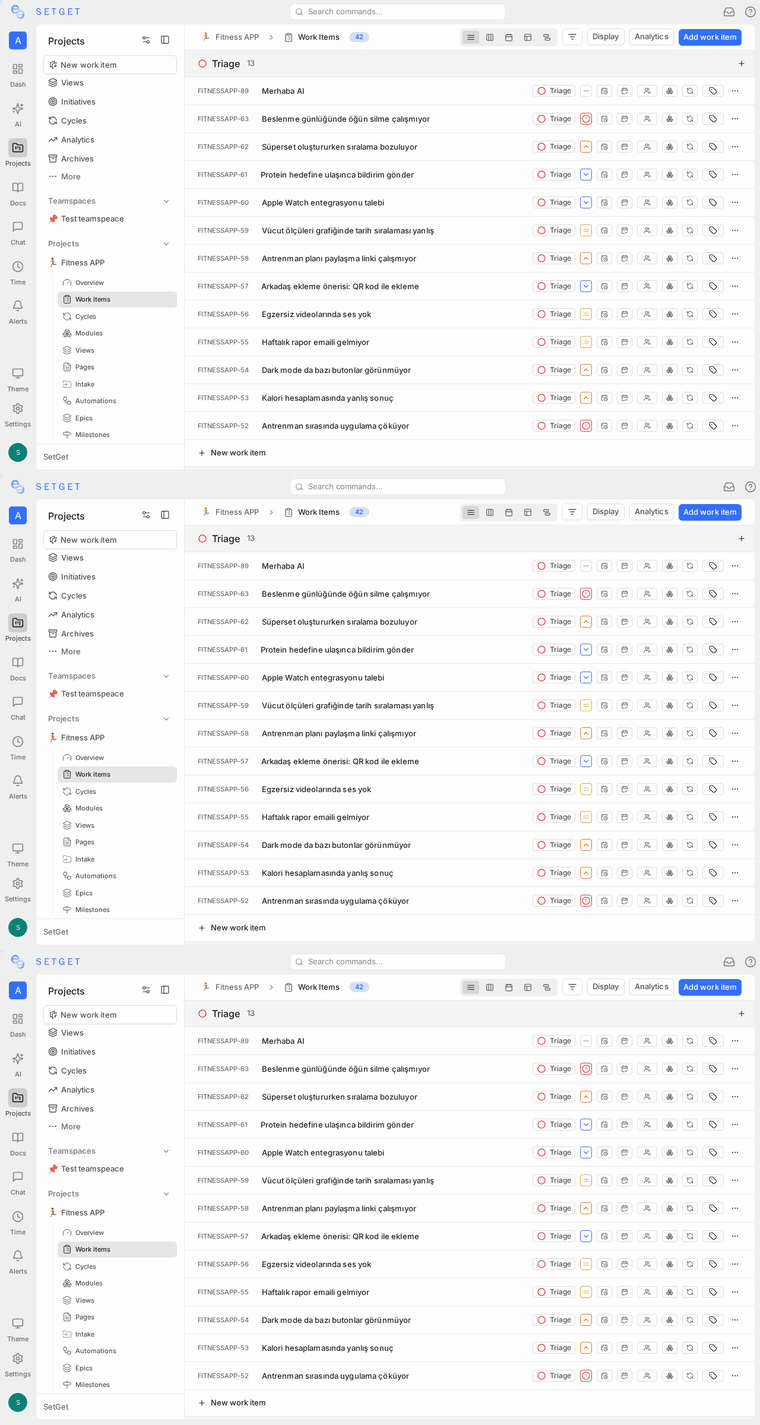
- Click the Filter button in the view toolbar.
- Select a property to filter by (for example, State).
- Choose an operator (for example, "is").
- Select one or more values (for example, "In Progress").
- The list updates immediately to show only matching items.
To add another condition, click Add Filter and repeat the steps. Each additional condition further narrows the results.
Available filter properties
The following properties can be used as filter criteria:
| Property | Description | Supported operators |
|---|---|---|
| State | Workflow state of the work item | is, is not |
| Priority | Priority level | is, is not |
| Assignee | Members assigned to the work item | is, is not, includes |
| Label | Labels attached to the work item | is, is not, includes |
| Cycle | The cycle the work item belongs to | is, is not |
| Module | The module the work item belongs to | is, is not |
| Due date | Target completion date | is, before, after, between |
| Start date | Planned start date | is, before, after, between |
| Created date | Date the work item was created | is, before, after, between |
| Updated date | Date the work item was last modified | is, before, after, between |
| Created by | Member who created the work item | is, is not |
| Subscriber | Members subscribed to the work item | is, is not, includes |
| Mention | Members mentioned in the work item description or comments | is, is not, includes |
| State group | Logical state group (Backlog, Unstarted, Started, Completed, Cancelled) | is, is not |
| Project | The project the work item belongs to (workspace views only) | is, is not |
Filter operators
Each operator defines how the selected values are compared to the work item's property value.
Equality operators
| Operator | Behavior | Example |
|---|---|---|
| is | The property value exactly matches one of the selected values | State is "In Progress" — shows items whose state is In Progress |
| is not | The property value does not match any of the selected values | Priority is not "None" — excludes items with no priority set |
When you select multiple values with the is operator, the condition matches if the property equals any of the selected values (OR within a single filter). For example, State is "In Progress", "In Review" shows items in either state.
Collection operators
| Operator | Behavior | Example |
|---|---|---|
| includes | The property contains at least one of the selected values | Labels includes "Bug" — shows items that have the Bug label, regardless of other labels |
The includes operator is available for multi-value properties (Assignees, Labels, Subscribers, Mentions).
Date operators
| Operator | Behavior | Example |
|---|---|---|
| is | The date matches exactly | Due date is "2026-04-01" |
| before | The date is earlier than the specified value | Due date before "2026-04-01" — items due before April 1 |
| after | The date is later than the specified value | Start date after "2026-03-15" — items starting after March 15 |
| between | The date falls within the specified range | Created date between "2026-03-01" and "2026-03-31" |
Date filters also support relative values:
| Relative value | Meaning |
|---|---|
| Today | The current date |
| This week | Monday through Sunday of the current week |
| This month | First through last day of the current month |
| Last 7 days | The past seven days including today |
| Last 30 days | The past thirty days including today |
| Next 7 days | The upcoming seven days starting from today |
| Next 30 days | The upcoming thirty days starting from today |
Combining multiple filters
When you add more than one filter condition, all conditions must be satisfied (AND logic):
Example: Find urgent backend bugs assigned to me that are not yet completed.
| Filter # | Property | Operator | Value |
|---|---|---|---|
| 1 | Priority | is | Urgent |
| 2 | Label | includes | Backend |
| 3 | Label | includes | Bug |
| 4 | Assignee | is | Me |
| 5 | State | is not | Done, Cancelled |
A work item appears only if it matches all five conditions simultaneously.
Multiple values within a single filter
Within a single filter condition, multiple values use OR logic:
- State is "Todo", "In Progress" means State is Todo OR In Progress.
Across separate filter conditions, AND logic applies:
- State is "In Progress" AND Priority is "Urgent" means both must be true.
TIP
To create OR logic across different properties (for example, "show items assigned to Alice OR labeled as Bug"), save two separate views and switch between them, or use the SetGet Query Language for more advanced logic.
Clear filters
Remove a single filter
Click the X button next to any active filter chip in the filter bar to remove that specific condition.
Remove all filters
Click Clear All in the filter bar to remove every active condition and return to the unfiltered view.
Clearing filters does not affect the saved view configuration. If you clear filters on a saved view and then navigate away, the view still loads its saved filters next time.
Save filters as a view
When you have configured a useful set of filters, save them so you can return instantly:
- Configure your desired filters, layout, grouping, and ordering.
- Click Save as View in the filter bar.
- Enter a descriptive name (for example, "Urgent Bugs — Unresolved").
- Click Save.
The view appears in the sidebar and preserves all filter conditions, the active layout, grouping, ordering, and display property settings. See Views Overview for full details.
Common filter recipes
Items due this week
| Property | Operator | Value |
|---|---|---|
| Due date | between | This week |
| State | is not | Done, Cancelled |
My open items across all projects (workspace view)
| Property | Operator | Value |
|---|---|---|
| Assignee | is | Me |
| State group | is not | Completed, Cancelled |
Unassigned backlog items
| Property | Operator | Value |
|---|---|---|
| Assignee | is | (empty / unassigned) |
| State | is | Backlog |
High-priority items without a cycle
| Property | Operator | Value |
|---|---|---|
| Priority | is | Urgent, High |
| Cycle | is | None |
Items updated in the last 7 days
| Property | Operator | Value |
|---|---|---|
| Updated date | after | Last 7 days |
Items blocking others
| Property | Operator | Value |
|---|---|---|
| State | is not | Done, Cancelled |
| Label | includes | Blocker |
Filters and layouts
Filters work identically across all layouts, but the visual effect differs:
| Layout | Filter effect |
|---|---|
| List | Rows that do not match are hidden |
| Kanban | Cards that do not match are hidden; empty columns may disappear |
| Spreadsheet | Rows that do not match are hidden |
| Calendar | Items that do not match are removed from the calendar cells |
| Gantt | Bars that do not match are removed from the timeline |
Filter persistence
| Scenario | Behavior |
|---|---|
| Filter on a saved view | Filters are part of the view configuration. They persist across sessions. |
| Filter on a default view | Your personal filter changes are temporary. Navigating away resets to the default. |
| Filter without saving | Filters are session-local. Refreshing the page resets them. |
To make filters permanent, save them as a view.
Performance notes
Filters are applied on the server side before data is sent to the browser. Even in large workspaces with thousands of work items, filtered views load quickly because only matching items are transferred.
If a filtered view still loads slowly:
- Check that your filter conditions are not returning a very large result set.
- Add more specific conditions to reduce the number of matching items.
- Consider splitting a broad workspace view into multiple project-level views.
Troubleshooting
Filter returns no results
- Remove filters one at a time to identify which condition is too restrictive.
- Check for typos in filter values (especially when filtering by label names).
- Verify that you are in the correct scope (project vs. workspace).
A property I need is not in the filter list
Some custom or computed properties may not be available as filter criteria. Check Display Options for grouping alternatives, or use the SetGet Query Language for advanced queries.
Filters reset when I return to the view
Filters only persist if the view is saved. Click Update View (for existing views) or Save as View (for new configurations) to make filters permanent.
Related pages
- Views Overview — Create and manage saved views with filters.
- SetGet Query Language — Write advanced filter queries with full syntax control.
- Display Options — Configure grouping, ordering, and visible properties.
- List Layout — Apply filters on a list view.
- Kanban Board — Apply filters on a Kanban board.
- Spreadsheet Layout — Apply filters on a spreadsheet grid.
- Calendar Layout — Apply filters on a calendar.
- Gantt Chart — Apply filters on a Gantt timeline.
- Your Work — Personal dashboard with pre-filtered sections.
- Work Items Overview — Understand the properties available for filtering.