
Subscriptions
Subscriptions determine who gets notified when a work item changes. Every time a property is updated, a comment is posted, or a relation is added, SetGet checks the subscriber list for that work item and dispatches notifications to each subscriber. Understanding how subscriptions work gives you control over your notification volume without missing important updates.
How auto-subscription works
SetGet automatically subscribes members to a work item in the following situations:
| Trigger | Who gets subscribed | When it happens |
|---|---|---|
| Creation | The member who creates the work item | Immediately on creation |
| Assignment | Any member added as an assignee | When the assignee is set or changed |
| Commenting | The member who posts a comment | When the comment is saved |
| Mentioned | Any member @mentioned in the description or a comment | When the mention is saved |
Auto-subscription happens silently. You will not see a confirmation dialog. The next time that work item changes, you will receive a notification.
TIP
The actor who makes a change is always auto-subscribed but does not receive a notification for their own action. You will only be notified of changes made by others.
Manually subscribe to a work item
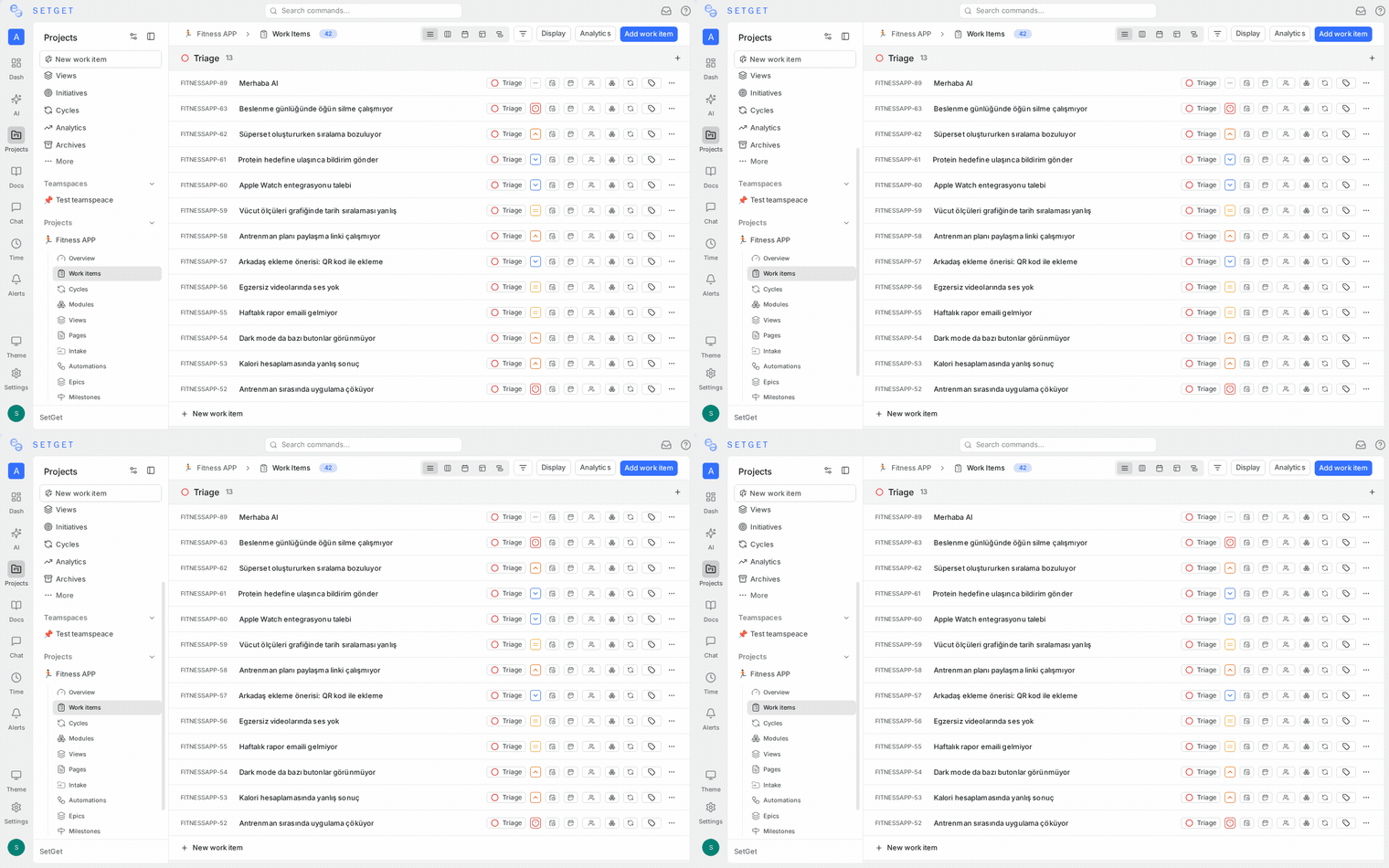
If you want to follow a work item you did not create, are not assigned to, and have not commented on, you can subscribe manually:
- Open the work item (peek view or full page).
- Click the bell icon in the work item header or properties panel.
- The icon changes to a filled bell, indicating you are now subscribed.
Alternatively, right-click a work item in any list view and select Subscribe from the context menu.
Once subscribed, you will receive notifications for all subsequent changes to that work item until you unsubscribe.
Unsubscribe from a work item
To stop receiving notifications for a specific work item:
- Open the work item.
- Click the filled bell icon in the header or properties panel.
- The icon changes back to an outline bell, confirming you are unsubscribed.
You can also right-click the work item in any list view and select Unsubscribe.
WARNING
Unsubscribing removes you from that work item's subscriber list. However, if you later comment on or get assigned to the work item, SetGet will auto-subscribe you again. You would need to unsubscribe a second time if you want to stop notifications.
What triggers notifications for subscribers
Once you are subscribed to a work item, you receive notifications when any of the following changes occur:
| Change type | Example |
|---|---|
| State change | Moved from Backlog to In Progress |
| Priority change | Changed from Medium to Urgent |
| Assignee change | New assignee added or existing assignee removed |
| Label change | Label added or removed |
| Date change | Due date or start date modified |
| Cycle change | Work item added to or removed from a cycle |
| Module change | Work item added to or removed from a module |
| Comment added | New comment or reply posted |
| Relation change | Blocking, related, or parent/child relation added or removed |
| Archive/Restore | Work item archived or restored from archive |
The following changes do not trigger subscriber notifications:
- Edits to the description only (to avoid noise from frequent writing)
- Reaction or vote changes on comments
Who gets notified on a change
When a work item is modified, SetGet dispatches notifications to all current subscribers except the person who made the change. The notification flow works as follows:
- A member makes a change to the work item.
- SetGet auto-subscribes the actor (if not already subscribed).
- If the change involves a new assignee, that assignee is auto-subscribed.
- All subscribers (minus the actor) receive a notification.
This ensures that everyone following the work item stays informed without the actor being notified about their own actions.
Manage your subscriptions list
You can review and manage all your active subscriptions from the notifications area:
- Click the bell icon in the global sidebar to open the notifications panel.
- Notifications are grouped by work item. Each notification card shows the work item identifier, title, and the change that occurred.
- To unsubscribe from a work item directly from a notification, click the three-dot menu on the notification card and select Unsubscribe.
Bulk manage notifications
If you have accumulated many notifications:
- Mark all as read — Click the Mark all read button at the top of the notifications panel to clear unread indicators.
- Filter notifications — Use the filter options to show only unread notifications or notifications from a specific project.
- Archive notifications — Dismiss individual notifications by clicking the X or swiping them away.
TIP
If you find yourself receiving too many notifications, review your subscriptions. Unsubscribe from work items that are no longer relevant to your work. You can always re-subscribe later.
Subscription visibility
You cannot currently see the full subscriber list for a work item. Subscriptions are private — each member manages their own subscription state. Project admins do not have the ability to subscribe or unsubscribe other members on their behalf.
Notification delivery
Notifications from subscriptions are delivered through the following channels:
| Channel | Behavior |
|---|---|
| In-app | Always delivered. Appears in the notifications panel and updates the unread count. |
| Delivered based on your workspace notification preferences. You can enable or disable email notifications in your profile settings. | |
| Browser | Desktop push notifications appear if you have granted browser notification permissions. |
To configure your notification preferences:
- Click your avatar in the bottom-left corner of the sidebar.
- Select Profile & Settings.
- Navigate to the Notifications section.
- Toggle email and browser notifications on or off.
Best practices
- Subscribe to high-priority items — Even if you are not assigned, subscribing keeps you in the loop on critical work.
- Unsubscribe from resolved items — Once a work item is completed or archived, unsubscribe to reduce notification clutter.
- Use @mentions intentionally — Mentioning a member in a comment auto-subscribes them. Only mention people who need to be involved.
- Review notifications regularly — Check the notifications panel daily to stay current and mark items as read to keep the panel manageable.
- Configure email preferences — If in-app notifications are sufficient, disable email notifications to reduce inbox volume.
Related pages
- Work Item Overview — Create, track, and manage work items
- Work Item Properties — Complete property reference
- Bulk Operations — Update multiple items at once
- Archive — Archive completed work items
- Views — Save and share filtered perspectives