
Multi-Factor Authentication (MFA)
Multi-factor authentication adds a second verification step when you sign in to SetGet. After entering your password, you must provide a time-based one-time password (TOTP) from an authenticator app. This protects your account even if your password is compromised.
How MFA works
MFA in SetGet uses the TOTP standard (RFC 6238):
- You register an authenticator app with SetGet by scanning a QR code.
- The app generates a new 6-digit code every 30 seconds.
- When you sign in, after entering your password, SetGet prompts you for the current code.
- You enter the code from your authenticator app.
- If the code is valid, you are signed in.
Supported authenticator apps
Any TOTP-compatible authenticator app works with SetGet:
| App | Platform |
|---|---|
| Google Authenticator | iOS, Android |
| Authy | iOS, Android, Desktop |
| Microsoft Authenticator | iOS, Android |
| 1Password | iOS, Android, macOS, Windows, Linux, Browser |
| Bitwarden | iOS, Android, Desktop, Browser |
| FreeOTP | iOS, Android |
Enable MFA for your account
- Click your profile avatar in the sidebar.
- Select Profile Settings (or Account Settings).
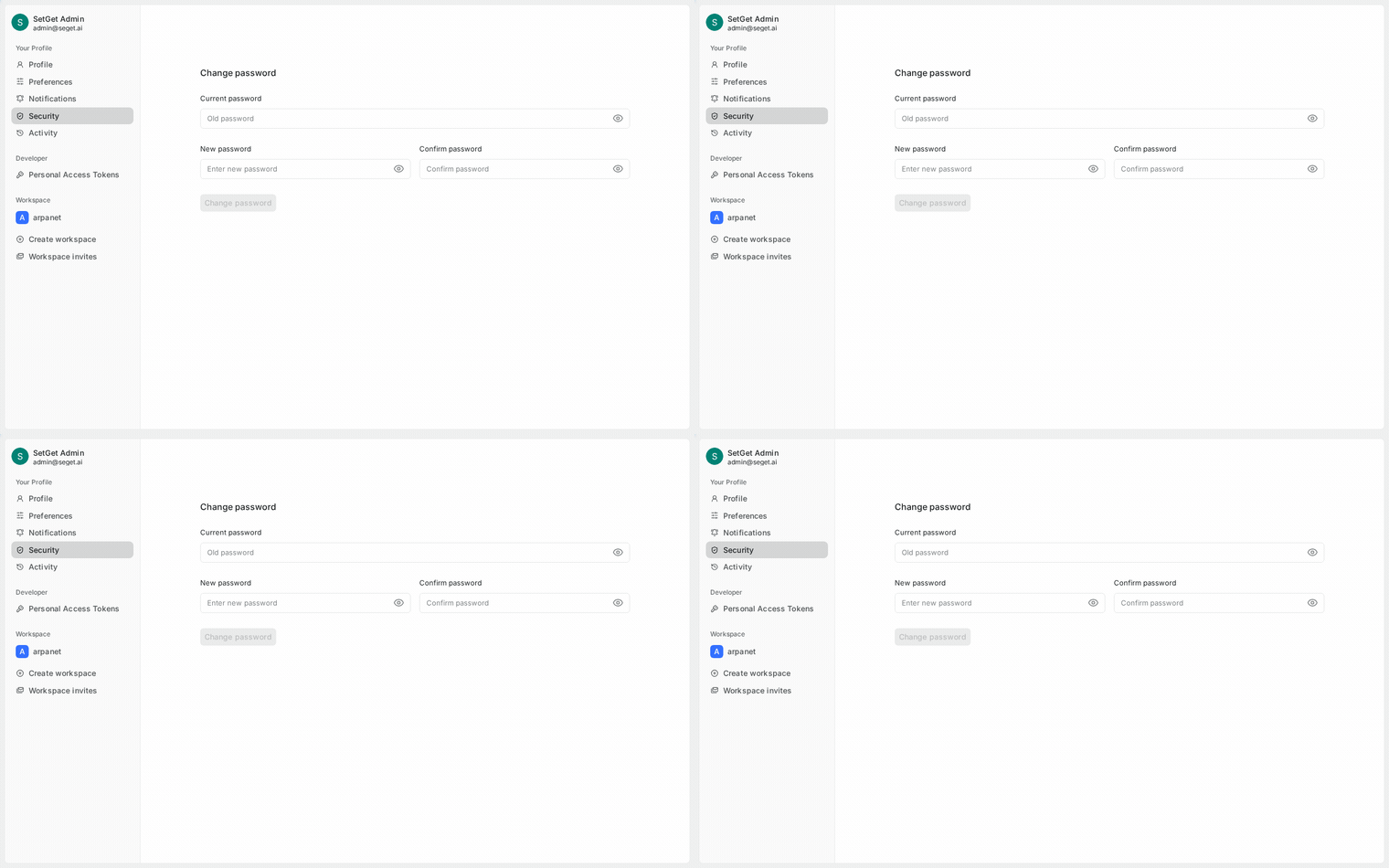
- Navigate to the Security section.
- Click Enable MFA.
- SetGet displays a QR code and a text-based secret key.
Scan the QR code
- Open your authenticator app.
- Tap the + or Add Account button.
- Select Scan QR Code.
- Point your camera at the QR code displayed in SetGet.
- The app adds a new entry for SetGet.
If you cannot scan the QR code (e.g., setting up on the same device), click Can't scan? to reveal the text-based secret key. Enter this key manually in your authenticator app.
Verify setup
- After adding SetGet to your authenticator app, a 6-digit code appears.
- Enter this code in the verification field in SetGet.
- Click Verify and Enable.
If the code is correct, MFA is enabled for your account.
WARNING
Do not close the setup dialog before verifying. If you close it without completing verification, MFA is not enabled and you will need to start over.
Recovery codes
After enabling MFA, SetGet generates a set of recovery codes. These are single-use codes that let you sign in if you lose access to your authenticator app.
Important recovery code rules
| Rule | Detail |
|---|---|
| One-time use | Each recovery code can only be used once |
| Number of codes | 10 recovery codes are generated |
| Format | Alphanumeric strings (e.g., a1b2c-3d4e5) |
| Regeneration | You can generate a new set, which invalidates all previous codes |
Store recovery codes safely
- After MFA is enabled, click Download Recovery Codes or Copy to Clipboard.
- Store them in a secure location:
- A password manager
- A printed sheet in a locked drawer
- An encrypted file
WARNING
If you lose both your authenticator app and your recovery codes, you will be locked out of your account. Store recovery codes in a separate, secure location — not on the same device as your authenticator app.
Use a recovery code
- On the MFA verification screen, click Use recovery code.
- Enter one of your unused recovery codes.
- Click Verify.
- You are signed in.
- The used recovery code is invalidated.
After using a recovery code, set up your authenticator app again and generate new recovery codes.
Enforce MFA for the workspace
Workspace owners and admins can require all members to enable MFA:
- Navigate to Workspace Settings > Security > Authentication.
- Toggle Require MFA for all members.
- Click Save.
Enforcement behavior
| Scenario | Behavior |
|---|---|
| Member already has MFA enabled | No change; they continue signing in normally |
| Member does not have MFA enabled | On next sign-in, they are required to set up MFA before accessing the workspace |
| New member joins the workspace | Must set up MFA during their first sign-in |
| Guest users | MFA requirement applies to guests as well |
| SSO users | MFA is handled by the IdP; SetGet MFA is not required (IdP-enforced MFA is recommended) |
TIP
If your organization uses SSO, enforce MFA at the identity provider level rather than in SetGet. This provides a consistent MFA experience across all applications.
Grace period
When enforcement is first enabled, members who do not have MFA set up are given a grace period:
| Setting | Options |
|---|---|
| Immediate | Members must set up MFA on their next sign-in |
| 7 days | Members have 7 days to enable MFA before being locked out |
| 30 days | Members have 30 days to enable MFA |
During the grace period, members see a persistent banner reminding them to enable MFA. After the grace period expires, they cannot access the workspace until MFA is enabled.
Disable MFA
For your own account
- Go to Profile Settings > Security.
- Click Disable MFA.
- Enter your current password to confirm.
- Enter a TOTP code from your authenticator app (or a recovery code).
- MFA is disabled.
WARNING
Disabling MFA reduces your account security. Only disable it if you have a specific reason, and re-enable it as soon as possible.
As a workspace admin
Workspace admins can reset MFA for a member who has lost access to their authenticator and recovery codes:
- Navigate to Workspace Settings > Members.
- Find the affected member.
- Click the three-dot menu > Reset MFA.
- Confirm the action.
The member's MFA is disabled. They can sign in with just their password and will need to set up MFA again (if enforcement is enabled).
MFA and other authentication methods
| Authentication method | MFA behavior |
|---|---|
| Email + password | MFA prompted after password entry |
| Magic link | MFA not prompted (magic link serves as second factor) |
| OAuth (Google, GitHub, etc.) | MFA not prompted (IdP handles authentication) |
| SSO (SAML) | MFA not prompted by SetGet (IdP handles MFA) |
MFA in SetGet applies only to email + password authentication. For OAuth and SSO, the identity provider is responsible for multi-factor verification.
Troubleshooting
| Issue | Cause | Solution |
|---|---|---|
| Code is always invalid | Clock skew between your device and the server | Sync your device's clock (Settings > Date & Time > Automatic) |
| Lost authenticator app | Device lost or app deleted | Use a recovery code to sign in, then re-setup MFA |
| Lost recovery codes | Not stored securely | Ask a workspace admin to reset your MFA |
| MFA required but SSO configured | Enforcement applies to all sign-in methods | Disable SetGet MFA enforcement; enforce MFA at the IdP level |
| Cannot disable MFA | Workspace enforcement is active | Workspace admin must disable enforcement first |
Related pages
- Security Overview — authentication and authorization overview
- SSO — SAML-based single sign-on
- Session Management — view and revoke sessions
- OAuth Providers — third-party authentication