
Project Settings
Project settings let you control how a project behaves, who can access it, and what tools are available within it. All settings are accessed through the project's Settings page in the sidebar. Only project Admins can modify settings — Members, Viewers, and Guests have read-only access to the settings page.
Accessing project settings
- Open the project from the sidebar.
- Click Settings in the project sidebar (gear icon).
- Navigate between setting sections using the tabs or side menu.
General
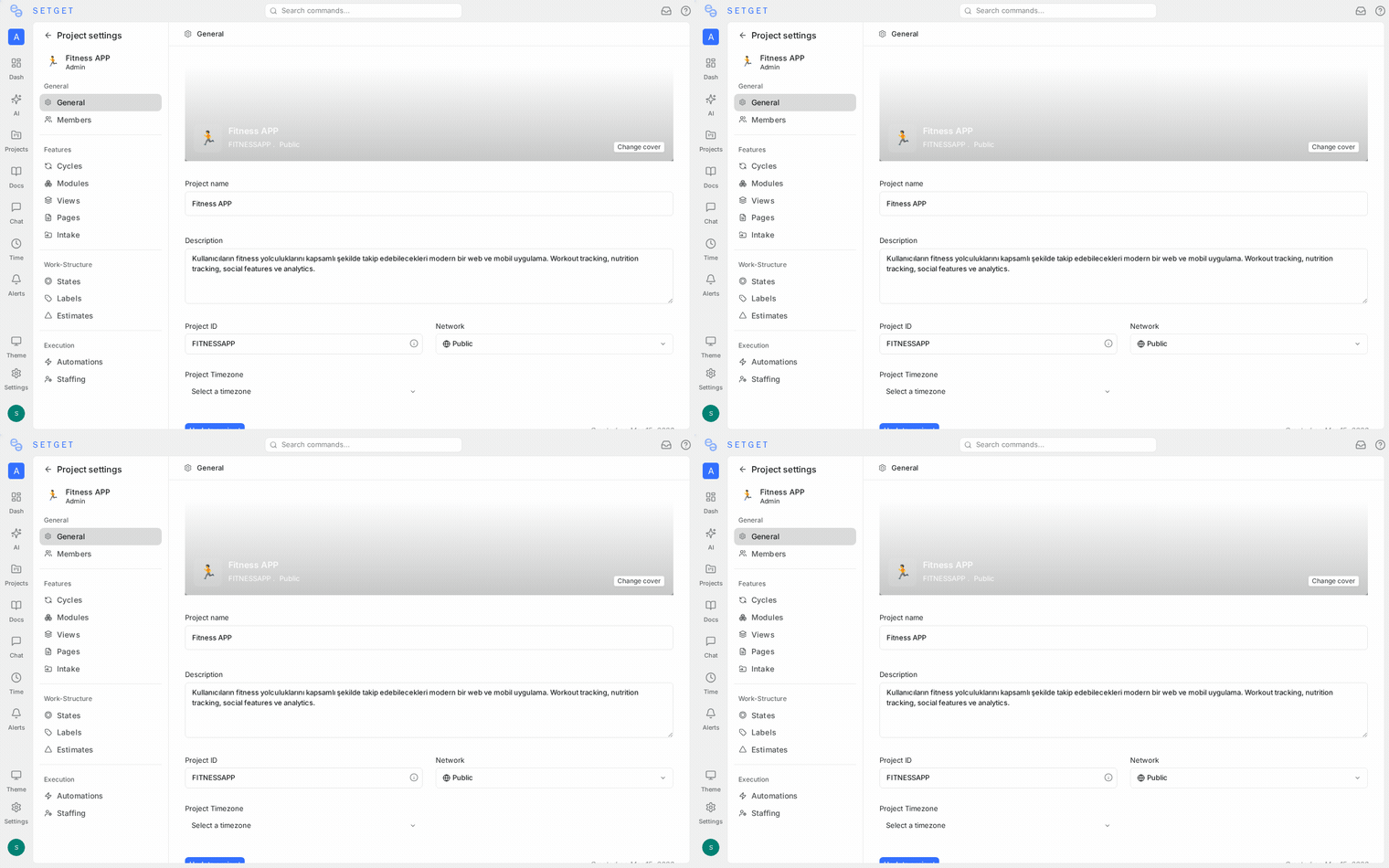
The General section controls the project's identity and visibility.
| Setting | Description | Editable after creation |
|---|---|---|
| Name | The display name of the project. Appears in the sidebar, breadcrumbs, and search results. | Yes |
| Identifier | The short uppercase code (2-5 characters) that prefixes all work item IDs in this project (e.g., WEB-1). | No |
| Description | A text description of the project's purpose and scope. Visible to all project members. | Yes |
| Cover image | A banner image displayed at the top of the project. You can upload a custom image or choose from the built-in gallery. | Yes |
| Network | Controls project visibility. Public makes it visible to all workspace members. Secret restricts it to invited members only. | Yes |
Change the project name
- Go to Settings > General.
- Edit the Name field.
- Click Save or the change saves automatically.
The name updates everywhere in the interface immediately.
Change the network type
- Go to Settings > General.
- Toggle between Public and Secret under the Network setting.
WARNING
Switching from Public to Secret immediately hides the project from all workspace members who are not explicit project members. Make sure anyone who needs access has been added to the project first.
Update the cover image
- Go to Settings > General.
- Click the cover image area.
- Upload a custom image or select from the gallery.
- The image updates immediately.
Recommended image dimensions: 1200 x 300 pixels. JPEG and PNG formats are supported.
Members
The Members section manages who has access to the project and what they can do.
| Setting | Description |
|---|---|
| Member list | Shows all current project members with their roles |
| Add member | Add workspace members to the project with a selected role |
| Role assignment | Change a member's role (Admin, Member, Viewer, Guest) |
| Remove member | Remove a member from the project |
| Default role | The role automatically assigned when someone joins the project |
See Project Members for detailed instructions on managing members, understanding roles, and configuring permissions.
Features
The Features section lets you enable or disable major project capabilities.
| Feature | Description | Default |
|---|---|---|
| Cycles | Time-boxed sprint planning and tracking | Enabled |
| Modules | Theme-based work item groupings | Enabled |
| Views | Saved filters and custom perspectives | Enabled |
| Pages | Rich-text documents and wiki | Enabled |
| Intake | Incoming request queue for triage | Disabled |
Toggling a feature off hides it from the interface without deleting data. See Project Features for guidance on when to enable or disable each feature.
States
The States section defines the workflow stages that work items move through.
| Setting | Description |
|---|---|
| State list | All states organized by group (Backlog, Unstarted, Started, Completed, Cancelled) |
| Create state | Add a new state to any group |
| State name | The label displayed on work items and in filters |
| State color | A hex color that provides visual identification |
| State order | Drag to reorder states within a group |
| Default state | The state assigned to new work items when no state is specified |
| Delete state | Remove a state (requires migrating existing items to another state) |
See Project States for full details on the five state groups, custom states, and migration.
Labels
The Labels section manages the color-coded tags used to categorize work items.
| Setting | Description |
|---|---|
| Label list | All labels, showing parent-child hierarchy |
| Create label | Add a new label with a name and color |
| Label color | A hex color displayed as a badge on work items |
| Parent label | Set a parent to create a hierarchical grouping |
| Edit label | Change name, color, or parent |
| Delete label | Remove a label from the project and all work items |
See Project Labels for details on hierarchy, applying labels, and filtering.
Estimates
The Estimates section configures how your team sizes work items.
| Setting | Description |
|---|---|
| Estimation type | Choose between Points, Categories, Time, or None |
| Point scale | If using Points: Fibonacci, Linear, or Custom |
| Custom values | Define your own point values or category names |
| Disable estimates | Remove the estimate field from all work items |
See Project Estimates for a comparison of estimation types and configuration instructions.
WARNING
Changing the estimation type or scale clears all existing estimates. Coordinate with your team before making changes.
Automations
The Automations section lets you define rules that execute automatically when certain conditions are met.
| Setting | Description |
|---|---|
| Auto-close stale items | Automatically move items to a Cancelled state after a specified period of inactivity |
| Auto-archive completed items | Automatically archive items that have been in a Completed state for a specified number of days |
| Custom rules | Create rules based on triggers (state change, priority change, label added) and actions (assign, change state, notify) |
Auto-close configuration
| Field | Description |
|---|---|
| Enable | Toggle auto-close on or off |
| Inactivity period | Number of days without updates before an item is closed (e.g., 30, 60, 90) |
| Target state | The Cancelled-group state items are moved to |
| Excluded states | States that are immune to auto-close (e.g., items in Completed states) |
Auto-archive configuration
| Field | Description |
|---|---|
| Enable | Toggle auto-archive on or off |
| Delay | Number of days after reaching a Completed state before archiving |
Integrations
The Integrations section connects external tools to this specific project.
| Integration | What it does |
|---|---|
| GitHub | Link a GitHub repository. Sync pull requests, branches, and commits to work items. Auto-update work item states based on PR activity. |
| GitLab | Link a GitLab repository. Sync merge requests and pipelines. |
| Slack | Post project activity to a Slack channel. Create work items from Slack messages. |
| Sentry | Link Sentry issues to work items for error tracking. |
Each integration is configured per project, allowing different projects to connect to different repositories or channels.
TIP
Workspace-level integrations must be set up first before they can be connected to individual projects. See Integrations for workspace-level setup.
Publishing
Publishing makes your project accessible to people outside your workspace via a public URL.
| Setting | Description |
|---|---|
| Enable publishing | Make the project publicly viewable |
| Visible data | Choose what is shown: work items, states, priorities, labels |
| Public URL | The URL where the published project can be viewed |
| Disable publishing | Revoke public access |
See Publish Projects for the full guide on public project configuration.
Settings quick reference
| Section | Access level required | Data deleted on change |
|---|---|---|
| General | Admin | No |
| Members | Admin | No |
| Features | Admin | No (data hidden only) |
| States | Admin | No (migration prompted) |
| Labels | Admin | Removed from items on delete |
| Estimates | Admin | Yes (on type change) |
| Automations | Admin | No |
| Integrations | Admin | No |
| Publishing | Admin | No |
Related pages
- Manage Projects — Create, archive, and delete projects
- Project Members — Manage access and roles
- Project Features — Toggle capabilities
- Project States — Configure workflow stages
- Project Labels — Categorize work with labels
- Project Estimates — Set up estimation systems
- Publish Projects — Make projects publicly viewable
- Integrations — Connect external tools
- Automations — Automate workflows