
Manage Projects
A project in SetGet is the primary container for organizing related work. Every work item, cycle, module, view, and page belongs to a project. Projects live inside a workspace and can be configured independently with their own states, labels, estimates, and feature toggles. Whether you are tracking a single product, a client engagement, or an internal initiative, a project gives your team a dedicated space to plan, execute, and deliver.
Create a project
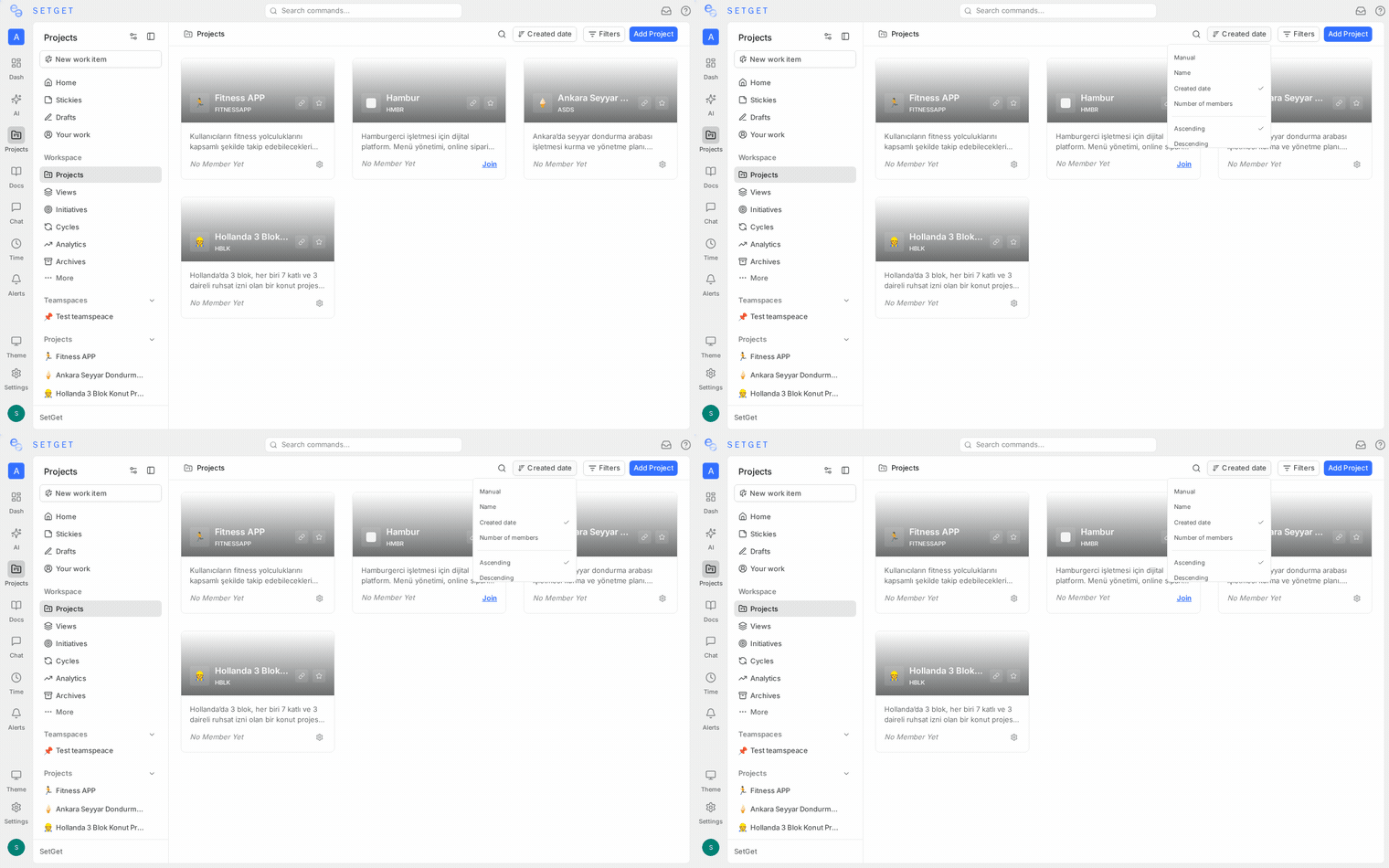
- Open the workspace sidebar and click Create Project (or press the + button next to the Projects heading).
- Fill in the project details:
| Field | Description | Required |
|---|---|---|
| Name | A descriptive name for the project (e.g., "Web Application", "Q3 Marketing Campaign") | Yes |
| Identifier | A short uppercase code (2-5 characters) used as the prefix for all work item IDs in this project. For example, an identifier of WEB produces IDs like WEB-1, WEB-2, etc. | Yes |
| Description | An optional summary explaining the project purpose and scope | No |
| Network | Controls visibility within the workspace. Choose Public or Secret. | Yes |
| Cover image | An optional banner image displayed at the top of the project | No |
- Click Create Project.
You are taken to the project's work items view where you can start adding items immediately.
TIP
The project identifier cannot be changed after creation. Choose a short, meaningful code that your team will recognize at a glance — common patterns include product abbreviations (API, WEB, IOS) or team codes (ENG, MKT, OPS).
Network types
| Network | Behavior |
|---|---|
| Public | All workspace members can see the project in their sidebar and browse its contents. Membership is still required to be assigned work or manage settings. |
| Secret | Only explicitly invited members can see or access the project. It does not appear in the sidebar or search results for non-members. |
Choose Secret for sensitive initiatives such as HR projects, acquisition planning, or security audits where access must be tightly controlled.
Project list
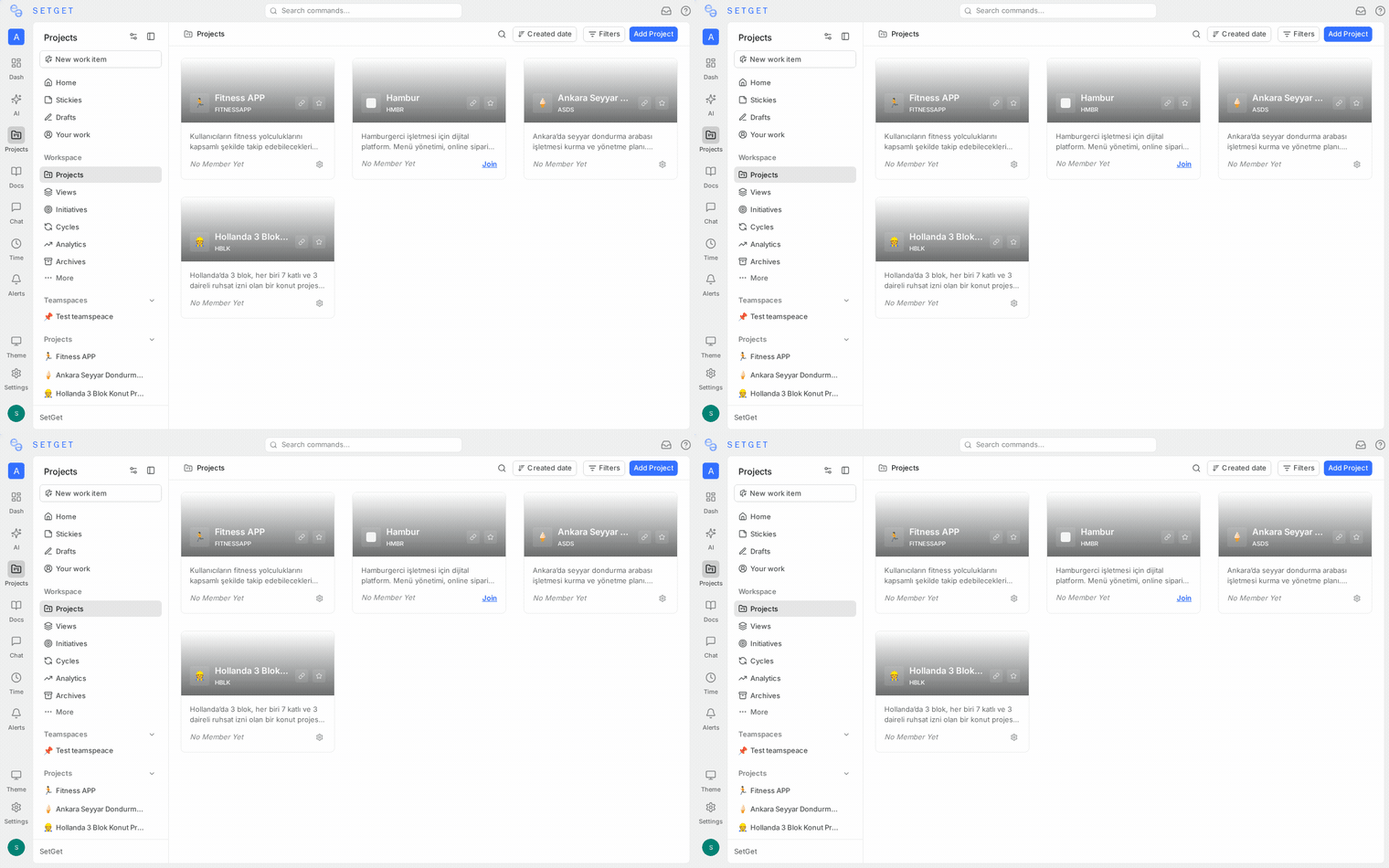
The sidebar lists all projects you have access to. You can:
- Search — type in the project search box to filter by name.
- Pin — right-click a project and choose Pin to Sidebar to keep it at the top.
- Sort — projects are listed alphabetically by default. Pinned projects appear first.
- Collapse — click the Projects heading to collapse or expand the list.
To see all projects in the workspace (including those you have not joined), go to Settings and browse the workspace project list.
Join a project
If a project has a Public network, any workspace member can join it:
- Open the project from the sidebar or the workspace project list.
- Click Join Project.
- You are added as a member with the project's default role.
For Secret projects, an existing project member or admin must invite you. You cannot browse or request access to secret projects you are not part of.
Leave a project
- Open the project you want to leave.
- Click the ... menu in the project header or go to Settings > General.
- Select Leave Project.
WARNING
If you are the only Admin of the project, you must assign another member as Admin before leaving. A project cannot exist without at least one Admin.
Project settings overview
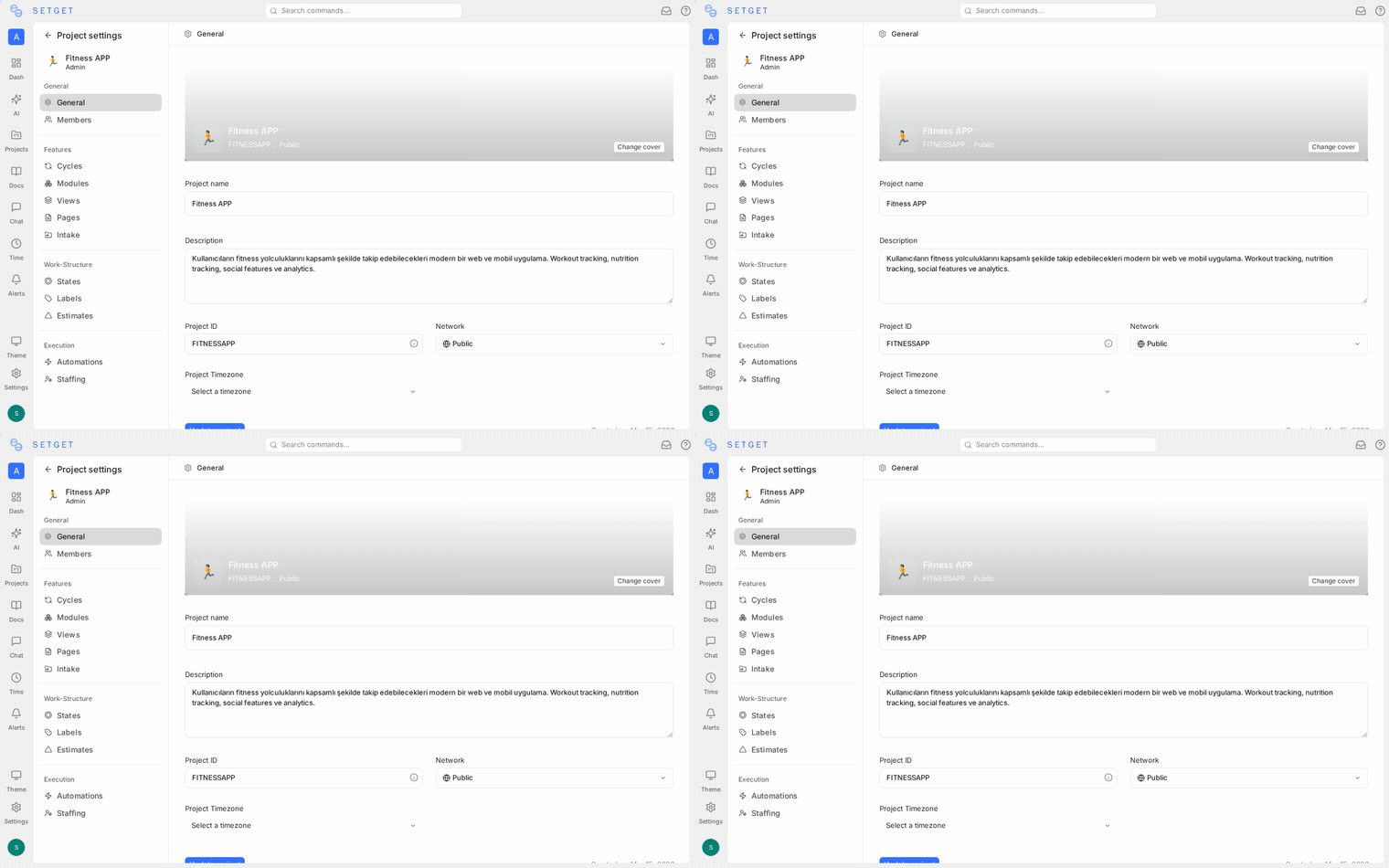
Each project has its own settings panel accessible via Settings in the project sidebar. The settings are organized into the following sections:
| Section | What it controls |
|---|---|
| General | Name, description, cover image, identifier (read-only), network |
| Members | Add/remove members, set roles, configure default role |
| Features | Enable or disable Cycles, Modules, Views, Pages, Intake |
| States | Create, reorder, and color-code workflow states |
| Labels | Create and organize labels for categorizing work items |
| Estimates | Configure point, category, or time-based estimation |
| Automations | Set up rules that run when work items change |
| Integrations | Connect project-level integrations (GitHub, GitLab, etc.) |
See Project Settings for a complete reference of every option.
Archive a project
Archiving removes a project from the active sidebar while preserving all data. Archived projects can be restored at any time.
- Go to the project Settings > General.
- Scroll to the bottom and click Archive Project.
- Confirm the action.
Archived projects:
- Disappear from the sidebar and search results.
- Retain all work items, pages, cycles, and history.
- Can be viewed and restored from Settings > Workspace > Archived Projects.
TIP
Archive projects that are complete or paused instead of deleting them. This keeps your sidebar clean without losing any historical data.
Restore an archived project
- Go to Settings > Workspace > Archived Projects.
- Find the project and click Restore.
- The project reappears in the sidebar with all data intact.
Delete a project
DANGER
Deleting a project permanently removes all work items, cycles, modules, pages, views, labels, states, and activity history. This action cannot be undone.
Only project Admins can delete a project:
- Go to the project Settings > General.
- Scroll to the bottom and click Delete Project.
- Type the project name to confirm.
- Click Delete.
Consider archiving instead of deleting if there is any chance you will need the data later.
Project roles
Every project member has a role that determines what they can do within that project:
| Role | Capabilities |
|---|---|
| Admin | Full control — manage settings, members, states, labels, and all content |
| Member | Create and edit work items, participate in cycles and modules, write pages |
| Viewer | Read-only access to all project content |
| Guest | Limited read access, typically for external stakeholders |
Roles are assigned when a member is added and can be changed at any time by a project Admin. See Project Members for details.
Best practices
- One project per product or initiative — avoid mixing unrelated work in a single project. Use separate projects and link them with modules if needed.
- Use meaningful identifiers — since identifiers appear in every work item ID, pick codes your team already uses informally.
- Start with Public — unless confidentiality is required, public projects reduce friction for new team members.
- Archive completed projects — keep your workspace tidy without losing historical data.
- Configure states and labels early — establishing workflow conventions before the team starts working prevents inconsistency.
Related pages
- Project Settings — Complete reference for all configuration options
- Project Members — Add members and manage roles
- Project States — Configure workflow states
- Project Labels — Organize work with labels
- Project Estimates — Set up estimation systems
- Project Features — Enable or disable feature modules
- Project Templates — Create reusable project configurations
- Work Items Overview — Manage work within projects
- Workspaces Overview — Understand the workspace container