
Epics
An epic in SetGet represents a large body of work that is too big to complete in a single cycle. Epics capture strategic initiatives — a major feature launch, a platform migration, a compliance overhaul — and break them into smaller work items that are delivered incrementally across cycles and modules.
Epics sit above individual work items in the planning hierarchy. While a work item represents a single task, an epic represents a goal that requires many tasks to achieve. Epics give leadership and product managers a high-level view of progress without needing to track every individual task.
Why use epics
- Strategic visibility — see how large initiatives are progressing at a glance, without drilling into individual work items.
- Cross-cycle tracking — epics persist across cycles, giving you a unified view of work that spans multiple sprints.
- Scope management — define what is in and out of scope for a major initiative, and track how much has been delivered.
- Stakeholder communication — share epic progress with stakeholders who need to understand the big picture without the granular details.
- Prioritization — compare epics side by side to decide where to focus team effort.
Create an epic
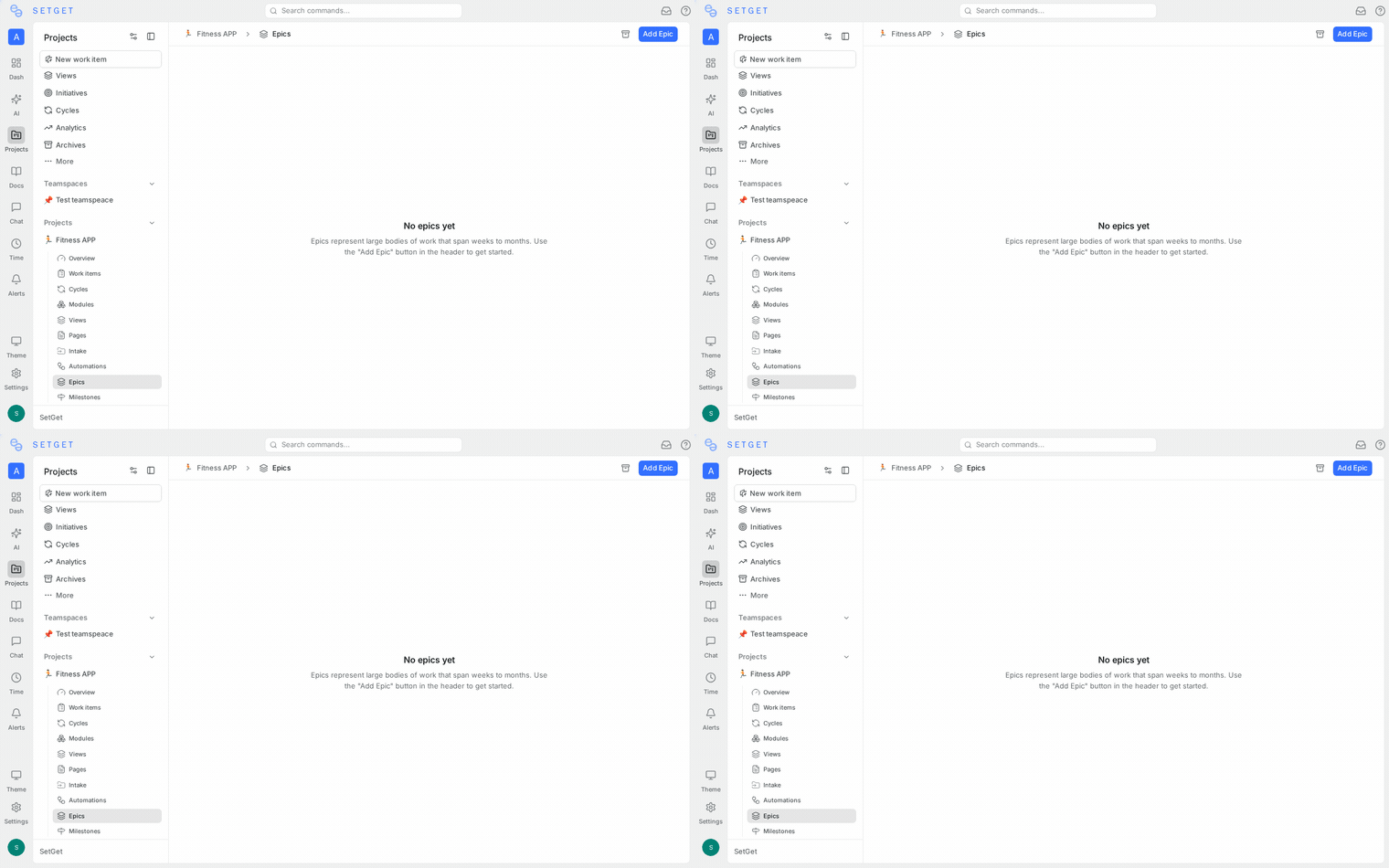
- Navigate to the Epics section from the project sidebar.
- Click the + button or the Create Epic action.
- Fill in the epic details:
| Field | Required | Description |
|---|---|---|
| Name | Yes | A clear name for the initiative, such as "Multi-Workspace Support" or "Mobile App V2" |
| Description | No | Detailed context including goals, success criteria, stakeholders, and scope boundaries |
| Start date | No | Expected start date for the initiative |
| End date | No | Target completion date |
| Priority | No | Urgency level for the initiative |
| Lead | No | The person accountable for driving the epic to completion |
| Labels | No | Tags for categorization and filtering |
- Click Create to save the epic.
TIP
Write a thorough description for every epic. Include the business goal, success metrics, key deliverables, and known risks. Epics often last weeks or months, so a well-written description prevents context loss as the team evolves.
Epic properties
Epics carry a rich set of properties that help you plan and communicate:
| Property | Description |
|---|---|
| Name | The title of the initiative |
| Description | Rich text context and specifications |
| Start date | When work on the epic is expected to begin |
| End date | The target delivery date |
| Priority | Urgency relative to other epics |
| Lead | The accountable person |
| Labels | Categorization tags |
| State | Derived from child work item progress or set manually |
| Progress | Automatically calculated from child item completion |
Add work items to an epic
Epics contain work items as children, forming a parent-child hierarchy:
From the epic view
- Open the epic.
- Click Add work items to search and select existing items, or click Create work item to add a new one directly under the epic.
From a work item
- Open any work item.
- In the properties panel, set the Parent field to the target epic.
From the list view
- Right-click a work item or use its action menu.
- Select Set parent and choose the epic.
Work items nested under an epic can simultaneously belong to a cycle and a module. This means you can plan "when" (cycle) and "what feature area" (module) while still tracking "which initiative" (epic).
Epic progress tracking
SetGet automatically calculates epic progress based on the state of its child work items:
- Completion percentage — the ratio of completed child items to total items, displayed as a progress bar.
- State distribution — a breakdown showing how many items are in each workflow state (Backlog, In Progress, Done, etc.).
- Estimate rollup — if work items have estimates, the epic shows total estimated effort and how much has been completed.
The progress bar on the epic list provides an at-a-glance view of how close the initiative is to completion.
Progress calculation
| Metric | Calculation |
|---|---|
| Completion % | (Completed items / Total items) x 100 |
| Remaining effort | Sum of estimates for non-completed items |
| Completed effort | Sum of estimates for completed items |
| Items at risk | Items past due date that are not completed |
Epic timeline view
Epics can be visualized on a timeline to understand how initiatives overlap and relate to one another:
- Each epic appears as a horizontal bar spanning its start and end dates.
- Child work items are displayed beneath the epic bar, showing their individual timelines.
- Color coding indicates progress — green for on-track, amber for at-risk, red for behind schedule.
- Drag bar edges to adjust epic dates directly on the timeline.
The timeline view is especially useful for portfolio-level planning and stakeholder presentations.
Manage epics
Edit an epic
- Open the epic from the sidebar or list.
- Click the ... menu and select Edit.
- Modify any field — name, description, dates, priority, lead, or labels.
- Save your changes.
Archive an epic
- Open the epic and click the ... menu.
- Select Archive.
- The epic is hidden from the active list but can be restored later.
Delete an epic
- Open the epic and click the ... menu.
- Select Delete and confirm.
Deleting an epic removes the grouping but does not delete its child work items. The items remain in the project with their parent field cleared.
WARNING
Deleting an epic is permanent. If you want to keep a record of the initiative, use archive instead.
Epics vs modules vs cycles
Understanding where epics fit in the planning hierarchy:
| Aspect | Epics | Modules | Cycles |
|---|---|---|---|
| Scope | Strategic initiative | Feature area | Time-boxed sprint |
| Duration | Weeks to months | Variable | 1-4 weeks |
| Contains | Work items (parent-child) | Work items (grouping) | Work items (grouping) |
| Overlap | Multiple epics can run in parallel | Multiple modules in parallel | One active cycle at a time |
| Primary use | "Why" — the strategic goal | "What" — the feature | "When" — the delivery window |
A single work item can have an epic as its parent, belong to a module, and be assigned to a cycle — all at the same time.
Epic filtering and search
You can filter and search epics using:
- Text search — find epics by name or description keywords.
- Filter by priority — show only high-priority or urgent epics.
- Filter by lead — see epics owned by a specific team member.
- Filter by label — narrow down to epics with specific tags.
- Filter by status — show active, completed, or at-risk epics.
- Filter by date — find epics starting or ending within a date range.
Epic permissions
Epic management follows project-level role permissions:
| Action | Admin | Member | Guest |
|---|---|---|---|
| Create epic | Yes | Yes | No |
| Edit epic | Yes | Yes | No |
| Delete epic | Yes | No | No |
| Add/remove items | Yes | Yes | No |
| View epic | Yes | Yes | Yes |
| View progress | Yes | Yes | Yes |
Best practices
- Keep epics strategic — an epic should represent a meaningful initiative, not just a collection of related tasks. If an epic has fewer than five work items, it may be too granular.
- Define success criteria — include measurable outcomes in the epic description so you know when it is truly complete.
- Break down early — decompose epics into work items as soon as possible so that progress tracking starts early.
- Review regularly — check epic progress in weekly or bi-weekly planning meetings to catch slippage early.
- Limit active epics — too many active epics dilute focus. Keep the number of concurrent epics manageable for your team size.
- Use timeline view for planning — visualize how epics overlap to avoid resource conflicts.
- Close completed epics — archive epics when they are done to keep the active list focused on current work.
Related pages
- Cycles — Time-boxed sprint planning
- Modules — Feature-based work grouping
- Initiatives — Cross-project strategic objectives
- Work Items — Manage individual tasks
- Dependencies — Blocking relationships
- Views — Save filtered perspectives