
SetGet AI
SetGet AI is a built-in intelligent assistant that helps you manage your workspace through natural language. Instead of navigating menus and filling out forms, you can describe what you need in plain English and let AI handle the rest — from creating work items to analyzing project health and summarizing sprint progress.
What SetGet AI can do
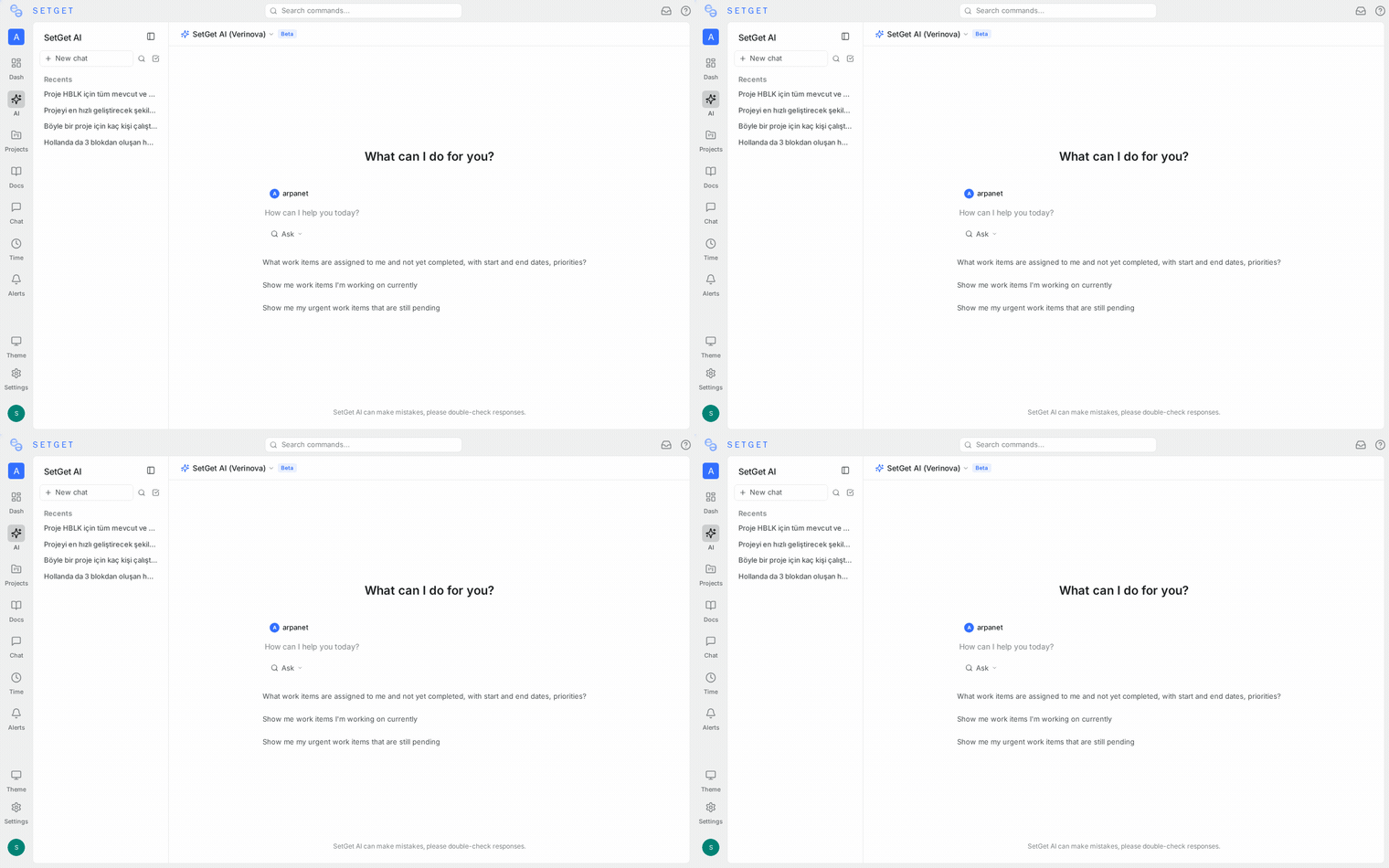
SetGet AI is deeply integrated with your workspace data. It understands your projects, work items, cycles, modules, views, pages, and team structure. This allows it to perform a wide range of tasks across several categories.
Create and update items
You can ask SetGet AI to create new work items, set their properties, or update existing ones. For example:
- "Create a bug in project WEB titled 'Login form does not validate email format' with high priority"
- "Move WEB-42 to In Progress and assign it to Sarah"
- "Add the label 'frontend' to all open bugs in the Mobile project"
The AI parses your request, identifies the correct project, and proposes the action for your confirmation before executing it.
Analyze projects
SetGet AI can read your workspace data and provide insights that would otherwise require manual digging:
- "How many open bugs does the API project have right now?"
- "Which team member has the most items assigned this cycle?"
- "Show me all overdue work items across all projects"
- "What is the completion rate for Sprint 12?"
These queries run against your live workspace data and return accurate, up-to-date answers.
Answer questions
The AI understands your workspace context and can answer questions about how things are set up:
- "What states does the Backend project use?"
- "Who are the members of the Design teamspace?"
- "What labels are available in the Mobile project?"
- "When does the current cycle end?"
Summarize data
Get quick summaries instead of manually reviewing dashboards:
- "Summarize this week's progress across all projects"
- "Give me a standup summary for the frontend team"
- "What changed in Sprint 14 since yesterday?"
- "List the top blockers across all active projects"
How SetGet AI works
SetGet AI uses a large language model (LLM) combined with real-time access to your workspace data. When you send a message, the following happens:
- Context gathering — The AI determines which workspace, project, or module context is relevant to your request. This includes identifying the active project, current cycle, applied filters, and your role.
- Data retrieval — It queries your workspace data (work items, members, cycles, modules, labels, states, etc.) to understand the current state. Only data you have permission to access is retrieved.
- Response generation — The LLM processes your request along with the retrieved context and generates a response. Responses are streamed in real time so you see results immediately.
- Action proposal — If your request involves creating or modifying data, the AI proposes a structured action for your review instead of executing immediately. You must explicitly confirm before any change is made.
Architecture overview
The AI system consists of several components working together:
| Component | Role |
|---|---|
| Chat interface | Thread-based UI in the sidebar for sending and receiving messages |
| Context engine | Determines which workspace data is relevant to the current request |
| Data retriever | Queries MongoDB collections to fetch current workspace state |
| LLM client | Sends the prepared prompt to the language model via API |
| Action builder | Constructs structured action proposals from the AI response |
| SSE streamer | Delivers response tokens in real time to the browser |
| Action executor | Executes confirmed actions through the standard API layer |
All components run within the SetGet API backend. No separate AI service is required.
Context-aware prompts
SetGet AI adapts its behavior depending on where you invoke it. The AI receives different context depending on the module you are working in:
| Module | Context provided |
|---|---|
| Workspace | All projects, members, teamspaces, general settings |
| Project | Project details, states, labels, members, recent activity |
| Issues | Current filters, visible work items, item properties |
| Cycles | Active cycle, cycle items, velocity data, completion stats |
| Modules | Module details, linked items, progress data |
| Views | Saved filter configuration, matching items |
| Pages | Page content, hierarchy, wiki structure |
| Automations | Existing rules, triggers, recent execution history |
This means that asking "What's the progress?" while viewing a cycle gives you cycle-specific data, while asking the same question at the workspace level gives you a broader summary.
Streaming responses
SetGet AI uses Server-Sent Events (SSE) to stream responses in real time. You see the answer being written token by token, just like a chat conversation. This provides immediate feedback and avoids long wait times for complex queries.
Privacy and data handling
SetGet AI is designed with privacy as a core principle. Your workspace data is treated with the same level of care as any other authenticated API request.
Data access scope
- Data stays in your workspace — The AI only accesses data within the workspace you are currently working in. It cannot read data from other workspaces, even if you are a member of multiple workspaces.
- Scoped access — The AI respects workspace roles. It can only perform actions that your account has permission to perform. A viewer cannot use AI to create work items.
- Project-level isolation — When working in a specific project, the AI only retrieves data from that project unless you explicitly ask for cross-project information.
Data processing
- No training on your data — Your workspace data is not used to train or fine-tune the underlying language model. Queries are processed and discarded.
- Transient processing — Workspace data sent to the LLM is not stored by the model provider beyond the request-response lifecycle.
- Minimal data transfer — The context engine sends only the data necessary to answer your specific question, not your entire workspace.
Safety mechanisms
- Action confirmation — The AI never modifies your workspace without explicit confirmation. Every proposed action is shown to you for review before execution.
- Self-hosted control — If you run SetGet on your own infrastructure, you can configure which LLM provider and API key to use, giving you full control over where your data is processed.
- Audit trail — All AI actions are logged in the action history for accountability and compliance.
TIP
For self-hosted instances, SetGet AI connects to your configured LLM provider using your own API key. No data passes through SetGet servers.
Data handling by deployment type
| Deployment | Data processed by | Storage of queries | Admin control |
|---|---|---|---|
| Cloud | SetGet-managed LLM service | Not stored | Standard settings |
| Self-hosted | Your chosen LLM provider | Not stored | Full infrastructure control |
Availability
SetGet AI is available depending on your deployment type and plan:
| Deployment | AI availability |
|---|---|
| Cloud — Free | Limited credits per month |
| Cloud — Pro | Higher credit allocation |
| Cloud — Business | Highest credit allocation, priority processing |
| Self-hosted | Unlimited usage with your own API key, no credit system |
Accessing SetGet AI
You can access SetGet AI from several places in the interface:
- AI Chat panel — Open from the sidebar to start a threaded conversation.
- Command palette — Press
Ctrl+K(orCmd+Kon macOS) and type your request. - Inline actions — Some views offer AI-powered suggestions directly in the interface.
Requirements
- Your workspace must have AI enabled in Settings > Features.
- For self-hosted instances, you must configure an LLM API key in Settings > AI.
- Cloud users need available AI credits (see AI Credits).
Limitations
While SetGet AI is powerful, there are some boundaries to be aware of:
- Not a replacement for human judgment — The AI provides suggestions and analysis, but critical decisions should always be reviewed by a team member.
- Complex queries may need refinement — If the AI misunderstands your request, try rephrasing with more specific details (project name, item ID, etc.).
- Rate limits apply — Cloud users are subject to credit-based rate limiting. Self-hosted users may be limited by their LLM provider's rate limits.
- No cross-workspace queries — The AI cannot compare data across multiple workspaces in a single query.
- Historical data depth — The AI works with current workspace data. Deep historical trend analysis may require the Analytics module instead.
WARNING
AI-generated summaries and analysis are based on the data available at the time of the query. If your workspace data is incomplete or outdated, the AI's output will reflect that.
AI vs. Automations
SetGet offers both AI-powered assistance and rule-based automations. They serve different purposes and work best together:
| Aspect | SetGet AI | Automations |
|---|---|---|
| Trigger | On-demand, initiated by user request | Automatic, triggered by workspace events |
| Flexibility | Handles novel, ad-hoc requests | Executes predefined rules consistently |
| Decision-making | Can interpret ambiguous instructions | Follows exact trigger-condition-action logic |
| Confirmation | Always requires user confirmation | Executes without user intervention |
| Best for | One-off tasks, analysis, exploration | Repetitive, predictable workflows |
| Example | "Find all bugs blocking the release and summarize them" | "When a bug is marked Urgent, notify the team lead" |
Use AI for exploratory and ad-hoc tasks. Use automations for repeatable processes that should happen every time without manual intervention.
Use cases by role
Different team members benefit from SetGet AI in different ways:
Developers
- Quickly create work items without leaving the keyboard: "Create a bug for the login validation issue"
- Get context on unfamiliar items: "What is the history of WEB-88?"
- Check what is assigned: "What are my open items for this sprint?"
Project managers
- Get daily summaries: "Summarize yesterday's progress for all projects"
- Identify risks: "Which items are at risk of not completing this sprint?"
- Prepare for standups: "Give me talking points for the frontend team standup"
Team leads
- Monitor workload: "Who on the backend team has the most items this cycle?"
- Triage incoming work: "Show me all unassigned items created today"
- Track velocity: "How does this sprint compare to the last three?"
Stakeholders
- Get high-level updates: "What is the overall status of the Mobile project?"
- Check milestones: "Are we on track for the Q2 release?"
- Understand priorities: "What are the top 5 items the team is working on?"
Best practices
To get the most out of SetGet AI:
- Be specific — Include project names, item IDs, and clear criteria in your requests.
- Use context — Navigate to the relevant project or cycle before asking a question so the AI automatically picks up the right context.
- Review actions — Always review proposed actions before confirming, especially for bulk operations.
- Iterate — If the first response is not quite right, follow up in the same thread to refine.
- Combine with views — Use saved views to set up the right filters, then ask AI to analyze the filtered set.
- Start simple — Begin with straightforward questions to understand how the AI interprets your workspace data, then move to more complex requests.
- Use natural language — You do not need to use specific syntax. Write as you would to a colleague.
Getting started
- Open your workspace in SetGet.
- Click the AI icon in the sidebar to open the chat panel.
- Start a new thread and type your first question or request.
- Review any proposed actions and confirm to execute.
For detailed information on each aspect of SetGet AI, see the pages below.
Related pages
- AI Chat — Thread-based conversations with the AI assistant
- AI Actions — Understanding the action confirmation flow
- AI Credits — Credit system, usage tracking, and plan limits
- Core Concepts — Understanding workspaces, projects, and work items
- Automations — Rule-based automation as a complement to AI