
Notification Center
The Notification Center is your unified inbox for all activity across SetGet. Every assignment, @mention, comment, state change, and update that involves you appears here. Instead of checking individual work items or projects for changes, you can review everything from a single location, take action directly, and keep your notification stream organized.
Accessing the Notification Center
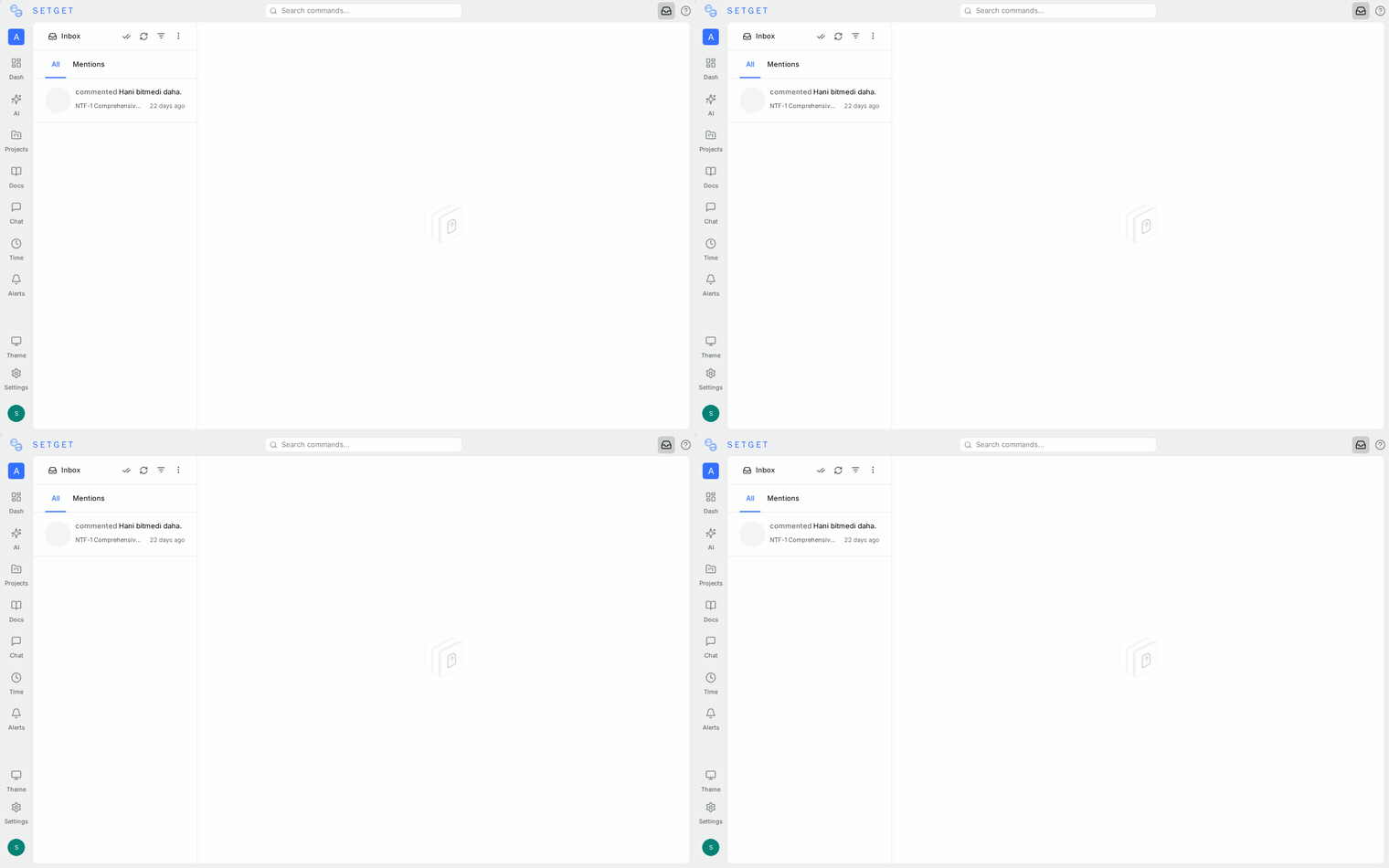
Click the bell icon in the top navigation bar to open the Notification Center. If you have unread notifications, a count badge appears on the icon.
The Notification Center opens as a panel on the right side of the screen. Click Open full inbox at the top of the panel to view notifications in a full-page layout.
Keyboard shortcut
Press I to toggle the Notification Center panel from anywhere in SetGet.
Notification list
The notification list shows all your notifications in reverse chronological order (newest first). Each notification entry displays:
| Element | Description |
|---|---|
| Icon | Visual indicator of the notification type (comment, assignment, mention, etc.) |
| Title | The work item or page title the notification relates to |
| Event description | What happened (e.g., "Alice commented on WEB-42") |
| Project | The project where the event occurred |
| Timestamp | When the event happened (relative time, full date on hover) |
| Read/unread indicator | Unread notifications have a blue dot |
Click any notification to navigate directly to the relevant work item, comment, or page.
Notification types
SetGet generates notifications for the following events:
| Type | Trigger | You receive when... |
|---|---|---|
| Assignment | A work item is assigned to you | Someone adds you as an assignee |
| Unassignment | You are removed from a work item | Someone removes you as an assignee |
| Mention | You are @mentioned in a comment or description | Someone types @your-name |
| Comment | A new comment is posted | You are subscribed to the work item |
| Reply | A reply is posted in a thread you participated in | Someone replies to your comment or a thread you are in |
| State change | A work item's state changes | You are subscribed to the work item |
| Priority change | A work item's priority changes | You are subscribed to the work item |
| Due date | A due date is set, changed, or approaching | You are assigned to the work item |
| Label change | Labels are added or removed | You are subscribed to the work item |
| Cycle/Module change | A work item is added to or removed from a cycle or module | You are subscribed to the work item |
| Page comment | An inline comment is added to a page you authored | Someone comments on your page content |
| Project update | A project update is posted | You are a member of the project |
Subscription model
Notifications are driven by subscriptions. You receive notifications for work items you are subscribed to.
Automatic subscriptions
| Event | Auto-subscribed |
|---|---|
| You are assigned to a work item | Yes |
| You comment on a work item | Yes |
| You create a work item | Yes |
| You are @mentioned | Yes (subscribed to the work item going forward) |
Manual subscriptions
To subscribe to a work item you are not assigned to or involved in:
- Open the work item.
- Click the bell icon in the work item header.
- You are now subscribed and will receive notifications for all changes.
To unsubscribe, click the bell icon again.
Managing notifications
Mark as read
- Individual — click a notification to open it (automatically marks it as read), or hover and click the checkmark icon.
- Bulk — click Mark all as read at the top of the notification list.
- Keyboard — press
Rwhile a notification is selected to toggle read/unread.
Mark as unread
To revisit a notification later:
- Hover over the read notification.
- Click the ... menu.
- Select Mark as unread.
The notification returns to the unread state and the badge count increments.
Archive notifications
Archive notifications you have addressed to keep your inbox clean:
- Hover over the notification.
- Click the archive icon (box with down arrow).
- The notification moves to the Archived section.
To view archived notifications, click the Archived tab at the top of the Notification Center.
To unarchive, open the archived section, hover over the notification, and click Move to inbox.
Snooze notifications
Temporarily hide a notification and have it reappear later:
- Hover over the notification.
- Click the clock icon.
- Select a snooze duration: 1 hour, 3 hours, tomorrow morning, next week.
- The notification disappears from the inbox and reappears at the scheduled time.
Filtering notifications
Use the filter bar at the top of the Notification Center to narrow down your view:
| Filter | Options |
|---|---|
| Read status | All, Unread only, Read only |
| Type | Assignment, Mention, Comment, State change, etc. |
| Project | Filter by one or more projects |
| Date range | Show notifications from a specific time period |
Filters can be combined. Active filters are displayed as chips and can be removed individually.
Notification actions
From the Notification Center, you can take quick actions without opening the full work item:
| Action | How to |
|---|---|
| Open work item | Click the notification |
| Mark as read/unread | Click the checkmark icon |
| Archive | Click the archive icon |
| Snooze | Click the clock icon |
| Unsubscribe | Click ... > Unsubscribe from this item |
Notification count and badge
The bell icon in the navigation bar shows:
- No badge — no unread notifications
- Count badge — number of unread notifications (up to 99+)
The count updates in real time as new notifications arrive and as you read or archive them.
Keyboard shortcuts
| Shortcut | Action |
|---|---|
I | Toggle Notification Center |
↑ / ↓ | Navigate between notifications |
Enter | Open selected notification |
R | Toggle read/unread |
E | Archive selected notification |
Esc | Close Notification Center |
Notification grouping
Related notifications are grouped to reduce clutter. For example, if five people comment on the same work item within a short window, the Notification Center may display a single grouped entry:
5 new comments on WEB-42: Fix login redirectClick the grouped notification to expand and see individual entries.
Grouping rules
| Condition | Grouped |
|---|---|
| Multiple comments on the same work item within 1 hour | Yes |
| Multiple state changes on the same work item | Yes |
| Notifications from different work items | No (shown separately) |
| @Mentions | Never grouped (always shown individually) |
Real-time updates
The Notification Center updates in real time. When a new notification arrives:
- The bell icon count badge increments immediately.
- If the Notification Center is open, the new notification appears at the top of the list.
- A brief toast notification appears in the bottom-right corner of the screen (unless Do Not Disturb is enabled).
Best practices
- Triage regularly — check your notifications at the start and end of each day to stay current.
- Archive aggressively — once you have acted on a notification, archive it to keep your inbox focused.
- Use filters — if you are looking for a specific type of notification, filter by type or project rather than scrolling.
- Adjust preferences — if you receive too many notifications, customize your Notification Preferences to reduce noise.
- Unsubscribe from irrelevant items — if you are getting notifications for work items you no longer need to follow, unsubscribe directly from the notification.
- Use snooze for items that need follow-up — if you cannot act on a notification right now, snooze it to resurface later rather than leaving it unread.
Related pages
- Notification Preferences — Control which events generate notifications
- Email Notifications — Email delivery settings
- Comments and Activity — Commenting and activity tracking
- Reactions — Emoji reactions