
Work Item Types
Work item types let you classify work into distinct categories such as Task, Bug, Story, or Epic. Types help your team distinguish between different kinds of work at a glance, and they enable type-based filtering, grouping, and reporting.
Why types matter
Without types, every work item looks the same in a list. Types add a visual and semantic distinction that helps teams answer questions like:
- How many bugs are open in this cycle?
- What percentage of our sprint is feature work versus maintenance?
- Which stories still need sub-tasks?
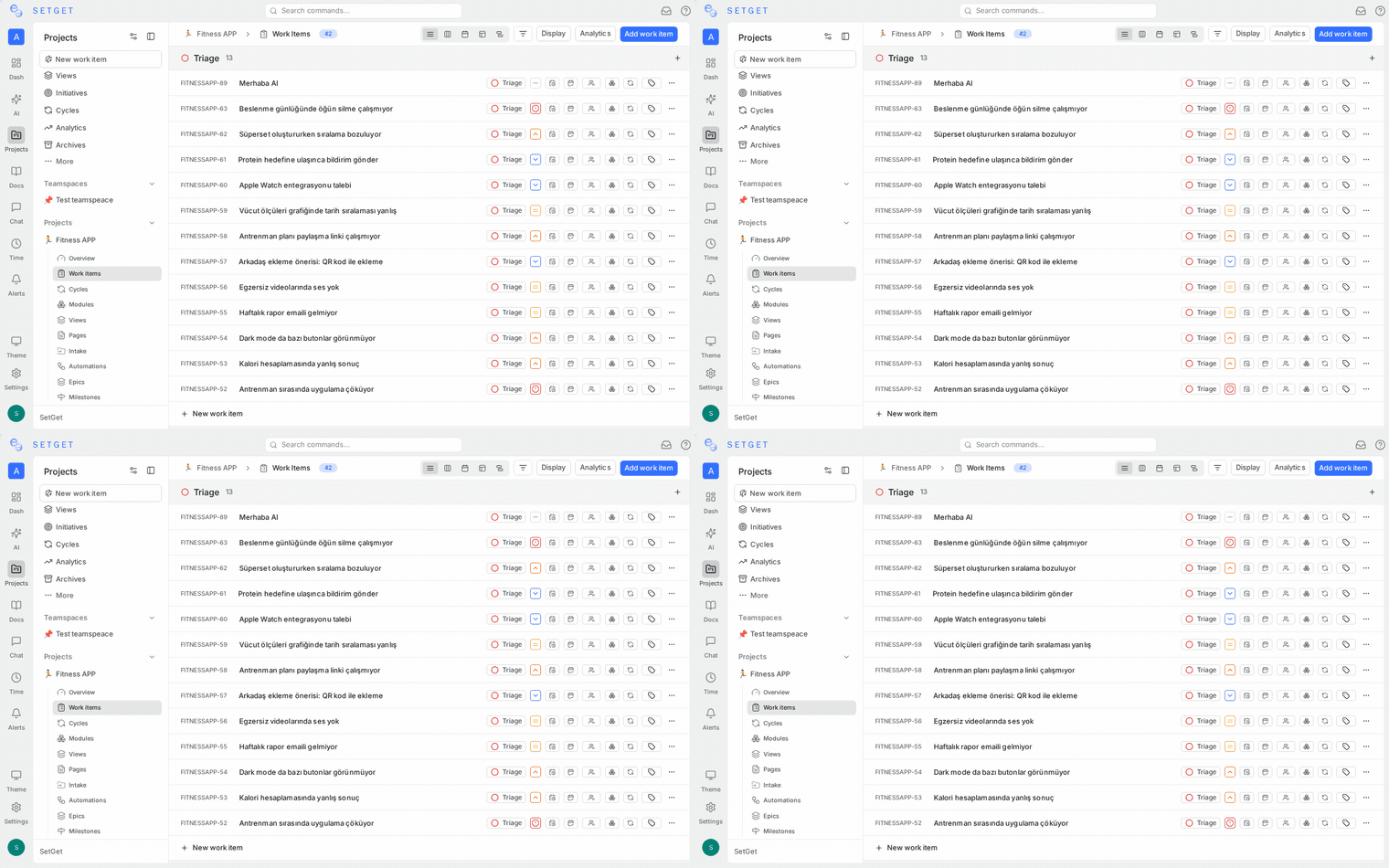
Types appear as icons next to the work item identifier in every layout -- list, kanban, spreadsheet, calendar, and gantt.
Built-in types
SetGet includes four built-in types that cover the most common categories of work.
| Type | Icon | Description | Typical use |
|---|---|---|---|
| Task | Checkmark circle | A discrete unit of work to be completed | Implementation tasks, chores, action items |
| Bug | Bug icon | A defect or unexpected behavior | Reported issues, regressions, errors |
| Story | Bookmark icon | A user-facing feature or capability | Feature requests, user stories, improvements |
| Epic | Lightning bolt | A large body of work spanning multiple items | Multi-sprint initiatives, major features |
Built-in types cannot be deleted, but you can change their icon and display name within project settings.
How types appear in the UI
Work item types are visible in several places:
- List view -- The type icon appears to the left of the work item identifier.
- Kanban cards -- The type icon is shown in the card header.
- Spreadsheet view -- A dedicated Type column displays the icon and name.
- Detail view -- The type is shown in the properties panel on the right side.
- Creation modal -- A type selector appears at the top of the form.
The type icon uses the color assigned to that type, making it easy to scan a list and spot bugs (typically red) versus tasks (typically blue).
Set the type when creating a work item
- Open the creation modal by clicking Create Work Item or pressing
C. - Click the type selector at the top of the modal. It defaults to the project's default type.
- Select the desired type from the dropdown.
- Fill in the remaining fields and save.
When using quick-add (the inline input at the bottom of a list), the work item is created with the project's default type. You can change the type afterward.
Change the type of an existing work item
- Open the work item in detail view or peek panel.
- In the properties panel, click the current type.
- Select a new type from the dropdown.
You can also change types in bulk. Select multiple work items, and use the bulk action bar to set a new type for all selected items.
TIP
Changing a work item's type does not affect its state, priority, assignees, or any other property. It is a classification change only.
Default type for new work items
Each project has a default type that is automatically assigned to new work items created via quick-add or when no type is explicitly selected.
To change the default type:
- Navigate to the project's Settings page.
- Open the Work Item Types section.
- Click the star icon next to the type you want as the default.
The default type is indicated by a filled star in the type list.
Create custom types
If the built-in types do not cover your workflow, you can create custom types at the project level.
To create a custom type:
- Go to the project's Settings page.
- Open the Work Item Types section.
- Click Add Type.
- Enter a name for the new type (e.g., "Spike", "Debt", "Research", "Improvement").
- Choose an icon from the icon picker.
- Select a color for the type icon.
- Click Save.
The new type immediately becomes available in the type selector throughout the project.
Custom type guidelines
| Consideration | Recommendation |
|---|---|
| Naming | Use singular nouns: "Spike" not "Spikes" |
| Quantity | Keep the total number of types under 8-10 to avoid clutter |
| Overlap | Avoid types that overlap in meaning -- if "Improvement" and "Enhancement" mean the same thing, pick one |
| Consistency | Use the same custom types across related projects when possible |
Type icons
Each type has an associated icon and color. SetGet provides a library of icons to choose from:
- Geometric shapes (circle, square, diamond, hexagon)
- Status indicators (checkmark, x-mark, exclamation)
- Object metaphors (bug, bookmark, lightning, flag, star)
- Custom uploaded icons (SVG format, 24x24px recommended)
To change a type's icon:
- Go to project Settings > Work Item Types.
- Click the icon next to the type name.
- Select a new icon and color from the picker.
- Click Save.
Icon changes take effect immediately across all views. Existing work items of that type will display the updated icon.
Edit and delete custom types
Edit a custom type
- Go to project Settings > Work Item Types.
- Click the pencil icon next to the type you want to edit.
- Modify the name, icon, or color.
- Click Save.
Delete a custom type
- Go to project Settings > Work Item Types.
- Click the trash icon next to the custom type.
- Choose a replacement type for any existing work items that use the type being deleted.
- Confirm the deletion.
WARNING
Deleting a custom type requires reassigning all work items of that type to a different type. This action cannot be undone.
Built-in types (Task, Bug, Story, Epic) cannot be deleted.
Filter and group by type
Types integrate with the filtering and grouping system across all layouts.
Filter by type
- Click the Filter button in the project header.
- Select Type from the property list.
- Choose one or more types to include (or exclude).
- The view updates to show only matching work items.
Group by type
- Click the Group by option in the display settings.
- Select Type.
- Work items are organized into sections (list view) or columns (kanban view) by their type.
This is particularly useful for seeing the breakdown of bugs versus features in a sprint.
Save as a view
You can save a type-based filter or grouping as a named view for quick access. See Views for details.
Type-specific workflows
While all types share the same state groups (Backlog, Unstarted, Started, Completed, Cancelled), different types often follow different workflows in practice:
| Type | Typical workflow |
|---|---|
| Task | Backlog > To Do > In Progress > Done |
| Bug | Triage > Confirmed > In Progress > In Review > Done |
| Story | Backlog > Refinement > In Progress > In Review > Done |
| Epic | Draft > Planning > In Progress > Done |
SetGet does not enforce type-specific states, but you can use Automations to set up rules that apply specific behaviors based on work item type. For example, automatically assign a "QA" label when a Bug moves to "In Review".
Best practices
- Use types from the start -- Setting the correct type at creation time makes reporting accurate from day one.
- Standardize across projects -- If multiple projects use the same custom types, configure them identically so workspace-level filters work correctly.
- Review type distribution regularly -- If 90% of items are "Task", your types may be too generic. If you have 15 types, you probably have too many.
- Pair types with labels -- Types classify the nature of work (what it is), while labels classify the domain or area (where it applies). Use both together for maximum clarity.
- Set the right default -- If most new items in a project are tasks, keep Task as the default. If it is a bug-tracking project, set Bug as the default.
Related pages
- Work Item Properties -- Complete property reference
- Workflow States -- Define states within the five groups
- Labels -- Categorize with labels
- Filters -- Filter by type and other properties
- Views -- Save filtered perspectives
- Project Settings -- Configure types per project
- Automations -- Automate actions based on type