
Page Access Control
Every SetGet page has an access level that determines who can see and edit it. Access control lets you balance openness with privacy — keep most pages accessible to the team while restricting sensitive content to specific people. You can also lock pages to prevent accidental edits and share individual pages with selected members.
Access levels
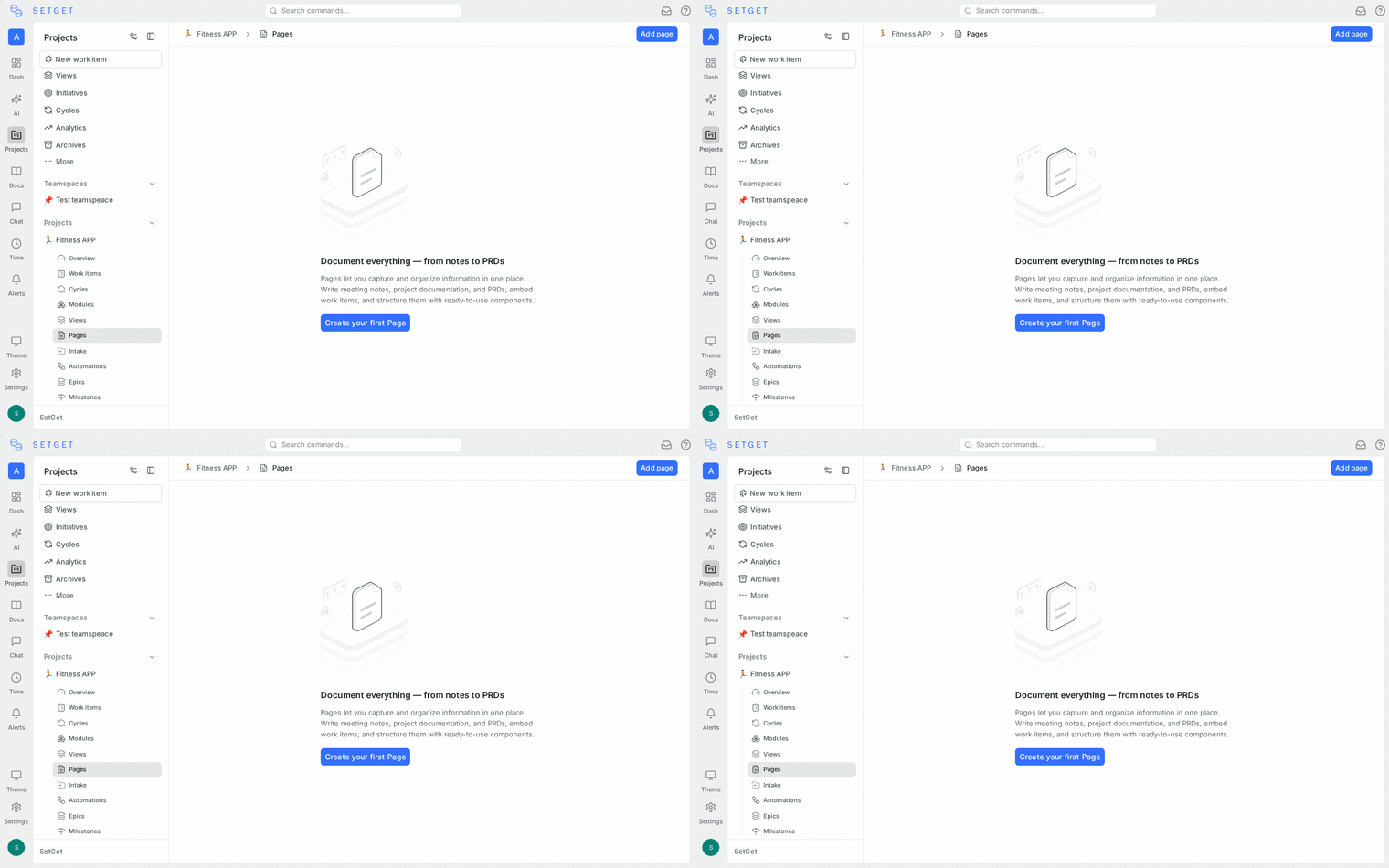
SetGet pages support two primary access levels:
| Access level | Who can view | Who can edit | Set by |
|---|---|---|---|
| Public | All members of the project | All members of the project | Page creator |
| Private | Only the page creator | Only the page creator | Page creator |
Public pages
Public pages are the default. When you create a new page, it is visible to everyone in the project. Any project member can:
- View the page content
- Edit the page (unless it is locked)
- Add inline comments
- Duplicate the page
- Add the page to their favorites
Public pages appear in the shared page list and in search results for all project members.
Private pages
Private pages are visible only to the creator. Other project members cannot see, search for, or access a private page. Private pages:
- Do not appear in the shared page list for other members
- Are excluded from search results for other members
- Cannot be commented on by other members
- Are listed under a separate Private section in the creator's sidebar
Changing access level
- Open the page.
- Click the access indicator in the page header (shows "Public" or "Private").
- Select the desired access level from the dropdown.
- The change takes effect immediately.
Alternatively, from the page list:
- Click the ... menu on the page row.
- Select Change access.
- Choose Public or Private.
WARNING
Changing a page from public to private immediately hides it from all other members. Any active viewers will lose access. Open inline comment threads remain on the page but are no longer visible to others.
Locking pages
Locking a page prevents anyone from editing its content, while keeping it visible. This is useful for finalized documents, approved specs, or reference material that should not be modified.
How to lock a page
- Open the page.
- Click the ... menu in the page header.
- Select Lock page.
- The page enters read-only mode for everyone.
A lock icon appears next to the page title to indicate the locked state.
Lock behavior
| Action | Available when locked |
|---|---|
| View content | Yes |
| Edit content | No |
| Add inline comments | Yes |
| Reply to inline comments | Yes |
| Change page properties (title, labels) | Only by the person who locked it or a project admin |
| Unlock | Only by the person who locked it or a project admin |
Unlocking a page
- Open the locked page.
- Click the lock icon in the page header.
- Select Unlock page.
- The page becomes editable again.
Only the member who locked the page or a project admin can unlock it.
Sharing with specific members
For more granular control beyond public/private, you can share a private page with specific members:
- Set the page to Private.
- Click the Share button in the page header.
- Search for members by name or email.
- Select the members you want to share with.
- Choose their permission level:
| Permission | Can view | Can edit | Can share |
|---|---|---|---|
| Viewer | Yes | No | No |
| Editor | Yes | Yes | No |
| Full access | Yes | Yes | Yes |
- Click Share to grant access.
Shared members see the page in their sidebar under a Shared with me section.
Removing shared access
- Click the Share button in the page header.
- Find the member in the shared list.
- Click the X next to their name or change their permission to Remove.
- The member immediately loses access.
Access control and nested pages
Access settings are independent for each page in a hierarchy. Setting a parent page to private does not automatically make its children private.
| Scenario | Behavior |
|---|---|
| Public parent, public child | Both visible to all members |
| Public parent, private child | Parent visible to all; child visible only to creator |
| Private parent, public child | Parent visible only to creator; child visible to all (but navigation from parent is restricted) |
| Private parent, private child | Both visible only to creator |
TIP
For consistent access across a page tree, set all pages in the hierarchy to the same access level. If you change a parent to private, review its children and update them as needed.
Access control and wiki pages
Wiki pages follow the same access rules as regular pages. However, wiki pages are typically kept public because wikis serve as shared knowledge bases. Private wiki pages are supported but may create gaps in the wiki navigation for other members.
Permissions summary
| Action | Public page | Private page | Locked page | Shared page (viewer) | Shared page (editor) |
|---|---|---|---|---|---|
| View | All members | Creator only | All members | Shared members | Shared members |
| Edit | All members | Creator only | Nobody | No | Shared members |
| Comment | All members | Creator only | All members | Shared members | Shared members |
| Delete | Creator, admin | Creator, admin | Creator, admin | No | No |
| Lock/Unlock | Creator, admin | Creator, admin | Locker, admin | No | No |
| Change access | Creator | Creator | Creator, admin | No | No |
Best practices
- Default to public — open access encourages collaboration and reduces knowledge silos.
- Use private for drafts — create pages as private while drafting, then switch to public when ready for the team.
- Lock finalized docs — lock pages that represent approved decisions, published specs, or regulatory documents.
- Review shared access — periodically check who has access to private pages and remove members who no longer need it.
- Communicate access changes — notify your team when you change a shared page's access level.
Related pages
- Manage Pages — Page creation and management
- Publishing — Share pages publicly via link
- Nested Pages — Hierarchical page organization
- Inline Comments — Contextual discussions
- Version History — Track and restore versions