
AI Chat
AI Chat is the primary interface for interacting with SetGet AI. It provides a thread-based conversation experience where you can ask questions, request actions, and get analysis about your workspace — all through natural language.
How AI Chat works
AI Chat operates through a panel accessible from the SetGet sidebar. Each conversation is organized as a thread, keeping your interactions grouped by topic and easy to revisit.
When you type a message, SetGet AI:
- Reads the current context (which workspace, project, cycle, or module you are viewing).
- Retrieves relevant data from your workspace.
- Streams a response back to you in real time using Server-Sent Events (SSE).
- If the response involves changes to your workspace, it proposes an action for your review.
The streaming mechanism means you see the response appear token by token as it is generated, giving you immediate feedback rather than waiting for the entire response to complete.
Creating a new thread
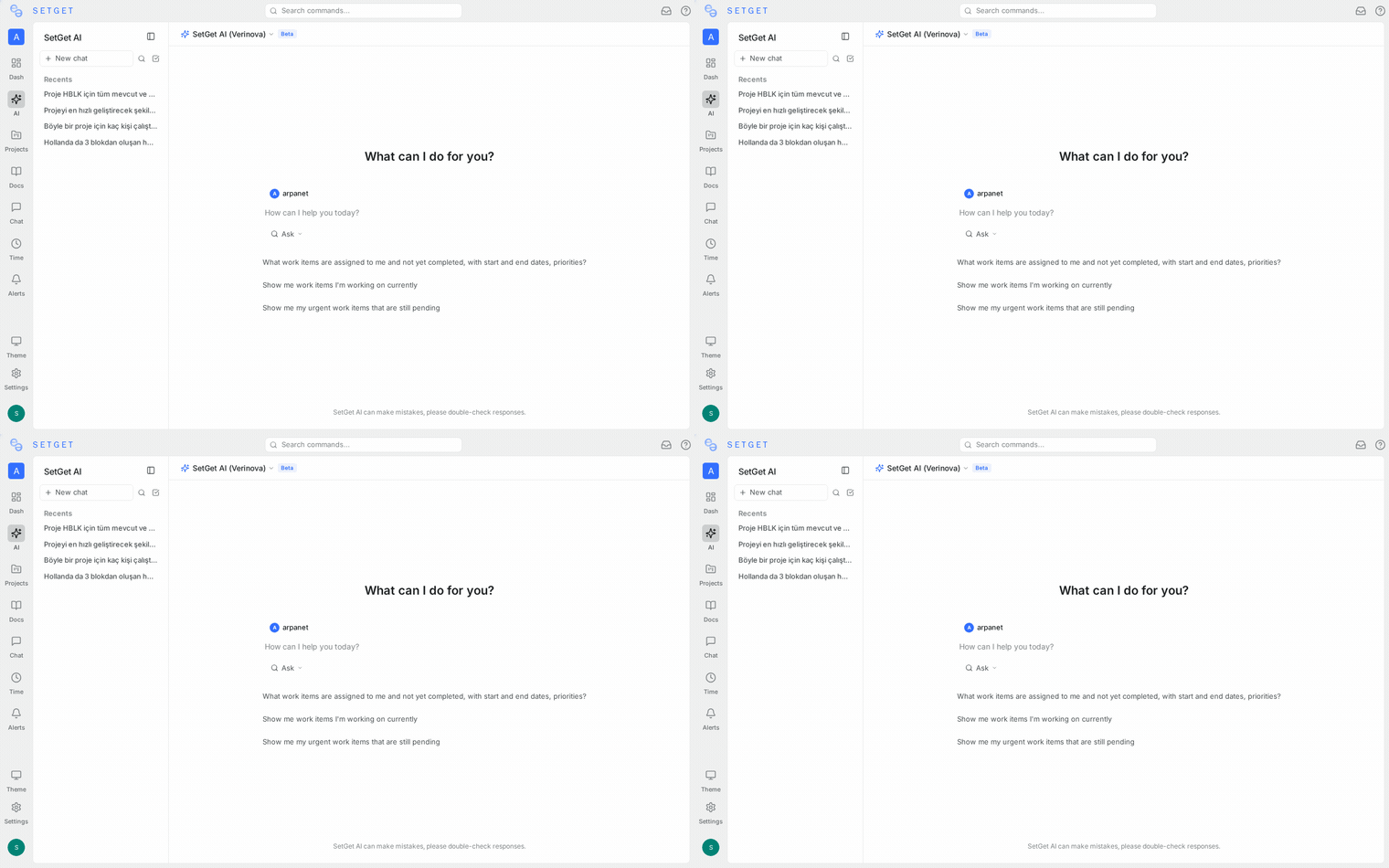
To start a new AI conversation:
- Click the AI icon in the left sidebar.
- Click New Thread at the top of the AI panel.
- Type your question or request in the message input.
- Press Enter or click the send button.
Each thread maintains its own conversation history. The AI remembers what you discussed earlier in the same thread, so you can build on previous messages.
TIP
Start a new thread for each distinct topic. This helps the AI maintain focused context and makes it easier to find past conversations.
Thread management
Your threads are saved automatically and listed in the AI panel sidebar. You can:
- View thread history — Click any thread to reopen it and continue the conversation.
- Delete a thread — Remove threads you no longer need.
- Search threads — Find past conversations by keyword.
Threads are scoped to your user account within the workspace. Other workspace members cannot see your AI threads.
Asking questions about your workspace
AI Chat can answer a wide range of questions about your workspace data. The AI accesses your live data to provide accurate, current answers.
General workspace questions
| Example prompt | What you get |
|---|---|
| "How many open work items are there across all projects?" | Total count of non-completed items |
| "Who are the members of this workspace?" | List of members with their roles |
| "What projects does this workspace have?" | Project list with identifiers and descriptions |
| "Show me workspace activity from the last 24 hours" | Summary of recent changes and events |
Project-specific questions
| Example prompt | What you get |
|---|---|
| "How many bugs are open in the API project?" | Count of items with bug label in open states |
| "What is the completion rate for this project?" | Percentage of done vs total items |
| "List all high-priority items assigned to me" | Filtered item list |
| "Which items have been stuck in review for over 3 days?" | Items in review state sorted by staleness |
Cycle and sprint questions
| Example prompt | What you get |
|---|---|
| "What is the burndown status for the current sprint?" | Completion progress and remaining work |
| "How does this cycle compare to the previous one?" | Velocity and completion comparison |
| "Which items in Sprint 8 are at risk of not completing?" | Items still in early states near the cycle end date |
| "Summarize what was completed in Sprint 7" | Done items grouped by project or assignee |
Module questions
| Example prompt | What you get |
|---|---|
| "What is the progress on the Authentication module?" | Completion percentage and remaining items |
| "List all unstarted items in the Payments module" | Items in backlog or todo states |
| "Who is working on the Dashboard module?" | Assignees with their item counts |
Requesting actions
Beyond answering questions, AI Chat can perform actions in your workspace. When you request a change, the AI proposes the action and waits for your confirmation before executing it.
Creating work items
Ask the AI to create new work items with specific properties:
Prompt: "Create a work item in the WEB project titled 'Add dark mode toggle to settings page' with priority High, assign to Alex, and add the label 'enhancement'"
AI Response:
I'll create this work item for you. Please confirm the details:
Create Work Item
- Project: WEB
- Title: Add dark mode toggle to settings page
- Priority: High
- Assignee: Alex
- Label: enhancement
[Confirm] [Cancel]
Click Confirm to create the item, or Cancel to discard it. You can also modify the details before confirming by telling the AI what to change.
Updating work items
Request changes to existing items:
Prompt: "Move WEB-42 to In Progress and change the priority to Urgent"
AI Response:
I'll update WEB-42 with the following changes:
Update Work Item WEB-42
- State: In Progress (was: Todo)
- Priority: Urgent (was: High)
[Confirm] [Cancel]
Adding comments
Prompt: "Add a comment to WEB-15 saying 'Blocked by API dependency, waiting for backend team'"
AI Response:
I'll add this comment to WEB-42:
Add Comment to WEB-15
- Comment: Blocked by API dependency, waiting for backend team
[Confirm] [Cancel]
Bulk operations
You can request operations that affect multiple items:
Prompt: "Set all Todo items in the API project with the bug label to High priority"
The AI will list all affected items and ask for confirmation before making changes. Always review bulk actions carefully.
WARNING
Bulk operations can affect many items at once. Always review the list of affected items in the confirmation dialog before approving.
Context-aware prompts
One of the most powerful features of AI Chat is its context awareness. The AI automatically receives different context based on where you are in the application, making your prompts shorter and more natural.
How context works
When you open AI Chat, the AI knows:
- Which workspace you are in
- Which project you are viewing (if any)
- Which cycle is active or selected
- Which module you are viewing
- Which view filters are applied
- Which page you are editing
This means you can use relative references like "this project," "the current cycle," or "these items" instead of specifying everything by name.
Context by module
Workspace context
When you are at the workspace level (not inside a specific project):
- The AI has access to all projects, members, and workspace-level data.
- Useful for cross-project analysis and workspace-wide questions.
Example prompts:
- "Which project has the most overdue items?"
- "Give me a weekly summary for the entire workspace"
- "Compare velocity across all projects for the last 3 sprints"
Project context
When you are inside a specific project:
- The AI automatically scopes to that project.
- No need to specify the project name in your prompts.
Example prompts:
- "How many items are in the backlog?" (scoped to current project)
- "Create a task titled 'Update API documentation'" (created in current project)
- "What labels are available here?"
Issues context
When you are viewing a specific work item list or detail:
- The AI knows the current filters and visible items.
- Useful for asking about the current view.
Example prompts:
- "Summarize these filtered items"
- "What's the average age of these bugs?"
- "Reassign all of these to the backend team"
Cycles context
When you are viewing a cycle:
- The AI knows the cycle dates, assigned items, and progress.
Example prompts:
- "Are we on track to finish this sprint?"
- "What's the burndown looking like?"
- "Which items were added after the sprint started?"
Modules context
When you are viewing a module:
- The AI knows the module scope and linked items.
Example prompts:
- "What percentage of this module is done?"
- "List the remaining work"
- "Who has the most items in this module?"
Views context
When you are viewing a saved view:
- The AI knows the filter configuration.
Example prompts:
- "How many items match this view?"
- "When was the oldest item in this view created?"
- "Export a summary of this view"
Pages context
When you are editing a page:
- The AI can read the page content.
Example prompts:
- "Summarize this page"
- "Suggest improvements to this document"
- "Convert the bullet list to a table"
SSE streaming in detail
AI Chat uses Server-Sent Events (SSE) for real-time response delivery. Here is what this means for your experience:
| Aspect | Behavior |
|---|---|
| Response start | Begins within 1-2 seconds of sending your message |
| Token delivery | Responses appear word by word as they are generated |
| Long responses | You can start reading before the response is fully generated |
| Connection handling | Automatic reconnection if the network drops briefly |
| Action proposals | Appear as interactive cards after the text response completes |
TIP
If a response seems to stall, check your network connection. SSE requires a persistent HTTP connection between your browser and the SetGet server.
Conversation tips
Be specific with identifiers
When referring to work items, use their full ID (e.g., WEB-42) rather than vague descriptions. This helps the AI find the exact item.
Use follow-up messages
Threads remember context. You can say:
- "Show me all high-priority bugs in the API project"
- "Now assign all of those to David"
- "Actually, only assign the ones created this week"
Each follow-up builds on the previous messages in the thread.
Combine analysis with action
You can ask a question and then act on the answer in the same thread:
- "Which items assigned to me are overdue?"
- "Move the ones in the WEB project to In Progress"
Specify output format
You can ask for specific formats:
- "List them as a numbered list"
- "Give me a table with columns for ID, title, and assignee"
- "Summarize in three bullet points"
Advanced usage patterns
Template prompts
If you frequently ask similar questions, create a personal library of prompt templates:
| Purpose | Template prompt |
|---|---|
| Daily standup prep | "List items I completed yesterday, items I am working on today, and blockers" |
| Sprint health check | "For the current cycle: completion %, items at risk, and items added after start" |
| Weekly team summary | "Summarize this week's activity: items created, completed, and overdue by member" |
| Backlog grooming prep | "List unestimated items in the backlog sorted by creation date" |
| Release readiness | "Are there any open items with the release-blocker label?" |
Chaining AI with other features
AI Chat works well alongside other SetGet features:
- Views + AI — Apply a saved view to filter items, then ask AI to analyze the filtered results.
- Cycles + AI — Open a cycle and ask AI for a burndown analysis or risk assessment.
- Pages + AI — Ask AI to draft content for a page, then paste the result into the editor.
- Automations + AI — Ask AI to suggest automation rules based on your team's workflow patterns.
Troubleshooting AI Chat
| Issue | Solution |
|---|---|
| AI gives outdated information | Data is queried live; refresh the page and try again |
| AI does not understand the request | Rephrase with more specifics (project name, item ID, exact action) |
| Response stops mid-stream | Check network connection; the SSE stream may have been interrupted |
| Action confirmation does not appear | The request may not involve a change; rephrase as a clear action |
| AI cannot find a work item | Verify the item ID and project; ensure you have access |
| Thread history is missing | Threads are user-scoped; ensure you are logged into the same account |
Limitations
- AI Chat currently supports text-based interactions only. You cannot upload images or files to the chat.
- The AI can process one action at a time. For complex multi-step workflows, break them into separate requests.
- Response quality depends on the completeness and accuracy of your workspace data.
- Very large workspaces with thousands of items may see slightly longer response times for broad queries.
Related pages
- SetGet AI Overview — General AI capabilities and how it works
- AI Actions — Detailed guide to the action confirmation flow
- AI Credits — Credit usage and limits for AI chat
- Keyboard Shortcuts — Shortcuts for opening AI chat and navigating
- Work Items — Understanding the items AI can create and modify