
Chat Search
SetGet Chat includes a powerful search system that helps you find messages, files, and conversations across your entire workspace or within a specific channel. Search results are displayed with context, and you can jump directly to any result in its original conversation.
Search scopes
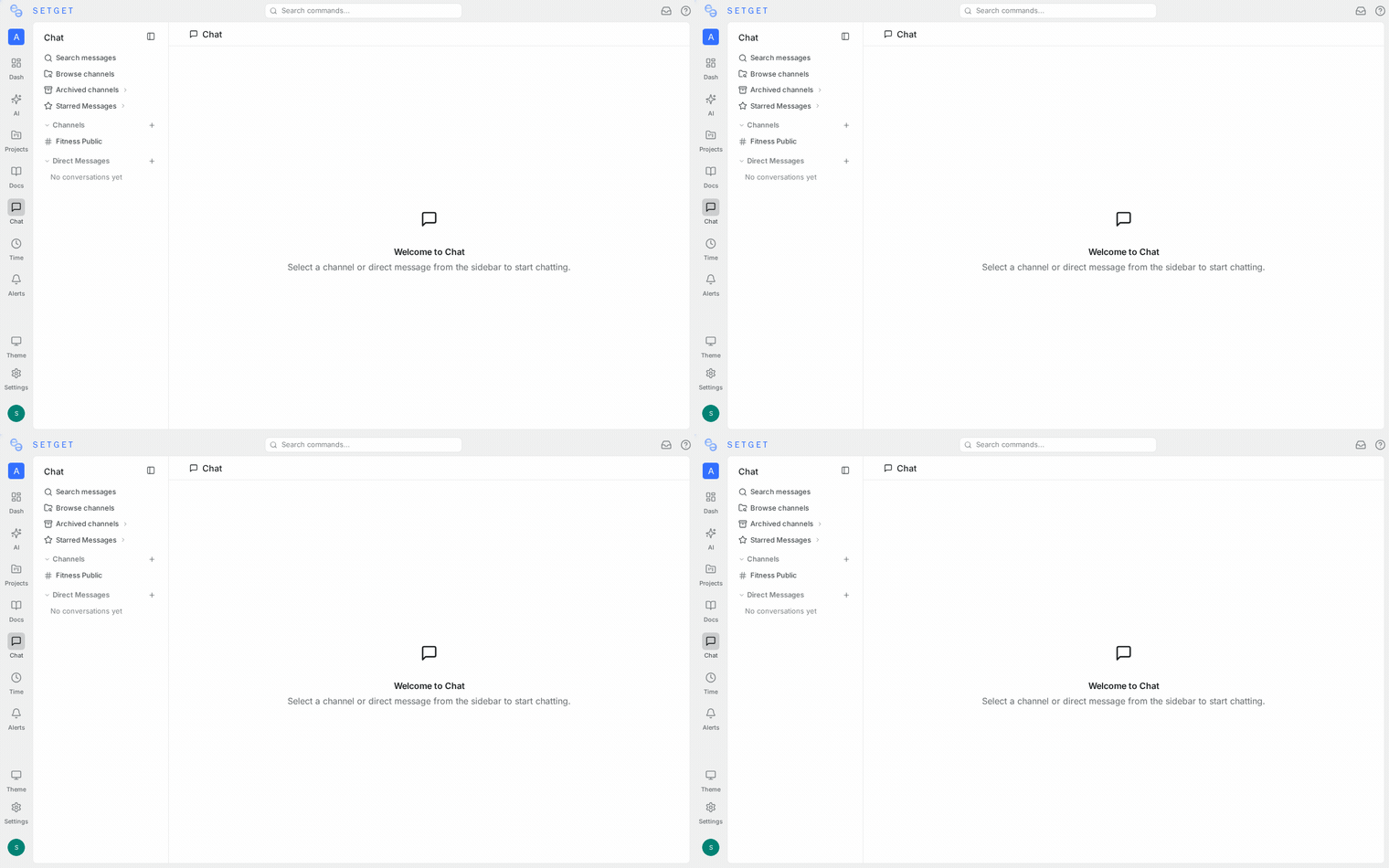
SetGet Chat offers two levels of search, each serving a different use case.
Per-channel search
Per-channel search finds messages within a single channel or direct message conversation.
- Open the channel you want to search.
- Click the search icon in the channel header bar.
- A search input field appears at the top of the channel.
- Type your query and press Enter.
- Results are displayed inline, highlighted within the message stream.
Per-channel search is ideal when you know which conversation contains the information you need but cannot locate the specific message.
Workspace-wide search
Workspace-wide search finds messages across all channels and direct messages you have access to.
- Click the global search icon in the workspace sidebar, or press Ctrl+Shift+F / Cmd+Shift+F.
- The global search dialog opens as a centered modal.
- Type your query in the search field.
- Results are grouped by channel, showing the message text, sender, timestamp, and channel name.
- Click any result to jump to the message in its original channel.
Workspace-wide search respects access controls. You only see results from channels you are a member of and direct messages you participate in. Private channel messages are never visible to non-members.
TIP
Use workspace-wide search when you remember the content of a message but not which channel it was posted in.
Search results display
Search results include the following information for each match:
| Field | Description |
|---|---|
| Message text | The matching message with search terms highlighted |
| Sender | Display name and avatar of the message author |
| Timestamp | Date and time the message was sent |
| Channel | Name of the channel or DM conversation (workspace-wide search only) |
| Thread indicator | Shows if the message is part of a thread |
| Attachment indicator | Shows if the message has file attachments |
Results are ranked by relevance. More recent messages and exact phrase matches rank higher than older messages or partial matches.
Pagination
If your query returns many results, they are loaded in pages. Scroll to the bottom of the results panel to load additional results automatically.
Search filters
Filters narrow your search results to specific criteria. You can combine multiple filters with your search query.
Filter by sender
Restrict results to messages sent by a specific person.
- In the search panel, click Filters.
- Select Sender.
- Choose one or more members from the dropdown.
- The search re-executes with the sender filter applied.
| Filter | Syntax (if using text) | Example |
|---|---|---|
| Sender | from:@DisplayName | from:@Jane |
Filter by date range
Restrict results to a specific time period.
- Click Filters in the search panel.
- Select Date Range.
- Choose a start date and end date from the date pickers.
- Results outside the selected range are excluded.
| Filter | Syntax (if using text) | Example |
|---|---|---|
| After date | after:YYYY-MM-DD | after:2026-01-01 |
| Before date | before:YYYY-MM-DD | before:2026-03-15 |
| Date range | Combine after: and before: | after:2026-01-01 before:2026-03-15 |
Filter by attachments
Show only messages that contain file attachments.
- Click Filters in the search panel.
- Toggle Has Attachments on.
- Results are limited to messages with at least one file attachment.
| Filter | Syntax | Example |
|---|---|---|
| Has attachments | has:attachment | report has:attachment |
| Has images | has:image | screenshot has:image |
Filter by reactions
Show only messages that have received emoji reactions.
- Click Filters in the search panel.
- Toggle Has Reactions on.
- Results are limited to messages with at least one reaction.
| Filter | Syntax | Example |
|---|---|---|
| Has reactions | has:reaction | proposal has:reaction |
Combining filters
You can apply multiple filters simultaneously. Filters are combined with AND logic -- a message must match all active filters to appear in the results.
Example: Find messages from Jane in the last month that have attachments:
from:@Jane after:2026-03-01 has:attachmentJump to message in context
When you find the message you are looking for, click it to navigate to the original location in the channel. The view scrolls to the message and highlights it temporarily so you can see it in its surrounding context.
After jumping to a message:
- The channel scrolls to position the message in the center of the view.
- A highlight animation draws attention to the target message for a few seconds.
- You can scroll up and down to read the surrounding conversation.
- Click Back to search in the header to return to the search results.
Search panel sidebar
In workspace-wide search, results are displayed in a sidebar panel on the right side of the screen. This allows you to continue viewing the current channel while browsing search results.
The search panel includes:
- Search input at the top with filter controls
- Results list showing matching messages
- Result count displaying the total number of matches
- Close button to dismiss the panel
TIP
Keep the search panel open while working in a channel. Click results to jump to messages, then click Back in the panel to continue browsing.
Keyboard shortcuts for search
| Action | Shortcut |
|---|---|
| Open workspace-wide search | Ctrl+Shift+F / Cmd+Shift+F |
| Open per-channel search | Ctrl+F / Cmd+F (when a channel is focused) |
| Execute search | Enter |
| Close search panel | Esc |
| Navigate between results | Arrow Up / Arrow Down |
| Jump to selected result | Enter |
Search history
SetGet Chat remembers your recent searches within the current session.
- When you open the search panel, your last 10 searches appear below the input field.
- Click a recent search to re-execute it with the same query and filters.
- Clear search history by clicking the Clear link at the bottom of the recent searches list.
Search history is stored locally in your browser and is not shared with other workspace members.
Search indexing
SetGet indexes all message text, sender names, and file names to provide fast search results. The following content is indexed:
| Content | Indexed | Searchable |
|---|---|---|
| Message text | Yes | Yes |
| File names | Yes | Yes |
| File contents | No | No |
| Sender display name | Yes | Yes (via from: filter) |
| Emoji reactions | No | No (use has:reaction filter) |
| Channel name | Yes | Yes (workspace-wide search) |
Search tips
| Tip | Description |
|---|---|
| Use exact phrases | Wrap phrases in double quotes: "deploy pipeline" |
| Combine keywords | Multiple words are matched with AND: deploy staging finds messages containing both words |
| Use filters for precision | Filters are faster than scanning large result sets manually |
| Search for file names | Type the file name to find messages with that attachment |
| Narrow to channel first | If you know the channel, per-channel search is faster |
| Use date filters for old messages | Narrowing the date range significantly speeds up searches in channels with long histories |
WARNING
Search indexes are updated in near real time. A message sent in the last few seconds may not appear in search results immediately.
Related pages
- Messages -- Sending, editing, and deleting messages
- Channels -- Creating and managing channels
- File Sharing -- Uploading and previewing files
- Keyboard Shortcuts -- All chat keyboard shortcuts
- Power K -- Workspace-level quick navigation