
Session Management
SetGet uses token-based sessions to manage authenticated access. Every time you sign in from a device or browser, a new session is created. You can view all your active sessions, see details about each one, and revoke sessions you no longer need. Workspace admins have additional tools to manage sessions across all members.
View active sessions
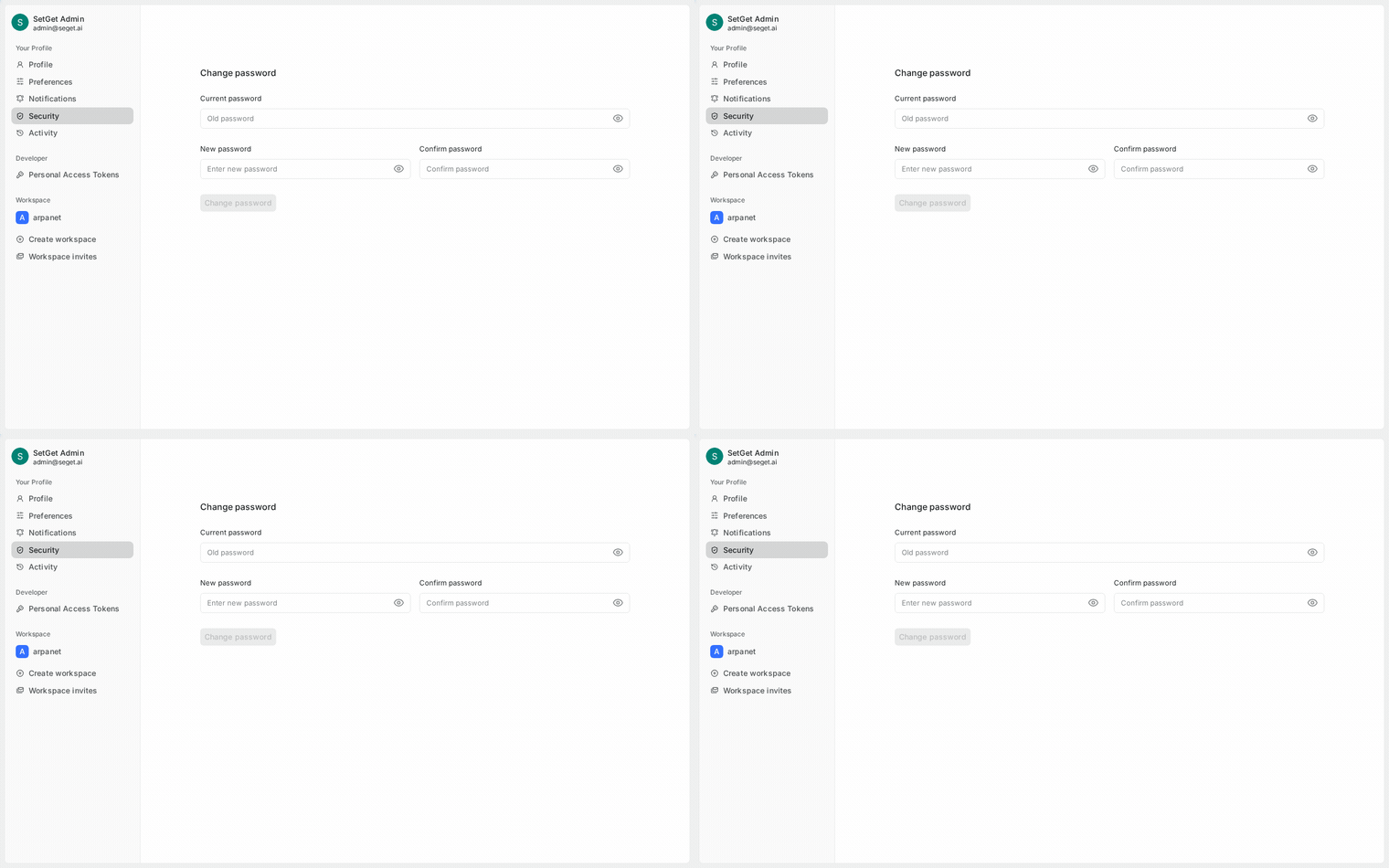
Your own sessions
- Click your profile avatar in the sidebar.
- Select Profile Settings (or Account Settings).
- Navigate to the Security section.
- Scroll to Active Sessions.
The session list shows all devices and browsers where you are currently signed in.
Session details
Each session entry displays:
| Field | Description |
|---|---|
| Device / Browser | The browser name and operating system (e.g., "Chrome on macOS") |
| IP address | The IP address from which the session was created |
| Location | Approximate geographic location based on IP (city, country) |
| Last active | When the session was most recently used |
| Created | When the session was first established |
| Current session | A badge indicating which session belongs to your current browser |
TIP
Review your active sessions regularly. If you see a session from an unfamiliar device, IP address, or location, revoke it immediately and change your password.
Revoke a session
Revoking a session signs out the associated device immediately. The user on that device will be redirected to the sign-in page on their next request.
Revoke a single session
- In the Active Sessions list, find the session you want to revoke.
- Click the Revoke button (or the X icon) next to the session.
- Confirm the action.
The session is terminated immediately. If you revoke your current session, you will be signed out.
Revoke all other sessions
To sign out from all devices except your current one:
- In the Active Sessions section, click Revoke All Other Sessions.
- Confirm the action.
All sessions except your current browser session are terminated. This is useful if you suspect unauthorized access or if you have signed in from shared/public computers.
WARNING
Revoking all sessions is immediate and cannot be undone. Users on revoked sessions will need to sign in again.
Session timeout policy
Session timeout controls how long a session remains valid without activity.
Inactivity timeout
| Setting | Behavior |
|---|---|
| 30 minutes | Session expires after 30 minutes of inactivity |
| 1 hour | Session expires after 1 hour of inactivity |
| 8 hours | Session expires after 8 hours of inactivity |
| 24 hours | Session expires after 24 hours of inactivity |
| 7 days | Session expires after 7 days of inactivity (default) |
| 30 days | Session expires after 30 days of inactivity |
Activity is defined as any interaction with the SetGet API — loading a page, sending a message, updating a work item, or any other action.
Absolute timeout
In addition to inactivity timeout, sessions have an absolute maximum lifetime:
| Setting | Behavior |
|---|---|
| 24 hours | Session expires 24 hours after creation regardless of activity |
| 7 days | Session expires 7 days after creation |
| 30 days | Session expires 30 days after creation (default) |
| 90 days | Session expires 90 days after creation |
When a session reaches its absolute timeout, the user must sign in again even if they have been continuously active.
Configure timeout policy
Workspace owners and admins can set the timeout policy:
- Navigate to Workspace Settings > Security > Sessions.
- Set the Inactivity timeout and Absolute timeout values.
- Click Save.
Changes apply to new sessions immediately. Existing sessions follow their original timeout until they expire or are revoked.
TIP
For most workspaces, the default settings (7-day inactivity timeout, 30-day absolute timeout) provide a good balance between convenience and security. Tighten timeouts for workspaces with sensitive data.
Admin session management
Workspace owners and admins can manage sessions for all workspace members.
View a member's sessions
- Navigate to Workspace Settings > Members.
- Find the member whose sessions you want to review.
- Click the three-dot menu > View Sessions.
- The member's active sessions are displayed with the same detail level as personal sessions.
Revoke a member's session
From the member's session list:
- Click Revoke next to the session you want to terminate.
- Confirm the action.
The member is signed out from that device.
Revoke all sessions for a member
- In the member's session list, click Revoke All Sessions.
- Confirm the action.
All of the member's sessions are terminated. This is useful when:
- A member's account may be compromised
- A member is leaving the organization
- A device is lost or stolen
Bulk session management
For workspace-wide security events (e.g., a suspected breach), admins can revoke all sessions for all members:
- Navigate to Workspace Settings > Security > Sessions.
- Click Revoke All Workspace Sessions.
- Confirm the action with your password.
This forces every workspace member to sign in again. Use this only in genuine security emergencies.
WARNING
Revoking all workspace sessions disrupts every member's work. This action should be reserved for security incidents where you need to ensure all sessions are fresh and re-authenticated.
Session security features
| Feature | Description |
|---|---|
| Secure cookies | Session tokens are stored in HttpOnly, Secure, SameSite cookies to prevent XSS and CSRF attacks |
| Token rotation | Session tokens are rotated periodically to reduce the window of exposure |
| IP binding | Sessions are associated with the originating IP; suspicious IP changes trigger re-authentication |
| User agent binding | Sessions are associated with the browser user agent |
| Concurrent session limit | Admins can limit the maximum number of active sessions per user |
Concurrent session limit
- Navigate to Workspace Settings > Security > Sessions.
- Set Maximum concurrent sessions (e.g., 5, 10, or unlimited).
- When a user exceeds the limit, their oldest session is automatically revoked.
Session events in audit log
Session-related events are logged for audit purposes:
| Event | Logged details |
|---|---|
| Sign-in | Timestamp, IP, device, authentication method |
| Sign-out | Timestamp |
| Session revoked (self) | Timestamp, which session |
| Session revoked (admin) | Timestamp, who revoked, which member, which session |
| Session expired | Timestamp, reason (inactivity or absolute timeout) |
| Failed sign-in | Timestamp, IP, reason |
Troubleshooting
| Issue | Cause | Solution |
|---|---|---|
| Signed out unexpectedly | Session expired due to inactivity timeout | Sign in again; consider increasing the timeout setting |
| Cannot find an expected session | Session already expired or was revoked | The session list only shows active sessions |
| Too many sessions listed | Signed in from multiple browsers/devices | Revoke sessions you no longer use |
| "Session invalid" error | Session was revoked by an admin or expired | Sign in again |
| IP address shows as unfamiliar | VPN, proxy, or mobile network | Verify if you use a VPN that might show a different IP |
Related pages
- Security Overview — authentication and authorization overview
- MFA — multi-factor authentication
- SSO — SAML-based single sign-on
- Workspace Members — manage member access
- Roles and Permissions — role definitions