
Organize and View Work
SetGet gives you five different layouts to view your work items, a flexible filter system to narrow down what you see, and saved views to preserve configurations you use repeatedly. This tutorial covers every option so you can find the view that fits your workflow.
Prerequisites
Before starting this tutorial, make sure you have:
- A SetGet workspace with at least one project.
- Several work items with varying states, priorities, assignees, and labels so that filtering and grouping produce visible results.
- Member-level access or higher in the project.
Step 1 — Switch Between Layouts
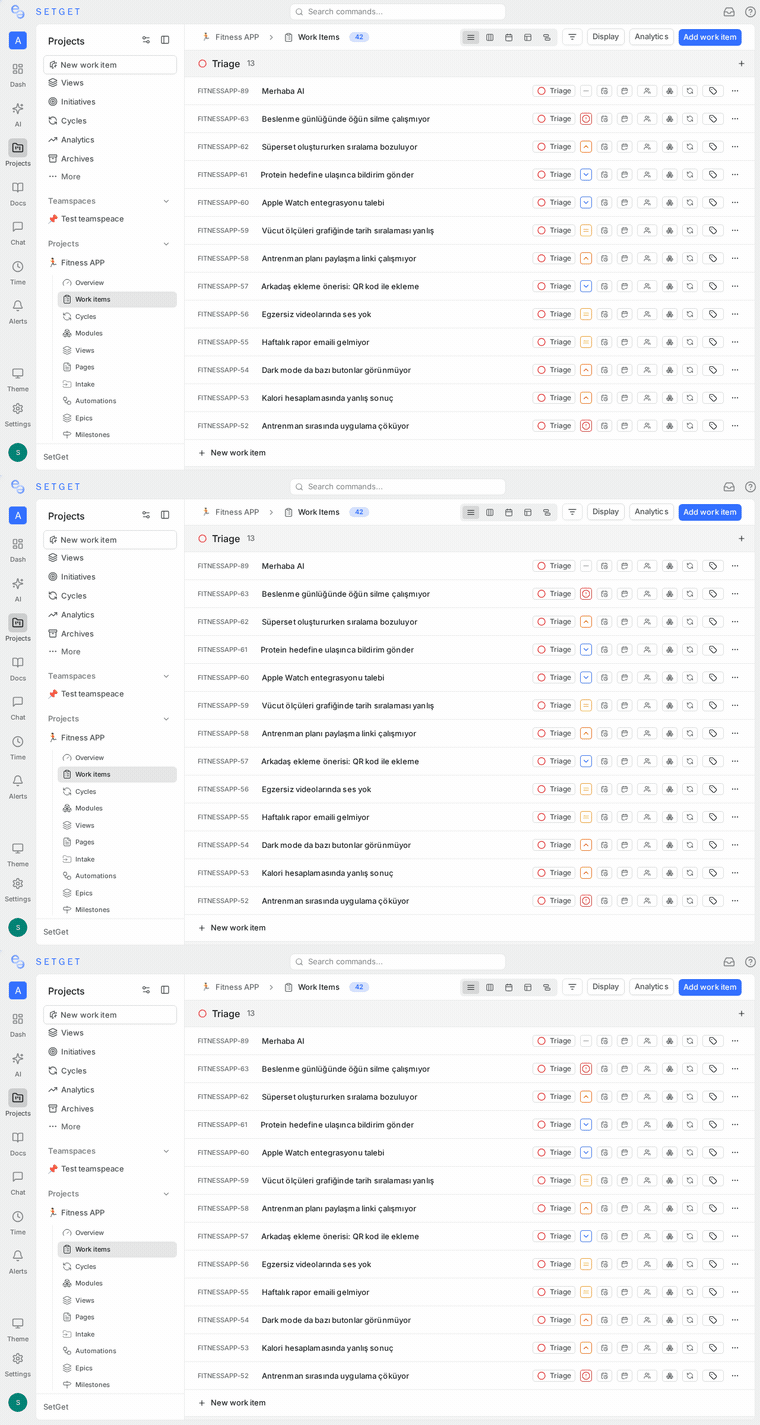
Every project in SetGet supports five layouts. You can switch between them using the layout selector in the project toolbar, near the top of the page.
List Layout
The List layout displays work items as a flat or grouped list of rows. Each row shows the item's identifier, title, state, priority, assignee, and other key fields. This is the best layout for quickly scanning a large number of items.
- Click the List icon in the layout selector to activate it.
- Use the expand arrow on any row to view sub-items inline.
Kanban Layout
The Kanban layout organizes work items into columns. By default, columns represent states (Backlog, Todo, In Progress, Done, Cancelled), but you can group by priority, assignee, label, or other fields.
- Click the Kanban icon to switch to this layout.
- Drag and drop cards between columns to change the grouping property (for example, dragging a card from "In Progress" to "Done" changes its state).
Spreadsheet Layout
The Spreadsheet layout presents work items in a grid with editable cells. You can update properties directly in the grid without opening the detail view.
- Click the Spreadsheet icon to activate.
- Click any cell to edit its value inline.
- Use Tab to move between cells.
TIP
The Spreadsheet layout is ideal for bulk updates. You can quickly change the priority, assignee, or dates for many items in a single session.
Calendar Layout
The Calendar layout plots work items on a monthly or weekly calendar grid based on their due dates.
- Click the Calendar icon to switch.
- Items without a due date do not appear on the calendar.
- Drag an item to a different date to update its due date.
Gantt Layout
The Gantt layout displays work items as horizontal bars on a timeline, showing start dates, due dates, and durations.
- Click the Gantt icon to activate.
- Items must have both a start date and a due date to render correctly.
- Drag the edges of a bar to adjust dates, or drag the entire bar to shift the date range.
WARNING
If most of your work items lack date fields, the Calendar and Gantt layouts will appear empty. Set start and due dates on your items to get the most out of these views.
Step 2 — Apply Filters
Filters let you narrow down the visible work items to exactly what you need. Click the Filter button in the project toolbar to open the filter panel.
Available Filter Properties
| Filter | Description |
|---|---|
| State | Filter by one or more states (Backlog, In Progress, Done, etc.) |
| Priority | Filter by Urgent, High, Medium, Low, or None |
| Assignee | Show items assigned to specific members |
| Label | Filter by one or more project labels |
| Cycle | Show only items in a specific cycle |
| Module | Show only items in a specific module |
| Due date | Filter by date range, before/after a date, or overdue |
| Start date | Filter by start date range |
| Created by | Show items created by a specific member |
| Subscriber | Show items a specific member is subscribed to |
| Mention | Show items where a specific member is @mentioned |
| Created date | Filter by when the item was created |
How to Add a Filter
- Click the Filter button in the toolbar.
- Click Add filter and choose a property from the dropdown.
- Select the operator (is, is not, includes, excludes, etc.).
- Choose the value or values.
- The view updates immediately.
You can stack multiple filters. All filters are combined with AND logic by default — an item must match every active filter to appear.
TIP
To quickly remove all filters, click the Clear all button in the filter panel.
Step 3 — Group Work Items
Grouping organizes your items into sections based on a shared property. This works across all layouts.
- Click the Group by option in the toolbar or display options panel.
- Choose a property to group by: State, Priority, Assignee, Label, Cycle, Module, or None.
- Items are reorganized into collapsible groups.
On the Kanban layout, the grouping property determines the column headers. On List and Spreadsheet, groups appear as collapsible sections.
Step 4 — Order (Sort) Work Items
Ordering controls how items are sorted within each group or across the entire view.
- Click the Order by option in the display options.
- Choose a sort property: Manual, Created date, Updated date, Priority, Start date, Due date.
- Toggle between ascending and descending order.
TIP
Manual ordering lets you drag items into a custom sequence. This order is preserved per-view and shared with your team.
Step 5 — Configure Display Options
Display options control which fields are visible in your current layout. Click the Display button (or the sliders icon) in the toolbar.
Common display options include:
- Show sub-items: Expand or collapse child items inline.
- Show empty groups: Show or hide groups that have no items.
- Properties shown: Toggle visibility of specific property columns (priority, assignee, labels, dates, estimates, etc.).
The available display options vary slightly by layout. For example, the Gantt layout has options for timeline zoom level, while the Kanban layout lets you choose which property fields appear on cards.
Step 6 — Save a View
Once you have configured a layout, filters, grouping, and ordering that you want to reuse, save it as a view.
- Click the Save view button or navigate to the Views section in the project sidebar.
- Give your view a descriptive name — for example, "My High Priority Items" or "Sprint Board by Assignee."
- Choose the access level:
- Private: Only you can see this view.
- Project: All project members can see and use this view.
- Workspace: All workspace members can see and use this view.
- Click Save.
Your saved view appears in the Views section of the sidebar. Click it anytime to load the exact configuration you saved.
Updating a Saved View
If you modify the filters or layout of a saved view, a prompt appears asking whether you want to update the existing view or save as a new one.
Deleting a Saved View
Open the view, click the three-dot menu next to the view name, and select Delete view. This action cannot be undone.
WARNING
Deleting a workspace-level view removes it for all members. Make sure the view is no longer needed before deleting.
Step 7 — Use Workspace-Level Views
In addition to project-level views, SetGet supports workspace-level views that span across all projects.
- Navigate to the Views section in the workspace sidebar (outside any specific project).
- Create a new view or open an existing one.
- Workspace views support the same layouts, filters, grouping, and ordering — but apply across all projects you have access to.
This is useful for seeing all your assigned items, all urgent items across projects, or a cross-project Gantt chart.
Summary
You now know how to use all five layouts (List, Kanban, Spreadsheet, Calendar, Gantt), apply filters to narrow your focus, group and sort items, configure display options, and save views for repeated use. Experimenting with different combinations will help you find the setup that works best for your team's workflow.
Related Pages
- Views Overview — Full reference for views and saved configurations.
- Filters Reference — Complete list of filter operators and usage.
- Display Options — Detailed guide to display settings per layout.
- List Layout — Deep dive into List layout features.
- Kanban Layout — Deep dive into Kanban layout features.
- Spreadsheet Layout — Deep dive into Spreadsheet layout features.
- Calendar Layout — Deep dive into Calendar layout features.
- Gantt Layout — Deep dive into Gantt layout features.
- Collaborate on Work Items — Comments, assignments, and activity tracking.