
Channels
Channels are shared conversation spaces where workspace members discuss topics, coordinate work, and share updates. Every channel has a name, an optional description, and an optional topic. Channels can be public (discoverable by all workspace members) or private (visible only to invited members).
Channel types
SetGet Chat supports two channel types:
| Type | Visibility | Joining | Use case |
|---|---|---|---|
| Public | Listed in channel browser; any member can see it | Any workspace member can join without invitation | Team-wide discussions, announcements, general topics |
| Private | Hidden from channel browser; not visible to non-members | Invitation only | Sensitive discussions, leadership channels, HR topics |
TIP
Start with public channels for most conversations. Private channels are best reserved for genuinely sensitive topics. Over-using private channels fragments team communication.
Create a channel
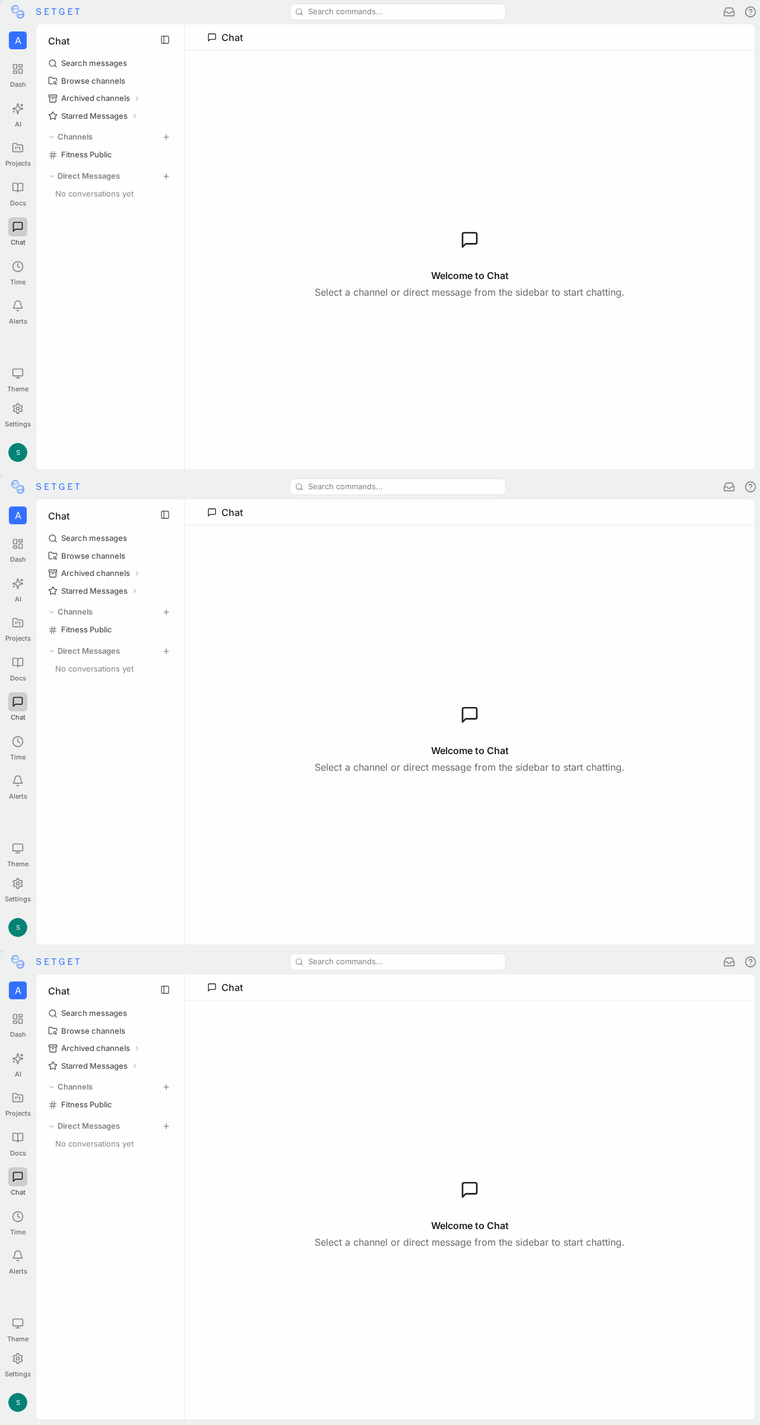
- Open the Chat section from the sidebar.
- Click the + icon next to the channel list header, or click New Channel.
- Fill in the channel details:
| Field | Required | Description |
|---|---|---|
| Name | Yes | A short, descriptive name. Use lowercase with hyphens (e.g., engineering, design-reviews, project-alpha). |
| Description | No | A longer explanation of the channel's purpose. Shown when members browse channels. |
| Topic | No | A short status line displayed at the top of the channel. Useful for current focus or links. |
| Privacy | Yes | Choose Public or Private. |
- Click Create Channel.
After creation, you are automatically added as a member and can start posting immediately.
Channel naming conventions
Good channel names make it easy for team members to find the right place for a conversation. Consider these patterns:
| Pattern | Example | Use case |
|---|---|---|
team-{name} | team-backend, team-design | Team-specific discussions |
project-{name} | project-alpha, project-mobile | Project-scoped coordination |
topic-{subject} | topic-architecture, topic-hiring | Cross-team interest groups |
announce-{scope} | announce-engineering, announce-company | One-way announcements |
help-{area} | help-devops, help-onboarding | Support and questions |
WARNING
Channel names must be unique within a workspace. If you try to create a channel with a name that already exists, you will receive an error.
Join a channel
Public channels
- Open the Chat section.
- Click Browse Channels (or the channel browser icon).
- Scroll through the list or use the search field to find the channel.
- Click Join next to the channel you want to enter.
You immediately gain access to the channel's full message history.
Private channels
You cannot browse or search for private channels. A current member of the channel must invite you:
- The existing member opens the channel.
- They click the Members icon in the channel header.
- They click Add Member and search for your name.
- They select you and confirm.
You receive a notification that you have been added to the channel and can see its full history from that point.
Channel member list
Every channel displays its member count in the header. Click the Members icon to see the full list, which shows:
- Member name and avatar
- Presence status (online/away/offline dot)
- Role within the channel (owner or member)
The channel creator is automatically designated as the channel owner. Ownership can be transferred by the current owner or a workspace admin.
Member roles in channels
| Role | Capabilities |
|---|---|
| Channel owner | Edit channel settings, add/remove members, archive channel, transfer ownership |
| Channel member | Send messages, react, pin messages, start threads |
Workspace admins and owners can always manage any channel regardless of their channel-level role.
Edit channel settings
Channel owners and workspace admins can modify channel settings at any time:
- Open the channel.
- Click the channel name in the header to open the settings panel.
- Edit the desired fields:
| Setting | Who can edit | Notes |
|---|---|---|
| Name | Channel owner, workspace admin | Changing the name does not break existing links or mentions |
| Description | Channel owner, workspace admin | Visible in channel browser and channel header |
| Topic | Any channel member | Displayed as a banner at the top of the channel |
| Privacy | Cannot be changed after creation | Create a new channel if you need a different privacy level |
- Click Save to apply changes.
WARNING
Channel privacy (public vs. private) cannot be changed after creation. If you need to convert a public channel to private or vice versa, create a new channel with the desired privacy setting and migrate members manually.
Leave a channel
- Open the channel.
- Click the three-dot menu (or right-click the channel name in the sidebar).
- Select Leave Channel.
After leaving:
- You stop receiving notifications for the channel.
- The channel disappears from your sidebar.
- For public channels, you can rejoin at any time.
- For private channels, you need to be re-invited.
TIP
Channel owners cannot leave their own channel without first transferring ownership to another member.
Remove a member
Channel owners and workspace admins can remove members from a channel:
- Open the channel and click the Members icon.
- Find the member you want to remove.
- Click the three-dot menu next to their name.
- Select Remove from Channel.
The removed member stops seeing the channel in their sidebar. For private channels, they lose access to the message history as well.
Archive a channel
Archiving a channel preserves its message history while preventing new messages. This is useful for channels tied to completed projects or disbanded teams.
- Open the channel.
- Click the channel name to open settings.
- Click Archive Channel.
- Confirm the action.
Archived channels:
- Appear in a separate "Archived" section if you were a member.
- Are read-only — no new messages, reactions, or pins.
- Retain all message history for reference.
- Can be unarchived by a workspace admin or the original channel owner.
Unarchive a channel
- Navigate to the archived channel.
- Click Unarchive Channel in the channel header banner.
- The channel returns to its original state with all members and history intact.
Channel topic
The channel topic is a short text line displayed at the top of the channel window. It serves as a quick reference for the channel's current focus.
- Any channel member can set or update the topic.
- Topics are commonly used for:
- Current sprint or milestone
- Links to relevant documents or dashboards
- Status updates ("Deploy in progress — hold changes")
- Meeting schedules
To set or change the topic:
- Click the topic area in the channel header.
- Type your new topic.
- Press Enter to save.
Channel notifications
Each member can configure their notification preference for a specific channel independently:
| Setting | Behavior |
|---|---|
| All messages | Receive a notification for every new message |
| Mentions only | Receive notifications only when @mentioned |
| Muted | No notifications from this channel |
The default for new channels is All messages. You can change this from the channel header menu. See Chat Notifications for workspace-wide notification configuration.
Best practices
Keep channel count manageable
Too many channels leads to fragmentation. Before creating a new channel, check if an existing one covers the same topic. A workspace with 15 focused channels is easier to navigate than one with 80 overlapping channels.
Use descriptions effectively
A clear description helps new team members understand where to post. Include:
- What the channel is for
- What should go elsewhere
- Any channel-specific norms
Archive rather than delete
When a project ends or a team reorganizes, archive the channel instead of deleting it. Archived channels remain searchable and serve as institutional memory.
Pin important messages
Use pins to surface frequently referenced content — design specs, decision records, meeting notes — so members do not have to scroll through history.
Set channel-specific notification levels
Encourage team members to configure their notification level per channel. High-traffic channels should use "Mentions only" for most members, while critical channels (like incident response) should stay on "All messages."
Channel search
You can search for messages within a specific channel:
- Open the channel.
- Click the search icon in the channel header.
- Type your query.
- Results show matching messages within that channel only.
This is faster than a workspace-wide search when you know which channel contains the information you need.
Channel limits
| Limit | Value |
|---|---|
| Maximum channels per workspace | No hard limit (practical limit depends on team size) |
| Maximum members per channel | No hard limit (all workspace members can join a public channel) |
| Channel name maximum length | 80 characters |
| Channel description maximum length | 500 characters |
| Channel topic maximum length | 250 characters |
Related pages
- Chat Overview — introduction to SetGet Chat
- Direct Messages — private conversations outside channels
- Messages — formatting and media sharing
- Threads — focused replies within a channel
- Pins — bookmark important channel messages
- Chat Notifications — per-channel notification preferences
- Moderation — admin tools for channel management
- Workspace Members — manage who can access channels