
Publish Projects
Publishing a project creates a read-only public view that anyone can access without signing in to SetGet. Published projects are served through the Space app — a lightweight, fast-loading interface designed for external viewing. Use publishing to share progress with stakeholders, display a public roadmap, run an open-source issue tracker, or give clients visibility into your work.
How publishing works
When you publish a project:
- SetGet generates a unique public URL for the project.
- The Space app renders a read-only view of the project's work items at that URL.
- Anyone with the URL can view the published data — no account required.
- The published view updates in real time as your team makes changes.
Published projects are strictly read-only. Visitors cannot create, edit, or comment on work items through the public view.
Enable publishing
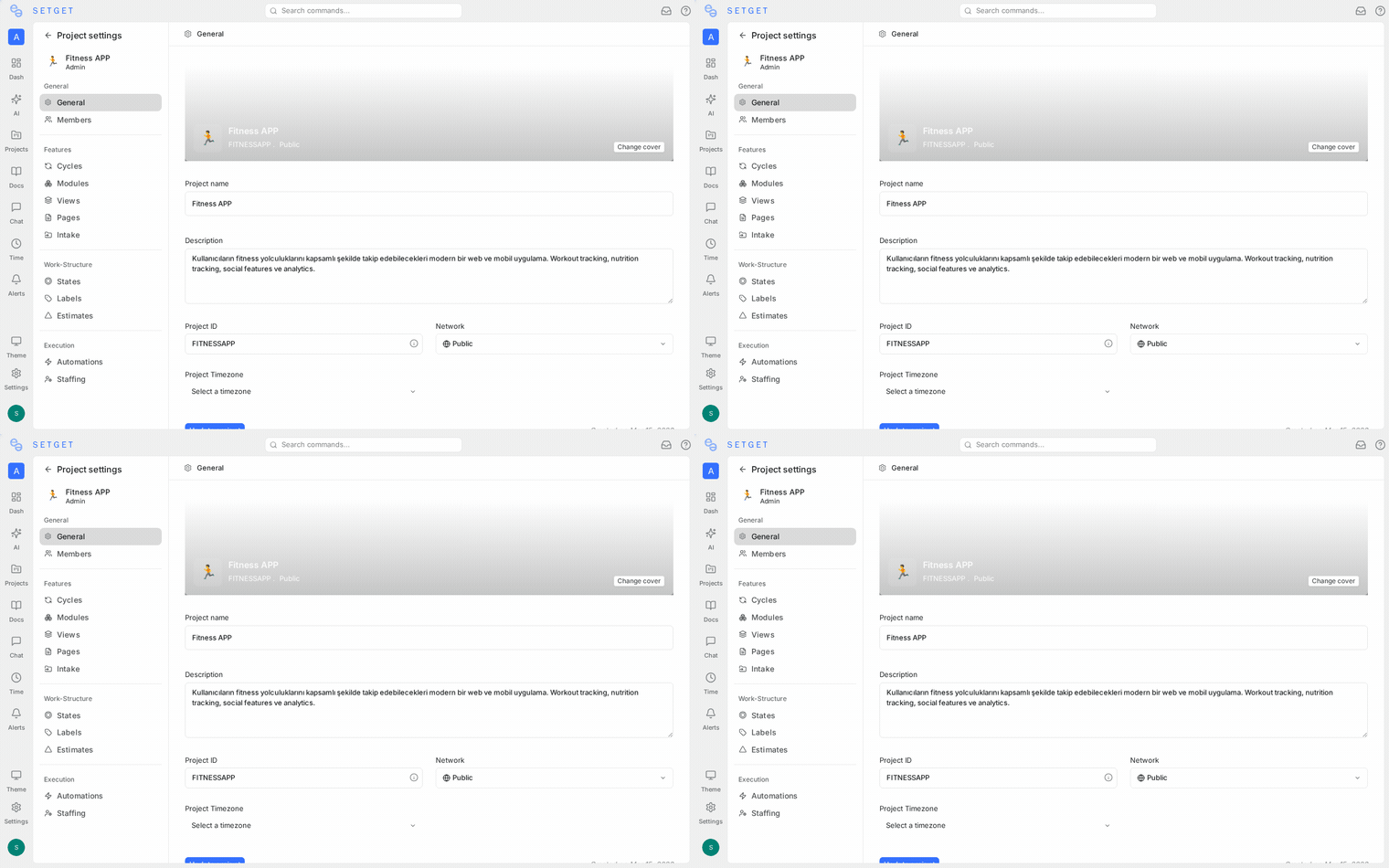
- Open the project and go to Settings > Publishing (or Settings > General depending on your layout).
- Toggle Publish Project to on.
- Configure what data should be visible (see the next section).
- Click Save.
- Copy the generated public URL and share it.
TIP
Only project Admins can enable or configure publishing. Members, Viewers, and Guests cannot change publishing settings.
Configure visible data
You control exactly what information appears in the published view. Each data type can be toggled independently:
| Data type | What it shows | Default |
|---|---|---|
| Work items | The list of work items with their titles and descriptions | On |
| States | The current state of each work item (e.g., In Progress, Done) | On |
| Priorities | The priority level of each work item | On |
| Labels | Labels attached to work items | On |
| Assignees | The team members assigned to each work item | Off |
| Due dates | Start and target dates for work items | Off |
| Comments | Discussion threads on work items | Off |
Choose what to show
Consider your audience when configuring visibility:
| Audience | Recommended visible data |
|---|---|
| General public (open-source roadmap) | Work items, states, priorities, labels |
| Clients (project progress) | Work items, states, priorities, labels, due dates |
| Stakeholders (internal review) | Work items, states, priorities, labels, assignees, due dates |
| Minimal (teaser view) | Work items, states only |
WARNING
Enabling assignee visibility shows real names and avatars of your team members on the public page. Make sure your team consents to having their names publicly visible before enabling this option.
The public URL
When publishing is enabled, SetGet generates a URL in the format:
https://your-instance.example.com/spaces/{workspace-slug}/{project-identifier}This URL is:
- Permanent — it does not change unless you unpublish and republish.
- Shareable — send it to anyone via email, Slack, social media, or embed it on a website.
- Bookmarkable — visitors can save it for repeated access.
Embed in a website
You can embed the published project on your website or documentation site using an iframe:
<iframe
  src="https://your-instance.example.com/spaces/acme/WEB"
  width="100%"
  height="600"
  frameborder="0"
  title="Project Roadmap"
></iframe>
The Space app experience
The Space app is a purpose-built interface for viewing published projects. It provides:
- Board view — work items displayed in columns by state, similar to the internal board view.
- List view — a tabular layout showing all work items with their properties.
- Filtering — visitors can filter by state, priority, and label to find relevant items.
- Search — visitors can search work items by title or description.
- Responsive design — works well on desktop, tablet, and mobile devices.
The Space app intentionally omits features like editing, commenting, and notifications. It is a viewing-only surface.
Disable publishing
- Go to the project Settings > Publishing.
- Toggle Publish Project to off.
- Click Save.
When publishing is disabled:
- The public URL immediately stops working. Visitors see a "not found" page.
- No data is deleted — your project and all its contents remain intact.
- You can re-enable publishing at any time. If the project identifier has not changed, the same URL is restored.
TIP
If you need to temporarily hide a published project (for example, before a major announcement), disable publishing and re-enable it when you are ready.
Publishing and project network
Publishing is independent of the project's network setting:
| Network | Publishing | Result |
|---|---|---|
| Public | Off | All workspace members can see the project internally. No external access. |
| Public | On | All workspace members see it internally. Anyone with the URL sees the published view externally. |
| Secret | Off | Only invited members can see the project. No external access. |
| Secret | On | Only invited members see the full project internally. Anyone with the URL sees the published view externally. |
WARNING
A Secret project with publishing enabled is externally viewable. If your project contains sensitive information, make sure the visible data configuration only exposes what you intend to share.
Security considerations
- Published data is publicly accessible — do not publish projects with confidential work item titles or descriptions.
- There is no access control on the public URL. Anyone who has the URL can view the data.
- Published views are read-only — visitors cannot modify any data.
- Work item descriptions are visible if Work Items visibility is enabled. Ensure descriptions do not contain sensitive information.
- Attachments referenced in work items are not served through the Space app unless explicitly configured.
Best practices for secure publishing
- Review work item titles and descriptions before publishing.
- Start with minimal visibility (states only) and add data types as needed.
- Keep assignee visibility off unless your team has opted in.
- Periodically review published projects to ensure no sensitive content has been added.
- Use the project description to provide context for external visitors.
Troubleshooting
| Issue | Resolution |
|---|---|
| Public URL shows "not found" | Verify publishing is enabled in project settings |
| Published view is stale | The view updates in real time; try a hard refresh (Ctrl+Shift+R) |
| Some work items are missing | Check if the items are archived — archived items are not shown in published views |
| Assignee names not showing | Enable assignee visibility in the publishing configuration |
| Cannot enable publishing | Verify you have Admin role on the project |
Related pages
- Manage Projects — Create and configure projects
- Project Settings — Full settings reference
- Project Features — Toggle capabilities on or off
- Workspaces Overview — Understand workspace and project structure