
SetGet Chat
SetGet Chat is a built-in real-time messaging system that lives inside your workspace. Instead of switching between a project management tool and a separate messaging application, your team can discuss work, share updates, and coordinate decisions without ever leaving SetGet.
Why use built-in chat
Teams that rely on external messaging tools face a persistent problem: context fragmentation. A conversation about a bug happens in one application, the bug itself lives in another, and the resolution gets documented somewhere else entirely. Important decisions get buried in message history that nobody can find six weeks later.
SetGet Chat eliminates this gap by placing communication directly alongside your work items, cycles, modules, and pages. When someone mentions a work item in a chat message, the reference is live. When you need to discuss a cycle's progress, you do it in a channel that the entire project team already belongs to.
Key advantages over external tools
| Concern | External messaging | SetGet Chat |
|---|---|---|
| Context switching | Constant tab/app switching | Everything in one workspace |
| Work item references | Manual links that go stale | Live, clickable references |
| Team membership | Separate invite and permission system | Inherited from workspace roles |
| Notification overload | Two notification systems to manage | Unified notification center |
| Onboarding | New members must join two platforms | One workspace invitation covers chat |
| Data residency | Data split across vendors | All data in one place |
| Search | Cannot search across tools | Unified search across chat and work |
Core concepts
SetGet Chat is organized around a few key primitives:
Channels
Channels are shared conversation spaces visible to multiple members. They can be public (any workspace member can discover and join) or private (invitation-only). Every channel has a name, an optional description, and an optional topic.
Channels are ideal for team-wide discussions, project coordination, announcements, and cross-functional collaboration. See Channels for full details.
Direct messages
Direct messages (DMs) are private conversations between two or more specific people. A DM with one other person is a one-on-one conversation. A DM with multiple people is a group DM. DMs do not appear in channel listings and are only visible to participants.
Use DMs for quick questions, sensitive discussions, or conversations that do not belong in a channel. See Direct Messages for more.
Messages
Messages are the fundamental unit of communication. Every message belongs to a channel or DM conversation. Messages support rich text formatting — bold, italic, inline code, code blocks, links, and lists. You can also attach files and images to messages.
See Messages for formatting options and media sharing.
Threads
Threads let you reply to a specific message without cluttering the main conversation. When someone starts a thread on a message, all replies are collected in a side panel. Thread participants receive targeted notifications without disturbing the rest of the channel.
See Threads for details on thread workflows.
Reactions
Reactions are emoji responses you can attach to any message. They are useful for quick acknowledgments (thumbs up), voting, or expressing sentiment without sending a separate message.
See Reactions for usage and custom emoji.
Pins
Pinning a message marks it as important for the channel. Pinned messages are accessible from a dedicated panel, making them ideal for reference material, important announcements, or frequently needed links.
See Pins for pin management.
Presence
Presence indicators show whether a team member is currently online, away, or offline. A colored dot on each member's avatar communicates their availability at a glance. SetGet automatically transitions users to away status after a period of inactivity.
See Presence for how presence detection works.
Read receipts
SetGet tracks which messages each member has read. Unread message counts appear as badges on channels and DMs, helping you see at a glance where new activity is waiting. Entering a channel automatically marks its messages as read.
See Read Receipts for tracking behavior.
Starring
Starring lets you bookmark important messages or channels for quick access later. Starred items appear in a dedicated section, acting as your personal shortlist of things you want to come back to.
See Starring for details.
How real-time delivery works
SetGet Chat uses WebSocket connections for real-time message delivery. When you open your workspace, the browser establishes a persistent WebSocket connection to the SetGet live service. This connection handles:
- Instant message delivery — new messages appear immediately without polling or page refresh
- Typing indicators — see when someone is composing a message in your current channel
- Presence updates — online/away/offline status changes propagate in real time
- Read receipt sync — unread counts update as other members read messages
- Reaction updates — emoji reactions appear instantly for all channel members
The WebSocket connection is lightweight and automatically reconnects if the network is interrupted. Messages sent during a brief disconnection are delivered once the connection is restored.
Message flow
- You type a message and press Enter (or click Send).
- The message is sent to the SetGet API via HTTP.
- The API persists the message to the database.
- The API publishes a message event to the real-time coordination layer (Redis pub/sub).
- The live service picks up the event and pushes it to all connected WebSocket clients who are members of that channel.
- Each client renders the message immediately.
This architecture ensures that messages are durably stored before being broadcast, so no messages are lost even if a client disconnects momentarily.
Accessing chat
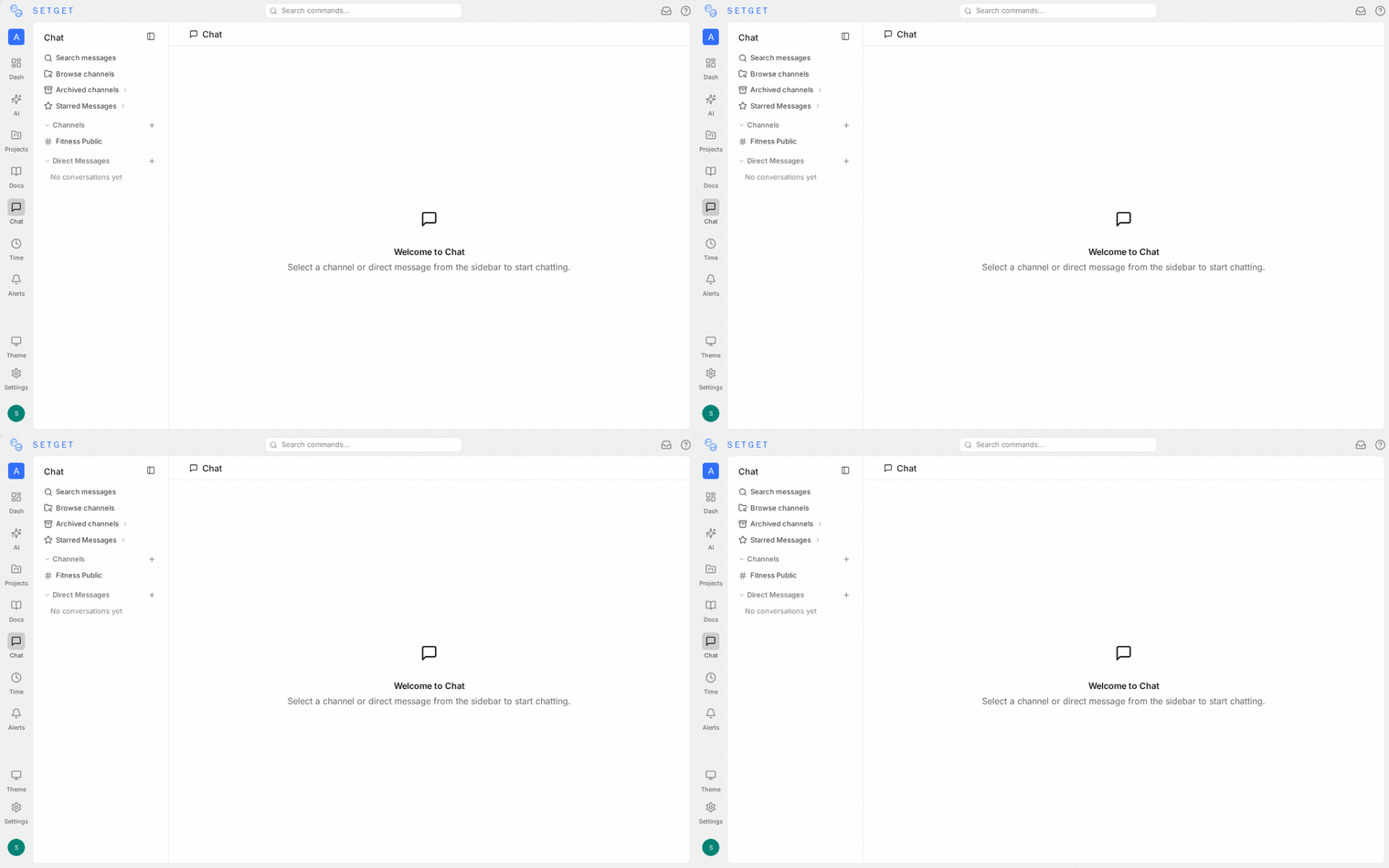
Chat is available from the Chat section in the workspace sidebar. Clicking it opens the chat interface with:
- Channel list — all channels you belong to, sorted by recent activity
- DM list — your direct message conversations
- Starred items — quick access to bookmarked messages and channels
- Unread indicators — badges showing channels with new messages
You can also access chat from keyboard shortcuts. Press Ctrl+K (or Cmd+K on macOS) to open the command palette and search for a channel or person to message.
Permissions and access
Chat respects your workspace role:
| Role | Capabilities |
|---|---|
| Owner | Full access: create/archive channels, moderate messages, manage all settings |
| Admin | Create/archive channels, moderate messages, manage channel settings |
| Member | Create channels, send messages, join public channels |
| Guest | Access only channels they are explicitly invited to |
Private channels have their own member lists. Only members of a private channel can see its messages or know it exists. Workspace admins can see private channels in the admin panel for moderation purposes.
Chat and notifications
SetGet Chat integrates with the workspace notification system. You can configure notification preferences per channel:
- All messages — get notified for every new message
- Mentions only — get notified only when someone @mentions you
- Muted — suppress all notifications from the channel
Desktop notifications (browser push) are supported for immediate alerts. See Chat Notifications for complete configuration options.
Moderation
Workspace admins have moderation tools to maintain healthy communication:
- Delete any message in any channel
- Archive channels that are no longer needed
- Review reported messages
- Configure channel-level moderation settings
See Moderation for the full moderation toolkit.
TIP
You do not need to configure anything to start using chat. Every workspace comes with chat enabled by default. Just navigate to the Chat section and create your first channel.
Search in chat
SetGet Chat includes search functionality to help you find messages across channels and DMs:
- Click the search icon in the chat header or press
Ctrl+F/Cmd+F. - Type your search query.
- Results are displayed grouped by channel, showing matching messages with highlighted keywords.
Search covers:
- Message text content
- File names attached to messages
- Author names
Results link directly to the message in its channel, so you can click through to see the full context.
Search tips
| Tip | Example |
|---|---|
| Search by author | from:alice deployment |
| Search in a specific channel | in:engineering release |
| Search by date range | before:2026-03-01 after:2026-02-15 |
| Exact phrase | "release candidate" |
Chat and work items
One of the key advantages of built-in chat is the ability to reference work items directly in conversations:
- Type
#followed by a work item identifier to create a live link. - The link shows the work item title and current status.
- Clicking the link navigates to the work item detail view.
- When a referenced work item's status changes, the link updates automatically.
This keeps conversations grounded in the actual work, reducing the need to switch between tools to understand context.
File sharing in chat
You can share files directly in chat messages by dragging and dropping, pasting from clipboard, or using the attachment button. Images are previewed inline, while other file types show a download link. See Messages for supported file types and size limits.
Data retention
Chat messages are stored persistently in the SetGet database. There is no automatic message expiration or deletion. Messages remain available for the lifetime of the workspace unless:
- A user deletes their own message
- An admin deletes a message through moderation
- A channel is deleted (not just archived)
Archived channels preserve all message history in a read-only state.
Keyboard shortcuts
| Shortcut | Action |
|---|---|
Ctrl+K / Cmd+K | Open command palette to search channels and people |
Ctrl+F / Cmd+F | Search messages in current channel |
Escape | Close thread panel, search, or other overlay |
Up arrow | Edit your last message (when input is empty) |
Shift+Enter | Insert line break without sending |
Enter | Send message |
Quick start
- Open the Chat section from the sidebar.
- Click New Channel to create a channel for your team.
- Give it a name (e.g., "engineering") and an optional description.
- Invite members or make it public so anyone in the workspace can join.
- Start messaging.
For direct messages, click the New Message icon and select one or more people to start a conversation.
Related pages
- Channels — create and manage conversation spaces
- Direct Messages — private one-on-one and group conversations
- Messages — formatting, editing, and media sharing
- Threads — focused replies without channel noise
- Reactions — emoji responses on messages
- Pins — bookmark important messages in a channel
- Presence — online, away, and offline indicators
- Read Receipts — unread tracking and badges
- Starring — personal bookmarks for messages and channels
- Moderation — admin tools for healthy communication
- Chat Notifications — per-channel notification preferences
- Workspace Members — manage who has access to chat