
Messages
Messages are the fundamental unit of communication in SetGet Chat. Every message belongs to a channel or direct message conversation. You can format text with rich markup, share files and images, edit messages after sending, and delete messages you no longer need.
Send a message
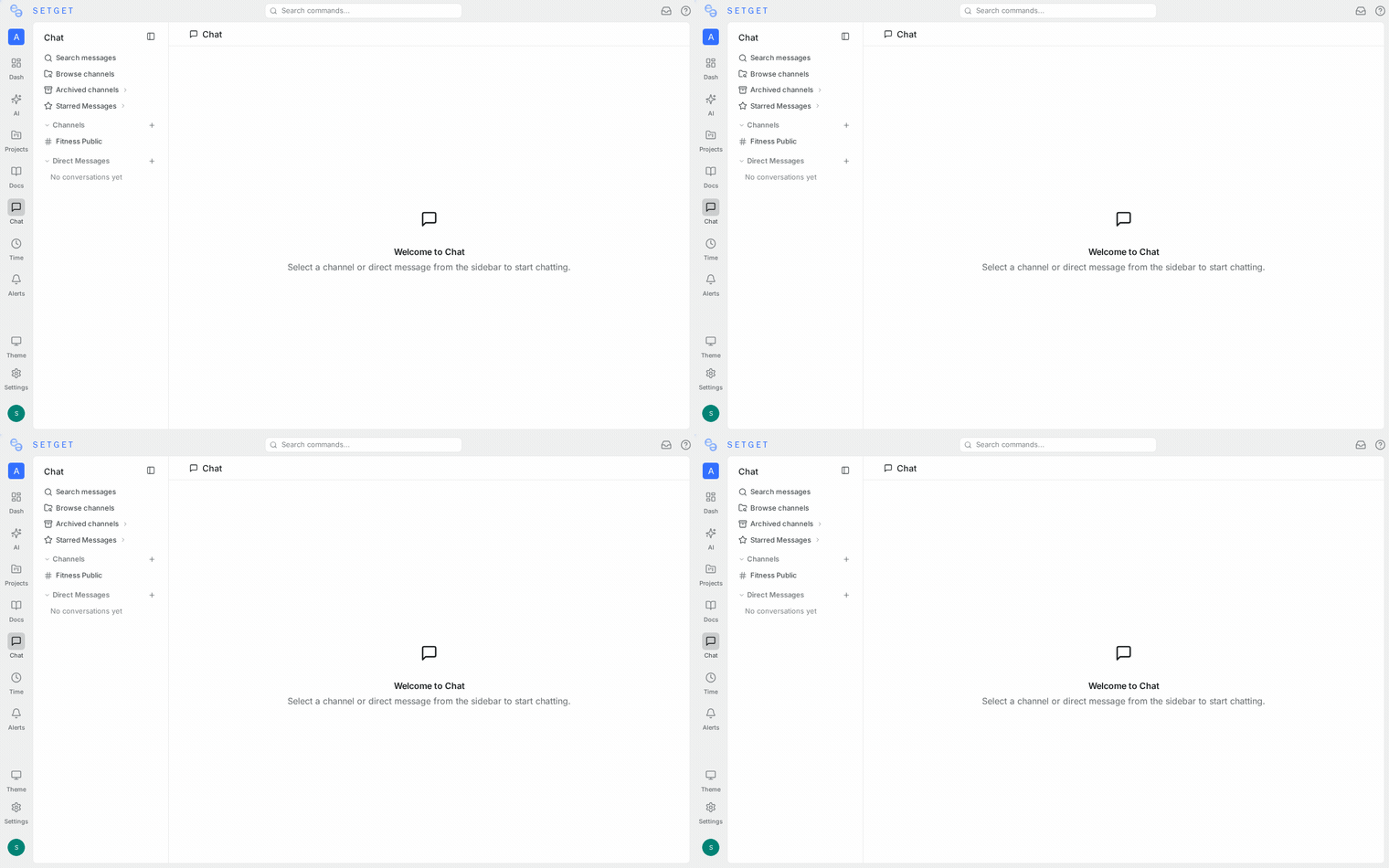
- Open a channel or DM conversation.
- Click the message input field at the bottom of the chat window.
- Type your message.
- Press Enter to send.
To insert a line break without sending, press Shift+Enter.
TIP
You can also paste content directly into the message field. Pasted text preserves basic formatting, and pasted images are automatically uploaded as attachments.
Rich text formatting
SetGet Chat supports rich text formatting using toolbar buttons or keyboard shortcuts:
| Format | Toolbar | Keyboard shortcut | Syntax | Result |
|---|---|---|---|---|
| Bold | B button | Ctrl+B / Cmd+B | **text** | text |
| Italic | I button | Ctrl+I / Cmd+I | *text* | text |
Ctrl+Shift+X | ~~text~~ | |||
Inline code | <> button | Ctrl+E / Cmd+E | `code` | code |
| Link | Link button | Ctrl+K / Cmd+K | [text](url) | clickable link |
| Bulleted list | List button | — | - item | bulleted item |
| Numbered list | Numbered list button | — | 1. item | numbered item |
| Blockquote | Quote button | — | > text | indented quote |
Code blocks
For multi-line code, use triple backticks with an optional language identifier:
```javascript
function greet(name) {
  return `Hello, ${name}!`;
}
```
SetGet Chat renders code blocks with syntax highlighting for common languages including JavaScript, TypeScript, Python, Go, Rust, HTML, CSS, SQL, and more.
Mentions
Mention a workspace member by typing @ followed by their name. A suggestion dropdown appears as you type:
- @member — notifies the mentioned person and highlights the message for them
- @channel — notifies all members of the current channel (use sparingly)
Mentioned members receive a notification even if their channel notification preference is set to "Mentions only."
Emoji
Type : followed by an emoji name to insert an emoji inline. A suggestion dropdown appears as you type:
:thumbsup:inserts a thumbs-up emoji:rocket:inserts a rocket emoji:check:inserts a checkmark emoji
You can also use the emoji picker by clicking the smiley face icon in the message toolbar.
Edit a message
You can edit your own messages after sending:
- Hover over the message you want to edit.
- Click the three-dot menu that appears.
- Select Edit Message.
- Modify the text in the inline editor.
- Press Enter to save, or Escape to cancel.
Edited messages display an "(edited)" label next to the timestamp so other members know the content was modified.
WARNING
You can only edit your own messages. Workspace admins cannot edit other members' messages — they can only delete them for moderation purposes.
Edit shortcuts
- Press the Up arrow key when the message input is empty to quickly edit your most recent message.
- Press Escape to cancel an in-progress edit without saving changes.
Delete a message
Deleting a message removes it from the conversation for all participants.
- Hover over the message.
- Click the three-dot menu.
- Select Delete Message.
- Confirm the deletion.
Who can delete messages
| Role | Can delete |
|---|---|
| Message author | Their own messages |
| Channel owner | Any message in their channel |
| Workspace admin | Any message in any channel |
| Workspace owner | Any message in any channel |
WARNING
Deleted messages cannot be recovered. If a message contains important information, consider copying or pinning it before deletion.
Message timestamps
Every message displays a timestamp showing when it was sent. Timestamps follow these conventions:
| Age | Display format |
|---|---|
| Today | Time only (e.g., "2:34 PM") |
| Yesterday | "Yesterday at 2:34 PM" |
| This week | Day and time (e.g., "Monday at 2:34 PM") |
| Older | Full date and time (e.g., "Mar 15, 2026 at 2:34 PM") |
Hovering over a timestamp shows the exact date and time with seconds.
Messages are grouped by date with divider lines. A "New messages" divider marks the point where unread messages begin when you return to a channel.
File and media sharing
Upload files
You can share files in any channel or DM:
- Click the attachment icon (paperclip) in the message toolbar.
- Select a file from your device.
- Optionally add a text message alongside the file.
- Press Enter to send.
Alternatively, drag and drop a file directly into the chat window.
Supported file types
| Category | Types | Behavior |
|---|---|---|
| Images | PNG, JPG, GIF, SVG, WebP | Displayed inline with thumbnail preview |
| Videos | MP4, WebM | Displayed with embedded video player |
| Documents | PDF, DOC, DOCX, XLS, XLSX, PPT | Download link with file icon |
| Code files | .js, .ts, .go, .py, .rs, etc. | Download link with file icon |
| Archives | ZIP, TAR, GZ | Download link with file icon |
| Other | Any file type | Download link with generic file icon |
File size limits
| Context | Maximum size |
|---|---|
| Single file upload | 25 MB |
| Image paste | 10 MB |
| Total per message | 25 MB across all attachments |
Files that exceed the size limit are rejected with an error message. For larger files, use the workspace file storage or share a link instead.
Image previews
Uploaded images render as inline thumbnails in the message. Click an image to open a full-size lightbox viewer. The lightbox supports:
- Zoom in and out
- Navigation between multiple images in the same message
- Download the original file
Clipboard paste
Paste an image directly from your clipboard (Ctrl+V / Cmd+V) into the message field. The image is automatically uploaded and attached to the message.
Message actions
Hovering over a message reveals a quick action toolbar:
| Action | Icon | Description |
|---|---|---|
| React | Emoji icon | Add an emoji reaction |
| Reply in thread | Thread icon | Start or continue a thread on this message |
| Pin | Pin icon | Pin the message to the channel |
| Star | Star icon | Add to your personal starred items |
| More | Three-dot menu | Edit, delete, copy link, copy text |
Copy message link
Select Copy Link from the three-dot menu to get a direct URL to a specific message. Sharing this link with a workspace member takes them directly to that message in the channel, even if they need to scroll to find it.
Copy message text
Select Copy Text to copy the plain-text content of a message to your clipboard.
Message ordering
Messages are displayed in chronological order (oldest first) within a channel. When you scroll up to read history and new messages arrive, a "New messages" button appears at the bottom of the chat window. Click it to jump to the latest message.
Related pages
- Chat Overview — introduction to SetGet Chat
- Channels — conversation spaces for teams
- Threads — focused replies to specific messages
- Reactions — emoji responses on messages
- Pins — bookmark important messages
- Direct Messages — private conversations