
Export Data
SetGet lets you export work items and project data in three formats: CSV, Excel, and JSON. Exports can be scoped to a project, cycle, module, or saved view, and filtered by any combination of state, priority, assignee, label, and date range. Use exports for reporting, sharing with stakeholders, backup, or feeding data into external analytics tools.
Export formats
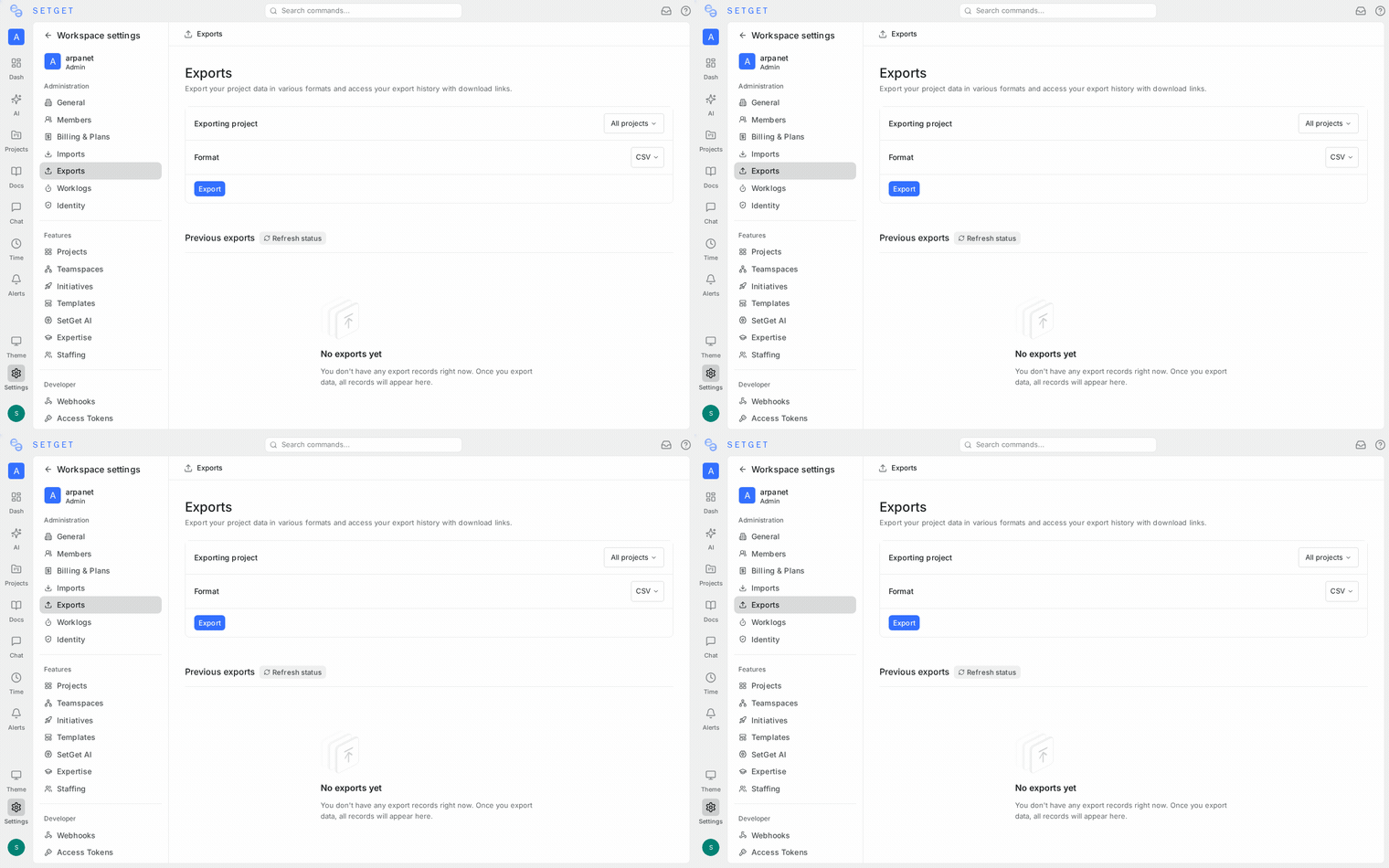
| Format | Extension | Best for |
|---|---|---|
| CSV | .csv | Spreadsheet tools, data pipelines, programmatic processing |
| Excel | .xlsx | Formatted reports, sharing with non-technical stakeholders |
| JSON | .json | API integrations, backup, developer tooling |
What gets exported
Each exported work item includes:
| Field | CSV | Excel | JSON |
|---|---|---|---|
| Identifier | Yes | Yes | Yes |
| Title | Yes | Yes | Yes |
| Description | Yes (plain text) | Yes (plain text) | Yes (HTML) |
| State | Yes | Yes | Yes |
| Priority | Yes | Yes | Yes |
| Assignees | Yes (comma-separated) | Yes (comma-separated) | Yes (array) |
| Labels | Yes (comma-separated) | Yes (comma-separated) | Yes (array) |
| Due date | Yes | Yes | Yes |
| Start date | Yes | Yes | Yes |
| Estimate | Yes | Yes | Yes |
| Created date | Yes | Yes | Yes |
| Updated date | Yes | Yes | Yes |
| Created by | Yes | Yes | Yes |
| Cycle | Yes | Yes | Yes |
| Module | Yes | Yes | Yes |
| Parent | Yes | Yes | Yes |
| Link count | No | No | Yes |
| Comment count | No | No | Yes |
Export scopes
Project export
Export all work items in a project:
- Open the project.
- Click the Export button in the toolbar (or go to Project Settings > Export).
- Select the format.
- Apply filters if needed.
- Click Export.
Cycle export
Export work items belonging to a specific cycle:
- Open the cycle.
- Click Export.
- Select the format and click Export.
Module export
Export work items in a module:
- Open the module.
- Click Export.
- Select the format and click Export.
View export
Export the results of a saved view:
- Open the view.
- Click Export.
- The export respects all filters and groupings applied in the view.
Applying filters
Before exporting, narrow down the data:
| Filter | Options |
|---|---|
| State | Select one or more states |
| Priority | Select one or more priorities |
| Assignee | Select one or more members |
| Label | Select one or more labels |
| Date range | Created date or due date within a range |
| Cycle | Specific cycle |
| Module | Specific module |
Filters are applied before the export runs, so the exported file only contains matching work items.
TIP
Save a view with the filters you need, then export from that view. This makes it easy to run the same export repeatedly.
Downloading exports
After clicking Export:
- SetGet generates the file server-side.
- A download link appears in the notification panel.
- Click the link to download the file.
- Download links expire after 24 hours.
For large exports (10,000+ items), generation may take a few seconds. You will be notified when the file is ready.
Scheduled exports
Set up recurring exports that are automatically generated and delivered.
Create a scheduled export
- Go to Project Settings > Exports > Scheduled.
- Click Create Schedule.
- Configure:
| Field | Description |
|---|---|
| Name | A descriptive name for the schedule |
| Scope | Project, cycle, module, or view |
| Format | CSV, Excel, or JSON |
| Filters | Optional filters to apply |
| Frequency | Daily, weekly, or monthly |
| Day/Time | When the export runs |
| Recipients | Email addresses to receive the export |
- Click Save.
Scheduled exports are sent as email attachments to the specified recipients. If the file exceeds the email attachment limit (25 MB), a download link is sent instead.
Manage schedules
| Action | How |
|---|---|
| Edit | Click on the schedule and modify fields |
| Pause | Toggle the schedule off without deleting |
| Delete | Click the delete button next to the schedule |
| Run now | Click Run Now to trigger an immediate export |
Export permissions
| Role | Can export |
|---|---|
| Owner | Yes (all scopes) |
| Admin | Yes (all scopes) |
| Member | Yes (projects and views they have access to) |
| Guest | No |
Export use cases
| Use case | Recommended format | Scope | Filters |
|---|---|---|---|
| Weekly status report | Excel | Project | State: Started, Completed this week |
| Client deliverable list | CSV | Cycle | State: Completed |
| Data backup | JSON | Project | None (all items) |
| Executive summary | Excel | Workspace | Priority: Urgent, High |
| Sprint review | Excel | Cycle | None |
| Migration to another tool | JSON | Project | None |
| Compliance audit | CSV | Project | Date range |
Frequently asked questions
Can I export comments and activity history?
JSON exports include comment counts and link counts. Full comment text export is available via the API. CSV and Excel exports include only work item fields, not comments.
Can I export pages?
Page export is separate from work item export. Go to the page and use the page-level export option (Markdown or PDF).
What happens if I export while an import is running?
Exports operate on the current state of the data. Items being imported may or may not appear in the export depending on timing. Wait for the import to complete before exporting.
Are archived items included?
By default, archived items are excluded. To include them, toggle "Include archived" in the filter options.
Best practices
- Use JSON for automation -- JSON exports include richer data (arrays, nested objects) suitable for programmatic processing.
- Use Excel for stakeholders -- Excel files include column headers and proper formatting out of the box.
- Filter before exporting -- exporting everything and filtering in a spreadsheet wastes time. Apply filters in SetGet first.
- Schedule regular exports -- for recurring reports, set up scheduled exports to save time.
- Keep exports organized -- name scheduled exports descriptively so recipients know what they are receiving.
WARNING
Export files may contain sensitive project data. Share them only with authorized recipients. Download links are accessible to anyone with the URL until they expire.