
Milestones
A milestone in SetGet marks a significant point in your project timeline — a release date, a stakeholder review, a regulatory deadline, or the completion of a major deliverable. Unlike cycles and modules that group work items over a duration, a milestone represents a single point in time that the team is working toward.
Milestones answer the question "Are we on track to hit this date?" by connecting a target date to the work items that must be completed before that date arrives.
Why use milestones
- Deadline visibility — make critical dates visible to the entire team, not just project managers.
- Progress tracking — see at a glance whether the work required for a milestone is on track.
- Stakeholder communication — report on milestone status in reviews and updates without diving into task-level details.
- Risk identification — catch schedule risks early by monitoring milestone progress trends.
- Team alignment — everyone knows what needs to be done and by when.
Create a milestone
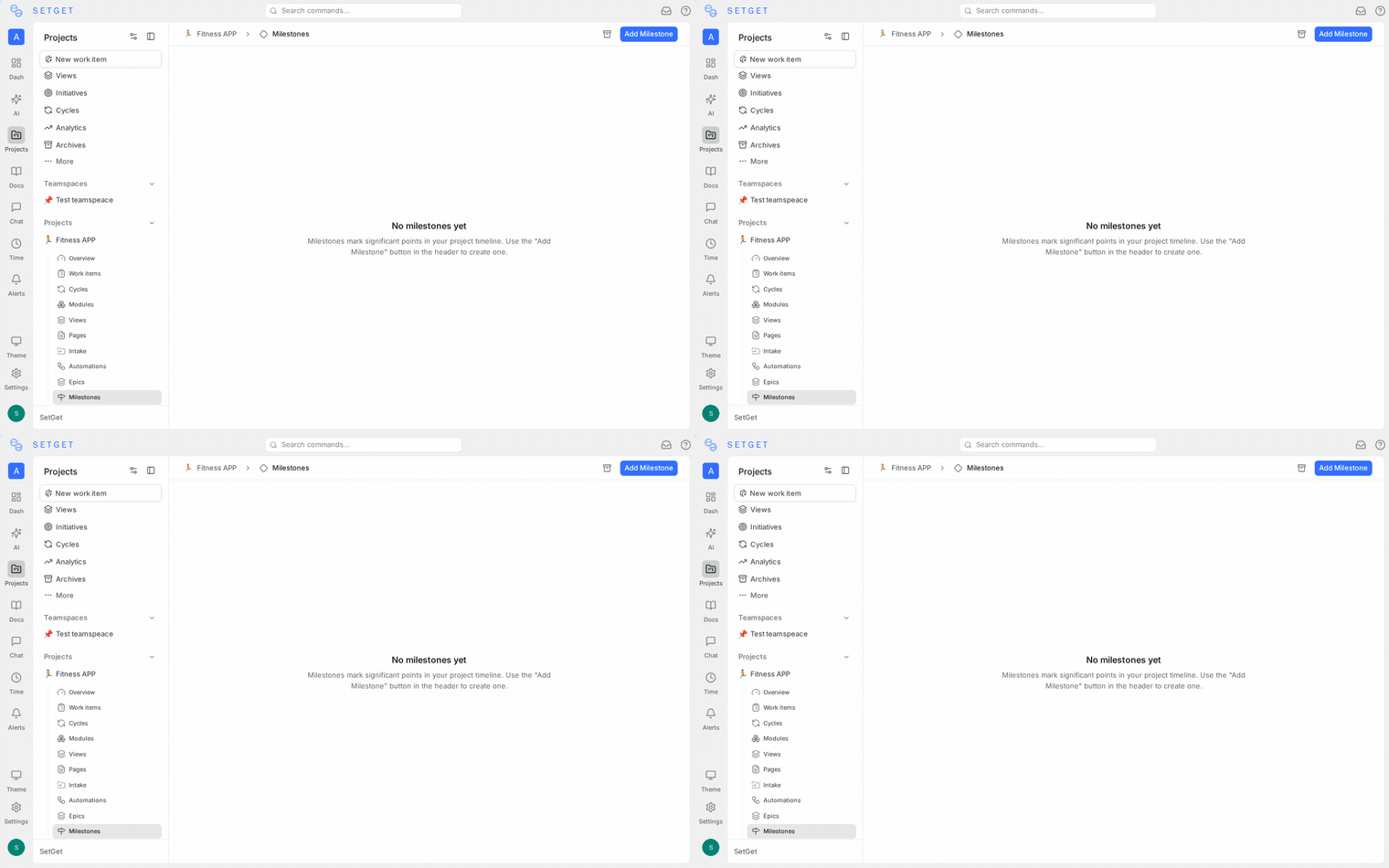
- Navigate to the Milestones section from the project sidebar.
- Click the + button or the Create Milestone action.
- Fill in the milestone details:
| Field | Required | Description |
|---|---|---|
| Name | Yes | A clear name for the milestone, such as "Beta Release" or "Security Audit Complete" |
| Target date | Yes | The date by which the milestone should be achieved |
| Description | No | Context about what this milestone represents and what must be true for it to be met |
- Click Create to save.
TIP
Name milestones after outcomes, not activities. "Beta Release" is better than "Finish Beta Work" because it communicates the deliverable clearly.
Link work items to a milestone
Milestones track progress based on the work items associated with them:
- Open the milestone.
- Click Add work items to search and select items that must be completed for this milestone.
- Alternatively, open any work item and set its Milestone field in the properties panel.
The milestone progress is calculated from the completion status of its linked work items.
Milestone status
Milestones have an automatically determined status based on the target date and linked work item progress:
| Status | Condition | Description |
|---|---|---|
| Not started | No linked items are in progress | Work has not begun toward this milestone |
| In progress | Some linked items are in progress or completed | Active work is happening toward this milestone |
| At risk | Target date is approaching and significant work remains | The milestone may not be met on time |
| Completed | All linked work items are in a done state | The milestone has been achieved |
| Missed | Target date has passed and not all items are done | The milestone was not met by its target date |
The at-risk status is triggered when the ratio of remaining work to remaining time exceeds a threshold, alerting the team before the deadline arrives.
Track milestone progress
Progress metrics
Each milestone displays the following metrics:
| Metric | Description |
|---|---|
| Completion % | Percentage of linked work items in a done state |
| Total items | Number of work items linked to this milestone |
| Completed | Number of finished items |
| Remaining | Number of items still in progress or not started |
| Days remaining | Calendar days until the target date |
| Progress trend | Whether completion rate is accelerating, steady, or slowing |
Progress bar
The milestone list shows a progress bar for each milestone, color-coded by status:
- Green — on track; completion rate matches or exceeds the required pace.
- Amber — at risk; the team needs to accelerate to meet the date.
- Red — behind schedule or missed; immediate attention required.
Milestones in timeline view
Milestones appear as diamond markers on the Gantt and timeline views:
- The marker is positioned at the target date on the horizontal axis.
- Linked work items with date ranges appear as bars leading up to the milestone marker.
- The milestone marker is color-coded by status (green, amber, or red).
- Hovering over a milestone marker shows a summary tooltip with progress metrics.
This visual placement makes it easy to see whether work items are scheduled to finish before the milestone date.
Milestone alerts
SetGet can notify you when milestones need attention:
| Alert | Trigger |
|---|---|
| Approaching deadline | The target date is within a configurable number of days |
| At risk | Progress is not on pace to meet the deadline |
| Missed | The target date has passed with incomplete work |
| Completed | All linked work items are done |
Alerts appear in your notification inbox and can be configured to send email notifications. See Notification settings for configuration details.
Manage milestones
Edit a milestone
- Open the milestone and click the ... menu.
- Select Edit.
- Modify the name, target date, or description.
- Save changes.
Delete a milestone
- Open the milestone and click the ... menu.
- Select Delete and confirm.
Deleting a milestone removes the marker and progress tracking but does not affect linked work items.
WARNING
Changing a milestone's target date affects its status calculation. If you move the date forward, previously on-track milestones may become at-risk.
Best practices
- Use milestones for external deadlines — milestones are most valuable when they represent dates that cannot easily move, such as launch dates, compliance deadlines, or stakeholder reviews.
- Keep the number manageable — a project should typically have three to ten milestones. Too many milestones dilutes their significance.
- Link only required work — associate only the work items that truly must be completed for the milestone. Including nice-to-have items inflates the scope and reduces accuracy.
- Review milestone status weekly — check progress in team meetings to catch risks early.
- Adjust dates honestly — if a milestone date is no longer achievable, update it. An accurate delayed date is more useful than an optimistic missed one.
- Combine with cycles — use milestones to mark key dates and cycles to organize the sprints leading up to those dates.
- Communicate proactively — when a milestone status changes to at-risk, escalate immediately rather than waiting for the missed status.
Related pages
- Cycles — Time-boxed sprint planning
- Modules — Feature-based work grouping
- Epics — Large cross-cycle initiatives
- Dependencies — Blocking relationships on the timeline
- Work Items — Manage individual tasks