
In-App Intake
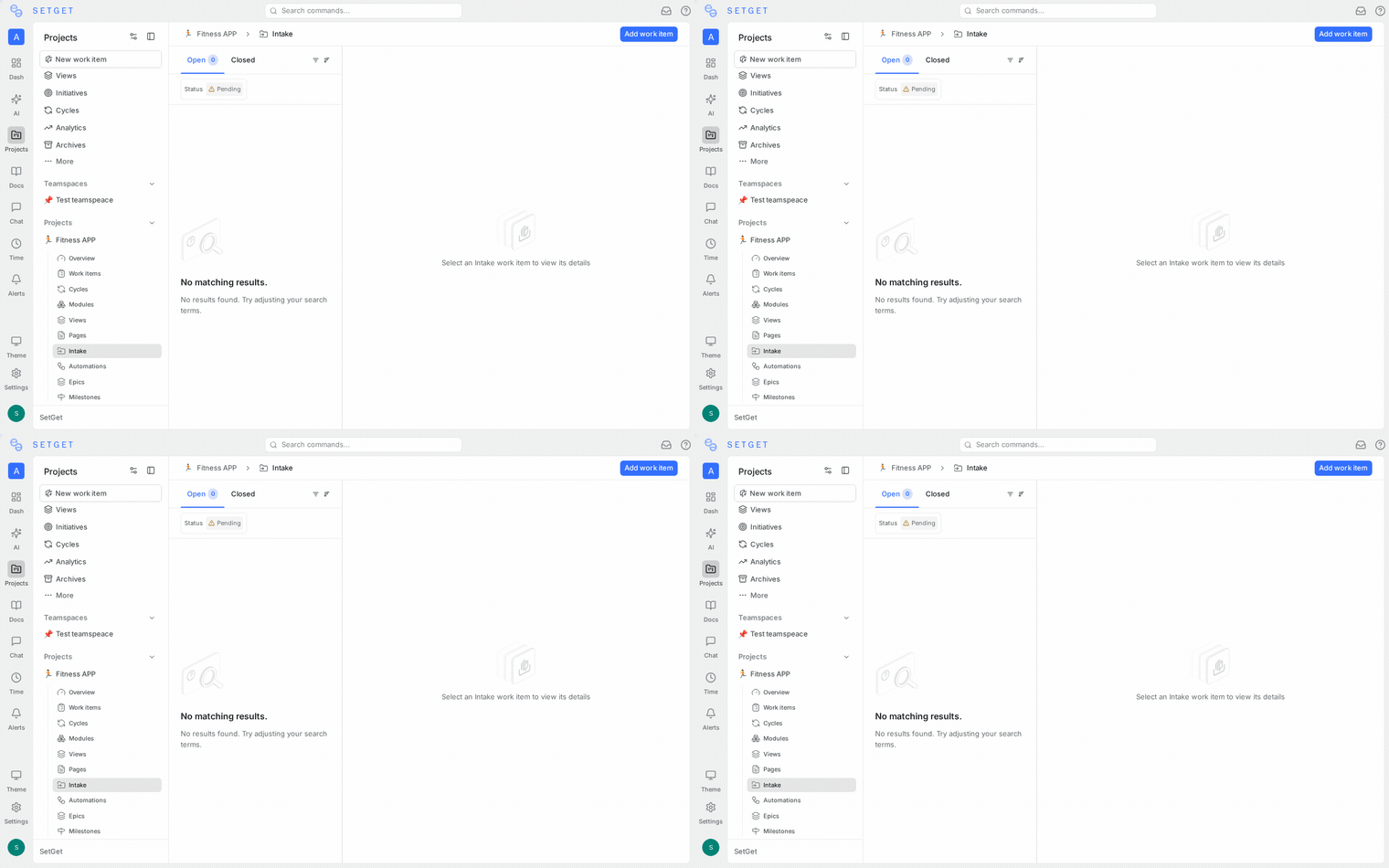
In-app intake allows workspace guests and members to submit work item requests directly inside SetGet. Submissions land in the project's intake queue, where reviewers examine each request, ask clarifying questions, modify details, and ultimately accept or decline the submission. This is the most common intake channel for teams whose stakeholders already have SetGet workspace access.
How it works
For submitters
- Navigate to the project where you want to submit a request.
- Open the Intake tab in the project sidebar.
- Click New Submission.
- Fill in the submission form:
| Field | Required | Description |
|---|---|---|
| Title | Yes | A short summary of the request |
| Description | No | Detailed explanation, acceptance criteria, context |
| Priority | No | Suggested priority (reviewers can change this) |
| Attachments | No | Screenshots, files, or documents |
- Click Submit.
- The submission appears in the intake queue with a "Pending" status.
- You receive a notification when the reviewer takes action.
TIP
Write clear, specific titles. "Login page broken" is less useful than "Login page returns 500 error when email contains a + character". Good titles help reviewers triage faster.
For reviewers
Reviewers see all pending submissions in the Intake tab. Each submission card shows:
- Title and description
- Submitter name and role
- Submission date
- Priority (if set by the submitter)
- Attachment count
- Source (in-app)
Review actions
| Action | Description |
|---|---|
| Comment | Ask the submitter a question. They receive a notification and can reply. |
| Edit | Modify the title, description, or priority before accepting. |
| Accept | Convert the submission into a work item. Configure state, priority, labels, assignee, and cycle before confirming. |
| Decline | Archive the submission with a reason (e.g., duplicate, out of scope, not actionable). The submitter is notified. |
| Link to existing | Associate the submission with an existing work item. No new work item is created. |
Accepting a submission
When you click Accept, a dialog appears with the following options:
| Field | Default | Description |
|---|---|---|
| Title | Submission title | Editable |
| Description | Submission description | Editable |
| State | Project's default intake state (usually Backlog) | Selectable |
| Priority | Submission priority or project default | Selectable |
| Assignee | None | Selectable |
| Labels | None | Selectable (multi-select) |
| Cycle | None | Selectable |
| Module | None | Selectable |
Click Create Work Item to finalize. The work item appears in the project backlog, and the original submission is marked as "Accepted" with a link to the new work item.
Declining a submission
When you click Decline, provide a reason:
| Reason | When to use |
|---|---|
| Duplicate | An existing work item already covers this request |
| Out of scope | The request does not fit the project's goals |
| Not actionable | The request lacks enough detail to act on |
| Won't fix | The team has decided not to address this |
| Custom reason | Free-text explanation |
The submitter receives a notification with the reason. Declined submissions remain in the intake queue under the "Declined" filter for audit purposes.
Submission lifecycle
New Submission --> Pending --> [Comment exchange] --> Accepted / Declined
                                                         |
Work item created| Status | Meaning |
|---|---|
| Pending | Awaiting reviewer action |
| In Review | A reviewer has started examining the submission |
| Accepted | Converted to a work item |
| Declined | Archived with a reason |
Guest experience
Guests are workspace members with limited permissions. In the context of intake:
- Guests can view the Intake tab and submit requests.
- Guests can see their own submissions and their status (Pending, Accepted, Declined).
- Guests cannot see other guests' submissions.
- Guests can reply to comments on their own submissions.
- Guests cannot access the project backlog, board, or other views.
This makes in-app intake ideal for giving stakeholders a focused interface for submitting and tracking requests without overwhelming them with project management details.
WARNING
If a guest needs to see the resulting work item after acceptance, upgrade their role to Member or share the work item link directly.
Notifications
| Event | Who is notified |
|---|---|
| New submission | Configured notification recipients (project admins by default) |
| Comment on submission | The other party (submitter or reviewer) |
| Submission accepted | The submitter |
| Submission declined | The submitter |
| Work item state change | The submitter (optional, configurable) |
Configure notification recipients in Project Settings > Intake > Notification Recipients.
Bulk review
For projects with high submission volume, bulk review speeds up triage:
- In the intake queue, select multiple submissions using the checkboxes.
- Click Bulk Action in the toolbar.
- Choose:
- Accept All -- set a common state, priority, and assignee for all selected submissions. Individual titles and descriptions are preserved.
- Decline All -- provide a common decline reason.
- Assign Reviewer -- assign a reviewer to all selected submissions without accepting or declining yet.
TIP
During weekly triage meetings, use bulk review to process the intake queue efficiently. Accept clear requests immediately, decline obvious non-starters, and flag ambiguous ones for individual review.
Submission details panel
Click on any submission to open the details panel:
| Section | Contents |
|---|---|
| Header | Title, status badge, submission date |
| Description | Full description with formatting |
| Metadata | Priority, source channel, submitter info |
| Attachments | Uploaded files and screenshots |
| Activity | Comments between reviewer and submitter |
| Actions | Accept, Decline, Link to existing, Edit |
The details panel supports keyboard shortcuts:
| Shortcut | Action |
|---|---|
A | Accept |
D | Decline |
C | Add comment |
E | Edit |
J / K | Navigate to next / previous submission |
Best practices
- Respond quickly -- even a brief acknowledgment ("We received your request and will review it this week") builds trust with submitters.
- Modify before accepting -- clean up titles, add labels, and set accurate priorities during acceptance. This saves time later.
- Use decline reasons -- always provide a reason when declining. Submitters who understand why requests are declined submit better requests in the future.
- Review regularly -- stale intake queues discourage submissions. Review at least weekly.
- Link duplicates -- instead of declining duplicates with no context, link them to the existing work item so the submitter can track progress.
- Set up notification routing -- configure the notification recipients to include the right people. A product manager or team lead is typically a good default reviewer.