
Archive Work Items
Over time, projects accumulate completed, cancelled, or obsolete work items that clutter the active view. Archiving lets you remove these items from everyday visibility while preserving their full history — comments, activity, attachments, and relations. Unlike deleting, archiving is reversible.
Archive vs. delete
Before reaching for the delete button, consider whether archiving is the better choice:
| Aspect | Archive | Delete |
|---|---|---|
| Reversible | Yes — items can be restored at any time | No — deletion is permanent |
| History preserved | Full activity feed, comments, and attachments remain intact | Everything is removed |
| Visible in search | Yes — archived items appear in search with an archived indicator | No — deleted items are gone |
| Counts | Excluded from active cycle and module progress counts | Excluded entirely |
| Relations | Relations are preserved but marked as archived on the linked item | Relations are broken |
| Identifiers | Work item ID is preserved (e.g., WEB-42) | ID is freed but not reused |
General guidance: Use archive for any item that was legitimately worked on, even if it was later cancelled or superseded. Use delete only for items created by mistake — test entries, duplicates that were never worked, or spam.
How to archive a single work item
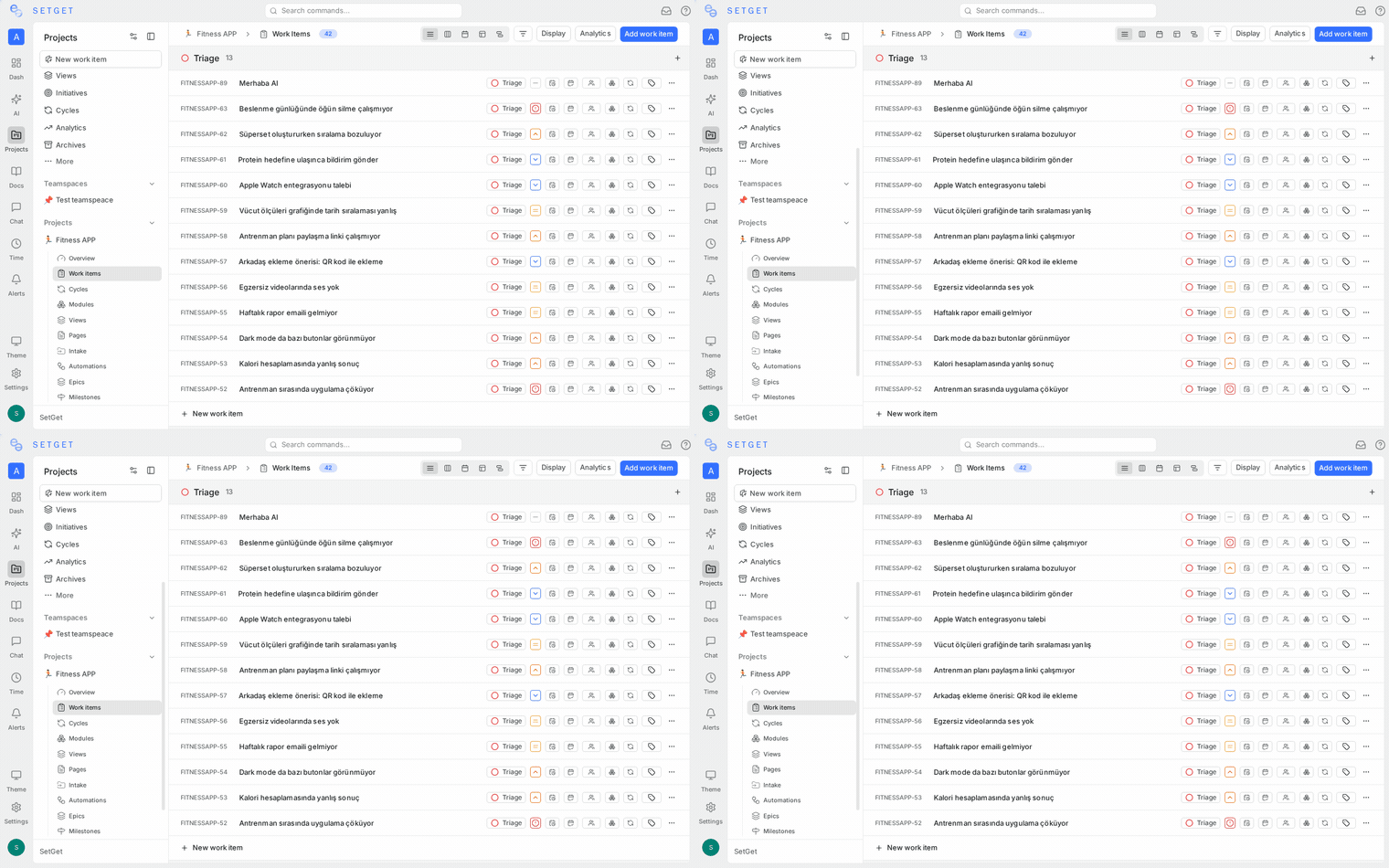
From the detail view
- Open the work item (peek view or full page).
- Click the three-dot menu in the work item header.
- Select Archive.
- The item is immediately moved to the archive.
From the list view
- Right-click the work item in any list, kanban, or spreadsheet view.
- Select Archive from the context menu.
From the action menu
- Select the work item by hovering over it.
- Press the three-dot menu that appears on the row.
- Choose Archive.
No confirmation dialog is shown for archiving a single item. The action takes effect immediately but can be reversed.
Archive multiple items at once
Use Bulk Operations to archive many items in one action:
- Select multiple work items using checkboxes or Shift+click.
- Click the Archive button in the bulk action toolbar.
- Confirm the operation in the dialog.
This is useful for cleaning up after a completed cycle or clearing out a batch of cancelled items.
View archived work items
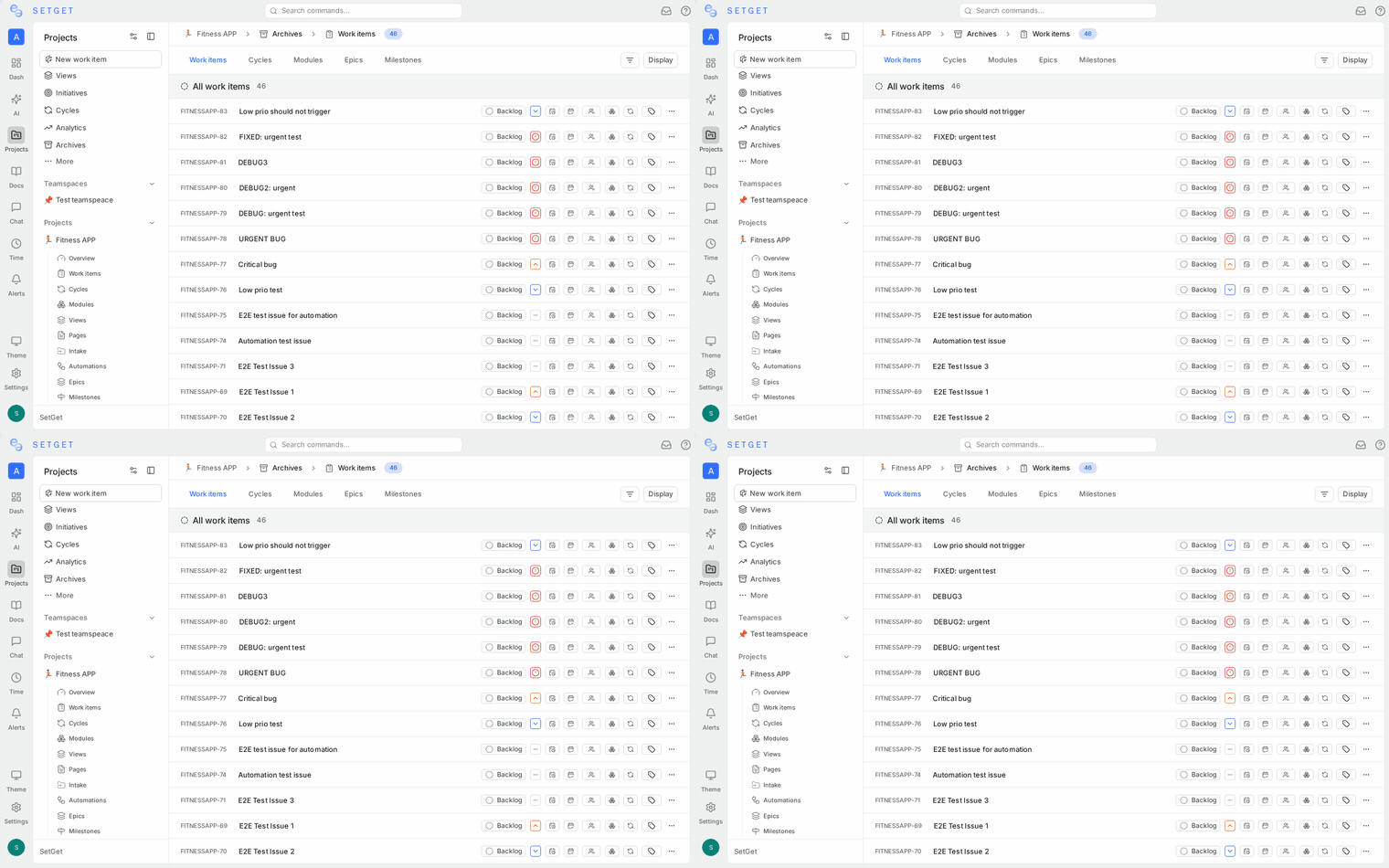
Archived items are hidden from the default work items list. To view them:
- Navigate to the project that contains the archived items.
- Click the filter controls in the project header.
- Enable the Show Archived toggle, or navigate to the Archive section in the project sidebar.
The archived items view shows the same columns as the regular work items list. Each item displays an Archived badge to distinguish it from active items.
TIP
You can sort and filter archived items just like active items. Use filters to find specific archived items by state, priority, label, or date range.
Restore from archive
To bring a work item back to active status:
- Navigate to the archived items view (see above).
- Open the archived work item or right-click it.
- Click the three-dot menu and select Restore.
- The item returns to the active work items list with all its properties, comments, and activity intact.
Restoring a work item does not change any of its properties. If it was in the Done state when archived, it will still be in the Done state after restoration. Update the state manually if needed.
Bulk restore
You can also restore multiple archived items at once:
- In the archived items view, select multiple items using checkboxes.
- Click Restore in the bulk action toolbar.
- All selected items return to the active list.
How archiving affects cycles
When a work item is archived, it is removed from active cycle counts and progress calculations:
| Metric | Effect of archiving |
|---|---|
| Total items | Archived items are excluded from the cycle's total count |
| Completed count | Archived items in a completed state are excluded |
| Progress percentage | Recalculated without archived items |
| Burn-down chart | Archived items are treated as removed from scope |
The work item retains its cycle association internally. If you restore the item, it reappears in the cycle with its original state.
WARNING
Archiving items mid-cycle can make progress metrics look artificially better (fewer total items, so a higher completion percentage). Archive responsibly — do not use archiving to inflate sprint progress.
How archiving affects modules
Modules behave similarly to cycles regarding archived items:
- Archived items are excluded from module progress counts and completion percentages.
- The association between the work item and the module is preserved.
- Restoring the item brings it back into the module's active item list.
Archived items in search
Archived items are included in SetGet's global search results. When an archived item appears in search:
- It is displayed with an Archived badge next to its identifier.
- Clicking it opens the item in read mode with a Restore option available.
- Archived items appear after active items in search results by default.
This ensures that historical information remains discoverable even after items are archived. If a team member references an old work item by its ID (e.g., API-128), search will find it regardless of archive status.
Who can archive and restore
Archive and restore permissions follow the project's member roles:
| Role | Can archive | Can restore | Can delete |
|---|---|---|---|
| Admin | Yes | Yes | Yes |
| Member | Yes | Yes | No (unless they created the item) |
| Viewer | No | No | No |
Workspace admins can archive and restore items in any project within the workspace.
Best practices
- Archive completed cycles — After a cycle ends, archive items that are Done or Cancelled to keep the backlog focused on upcoming work.
- Do not archive items that are still in progress — Only archive items that have reached a terminal state (Done, Cancelled) or are genuinely obsolete.
- Use archive as your default cleanup tool — Make archiving the team habit instead of deleting. It costs nothing to keep the history.
- Periodically review the archive — Some archived items may need to be restored if work resurfaces. Check the archive during planning sessions.
- Communicate before bulk archiving — If you plan to archive a large number of items, let the team know so no one is surprised by missing items in their views.
Related pages
- Work Item Overview — Create, track, and manage work items
- Bulk Operations — Archive and update items in bulk
- Subscriptions — Notification behavior when items are archived
- Cycles — Time-boxed iterations and progress tracking
- Modules — Feature groups and completion metrics