
Plan with Cycles
Cycles in SetGet are time-boxed iterations — similar to sprints in Scrum — that help your team plan, focus, and deliver work in predictable intervals. Each cycle has a defined start and end date, a set of work items to complete, and built-in analytics to track progress. This tutorial covers the full cycle workflow from creation to completion.
Prerequisites
Before starting this tutorial, make sure you have:
- A SetGet workspace with at least one project.
- Several work items in your project that are ready to be planned into a cycle.
- Member-level access or higher in the project. Only members with appropriate permissions can create and manage cycles.
Step 1 — Navigate to the Cycles Section
- Open your project from the workspace sidebar.
- Click Cycles in the project sidebar navigation.
- The Cycles page shows all existing cycles organized by status: Active, Upcoming, and Completed.
If this is your first time here, the page will be empty and you will see a prompt to create your first cycle.
Step 2 — Create a New Cycle
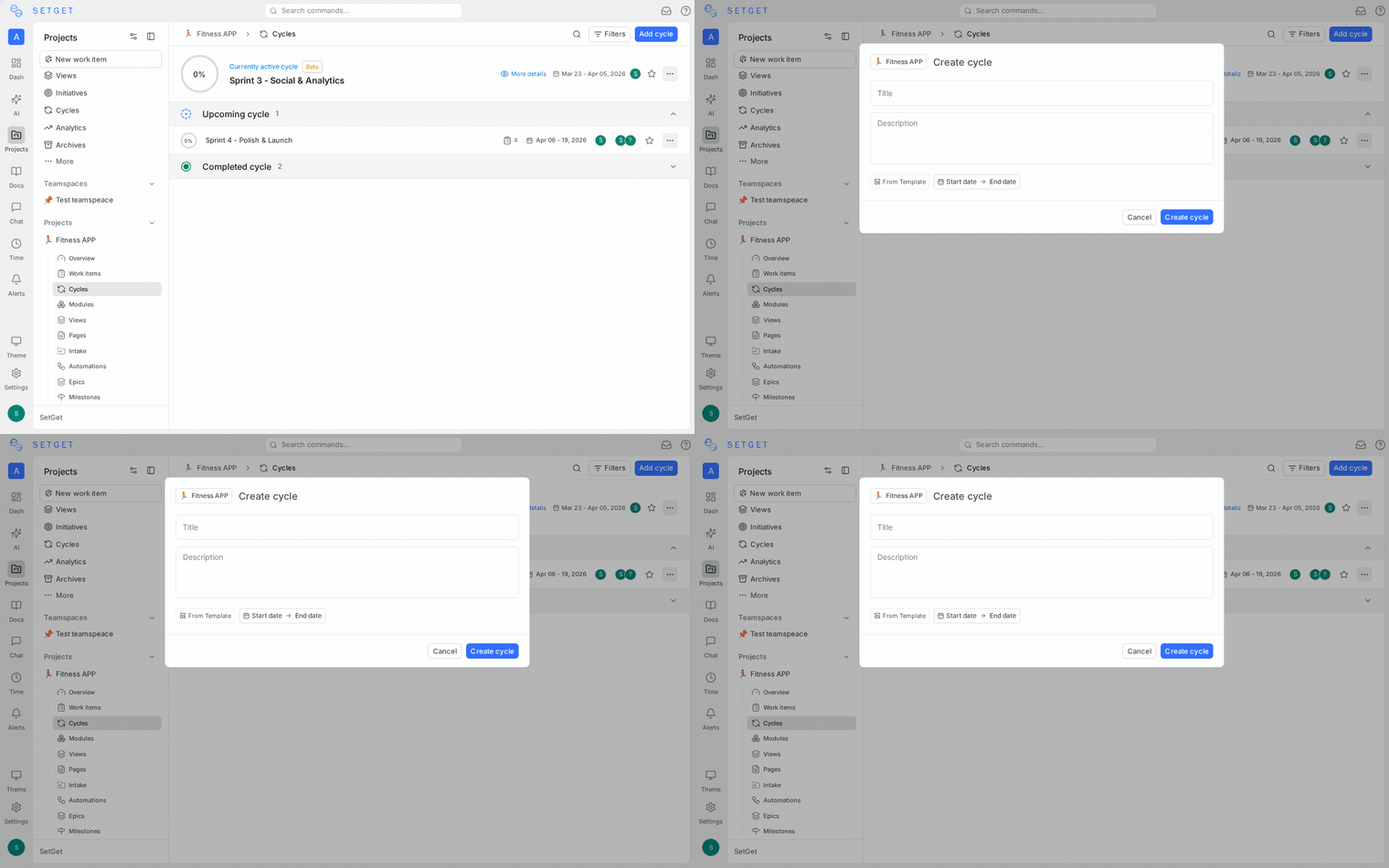
- Click the Create cycle button (or the + icon) at the top of the Cycles page.
- Fill in the cycle details:
- Name: Give the cycle a descriptive name, such as "Sprint 12" or "Week of March 31."
- Start date: The date when the cycle begins. Click the date picker to select it.
- End date: The date when the cycle ends. Typical cycle lengths are one or two weeks.
- Description (optional): Add context about the goals or theme of this cycle.
- Click Create to save the cycle.
WARNING
Cycle dates cannot overlap with other active cycles in the same project. If you see a validation error, check that the date range does not conflict with an existing cycle.
Step 3 — Add Work Items to the Cycle
There are several ways to add work items to a cycle:
From the Cycle Detail Page
- Open the cycle you just created by clicking its name.
- Click Add work items (or the + button inside the cycle view).
- A modal appears listing all project work items that are not already in a cycle.
- Search or scroll to find the items you want to include.
- Select one or more items and click Add.
From a Work Item's Detail View
- Open any work item in your project.
- In the properties sidebar, find the Cycle field.
- Click it and select the target cycle from the dropdown.
- The item is immediately added to that cycle.
From List or Kanban Views
- Select one or more work items using checkboxes (in List or Spreadsheet view).
- Use the Bulk actions bar that appears at the bottom.
- Choose Add to cycle and select the target cycle.
TIP
You can add items to an upcoming cycle before it starts. This is useful for sprint planning sessions where the team decides in advance what to commit to.
Step 4 — Work Through the Cycle
Once the cycle start date arrives, the cycle moves to Active status. During the active period:
- Team members work on the items in the cycle, updating states as they progress.
- The cycle detail page shows all included work items with their current states.
- You can use any layout (List, Kanban, Spreadsheet, Calendar, Gantt) to view cycle items, just as you would in the project view.
To focus your project view on the active cycle, use the Cycle filter and select the current cycle. This hides items that are not part of the sprint.
Step 5 — Track Progress
SetGet provides several tools to monitor how the cycle is going.
Progress Bar
At the top of the cycle detail page, a progress bar shows the percentage of work items that have been completed (moved to a "Done" state). The bar is color-coded:
- Green — Completed items.
- Blue — In-progress items.
- Gray — Items not yet started.
Burndown Chart
The burndown chart plots the number of remaining (incomplete) items over time against an ideal trend line.
- Open the cycle detail page.
- Navigate to the Analytics tab.
- The burndown chart updates daily. The ideal line shows the expected rate of completion if work were evenly distributed across the cycle duration.
If the actual line is above the ideal line, the team is behind pace. If it is below, the team is ahead.
Scope Changes
The analytics view also tracks scope changes — items added to or removed from the cycle after it started. Frequent scope changes during an active cycle can indicate planning gaps.
Step 6 — Review Cycle Analytics
Beyond the burndown chart, the cycle analytics section provides:
- Completion rate: Percentage of items completed by the end date.
- Items by state: Breakdown of how many items ended in each state (Done, In Progress, Backlog, etc.).
- Items by priority: Distribution of completed and incomplete items across priority levels.
- Items by assignee: How work was distributed and completed across team members.
These metrics help the team run retrospectives and improve future planning accuracy.
Step 7 — Handle Incomplete Items
When a cycle reaches its end date, some items may still be incomplete. SetGet gives you a clean way to handle them.
- Open the completed cycle.
- If there are incomplete items, SetGet displays a prompt asking what to do with them.
- You have three options:
- Transfer to next cycle: Move all incomplete items to the next upcoming cycle automatically.
- Transfer to a specific cycle: Choose a different cycle to move items into.
- Keep in this cycle: Leave items where they are (they remain associated with the completed cycle for historical accuracy).
TIP
Transferring incomplete items preserves their full history — comments, activity, and previous cycle associations are not lost. The item simply gains an additional cycle reference.
Step 8 — Complete and Archive Cycles
Once a cycle's end date passes and you have handled any incomplete items:
- The cycle moves to the Completed section on the Cycles page.
- Completed cycles remain visible for historical reference and analytics.
- You can still open a completed cycle to review its items, charts, and metrics.
Completed cycles are read-only. You cannot add or remove items from them, but you can still access all comments and activity on individual work items.
Best Practices
- Keep cycles short: One- or two-week cycles create a regular rhythm and reduce planning risk.
- Plan before the cycle starts: Add items to an upcoming cycle during a planning session rather than adding them on the fly.
- Limit scope changes: Avoid adding new items mid-cycle unless they are urgent. Track additions in the analytics view.
- Review analytics after each cycle: Use the completion rate and burndown data to calibrate how much work the team can realistically commit to.
- Name cycles consistently: Use a naming convention such as "Sprint 1," "Sprint 2" or date-based names like "Mar 31 - Apr 13" to make the cycle list easy to scan.
Summary
You now know how to create cycles, add work items, track progress with the burndown chart and analytics, transfer incomplete work, and review completed cycles. Cycles are one of the most effective ways to bring predictability and focus to your team's delivery process.
Related Pages
- Cycles Reference — Full reference for cycle features and settings.
- Modules — Organize work by feature or initiative across multiple cycles.
- Organize and View Work — Use layouts and filters to view cycle items.
- Work Item Properties — Reference for all properties including cycle assignment.
- Bulk Operations — Add multiple items to a cycle at once.