
Workflow States
Every work item in SetGet has a state that represents its current position in the workflow. States are organized into five fixed groups that define the lifecycle of work: from planned, through active, to done or cancelled. Within each group, you can create as many custom states as your process requires.
The five state groups
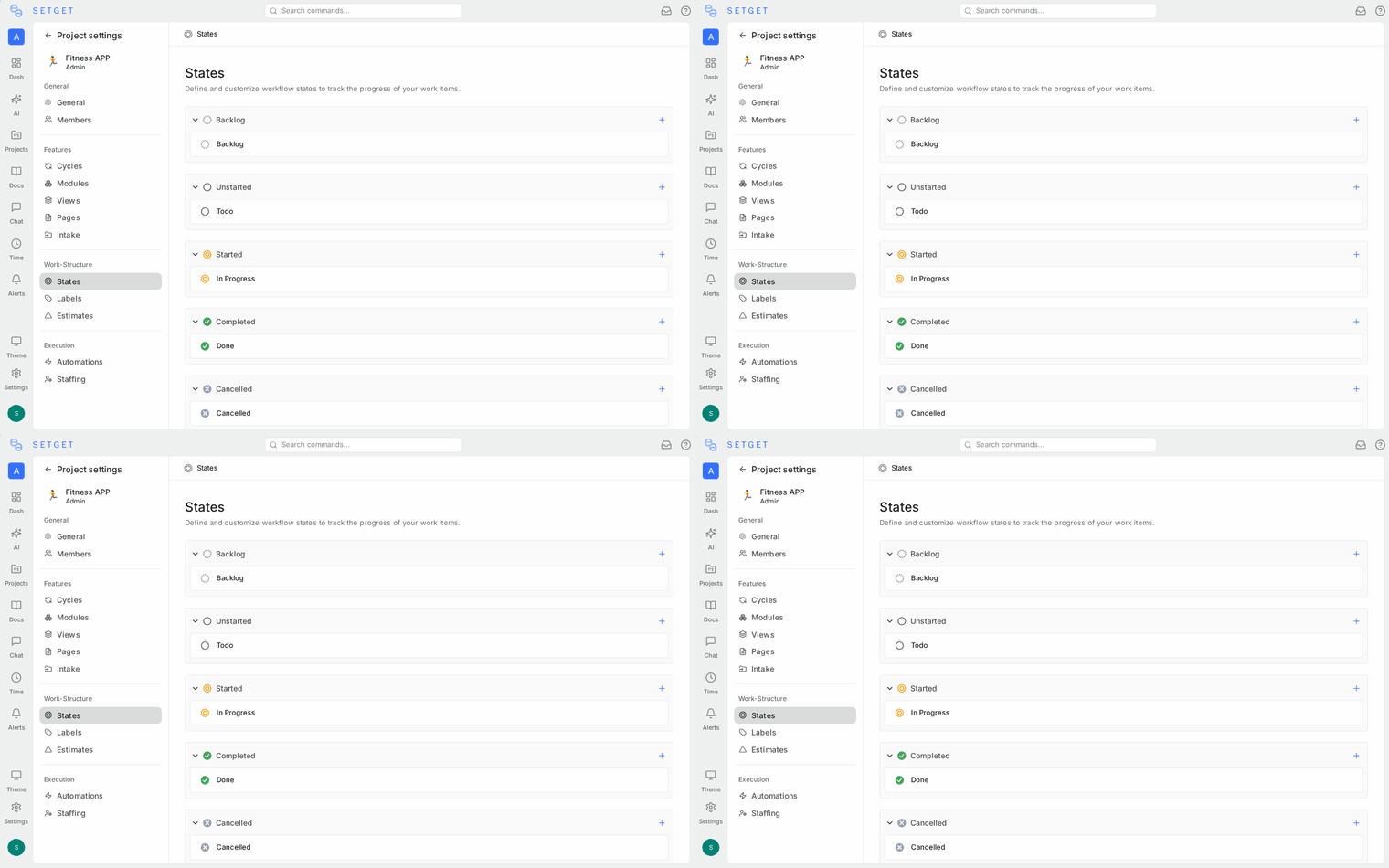
SetGet uses five state groups as the backbone of every workflow. The groups are fixed -- you cannot add, remove, or rename them -- but you can create any number of custom states within each group.
| Group | Color | Meaning | Analytics treatment |
|---|---|---|---|
| Backlog | Gray | Work that has been captured but not yet planned | Not started |
| Unstarted | Blue | Planned work that has not begun | Not started |
| Started | Orange | Work actively in progress | In progress |
| Completed | Green | Work finished successfully | Done |
| Cancelled | Red | Work abandoned or no longer relevant | Done (excluded from velocity) |
The group determines how SetGet treats the work item in analytics, burndown charts, cycle progress, and module completion percentages.
How groups affect behavior
- Cycle progress counts items in Completed and Cancelled groups as "done" and items in Started as "in progress".
- Burndown charts track movement from Backlog/Unstarted/Started into Completed/Cancelled.
- Overdue detection only applies to items that are NOT in a Completed or Cancelled group.
- Kanban columns are ordered by group from left (Backlog) to right (Cancelled) by default.
Default states
A fresh project in SetGet comes with one state per group:
| State name | Group |
|---|---|
| Backlog | Backlog |
| Todo | Unstarted |
| In Progress | Started |
| Done | Completed |
| Cancelled | Cancelled |
These defaults work for simple workflows. For more complex processes, add custom states within any group.
Create a custom state
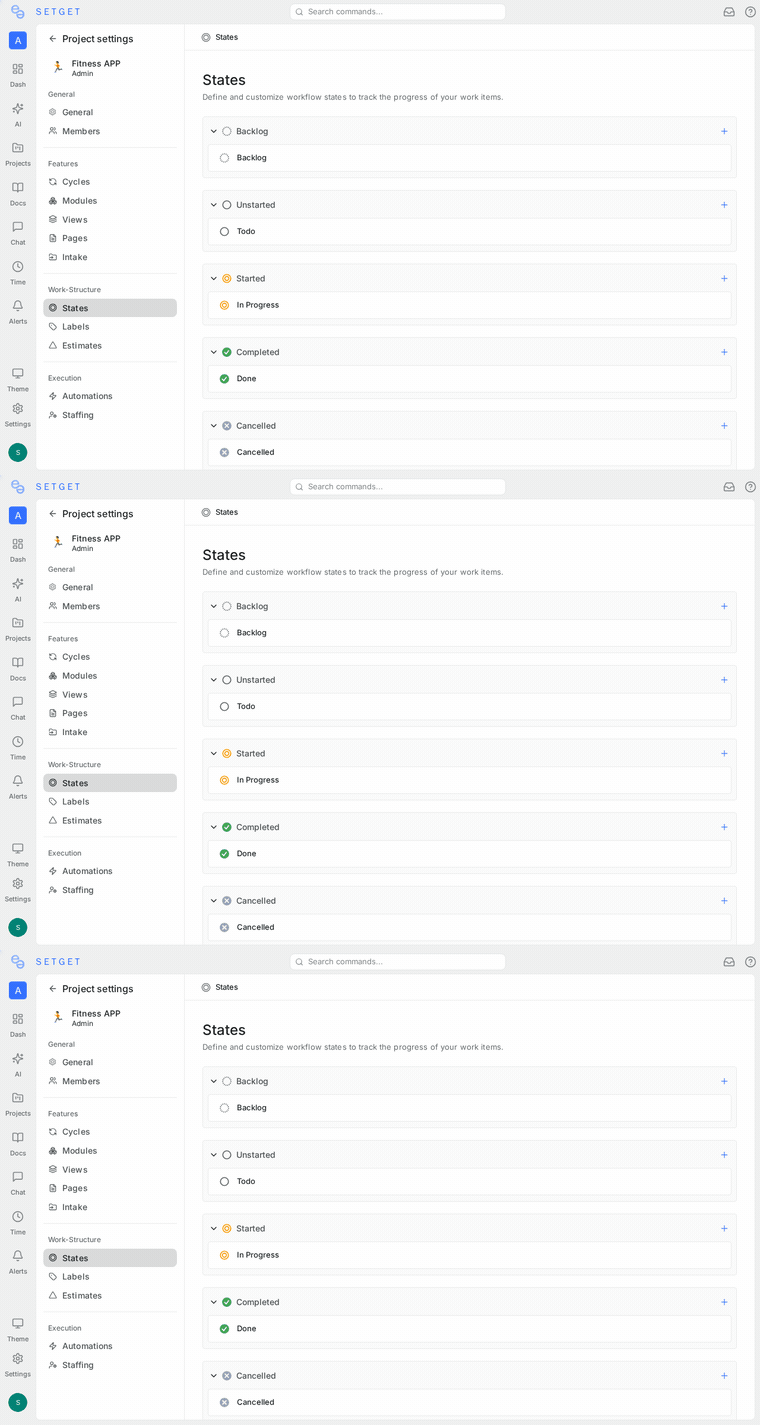
- Navigate to the project's Settings page.
- Open the States section.
- Click Add State next to the group where you want the state.
- Enter a name (e.g., "In Review", "QA", "Blocked", "Triage").
- Choose a color for the state. The color can differ from the group color to provide visual distinction.
- Click Save.
The new state appears in the group and is immediately available for use on work items.
Example custom states by group
| Group | Example custom states |
|---|---|
| Backlog | Icebox, Someday, Triage |
| Unstarted | Todo, Ready for Dev, Refined |
| Started | In Progress, In Review, QA, Blocked |
| Completed | Done, Shipped, Deployed |
| Cancelled | Cancelled, Won't Fix, Duplicate |
TIP
Keep the total number of states manageable. Most teams work well with 5-8 total states. More than 12 can make the kanban board hard to read and workflows confusing.
State colors
Each state has a color that appears as the state badge throughout the UI -- in list rows, kanban column headers, detail views, and filters.
Default group colors:
| Group | Default hex | Appearance |
|---|---|---|
| Backlog | #a3a3a3 | Gray |
| Unstarted | #3b82f6 | Blue |
| Started | #f97316 | Orange |
| Completed | #22c55e | Green |
| Cancelled | #ef4444 | Red |
Custom states within a group can use any color. For example, "In Review" (Started group) could use a purple color to distinguish it from "In Progress" while still belonging to the same group.
To change a state color:
- Go to project Settings > States.
- Click the color swatch next to the state.
- Select a new color from the palette or enter a hex code.
- Click Save.
Reorder states
The order of states within a group controls how they appear in dropdowns, kanban columns, and filter options.
To reorder states:
- Go to project Settings > States.
- Drag and drop states within their group to change the order.
- The new order is saved automatically.
States can only be reordered within their group. You cannot move a state from one group to another -- the group assignment is permanent.
WARNING
If you need a state in a different group, create a new state in the target group and migrate work items. Then delete the old state.
Set the default state
The default state is automatically assigned to every new work item in the project when no state is explicitly selected during creation.
To set the default state:
- Go to project Settings > States.
- Click the star icon next to the state you want as the default.
- Only one state can be the default at a time.
The default state is typically in the Backlog or Unstarted group, since new work items have not started yet. Setting a Started or Completed state as the default is allowed but unusual.
Edit a state
- Go to project Settings > States.
- Click the pencil icon next to the state you want to edit.
- Change the name, color, or description.
- Click Save.
Renaming a state updates it everywhere -- all work items, filters, views, and activity history will reflect the new name.
Delete a state
- Go to project Settings > States.
- Click the trash icon next to the state you want to remove.
- Select a replacement state for all work items currently in the deleted state.
- Confirm the deletion.
WARNING
Deleting a state is permanent. All work items in that state will be moved to the replacement state you select. Activity history will show this as a state change.
You must keep at least one state in each group. The last state in a group cannot be deleted.
States on the kanban board
In kanban layout, each state becomes a column. The columns are ordered left to right following the group order: Backlog, Unstarted, Started, Completed, Cancelled.
State transitions via drag-and-drop
Drag a work item card from one column to another to change its state. This is the most common way to update state in kanban.
- Dragging from "Todo" to "In Progress" moves the item from Unstarted to Started.
- Dragging from "In Progress" to "Done" completes the item.
- There are no restrictions on which states you can transition between. Any item can move to any state.
Hide columns
If you rarely use certain states on the kanban board:
- Click the display settings icon.
- Under Hidden columns, toggle off states you want to hide.
- Hidden states still exist and can hold work items -- they just do not appear as columns.
States in filters and views
States are one of the most common filter criteria.
Filter by state
- Click the Filter button in the project header.
- Select State from the property list.
- Choose specific states to include or exclude.
Filter by state group
For broader filtering, you can filter by state group instead of individual states:
- Select State Group from the filter property list.
- Choose one or more groups (e.g., show only Started and Unstarted items).
This is useful when projects have many custom states but you care about the general lifecycle stage.
Group by state
In list and kanban views, you can group work items by state. This is the default grouping for kanban and is available as an option in list view display settings.
Save as a view
Save any state-based filter as a named view for quick access. Common examples:
- "Active Work" -- Started group only
- "Ready to Start" -- Unstarted group only
- "Completed This Cycle" -- Completed group, filtered to current cycle
See Views for details on saving views.
States and automations
You can automate actions based on state transitions using Automations. Examples:
| Trigger | Action |
|---|---|
| State changes to "In Review" | Add label "needs-review" |
| State changes to "Done" | Remove from active cycle |
| State changes to any Completed state | Send notification to project lead |
| State changes to "Blocked" | Set priority to High |
Best practices
- Map states to your real process -- Name states after the actual steps your team follows, not generic labels.
- Keep states minimal -- Every additional state adds cognitive overhead. Start with 5-6 and add more only when you feel the gap.
- Use the right group -- A "Blocked" state belongs in Started (work has begun but is stuck), not Unstarted.
- Standardize across related projects -- If teams collaborate across projects, consistent state names make cross-project views easier to read.
- Review unused states -- If a state consistently has zero items, consider removing it.
- Leverage state groups for reporting -- Build dashboards and views around groups rather than individual states for stable reporting that survives state renaming.
Related pages
- Work Item Properties -- All properties including state
- Project States -- Project-level state configuration
- Kanban Layout -- Kanban board with state columns
- Filters -- Filter by state and state group
- Views -- Save state-based perspectives
- Automations -- Trigger actions on state changes
- Cycles -- State impact on cycle progress