
Manage Workspaces
A workspace is the top-level organizational unit in SetGet. It serves as the home base for your team — containing all projects, members, chat channels, dashboards, and settings. Most organizations use a single workspace, though larger enterprises may maintain separate workspaces for different divisions.
Create a workspace
- Sign in to SetGet and click Create Workspace from the workspace selector.
- Enter the workspace details:
- Name — your organization or team name (e.g., "Acme Engineering")
- Slug — the URL-friendly identifier that appears in your workspace URL. This must be unique and can only contain lowercase letters, numbers, and hyphens.
- Size — approximate team size. This helps SetGet tailor onboarding suggestions.
- Click Create Workspace.
After creation, you land on the workspace homepage where you can start creating projects and inviting members.
TIP
The workspace slug cannot be changed after creation. Choose a short, memorable slug that represents your organization.
Workspace homepage
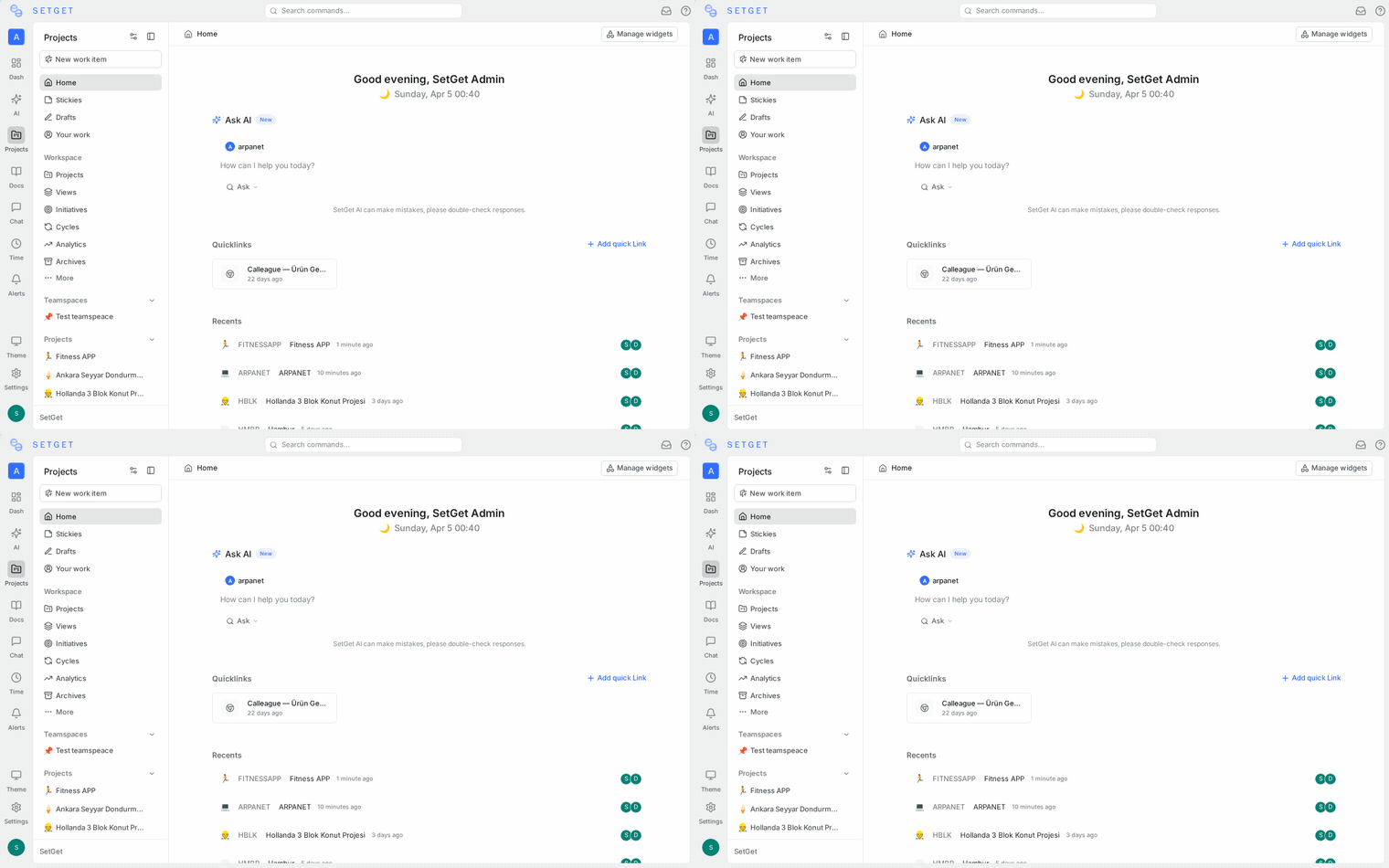
The workspace homepage is the first screen you see when you open SetGet. It provides a personalized overview with:
- Greeting and quick stats — your assigned items, overdue work, and recent activity
- Widgets — configurable cards showing key metrics from your projects
- Quick actions — shortcuts to create work items, start a cycle, or write a page
You can customize the homepage layout by rearranging or hiding widgets. See Workspace Homepage for details.
Workspace settings
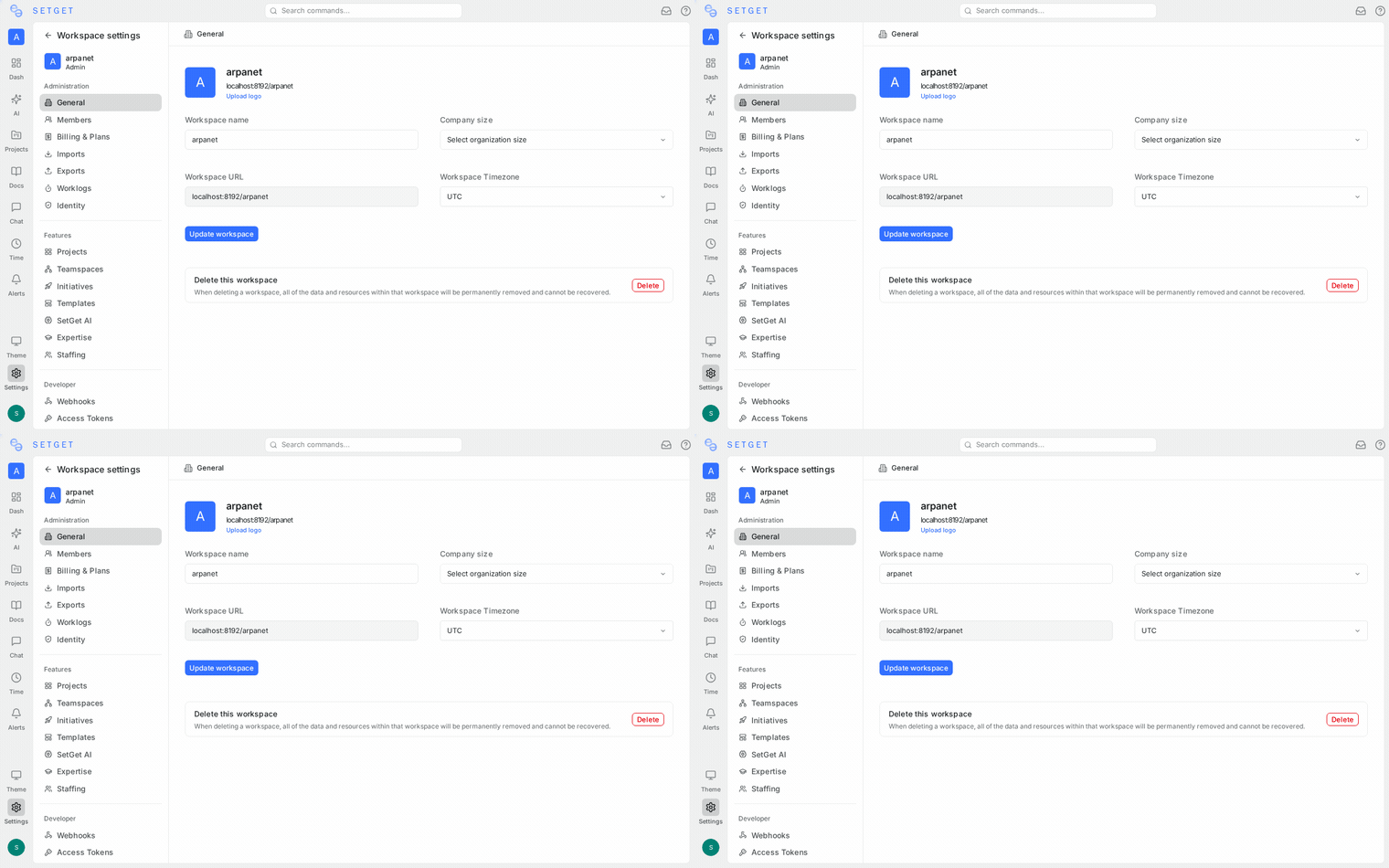
Access workspace settings by clicking Settings in the sidebar. The settings panel is divided into several sections:
General
Configure basic workspace properties:
| Setting | Description |
|---|---|
| Name | The display name of your workspace |
| Logo | Upload a custom workspace logo |
| Description | A brief description shown to members |
| Timezone | Default timezone for the workspace |
Members
Manage who has access to the workspace. You can:
- Invite new members by email
- Change member roles (Admin, Member, Guest)
- Remove members
- View pending invitations
See Workspace Members for the full guide.
Billing
View your current plan, manage subscriptions, and review invoices. Available on cloud-hosted instances.
See Plans and Pricing for plan comparison.
Integrations
Connect external services to your workspace:
- GitHub — sync repositories, issues, and pull requests
- GitLab — sync repositories and merge requests
- Slack — create and manage work items from Slack
- Sentry — link error tracking issues to work items
See Integrations for setup guides.
Webhooks
Configure outbound webhooks to notify external services when events happen in your workspace — work item creation, status changes, comment additions, and more.
See Webhooks for configuration details.
Import and export
Bring data from other tools (Jira, Asana, Linear, ClickUp, etc.) or export your workspace data as CSV, Excel, or JSON.
See Import and Export for available options.
API tokens
Generate API tokens for programmatic access to your workspace data. Tokens inherit the permissions of the user who created them.
Switch between workspaces
If you belong to multiple workspaces, click the workspace name in the top-left corner of the sidebar to see the workspace selector. You can switch between workspaces instantly without signing out.
Delete a workspace
DANGER
Deleting a workspace permanently removes all projects, work items, pages, chat history, and member data. This action cannot be undone.
Only workspace Admins can delete a workspace:
- Go to Settings → General.
- Scroll to the bottom and click Delete Workspace.
- Type the workspace name to confirm.
- Click Delete.
Best practices
- Use one workspace per organization unless you have a strong reason to separate (e.g., client-facing vs. internal work)
- Set up roles early — define who should be Admin, Member, and Guest before inviting the full team
- Configure integrations before starting active work so that code and communication flows are connected from day one
- Use teamspaces for cross-project team organization instead of creating separate workspaces
Related pages
- Workspace Homepage — Customize your landing page
- Workspace Members — Invite and manage team members
- Roles and Permissions — Understand access controls
- Sidebar Navigation — Customize the sidebar layout
- Teamspaces — Organize cross-project teams