
Import and Export
SetGet provides built-in importers for popular project management and collaboration tools, plus flexible export options for getting data out. Whether you are migrating from another platform or need to share data with stakeholders who do not use SetGet, this section covers everything you need.
Why migrate to SetGet?
- Consolidate tools -- bring work items, pages, and project data from multiple platforms into one place.
- Preserve history -- importers carry over titles, descriptions, states, priorities, labels, assignees, and comments so you do not lose context.
- Reduce licensing costs -- replace multiple paid tools with a single platform.
- Improve velocity -- teams work faster when everything is in one system instead of spread across several.
Available importers
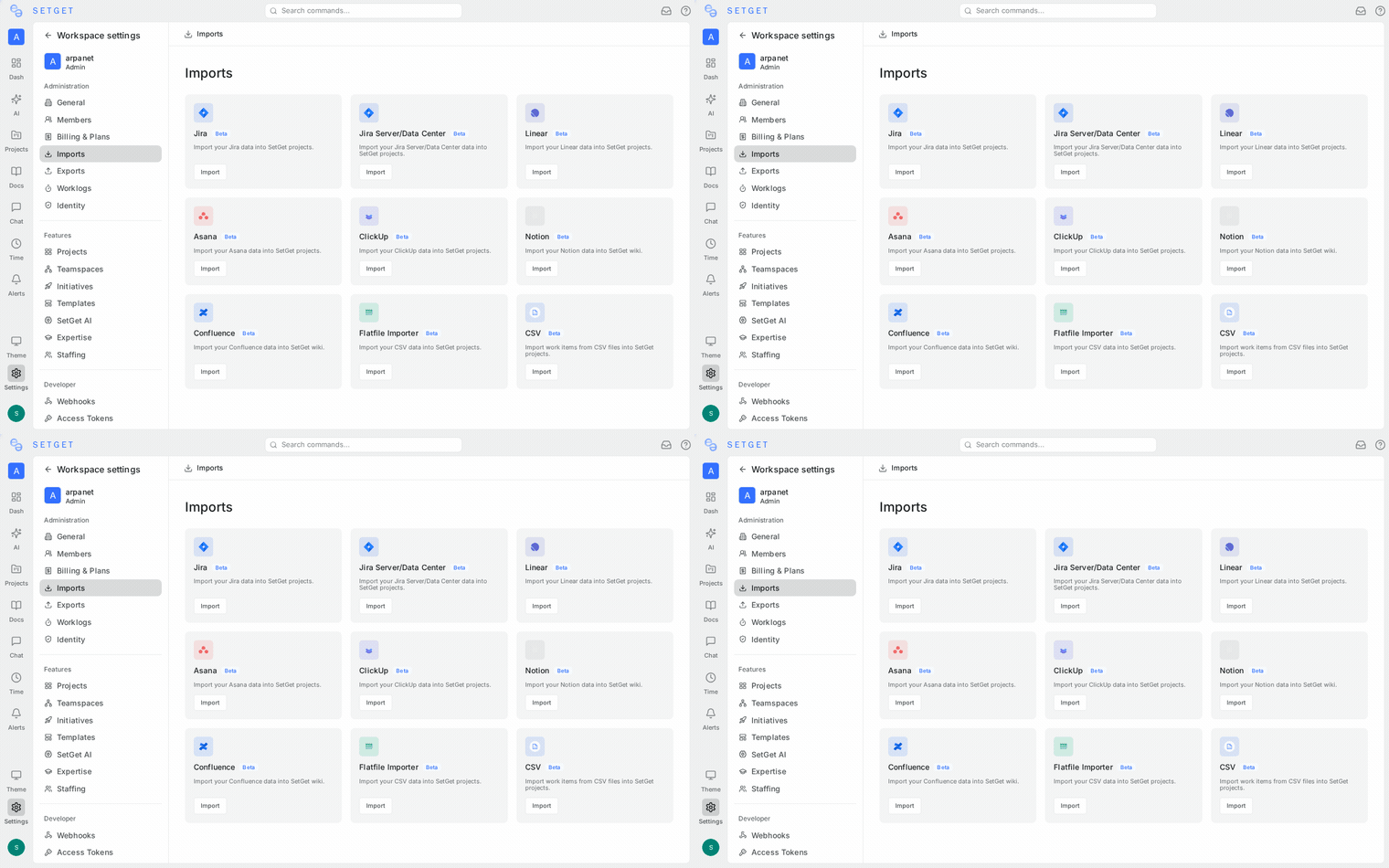
| Source | Work items | States | Priorities | Labels | Assignees | Comments | Pages |
|---|---|---|---|---|---|---|---|
| Jira | Yes | Yes | Yes | Yes | Yes | Yes | No |
| GitHub | Yes | Partial | No | Yes | Yes | Yes | No |
| Asana | Yes | Yes | Yes | Yes | Yes | Yes | No |
| Linear | Yes | Yes | Yes | Yes | Yes | Yes | No |
| ClickUp | Yes | Yes | Yes | Yes | Yes | No | No |
| Notion | Yes | Partial | Partial | Yes | No | No | Yes |
| Confluence | No | No | No | No | No | No | Yes |
| CSV | Yes | Yes | Yes | Yes | Yes | No | No |
Export formats
| Format | Best for |
|---|---|
| CSV | Spreadsheet analysis, further processing |
| Excel | Reports, sharing with non-technical stakeholders |
| JSON | Programmatic access, backup, migration to other tools |
Migration planning
Before importing, plan the migration to avoid surprises.
Step 1 -- Audit your source data
- Count the number of projects, work items, and pages you intend to migrate.
- Identify custom fields that may not have a direct counterpart in SetGet.
- Note any attachments or file assets that need to be migrated separately.
Step 2 -- Map your workflow
Each importer includes a field mapping step. Plan your mappings in advance:
| Source concept | SetGet equivalent |
|---|---|
| Status / State | Workflow state (Backlog, Unstarted, Started, Completed, Cancelled) |
| Priority | Priority (Urgent, High, Medium, Low, None) |
| Epic / Section / List | Module or label (depending on your workflow) |
| Sprint / Iteration | Cycle |
| Tag / Label | Label |
| Assignee | Member (matched by email) |
| Comment | Comment |
| Attachment | File asset (re-uploaded to SetGet storage) |
Step 3 -- Test with a small project
Import a single small project first to validate the mapping. Review the imported data for accuracy before proceeding with larger projects.
Step 4 -- Communicate with your team
Let your team know when the migration will happen. Coordinate a cutover date to avoid dual-entry (working in both the old tool and SetGet simultaneously).
TIP
Run the import during a low-activity period. If your team is actively creating work items in both systems, you may end up with duplicates.
Step 5 -- Post-import validation
After importing:
- Verify work item counts match the source.
- Spot-check titles, descriptions, and comments for formatting issues.
- Confirm state and priority mappings are correct.
- Check that assignees were matched to the right workspace members.
WARNING
Imports are additive. They do not overwrite existing data. Running the same import twice can create duplicate work items. Always verify before re-running.
Import permissions
Only workspace Admins and Owners can run imports. Members and guests cannot access the import interface.
Export permissions
| Scope | Who can export |
|---|---|
| Project | Project admins and workspace admins |
| Cycle | Project admins and workspace admins |
| Module | Project admins and workspace admins |
| View | Any member with access to the view |
Import vs. integration
SetGet offers both importers (one-time data migration) and integrations (ongoing bidirectional sync). Choose the right tool for your situation:
| Characteristic | Import | Integration |
|---|---|---|
| Direction | One-time, source to SetGet | Ongoing, bidirectional |
| Use case | Migrating away from another tool | Using both tools simultaneously |
| Data freshness | Snapshot at import time | Continuously synced |
| Available for | Jira, GitHub, Asana, Linear, ClickUp, Notion, Confluence, CSV | GitHub, GitLab, Slack, Sentry |
If you are fully migrating to SetGet, use the importer to bring all historical data over. If your team will continue using both tools, set up the integration instead.
Frequently asked questions
Can I import from multiple sources into the same project?
Yes. Run each importer targeting the same project. Work items from different sources coexist in the project. Use labels to distinguish the original source if needed.
What happens if I import the same data twice?
Importers do not detect duplicates across runs. Importing the same project twice creates duplicate work items. Delete the first batch before re-importing, or import into a fresh project.
How long does an import take?
Small projects (under 500 items) complete in under a minute. Large projects (5,000+ items) with attachments may take 10-30 minutes depending on file sizes and API rate limits.
Can I undo an import?
There is no automatic undo. To roll back, delete the imported work items manually or delete the project if it was created specifically for the import.
Are file attachments imported?
Jira and Asana importers support attachment import. Files are re-uploaded to SetGet storage. GitHub issues do not have native attachments (images in markdown are handled as inline content). CSV imports do not include attachments.
Can I schedule recurring imports?
No. Imports are one-time operations. For ongoing data flow, use integrations or webhooks.
Import checklist
Use this checklist before starting a migration:
- [ ] Identify the source tool and target SetGet project
- [ ] Count work items and estimate import duration
- [ ] Plan field mappings (states, priorities, labels)
- [ ] Ensure all team members are invited to the SetGet workspace (for assignee matching)
- [ ] Test with a small project first
- [ ] Communicate the migration timeline to the team
- [ ] Run the import during a low-activity period
- [ ] Validate imported data
- [ ] Confirm the team can find their work items in SetGet
- [ ] Decommission the old tool (when ready)