
Stickies
Stickies in SetGet are lightweight notes for capturing quick thoughts, ideas, reminders, and temporary information without the overhead of creating a formal work item or page. Think of them as digital sticky notes pinned to your workspace sidebar — always visible, instantly editable, and easy to discard when no longer needed.
Stickies are personal by default. They appear in your own sidebar and are not shared with the rest of the team unless explicitly moved to a shared context.
Why use stickies
- Capture ideas instantly — jot down a thought before it slips away, without interrupting your current workflow.
- Keep reminders visible — pin action items or notes to your sidebar where they stay in sight.
- Reduce noise — not every thought needs to be a work item. Stickies let you capture information without polluting the project backlog.
- Support brainstorming — during meetings or reviews, quickly note ideas for later evaluation.
- Temporary by design — stickies are meant to be created, used, and discarded. No pressure to keep them organized.
Create a sticky
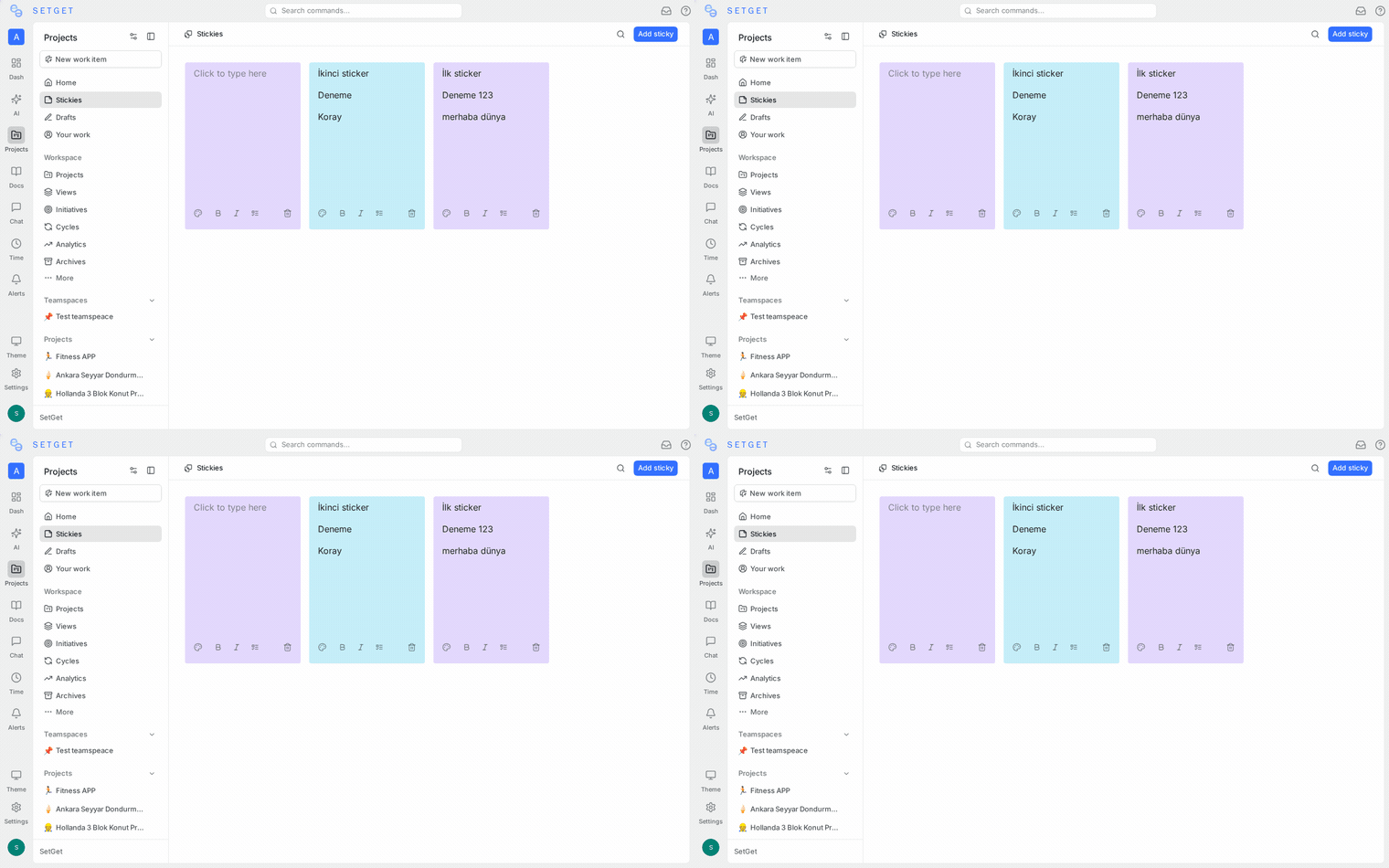
- Navigate to the Stickies section in the workspace sidebar.
- Click the + button to create a new sticky.
- Type your note in the text area.
- The sticky is saved automatically as you type.
Alternatively:
- Use the keyboard shortcut to create a sticky from anywhere in the workspace.
- Click New sticky from the quick-action menu.
TIP
Keep sticky text short and actionable. If a note grows beyond a few sentences, consider converting it to a page or a work item.
Edit a sticky
- Click on any sticky in the sidebar to open it.
- Edit the text directly — changes are saved automatically.
- Click outside the sticky to close the editor.
Stickies support basic text formatting:
| Feature | Description |
|---|---|
| Plain text | Default format for quick notes |
| Line breaks | Press Enter to add new lines |
| Links | Paste URLs and they become clickable |
Delete a sticky
- Hover over the sticky in the sidebar.
- Click the delete icon (trash can).
- The sticky is permanently removed.
WARNING
Deleting a sticky is permanent and cannot be undone. If the content is important, copy it to a page or work item before deleting.
Sticky layout
Stickies appear in the sidebar as a vertical list of cards. Each card shows:
- A preview of the sticky text (first few lines).
- The creation or last-edited timestamp.
- A color indicator (if color-coding is applied).
Color coding
You can assign a color to each sticky for visual organization:
- Open the sticky.
- Click the color selector.
- Choose from the available palette.
Suggested color conventions:
| Color | Suggested use |
|---|---|
| Yellow | General notes and ideas |
| Blue | Questions to follow up on |
| Green | Decisions made |
| Red | Urgent reminders |
| Purple | Meeting notes |
These are suggestions — use whatever convention works for you.
Reorder stickies
Drag and drop stickies in the sidebar to reorder them. Place the most important notes at the top for easy access.
Access from the sidebar
Stickies are accessible from the workspace sidebar:
- The Stickies section shows all your active stickies.
- Click any sticky to expand and edit it.
- The count of active stickies is displayed next to the section label.
- Stickies persist across sessions — they remain in your sidebar until you delete them.
Use cases
| Use case | Example |
|---|---|
| Meeting notes | "John mentioned the API rate limit needs to be 1000/min for enterprise tier" |
| Quick reminders | "Ask design team about the new icon set before Wednesday" |
| Ideas for later | "Could we add keyboard shortcuts for bulk operations?" |
| Reference info | "Staging server IP: 10.0.1.42, SSH port: 2222" |
| Decision log | "Decided to use WebSocket for real-time sync instead of polling" |
| Debug notes | "Bug only reproduces when user has more than 50 projects" |
| Brainstorming | "Possible names for the new feature: Automations, Workflows, Rules" |
Convert a sticky to a work item
When a sticky evolves into something actionable:
- Open the sticky.
- Click the Convert to work item action (if available).
- The sticky text becomes the work item title or description.
- Complete the remaining work item fields and save.
Alternatively, copy the sticky text manually, create a new work item, and paste it in.
Convert a sticky to a page
For stickies that grow into longer-form content:
- Open the sticky.
- Click the Convert to page action (if available).
- The sticky text is used as the initial page content.
- Continue editing in the full page editor.
Best practices
- Use stickies for ephemeral content — if a note will be relevant for more than a week, it probably belongs in a page, work item, or document.
- Review stickies regularly — spend a few minutes each week reviewing your stickies. Delete outdated ones, convert actionable ones to work items, and move reference information to permanent locations.
- Keep them short — a sticky should be a sentence or two, not a paragraph. Brevity is the point.
- Color code consistently — pick a color convention and stick with it so you can scan your stickies quickly.
- Do not use stickies for team communication — stickies are personal notes. Use comments on work items, pages, or chat for team discussions.
Related pages
- Pages — Full-featured documents and wikis
- Work Items — Formal task tracking
- Favorites — Bookmark items for quick access
- Chat — Real-time team communication