
Project Estimates
Estimates let your team size work items relative to each other so you can plan sprints, predict delivery timelines, and balance workloads. SetGet supports three estimation approaches — points, categories, and time — each suited to different team styles. Every project can use at most one estimation system at a time, and the system can be changed at any point.
Three estimation types
SetGet provides three fundamentally different ways to estimate work:
| Type | How it works | Best for |
|---|---|---|
| Points | Assign a numeric value from a defined scale. Supports Fibonacci, Linear, and Custom sequences. | Teams that want quantitative velocity tracking and capacity planning. |
| Categories | Assign a named size level (e.g., Small, Medium, Large). No numeric values. | Teams that prefer qualitative estimation without debating exact numbers. |
| Time | Assign an estimate in hours. | Teams that bill by the hour, need precise scheduling, or track time against estimates. |
Points estimation
Point-based estimation assigns a numeric value to each work item. SetGet offers three built-in point scales, plus the ability to define a custom scale.
Fibonacci
The Fibonacci sequence is the most popular estimation scale in agile teams. The increasing gaps between values force teams to think in relative terms rather than precise predictions.
| Point values |
|---|
| 1, 2, 3, 5, 8, 13, 21 |
Linear
A simple sequential scale for teams that prefer uniform increments.
| Point values |
|---|
| 1, 2, 3, 4, 5, 6, 7, 8, 9, 10 |
Custom
Define your own point values when the built-in scales do not fit your workflow.
- Go to Settings > Estimates.
- Select Points as the estimation type.
- Choose Custom.
- Enter your point values (comma-separated, e.g., "0.5, 1, 2, 4, 8, 16").
- Click Save.
TIP
Keep custom scales short — 5 to 8 values is ideal. If your team regularly debates between adjacent values, your scale has too many options.
Category estimation
Categories let teams estimate using named size buckets instead of numbers. This is sometimes called "T-shirt sizing."
Default categories
| Category | Typical meaning |
|---|---|
| XS | Trivial task, minimal effort |
| S | Small task, a few hours |
| M | Medium task, roughly a day |
| L | Large task, multiple days |
| XL | Very large task, consider breaking it down |
Custom categories
You can rename or replace the default categories to match your team's vocabulary:
- Go to Settings > Estimates.
- Select Categories as the estimation type.
- Edit the category names (e.g., "Tiny", "Small", "Medium", "Big", "Epic").
- Click Save.
WARNING
Category estimates are qualitative. They do not have numeric values, so SetGet cannot calculate velocity or generate numeric burndown charts. If you need quantitative metrics, use Points or Time instead.
Time estimation
Time-based estimation lets you assign a duration in hours to each work item.
- Go to Settings > Estimates.
- Select Time as the estimation type.
- Click Save.
When time estimation is enabled, each work item gets an Estimate field where members enter hours (e.g., 2, 4.5, 8, 16).
Benefits of time estimation
- Directly maps to scheduling and resource allocation.
- Easy to compare against actual time spent (when combined with time tracking).
- Useful for client-facing projects where hours are billed.
Drawbacks
- Teams tend to underestimate in hours, leading to inaccurate plans.
- Creates pressure to track exact hours rather than focus on delivering value.
- Less abstract than points, which can make estimation sessions more contentious.
Configure the estimation system
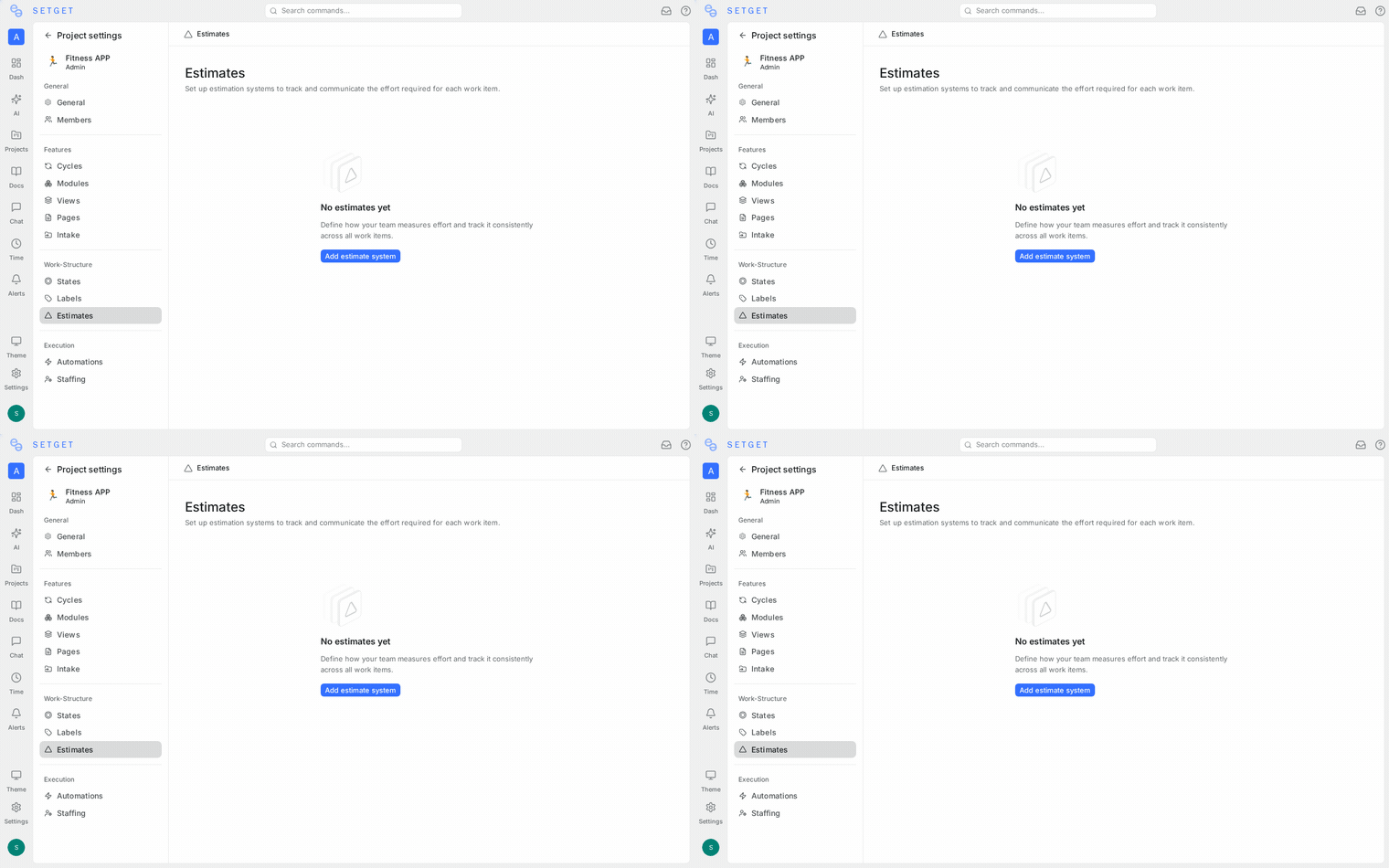
- Open the project Settings > Estimates.
- Choose the estimation type: Points, Categories, or Time.
- If you chose Points, select the scale (Fibonacci, Linear, or Custom).
- If you chose Categories, configure the category names.
- Click Save.
The estimation system takes effect immediately. All work items in the project can now have estimates assigned.
Change the estimation system
You can switch estimation systems at any time:
- Go to Settings > Estimates.
- Select a different type or scale.
- Click Save.
WARNING
Changing the estimation system clears existing estimates from all work items in the project. This action cannot be undone. Make sure your team is aligned before switching systems.
Disable estimates
If your team does not use estimation:
- Go to Settings > Estimates.
- Select None or disable the estimates feature.
- The estimate field is removed from work items.
Assign estimates to work items
Once an estimation system is configured, every work item has an Estimate field.
From the work item detail
- Open a work item.
- Click the Estimate field in the side panel.
- Select a value (for Points or Categories) or enter a number (for Time).
From list view
- Click the estimate cell for a work item in the list.
- Select or enter the estimate value.
Using bulk edit
- Select multiple work items.
- Click Bulk Edit.
- Set the Estimate value.
- Click Apply.
Estimates in cycles and modules
Estimates integrate deeply with cycles and modules to support capacity planning:
Cycle capacity
When you open a cycle with estimation enabled, SetGet shows:
| Metric | Description |
|---|---|
| Total estimate | Sum of all estimated values for items in the cycle (Points or Time) |
| Completed estimate | Sum of estimates for items in Completed states |
| Remaining estimate | Total minus completed |
| Scope change | Estimate added or removed after the cycle started |
Module progress
Modules display similar aggregate metrics:
- Total estimated effort across all items in the module.
- Breakdown by state group (Backlog, Unstarted, Started, Completed, Cancelled).
- Percentage of estimated work completed.
Burndown and velocity
When using point or time estimates, SetGet generates:
- Burndown charts — visualize how the remaining estimate decreases over the cycle.
- Velocity trends — track how many points or hours your team completes per cycle, averaged over recent cycles.
TIP
Velocity tracking requires at least 3 completed cycles with consistent estimation to produce useful trends. Give your team time to calibrate before relying on velocity projections.
Choosing the right estimation system
| Consider | Points | Categories | Time |
|---|---|---|---|
| Team is new to estimation | Good | Best | Avoid |
| Need velocity metrics | Yes | No | Yes |
| Bill clients by the hour | No | No | Yes |
| Want to avoid number debates | No | Yes | No |
| Need burndown charts | Yes | No | Yes |
| Team uses Scrum | Best | Good | Okay |
| Team uses Kanban | Optional | Good | Optional |
Best practices
- Estimate relative to each other — when using points, do not try to convert to hours. Compare items against reference stories your team has already completed.
- Re-estimate rarely — once an item is estimated and in progress, avoid changing the estimate. Track variance at the cycle level instead.
- Use planning poker — have each team member estimate independently, then discuss outliers. This reduces anchoring bias.
- Do not estimate everything — small chores, one-line fixes, and administrative items can skip estimation. Focus on items that represent meaningful effort.
- Calibrate over time — revisit your estimation accuracy each cycle and adjust your understanding of what each point or category means.
Related pages
- Manage Projects — Create and configure projects
- Project Settings — Full settings reference
- Planning with Cycles — Use estimates for cycle capacity planning
- Planning with Modules — Track estimated effort across modules
- Work Items Overview — Assign estimates to individual items