
Nested Pages
Pages in SetGet can be organized into a tree hierarchy. Any page can have child pages beneath it, creating a structured document tree that mirrors how teams naturally organize knowledge — by topic, area, or project phase. Nested pages appear in the sidebar as an expandable tree and provide breadcrumb navigation for easy orientation.
Creating a child page
There are two ways to create a page nested under an existing page.
From the sidebar
- In the Pages sidebar, hover over the page you want to use as the parent.
- Click the + icon that appears next to the page name.
- A new child page is created immediately, and the editor opens.
- Enter a title and begin writing.
From inside a page
- Open the parent page.
- Click the ... menu in the page header.
- Select Add child page.
- A new child page is created under the current page.
You can also convert any existing page into a child page by moving it. See Move pages below.
Page tree hierarchy
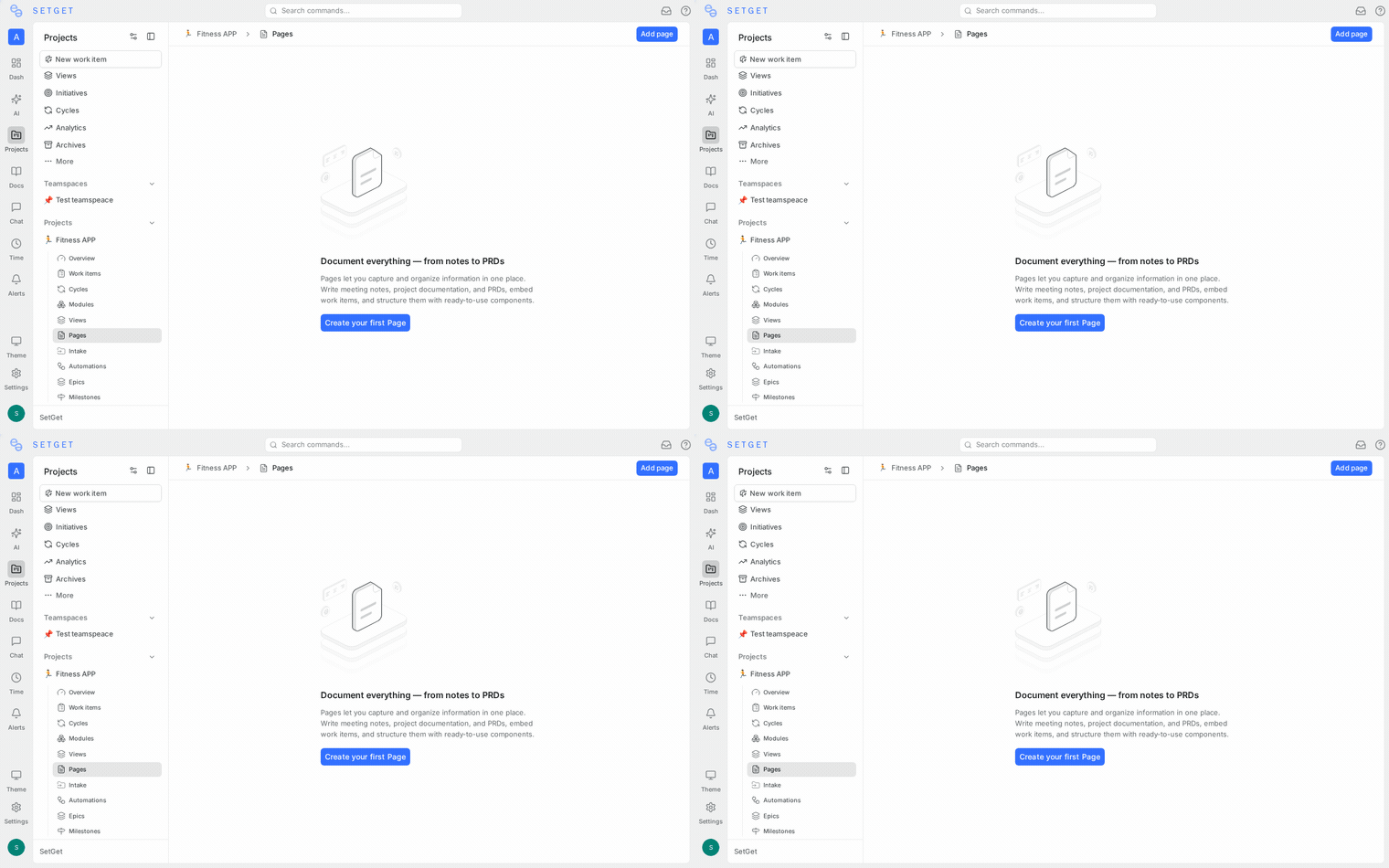
The page tree is displayed in the sidebar under the Pages section. It shows:
| Element | Description |
|---|---|
| Expand/collapse arrow | Click to show or hide child pages |
| Page icon | Visual indicator; customizable per page |
| Page title | Clickable link to open the page |
| Child count | Number of direct children (shown when collapsed) |
| Action buttons | + to add child, ... for context menu (visible on hover) |
Hierarchy depth
There is no hard limit on nesting depth. You can create child pages within child pages as deeply as needed. However, for readability and navigation:
TIP
Keep nesting to three or four levels. Deeply nested structures become harder to navigate and discover. If a section grows very deep, consider restructuring with sibling pages or splitting into a separate top-level page group.
Hierarchy rules
- A page can have zero or more children.
- A child page has exactly one parent.
- Moving a page to another parent removes it from the original location.
- Deleting a parent page also deletes all its children (with a confirmation warning).
- Archiving a parent page archives all its children.
Navigation between nested pages
Breadcrumb navigation
When you open a nested page, a breadcrumb trail appears at the top of the editor:
Project Name > Parent Page > Child Page > Current PageEach segment in the breadcrumb is clickable, allowing you to jump directly to any ancestor page or back to the project page list.
Sidebar tree
The sidebar tree provides persistent navigation:
- Click a page name to open it.
- Click the arrow to expand or collapse children.
- The current page is highlighted in the tree.
- Parent pages remain expanded when you navigate into a child.
Keyboard navigation
| Shortcut | Action |
|---|---|
↑ / ↓ | Move between pages in the sidebar tree |
→ | Expand the selected page's children |
← | Collapse the selected page or move to parent |
Enter | Open the selected page |
Reorder pages
You can change the order of pages within the same parent level using drag and drop.
- In the sidebar, hover over the page you want to move.
- Click and hold the drag handle (left of the page icon).
- Drag the page up or down within the same parent.
- A visual indicator shows where the page will be placed.
- Release to drop the page in its new position.
The new order is saved immediately and applies to all members of the project.
Move pages
To move a page to a different parent (or to the top level):
- In the sidebar, right-click the page or click its ... menu.
- Select Move to.
- A dialog appears showing the page tree.
- Select the target parent page, or select the project root to make it a top-level page.
- Click Move.
Move rules
| Scenario | Result |
|---|---|
| Move to a different parent | Page becomes a child of the new parent |
| Move to project root | Page becomes a top-level page |
| Move a parent page | All children move with it |
| Move to itself or its own child | Not allowed (circular reference) |
WARNING
Moving a page does not change its access level. If you move a private page under a public parent, the page remains private. Review access settings after moving pages if needed.
Flattening nested pages
If a hierarchy is no longer useful, you can flatten it:
- Move child pages out to the project root one at a time.
- Or delete the parent page — you will be prompted to either delete all children or move them up one level.
Best practices
- Start with a flat structure — add nesting only when a clear topic grouping emerges.
- Use descriptive titles — nested pages rely heavily on titles for navigation. A title like "Overview" is ambiguous without its parent context.
- Limit depth — aim for two to three levels. If you need more, reconsider the structure.
- Use wiki mode for large knowledge bases — if you are building a structured documentation site, enable wiki mode for richer navigation. See Wiki.
- Clean up regularly — archived or obsolete pages buried deep in the tree are hard to find. Archive or delete them promptly.
Related pages
- Manage Pages — Create and organize pages
- Wiki — Structured knowledge base mode
- Page Access Control — Permissions for nested pages
- Page Editor — Rich text editing guide