
Bulk Operations
When you need to update, move, or clean up many work items at once, doing it one by one is slow. SetGet provides bulk operations that let you select multiple items and apply changes in a single action. Bulk operations are available in List, Kanban, and Spreadsheet layouts.
Selecting multiple work items
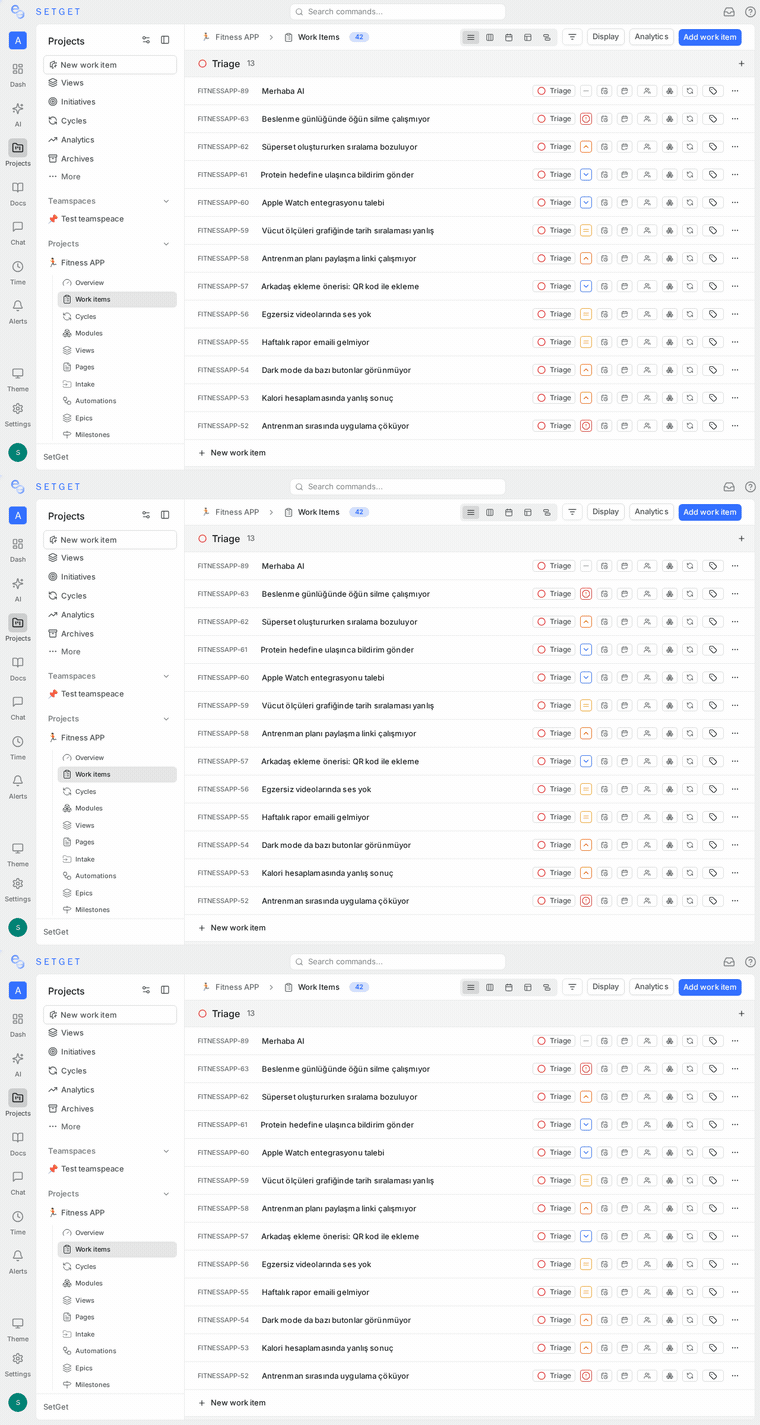
Checkbox selection
Every work item row in List and Spreadsheet layouts has a checkbox on the left side. Click the checkbox to select individual items. Each selected item is highlighted, and a bulk action toolbar appears at the bottom of the screen.
Range selection with Shift+click
To select a continuous range of work items:
- Click the checkbox on the first item in the range.
- Hold Shift and click the checkbox on the last item in the range.
- All items between the first and last (inclusive) are selected.
This works in both List and Spreadsheet layouts.
Select all
To select every work item in the current view:
- Click the checkbox in the column header (List or Spreadsheet layout).
- All visible work items are selected.
If the view has more items than the current page displays, a banner appears asking whether you want to select all items matching the current filters. Click Select all matching items to include items beyond the visible page.
Kanban selection
In Kanban layout, you cannot use checkboxes directly. Instead:
- Hold Cmd (Mac) or Ctrl (Windows/Linux) and click on individual cards to select them.
- Selected cards show a highlighted border.
- The bulk action toolbar appears once two or more cards are selected.
Bulk action toolbar
Once you have selected two or more work items, the bulk action toolbar appears at the bottom of the screen. It shows the number of selected items and the available actions:
| Action | Icon | Description |
|---|---|---|
| State | Circle | Change the workflow state for all selected items |
| Priority | Flag | Set the priority for all selected items |
| Assignee | Person | Add or replace assignees on all selected items |
| Label | Tag | Add labels to all selected items |
| Cycle | Refresh | Move all selected items into a cycle |
| Module | Grid | Move all selected items into a module |
| Archive | Box | Archive all selected items |
| Delete | Trash | Permanently delete all selected items |
Bulk update state
- Select the work items you want to update.
- Click the State button in the bulk action toolbar.
- Choose the target state from the dropdown (e.g., In Progress, Done, Cancelled).
- All selected items move to the new state immediately.
This is particularly useful for closing a batch of completed items or moving a group of items from Backlog into a sprint.
Bulk update priority
- Select the target work items.
- Click the Priority button in the toolbar.
- Choose the new priority level: Urgent, High, Medium, Low, or None.
- All selected items are updated.
Bulk update assignees
- Select the target work items.
- Click the Assignee button in the toolbar.
- A member picker appears. Select one or more members.
- Choose whether to Add the selected members (keeping existing assignees) or Replace all existing assignees with the new selection.
- Confirm the action.
TIP
Use the Add option when distributing items across a team without removing existing owners. Use Replace when reassigning a batch of items to a new owner entirely.
Bulk update labels
- Select the target work items.
- Click the Label button in the toolbar.
- Select one or more labels from the dropdown.
- The selected labels are added to all selected items. Existing labels on each item are preserved.
Bulk move to cycle
- Select the work items you want to plan into a cycle.
- Click the Cycle button in the toolbar.
- Choose the target cycle from the list of active and upcoming cycles.
- All selected items are added to that cycle.
If any of the selected items already belong to a different cycle, they are moved to the new cycle. A work item can only belong to one cycle at a time.
Bulk move to module
- Select the target work items.
- Click the Module button in the toolbar.
- Choose the target module from the list.
- All selected items are added to that module.
Unlike cycles, a work item can belong to multiple modules. The bulk move operation adds the module association without removing existing module memberships.
Bulk archive
- Select the work items you want to archive.
- Click the Archive button in the toolbar.
- Confirm the archive action in the dialog.
- All selected items are moved to the archive.
Archived items are hidden from the default work items list but remain accessible in the archive view. See Archive for details on viewing and restoring archived items.
Bulk delete
- Select the work items you want to delete.
- Click the Delete button in the toolbar.
- A confirmation dialog appears showing the number of items to be deleted.
- Click Delete to confirm.
WARNING
Bulk delete is permanent. Deleted items cannot be recovered. Their comments, activity history, and attachments are also removed. If you are unsure, use bulk archive instead.
Keyboard shortcuts for bulk actions
| Shortcut | Action |
|---|---|
| Click checkbox | Toggle selection on a single item |
| Shift + Click | Select a range of items between the last selected and the clicked item |
| Cmd/Ctrl + Click | Toggle selection on an individual item (Kanban) |
| Cmd/Ctrl + A | Select all visible items |
| Esc | Clear the current selection |
| Backspace / Delete | Delete selected items (with confirmation) |
Limitations
- Bulk operations apply the same value to all selected items. You cannot set different states for different items in a single bulk action.
- Bulk description editing is not supported. Descriptions must be edited individually.
- The maximum number of items in a single bulk operation depends on the current view. If you need to update more items than are displayed, use Select all matching items or apply the operation in batches.
- Undo is not available for bulk operations. Double-check your selection before confirming destructive actions.
Best practices
- Filter first, then bulk edit — Apply filters to narrow your view to the items you want to change, then use Select All for a clean batch.
- Prefer archive over delete — Unless items are truly garbage data, archiving preserves history and keeps your audit trail intact.
- Review the count — Before confirming any bulk action, check the selected item count in the toolbar to ensure you have not accidentally included extra items.
- Use range select for adjacent items — Shift+click is faster than clicking individual checkboxes when items are contiguous.
- Combine with views — Save a view that filters for items needing attention (e.g., unassigned items in the current cycle), then use bulk operations to triage them quickly.
Related pages
- Work Item Overview — Create, track, and manage work items
- Archive — Archive and restore work items
- Subscriptions — Notification behavior for changes
- Cycles — Plan work into time-boxed iterations
- Modules — Group work by feature or initiative
- Filters — Narrow your view before bulk editing