
Spreadsheet Layout
The Spreadsheet layout renders work items as rows in a full-width tabular grid where every property is a dedicated column. Unlike the List layout, which shows a curated set of columns, the Spreadsheet layout is designed for dense data editing — every property can be displayed, resized, sorted, and edited inline. It is the closest experience to working in a traditional spreadsheet while keeping all the benefits of SetGet's structured data model.
When to use the Spreadsheet layout
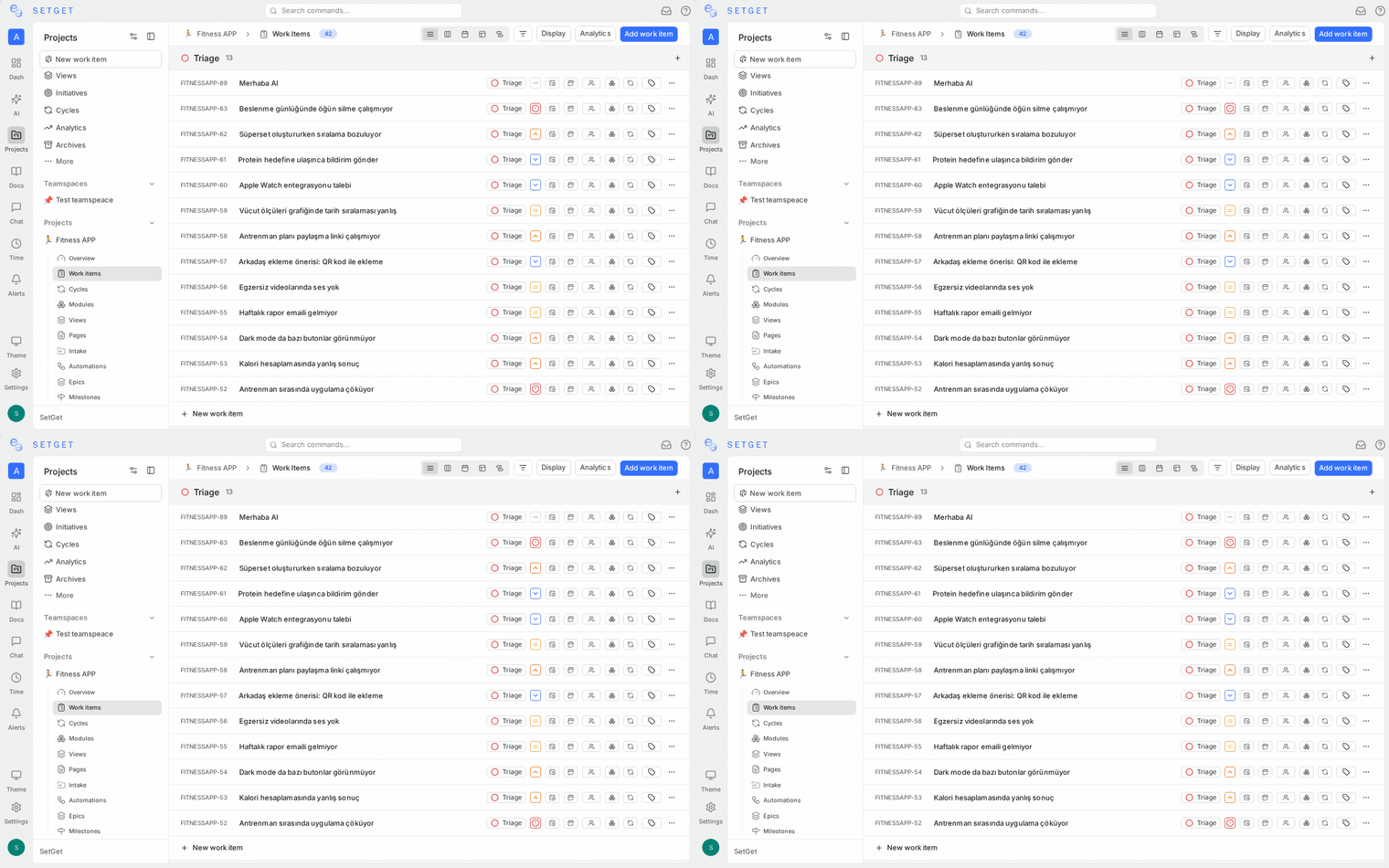
- You need to review or edit many properties across many items at once.
- You want to see all metadata at a glance without opening individual work items.
- You are performing a data cleanup or bulk property update.
- You prefer a spreadsheet-style interaction model.
For a more compact view with fewer columns, use List. For visual flow management, use Kanban.
Columns
Every work item property can be displayed as a column. The following columns are available:
| Column | Type | Editable inline |
|---|---|---|
| Identifier | Text (read-only) | No |
| Title | Text | Yes |
| State | Dropdown | Yes |
| Priority | Dropdown | Yes |
| Assignees | Member multi-select | Yes |
| Labels | Label multi-select | Yes |
| Due date | Date picker | Yes |
| Start date | Date picker | Yes |
| Estimate | Numeric input | Yes |
| Cycle | Dropdown | Yes |
| Module | Dropdown | Yes |
| Created date | Date (read-only) | No |
| Updated date | Date (read-only) | No |
| Created by | Member (read-only) | No |
Add columns
- Click the + icon at the right end of the header row.
- Select a property from the dropdown.
- The new column appears on the right side of the grid.
Remove columns
- Right-click any column header.
- Select Hide Column.
- The column is removed from the grid but the underlying data is unchanged.
Alternatively, use the Display Properties toggle in the toolbar to show or hide multiple columns at once.
Resize columns
- Hover over the right edge of a column header until the cursor changes to a resize handle.
- Click and drag left or right to adjust the column width.
- Release to set the new width.
Column widths are saved per view. If the total width of all columns exceeds the viewport, a horizontal scrollbar appears.
TIP
Double-click the resize handle to auto-fit the column width to the widest content in that column.
Sort by column
Click any column header to sort the entire grid by that column. Click again to toggle between ascending and descending order. The active sort column shows a directional arrow.
| Sort target | Ascending | Descending |
|---|---|---|
| Priority | None to Urgent | Urgent to None |
| State | Backlog to Done | Done to Backlog |
| Due date | Earliest first | Latest first |
| Start date | Earliest first | Latest first |
| Created date | Oldest first | Newest first |
| Updated date | Least recent first | Most recent first |
| Estimate | Smallest first | Largest first |
| Title | A to Z | Z to A |
Only one sort column is active at a time. To apply multi-level sorting, use the sort controls in Display Options.
Inline editing
Click any editable cell to activate its editor:
- Text cells (Title): Click to place the cursor. Edit the text and press Enter to save, or Escape to cancel.
- Dropdown cells (State, Priority, Cycle, Module): Click to open the dropdown. Select a value to save immediately.
- Multi-select cells (Assignees, Labels): Click to open the selector. Check or uncheck items. Click outside to close.
- Date cells (Due date, Start date): Click to open the date picker. Select a date to save immediately.
- Numeric cells (Estimate): Click to place the cursor. Type a number and press Enter to save.
Changes are saved immediately to the server. No explicit save button is needed.
Bulk editing in the Spreadsheet
The Spreadsheet layout supports efficient bulk property changes:
Select multiple rows
| Method | Action |
|---|---|
| Click checkbox | Select a single row |
| Shift + click | Select a range from the last selected row to the clicked row |
| Ctrl + click / Cmd + click | Toggle selection on individual rows without deselecting others |
| Ctrl + A / Cmd + A | Select all visible rows |
Apply bulk changes
Once multiple rows are selected, a bulk action toolbar appears above the grid:
- Choose a property to update (State, Priority, Assignees, Labels, Cycle, Module).
- Select the new value.
- The change is applied to all selected rows.
WARNING
Bulk changes are applied immediately and cannot be undone as a batch. Verify your selection before applying changes to many items.
Spreadsheet vs. List comparison
| Feature | List layout | Spreadsheet layout |
|---|---|---|
| Default columns | Curated subset (5-6 columns) | All properties available |
| Column resizing | Not supported | Supported |
| Horizontal scrolling | Rare | Common with many columns |
| Inline editing | Supported for visible properties | Supported for all columns |
| Grouping | Supported | Supported |
| Sub-grouping | Supported | Supported |
| Bulk selection | Checkbox + keyboard | Checkbox + keyboard + range select |
| Best for | Quick scanning | Data-intensive editing |
| Performance | Slightly faster (fewer columns) | Slightly heavier (more cells rendered) |
Choose List when you want speed and simplicity. Choose Spreadsheet when you want full control over every property.
Grouping and sub-grouping
The Spreadsheet layout supports the same grouping options as other layouts:
- Open Display Options.
- Set a Group by value (State, Priority, Assignee, Label, Cycle, Module, or None).
- Optionally set a Sub-group by value.
Groups appear as collapsible section headers within the grid. Click a group header to collapse or expand its rows.
Keyboard navigation
| Key | Action |
|---|---|
Tab | Move to the next cell in the row |
Shift + Tab | Move to the previous cell in the row |
Up / Down | Move between rows |
Enter | Activate editing on the focused cell |
Escape | Cancel editing and return to navigation mode |
Space | Toggle the checkbox for the focused row |
Creating items in the Spreadsheet
Add new items directly from the grid:
- Click the + Add Item row at the bottom of the grid (or at the bottom of a group section).
- Type a title in the Title cell and press Tab to move to the next column.
- Fill in additional properties inline.
- Press Enter to save the item.
This workflow feels natural for users accustomed to adding rows in a spreadsheet application.
Troubleshooting
Columns are too narrow to read
Double-click the column header resize handle to auto-fit the column width. You can also drag the resize handle manually.
Changes are not saving
Inline edits save immediately on blur or Enter. If changes appear to revert, check your network connection. The grid requires a live connection to the server to persist changes.
Horizontal scroll is difficult to control
Use Shift + mouse wheel to scroll horizontally. On trackpads, use the standard horizontal swipe gesture. You can also hide unnecessary columns to reduce the total grid width.
Performance tips
The Spreadsheet layout renders more DOM elements than other layouts because every property has its own cell. For large datasets:
- Hide columns you do not need to reduce rendering overhead.
- Apply filters to reduce the row count.
- Avoid sub-grouping on high-cardinality properties.
- The grid uses virtual scrolling, so only visible rows are rendered.
Related pages
- Views Overview — Save spreadsheet configurations as reusable views.
- List Layout — A lighter-weight row-based layout.
- Kanban Board — Visual column-based workflow management.
- Display Options — Configure grouping, ordering, and property visibility.
- Filters — Control which work items appear in the grid.
- Work Items Overview — Understand work item properties.