
Desktop Experience
SetGet is a browser-based application optimized for desktop use. No desktop application installation is required — you access SetGet through your web browser and get the full feature set, including keyboard shortcuts, multi-panel layouts, and browser notifications.
Recommended browsers
SetGet is tested and optimized for modern browsers. For the best experience, use one of the recommended browsers:
| Browser | Support level | Minimum version | Notes |
|---|---|---|---|
| Google Chrome | Recommended | 110+ | Best performance and compatibility |
| Microsoft Edge | Recommended | 110+ | Chromium-based, full support |
| Mozilla Firefox | Supported | 115+ | Full functionality |
| Safari | Supported | 16.4+ | Minor rendering differences |
| Brave | Supported | 1.50+ | Chromium-based, full support |
| Opera | Supported | 96+ | Chromium-based, full support |
WARNING
Internet Explorer is not supported. Older versions of the browsers listed above may work but are not tested and may have visual or functional issues.
Browser settings for best results
- Enable JavaScript — Required for all SetGet functionality.
- Allow cookies — Required for session management and authentication.
- Allow notifications — Required if you want browser notifications.
- Disable aggressive ad blockers — Some ad blockers may interfere with API requests. Whitelist your SetGet domain if you experience issues.
Keyboard shortcuts
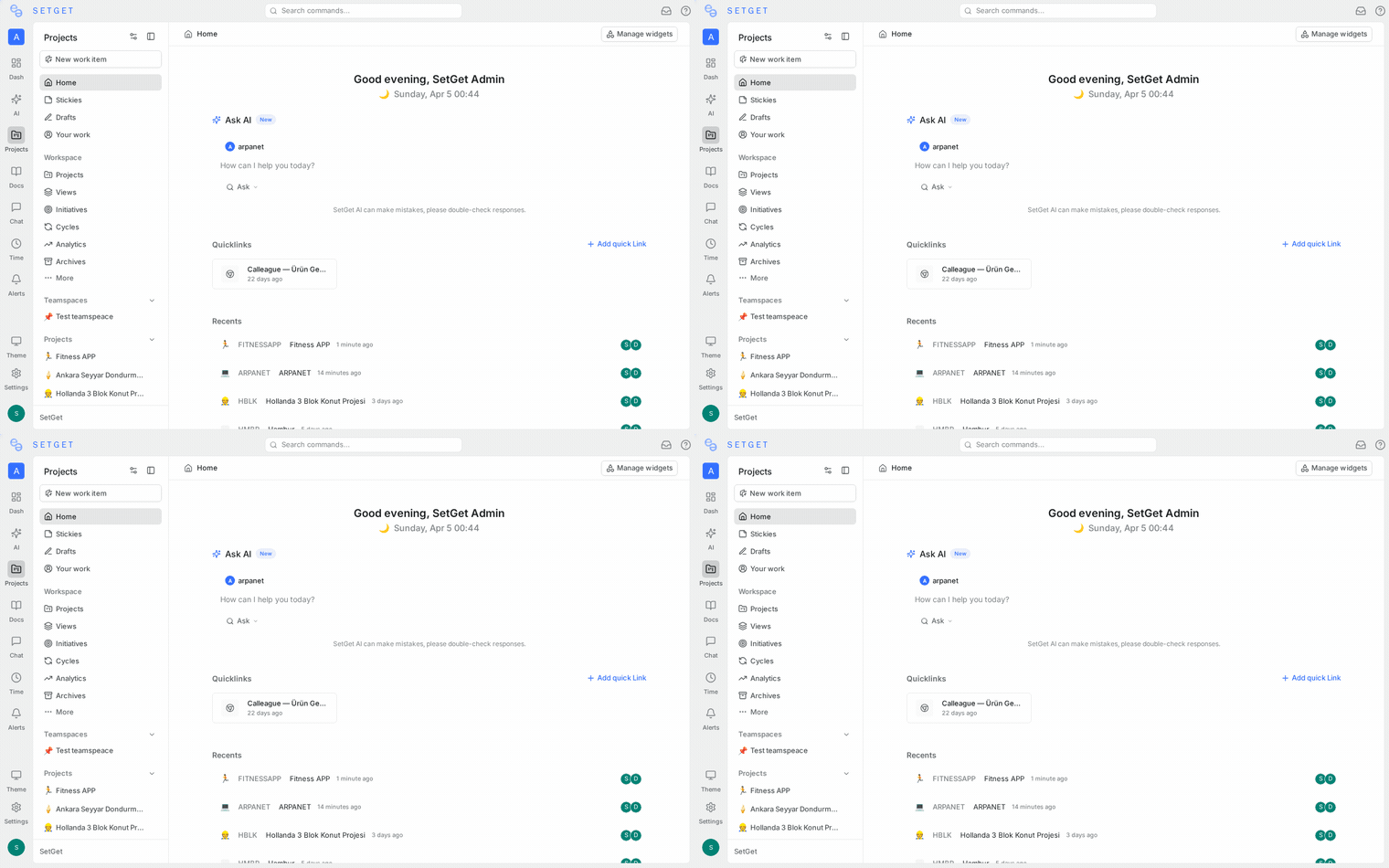
Desktop is where SetGet's keyboard shortcuts shine. Nearly every action can be performed without touching the mouse.
Essential shortcuts
| Shortcut | Action |
|---|---|
Ctrl+K / Cmd+K | Open command palette |
C | Create new work item |
D | Create new page |
Ctrl+/ / Cmd+/ | Show keyboard shortcuts help |
The command palette (Ctrl+K) is the fastest way to navigate. Type any project name, item ID, or action to jump directly to it.
Full reference: Keyboard Shortcuts
Sidebar layout optimization
The SetGet sidebar is your primary navigation tool on desktop. You can customize it to match your workflow.
Sidebar sections
| Section | Contents |
|---|---|
| Workspace | Workspace home, search, notifications, AI |
| Favorites | Pinned projects, views, and pages |
| Projects | All projects you have access to |
| Teamspaces | Team groupings and their projects |
Customizing the sidebar
- Collapse sections — Click the section header to collapse or expand it.
- Reorder favorites — Drag and drop items in the Favorites section.
- Pin projects — Right-click a project and select "Add to Favorites" for quick access.
- Collapse sidebar — Click the collapse button or press
[to minimize the sidebar and gain screen space. - Expand on hover — When collapsed, hover over the sidebar edge to temporarily expand it.
TIP
If you work primarily in one or two projects, pin them to Favorites and collapse the full project list. This keeps the sidebar clean and focused.
Multi-monitor setup
SetGet works well across multiple monitors. Here are patterns that teams find effective:
Recommended layouts
| Layout | Description |
|---|---|
| Main + Detail | Main monitor: board/list view. Second monitor: work item detail |
| Work + Chat | Main monitor: work items. Second monitor: chat panel |
| Project + Analytics | Main monitor: project view. Second monitor: analytics dashboard |
| Planning + Documentation | Main monitor: cycle/module planning. Second monitor: pages/wiki |
Using multiple browser windows
Open SetGet in multiple browser windows or tabs to view different areas simultaneously:
- Right-click any link in SetGet and select Open in New Window.
- Drag the new window to your second monitor.
- Both windows share the same session — changes in one are reflected in the other.
TIP
Use Ctrl+Click (or Cmd+Click) to open any item in a new tab without leaving your current view.
Browser tab management
For users who prefer tabs over windows:
- Pin the SetGet tab — Right-click the tab and select "Pin" to prevent accidental closure.
- Use tab groups — Group your SetGet tabs in Chrome or Edge for better organization.
- Bookmark key views — Save direct URLs to frequently used views, cycles, or modules.
Notifications
Desktop browser notifications keep you informed without switching to the SetGet tab.
Enabling browser notifications
- Open SetGet in your browser.
- Go to Profile > Notification Preferences.
- Enable Browser Notifications.
- When your browser prompts for permission, click Allow.
Notification types
| Type | Description |
|---|---|
| Assignment | A work item is assigned to you |
| Mention | Someone @mentions you in a comment or page |
| State change | An item you own or follow changes state |
| Comment | A new comment on an item you follow |
| Chat message | New message in a channel or direct message |
| Cycle reminder | Upcoming cycle start or end |
Notification preferences
You can configure which notifications appear as browser alerts versus only in the notification inbox:
- Browser alert — Shows a system notification outside the browser window.
- Inbox only — Appears in the SetGet notification inbox but no browser popup.
- Off — Notification is not generated at all.
WARNING
If notifications are not appearing, check that your browser's notification permission for SetGet is set to "Allow." Also verify that your operating system's Do Not Disturb mode is not active.
Performance tips
To get the best desktop performance:
- Close unused tabs — Each SetGet tab maintains a WebSocket connection and consumes memory.
- Use a modern browser — Chromium-based browsers generally offer the best performance.
- Clear cache periodically — If the app feels sluggish, clear your browser cache and reload.
- Hardware acceleration — Ensure hardware acceleration is enabled in your browser settings for smoother rendering.
- Stable internet — SetGet uses WebSockets for real-time updates. An unstable connection may cause frequent reconnects.
Progressive Web App (PWA)
SetGet can be installed as a Progressive Web App for a more native-like experience:
- Open SetGet in Chrome or Edge.
- Click the Install icon in the address bar (or go to browser menu > Install SetGet).
- SetGet opens in its own window without browser chrome.
PWA benefits:
- Dedicated window and taskbar icon
- Faster launch
- Cleaner interface without browser UI
- Works with desktop keyboard shortcuts
Related pages
- Mobile App — SetGet on iOS and Android
- Keyboard Shortcuts — Full keyboard shortcuts reference
- Account Settings — Profile and notification preferences
- Troubleshooting — Common desktop issues and solutions