
Initiatives
An initiative in SetGet is a top-level strategic objective that spans multiple projects within a workspace. While epics track large efforts within a single project, initiatives sit above projects to represent organization-wide goals — a company rebrand, a platform-wide performance overhaul, or a new market expansion.
Initiatives connect day-to-day project work to the bigger picture. Leadership can see how individual project progress rolls up into strategic outcomes, and individual contributors can see how their work contributes to organizational goals.
Why use initiatives
- Strategic alignment — connect individual project work to top-level business objectives so every team member understands the "why."
- Cross-project visibility — track progress across multiple projects from a single view, without switching between projects.
- Portfolio management — compare initiatives side by side to understand resource allocation and identify bottlenecks.
- Executive reporting — provide stakeholders with a high-level dashboard that shows how strategic goals are progressing.
- Prioritization at scale — when multiple projects compete for resources, initiatives clarify which work matters most.
Create an initiative
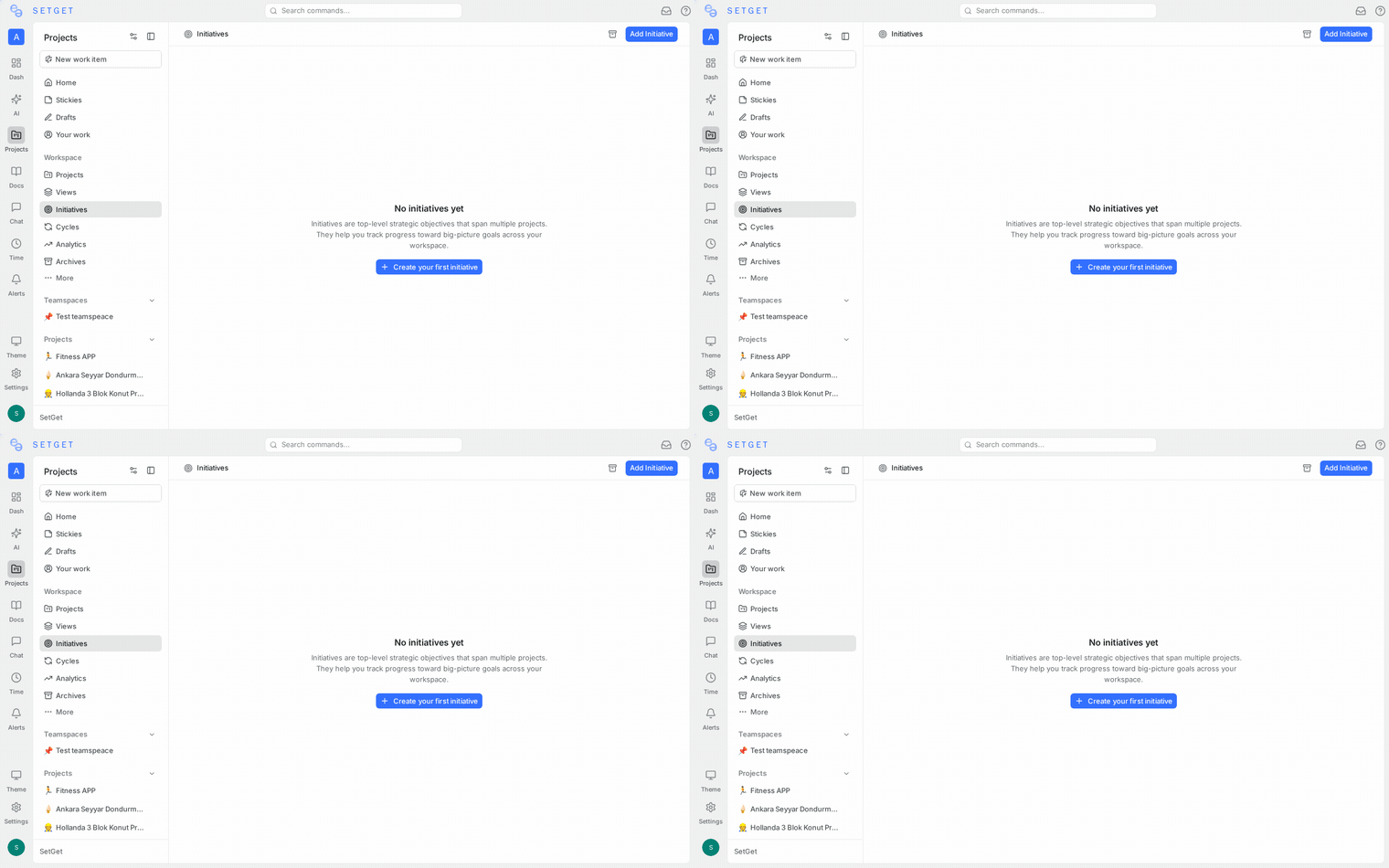
- Navigate to the Initiatives section from the workspace sidebar.
- Click the + button or the Create Initiative action.
- Fill in the initiative details:
| Field | Required | Description |
|---|---|---|
| Name | Yes | A clear name for the objective, such as "Enterprise Readiness" or "Mobile-First Experience" |
| Description | No | Context including business rationale, success metrics, timeline expectations, and stakeholders |
| Start date | No | When work on the initiative begins |
| End date | No | Target completion date |
| Lead | No | The person accountable for the initiative |
| Priority | No | Relative priority compared to other initiatives |
- Click Create to save.
TIP
Initiatives should map to real business goals. If you cannot explain why an initiative matters to the organization, it may be better represented as an epic within a single project.
Link projects and work
Initiatives gain value when they are connected to the projects and work items that contribute to their completion.
Link projects
- Open the initiative.
- Click Add project in the linked projects section.
- Search for and select projects within the workspace.
- The project and its progress metrics are now visible from the initiative view.
Link epics
- Open the initiative.
- Click Add epic to connect specific epics from linked projects.
- Epics appear as children of the initiative, providing more granular progress tracking.
Link work items
For direct tracking, you can link individual work items to an initiative:
- Open any work item in a linked project.
- Use the Initiative field in the properties panel to associate it with the initiative.
Track initiative progress
SetGet aggregates progress from all linked projects, epics, and work items to provide a unified view:
| Metric | Description |
|---|---|
| Overall progress | Weighted completion percentage across all linked work |
| Project breakdown | Per-project progress bars showing individual contributions |
| Epic progress | Status of each linked epic |
| Work items summary | Total, completed, in-progress, and remaining counts |
| Timeline status | On-track, at-risk, or behind schedule based on dates and progress |
The progress bar on the initiative list gives leadership an immediate sense of where each strategic objective stands.
Progress by project
The initiative detail view includes a project-by-project breakdown:
- Each linked project shows its own progress bar and key metrics.
- Drill into any project to see its epics, modules, cycles, and work items.
- Identify which projects are progressing well and which need attention.
Initiative dashboard
The initiative dashboard provides a portfolio-level view of all active initiatives:
- Progress overview — all initiatives listed with progress bars, dates, and status indicators.
- Timeline view — initiatives displayed on a horizontal timeline showing overlap and sequencing.
- Lead assignment — see who is responsible for each initiative.
- Priority ranking — initiatives ordered by priority to clarify organizational focus.
- At-risk highlighting — initiatives that are behind schedule or have stalled are flagged for attention.
The dashboard is the primary surface for leadership reviews, quarterly planning, and organizational alignment meetings.
Manage initiatives
Edit an initiative
- Open the initiative and click the ... menu.
- Select Edit.
- Modify name, description, dates, lead, or priority.
- Save changes.
Archive an initiative
- Open the initiative and click the ... menu.
- Select Archive.
- The initiative is hidden from the active list but retained for historical reference.
Delete an initiative
- Open the initiative and click the ... menu.
- Select Delete and confirm.
Deleting an initiative removes the strategic grouping but does not affect the linked projects or work items.
WARNING
Only workspace admins and the initiative lead can delete an initiative. Consider archiving instead to preserve the historical record.
Use cases
| Use case | Example |
|---|---|
| Product launch | "V2.0 Launch" — links the frontend redesign project, API migration project, and documentation project under one objective |
| Compliance | "SOC 2 Certification" — tracks security hardening, audit logging, and documentation across engineering and operations projects |
| Platform migration | "Cloud Migration" — coordinates infrastructure, backend, and frontend projects with a shared deadline |
| Market expansion | "APAC Launch" — aligns localization, payments integration, and regional marketing across multiple teams |
| Performance | "Sub-Second Load Times" — connects frontend optimization, CDN setup, and backend caching work across projects |
Best practices
- Limit active initiatives — most organizations should have three to seven active initiatives at any time. Too many dilutes focus.
- Assign a lead — every initiative needs a single accountable person who drives progress and removes blockers.
- Define measurable outcomes — include quantifiable success criteria in the description (e.g., "reduce page load time to under 1 second").
- Review monthly — initiatives move slowly by design. Monthly reviews are typically sufficient to track progress and adjust course.
- Connect to epics — link epics rather than individual work items when possible. This provides the right level of granularity for strategic tracking.
- Use the dashboard — make the initiative dashboard a regular part of leadership meetings and planning sessions.
- Archive completed initiatives — keep the active list focused on current strategic priorities.