
Command Palette (Power K)
The command palette — referred to internally as Power K — is a keyboard-driven interface for executing actions anywhere in SetGet. Instead of navigating through menus and clicking buttons, you type what you want to do and the palette finds the matching command. It is the fastest way to navigate, create, configure, and search within your workspace.
Opening the command palette
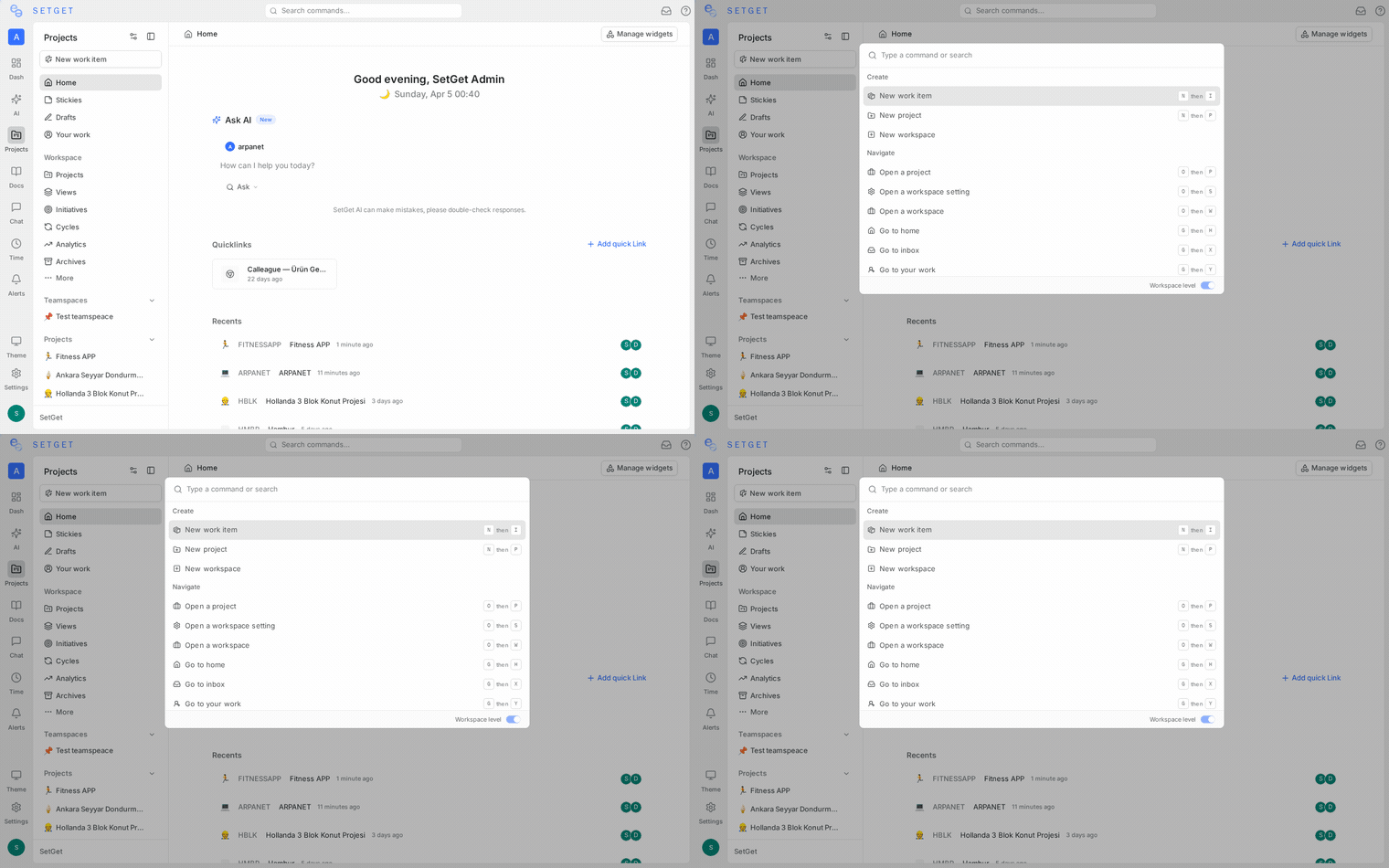
Press Ctrl+K on Windows and Linux, or Cmd+K on macOS. The palette opens as a centered modal overlay with an input field that is immediately focused.
You can also open it by clicking the search icon at the top of the sidebar.
Press Escape or click outside the modal to close it.
How it works
- Press
Ctrl+K/Cmd+Kto open the palette. - Start typing a command, entity name, or action keyword.
- Results appear in real time, filtered and ranked by relevance.
- Use arrow keys to highlight a result and press
Enterto execute it.
The palette combines two capabilities in one interface:
- Search — find work items, projects, pages, members, and other entities by name
- Commands — execute actions like creating items, changing settings, or switching views
When you type text, the palette determines whether you are looking for an entity or a command and shows the appropriate results.
Available commands
The command palette recognizes a wide range of actions. Below is a reference of the most common commands:
Navigation commands
| Command | Action |
|---|---|
| Go to Home | Navigate to the workspace homepage |
| Go to Inbox | Open the notification inbox |
| Go to Your Work | Open the unified assigned items view |
| Go to [project name] | Navigate to a specific project |
| Go to Settings | Open workspace settings |
| Go to Analytics | Open workspace analytics |
| Go to Archives | Open archived items |
Typing any project name directly also navigates to it.
Creation commands
| Command | Action |
|---|---|
| Create Work Item | Open the new work item modal |
| Create Project | Start the project creation flow |
| Create Page | Create a new page document |
| Create Cycle | Create a new cycle in the current project |
| Create Module | Create a new module in the current project |
| Create View | Create a new saved view |
Theme and appearance
| Command | Action |
|---|---|
| Switch to Light Theme | Apply the light color scheme |
| Switch to Dark Theme | Apply the dark color scheme |
| Switch to System Theme | Follow the operating system preference |
Workspace actions
| Command | Action |
|---|---|
| Invite Member | Open the member invitation dialog |
| Open Settings | Navigate to workspace settings |
| Switch Workspace | Open the workspace selector |
Context-aware commands
The command palette adapts its suggestions based on where you are in the application:
- Inside a project — project-specific commands appear first (e.g., "Create Cycle" for the current project, "Go to Modules" within the project).
- On a work item — commands like "Change Status", "Change Priority", "Assign to", and "Add Label" appear at the top.
- On the homepage — navigation commands and creation shortcuts are prioritized.
This context awareness means you see the most relevant commands first without needing to type the full command name.
Keyboard navigation
The palette is fully keyboard-driven:
| Key | Action |
|---|---|
Up Arrow / Down Arrow | Move highlight between results |
Enter | Execute the highlighted command or open the selected result |
Escape | Close the palette |
Backspace (on empty input) | Return to the previous command scope |
Tab | Autocomplete the highlighted suggestion |
TIP
You do not need to type exact command names. Typing "new item" will match "Create Work Item", and typing "dark" will match "Switch to Dark Theme". The palette uses fuzzy matching.
Search within the palette
When your input does not match a command, the palette falls back to workspace-wide search, showing matching work items, projects, pages, members, cycles, and modules. This means Ctrl+K is the only shortcut you need to memorize — it handles both commands and search.
See Global Search for details on search behavior, indexed entities, and filtering.
Shortcut cheat sheet
These keyboard shortcuts work globally (when no text input is focused) and are independent of the command palette:
| Shortcut | Action |
|---|---|
Ctrl+K / Cmd+K | Open command palette |
C | Create new work item |
H | Go to Home |
[ | Toggle sidebar |
Ctrl+/ / Cmd+/ | Show keyboard shortcut reference |
Ctrl+B / Cmd+B | Toggle sidebar |
WARNING
Keyboard shortcuts are suppressed when a text input, text area, or rich text editor is focused to prevent accidental triggering. Click outside the input or press Escape first.
Customizing shortcuts
Currently, keyboard shortcuts use fixed bindings and cannot be remapped. Custom keybinding support is planned for a future release.
Tips for effective use
- Learn a few commands first — start with "Create Work Item" and "Go to [project]". Once those are muscle memory, add more commands to your repertoire.
- Use partial words — you do not need to type full command names. Typing "cre iss" is enough to match "Create Work Item".
- Stay on the keyboard — the command palette is designed so you never need to touch the mouse. Open it, type, arrow, enter.
- Use it for navigation — instead of clicking through the sidebar to reach a deeply nested project, type the project name in the palette and press Enter.
- Context matters — if you are inside a project, project-specific commands appear first, saving you keystrokes.
Frequently used workflows
| Workflow | Steps |
|---|---|
| Create a work item in a specific project | Ctrl+K > type "create work item" > select project > fill details |
| Switch to dark mode | Ctrl+K > type "dark" > press Enter |
| Jump to a project | Ctrl+K > type project name > press Enter |
| Open workspace settings | Ctrl+K > type "settings" > press Enter |
| Find a team member | Ctrl+K > type their name > press Enter |
Related pages
- Global Search — Detailed search capabilities
- Sidebar Navigation — Browse workspace sections visually
- Workspace Homepage — Your personalized landing page
- Work Items — Creating and managing work items