
Dashboards
Dashboards in SetGet are customizable canvases where you arrange widgets to visualize the metrics that matter most to your team. Instead of navigating between analytics pages, build a dashboard that shows everything in one place: cycle burndowns, priority distributions, assignee workloads, completion trends, and more.
Creating a dashboard
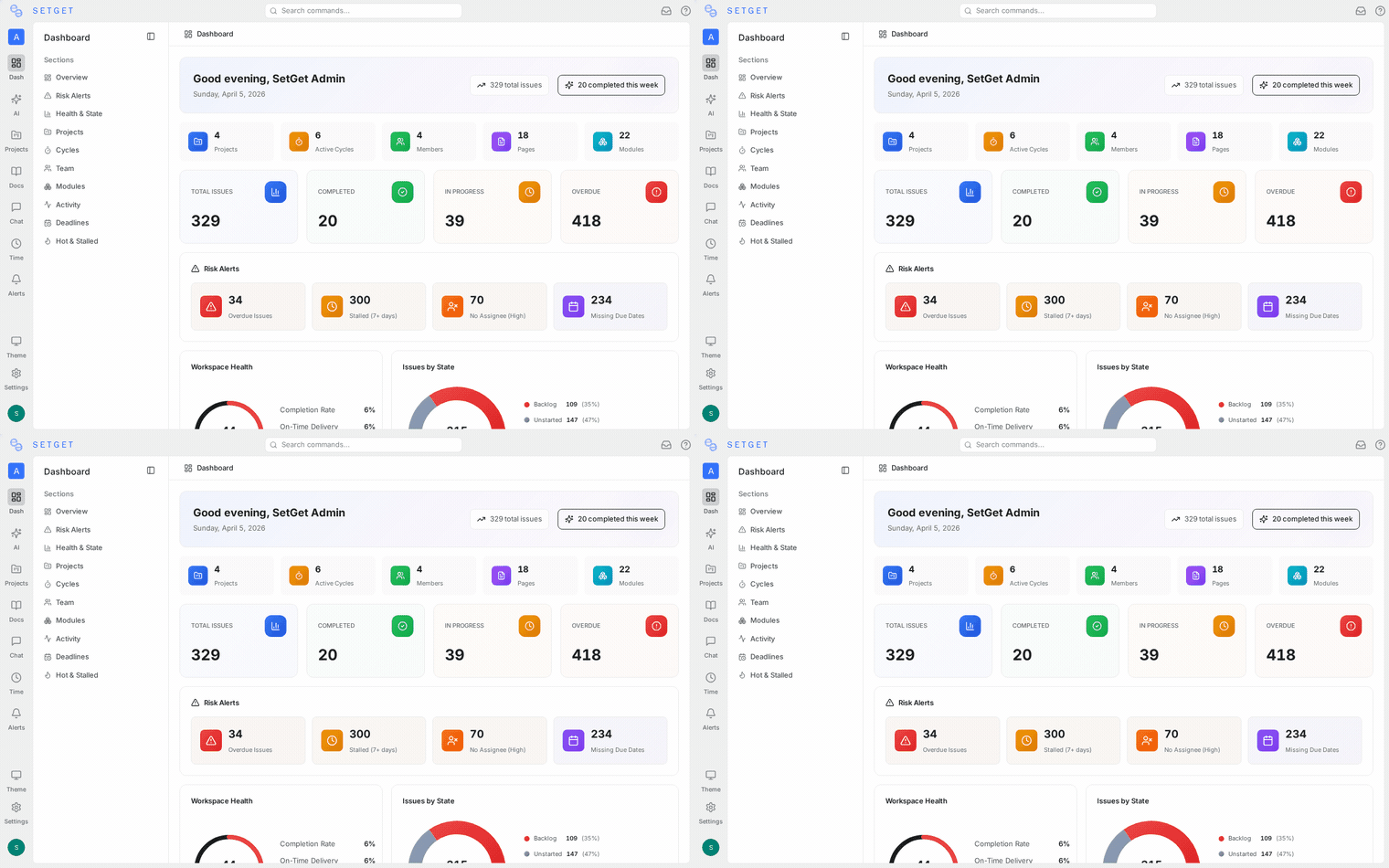
- Go to Analytics > Dashboards in the workspace sidebar.
- Click Create Dashboard.
- Enter a name and optional description.
- Click Create.
The new dashboard opens in edit mode, ready for widgets.
Dashboard properties
| Property | Description |
|---|---|
| Name | The dashboard title (shown in the sidebar and share links) |
| Description | Optional description of the dashboard's purpose |
| Visibility | Private (only you) or shared (visible to workspace members) |
| Favorited | Whether it appears in your favorites section |
Adding widgets
Widget types
| Widget type | Description | Use case |
|---|---|---|
| Bar chart | Horizontal or vertical bars comparing values | State distribution, priority comparison |
| Pie chart | Proportional breakdown of a dimension | Label distribution, assignee share |
| Line chart | Trend over time | Created vs. completed, backlog size trend |
| Area chart | Stacked area showing cumulative values | Cumulative flow diagram |
| Number | Single large metric | Total open items, overdue count |
| Table | Tabular data with sorting | Top assignees, items by project |
| Burndown | Cycle burndown with ideal and actual lines | Sprint tracking |
| Burnup | Cumulative items completed over time | Release progress |
| Activity feed | Recent activity events | Team activity monitor |
| Custom query | Free-form query with custom grouping | Advanced analytics |
Adding a widget
- In edit mode, click Add Widget.
- Select the widget type.
- Configure the widget (see below).
- Click Save Widget.
- The widget appears on the dashboard.
Configuring a widget
Every widget has a configuration panel with these common settings:
| Setting | Description |
|---|---|
| Title | Widget title displayed above the chart |
| Data source | Workspace or specific project(s) |
| Dimension | What to group by (state, priority, assignee, label, etc.) |
| Metric | What to count (work items, estimates, time logged) |
| Filters | Narrow data (state, priority, assignee, label, date range) |
| Date range | Time period for the data |
| Chart style | Visual appearance options (colors, legend position) |
Number widget configuration
| Setting | Description |
|---|---|
| Metric | The number to display (e.g., total open items) |
| Comparison | Show change vs. previous period (e.g., "+12 from last week") |
| Color rules | Green/yellow/red thresholds for visual alerts |
Table widget configuration
| Setting | Description |
|---|---|
| Columns | Select which fields to display |
| Sort | Default sort column and direction |
| Row limit | Maximum number of rows (default: 10) |
| Grouping | Group rows by a dimension |
Burndown widget configuration
| Setting | Description |
|---|---|
| Cycle | Select the cycle to track |
| Show ideal line | Toggle the ideal burndown line |
| Show scope changes | Indicate when items were added or removed |
Dashboard layout
Grid system
Dashboards use a responsive grid system. Widgets can be:
- Resized -- drag the bottom-right corner to change the widget's width and height.
- Repositioned -- drag the widget header to move it to a different position.
- Full width -- stretch a widget across the entire dashboard width.
Layout modes
| Mode | Description |
|---|---|
| Edit mode | Resize, reposition, add, remove, and configure widgets |
| View mode | Read-only view with live data |
Toggle between modes with the Edit / Done button in the top toolbar.
Responsive behavior
On smaller screens, widgets stack vertically in a single column. The grid reflows automatically.
Widget data refresh
Widgets display live data. The refresh behavior:
| Trigger | Description |
|---|---|
| Page load | Data is fetched when the dashboard is opened |
| Manual refresh | Click the refresh icon on the dashboard toolbar |
| Auto-refresh | Configurable interval (off, 1 min, 5 min, 15 min, 30 min) |
TIP
Enable auto-refresh for dashboards displayed on a wall monitor or shared screen during standups.
Sharing dashboards
Visibility settings
| Visibility | Who can see it |
|---|---|
| Private | Only the dashboard creator |
| Workspace | All workspace members with analytics access |
| Public link | Anyone with the link (read-only, no SetGet account required) |
Changing visibility
- Open the dashboard.
- Click the Share button.
- Select the visibility level.
- For public links, copy the generated URL.
WARNING
Public links expose dashboard data to anyone with the URL. Do not use public links for dashboards containing sensitive project data.
Collaborating on dashboards
Shared dashboards can be edited by:
| Role | Can view | Can edit |
|---|---|---|
| Owner (creator) | Yes | Yes |
| Admin | Yes | Yes |
| Member | Yes | No (can duplicate and edit the copy) |
| Guest | No | No |
Members who want to customize a shared dashboard can click Duplicate to create their own copy.
Favoriting dashboards
Click the star icon on any dashboard to add it to your favorites. Favorited dashboards appear at the top of the dashboard list for quick access.
Duplicating a dashboard
- Open the dashboard.
- Click the ... menu.
- Select Duplicate.
- The copy is created with "(Copy)" appended to the name.
- Edit the copy to customize it.
Deleting a dashboard
- Open the dashboard.
- Click the ... menu.
- Select Delete.
- Confirm.
Deleting a shared dashboard removes it for all viewers. Consider transferring ownership or changing visibility to private before deleting.
Example dashboards
Sprint standup dashboard
| Widget | Type | Configuration |
|---|---|---|
| Cycle burndown | Burndown | Current active cycle |
| Today's updates | Activity feed | Last 24 hours, current project |
| Blocked items | Table | Filter: state = "Blocked" |
| Assignee workload | Bar chart | Dimension: assignee, metric: in-progress count |
Executive overview dashboard
| Widget | Type | Configuration |
|---|---|---|
| Total open items | Number | All projects, open states |
| Completed this week | Number | All projects, completed in last 7 days |
| Priority distribution | Pie chart | All projects, by priority |
| Project comparison | Table | Columns: project, open, in progress, done this week |
| Trend: created vs. completed | Line chart | Last 30 days, all projects |
Team workload dashboard
| Widget | Type | Configuration |
|---|---|---|
| Items per assignee | Bar chart | By assignee, in-progress only |
| Overdue items | Table | Filter: past due date, not completed |
| Average completion time | Number | Last 30 days |
| Completion trend | Line chart | Last 90 days, by week |
Permissions
| Role | Can create | Can view shared | Can edit shared | Can delete own |
|---|---|---|---|---|
| Owner | Yes | Yes | Yes | Yes |
| Admin | Yes | Yes | Yes | Yes |
| Member | Yes | Yes | No | Yes |
| Guest | No | No | No | No |